
How to Make a Program Run on Startup in Windows 11


 3 min. read
  Published on

Making a program run on startup in Windows ensures your essential apps load the moment you sign in, and in this guide, we’re going to show you how to do that on Windows 11.
Table of contents
How to make a program run on startup?
You can manage startup apps through Settings, the Startup folder, or Task Manager.
1. Use the Settings app
Settings provides the fastest way to enable startup apps.
- Select Start and open Settings.
- Choose Apps.
- Pick Startup.

- Scroll the list.
- Select the app.
- Turn the toggle on.
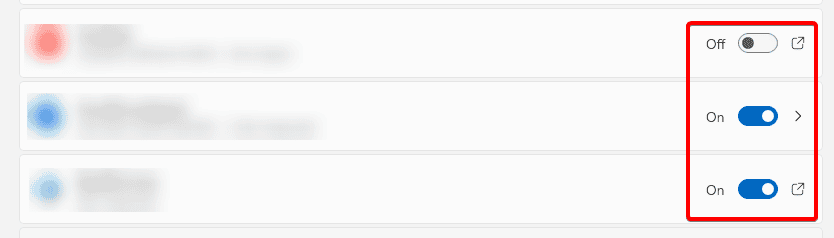
- Restart your PC.
- Sign in and confirm the app launches.
You can also follow the steps in this guide on how to change startup programs in Windows 11 .
2. Add a program to the Startup folder
The Startup folder loads any shortcut placed inside it when you sign in.
1. Open the Startup folder
- Press Windows + R.
- Enter the folder path
shell:startup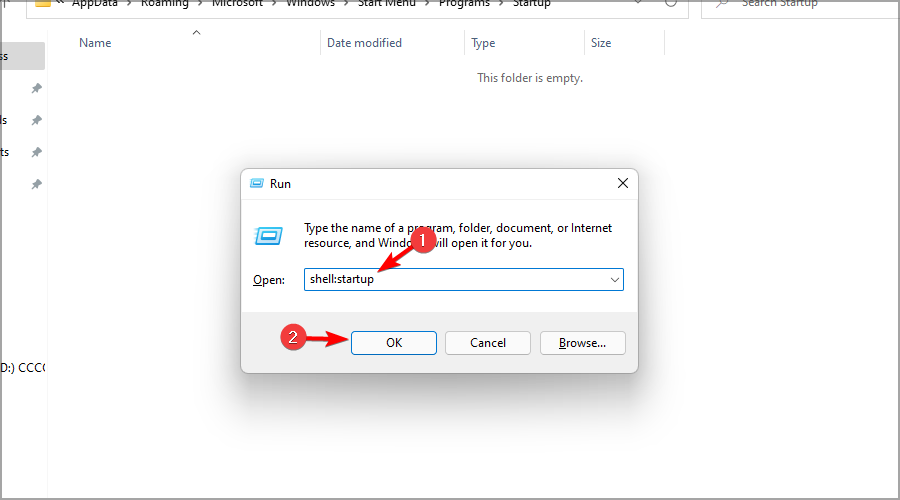
- Open the folder.
2. Create a shortcut
- Right click inside the folder.
- Select New, then Shortcut.

- Browse to the app.
- Create the shortcut.
3. Test the result
- Restart the PC.
- Sign in.
- Confirm the program launches.
You can learn more about this method in the guide on how to open the Startup folder in Windows 11.
3. Enable a startup app using Task Manager
Task Manager makes it easy to enable or disable startup programs.
1. Open Task Manager
- Right click Start.
- Select Task Manager.
- Select More details if needed.
- Open the Startup tab.

- Find the app. Right click it. Select Enable.
- Restart to verify.
4. Schedule a program to run at logon
Task Scheduler allows custom triggers and advanced startup behavior.
- Search for Task Scheduler.
- Select Create Basic Task.

- Choose When I log on.
- Move forward.
- Select Start a program.
- Browse to the app.
- Confirm.
Tips to control startup programs
Stay organized to keep boot times short.
- Limit heavy apps.
- Check startup impact.
- Disable rarely used software.
- Avoid unnecessary updaters.
FAQs
It may require admin rights, use a broken shortcut, or be blocked by security tools.
Yes, especially desktop apps that rely on shortcuts or scheduled tasks.
Disable it in Settings or Task Manager, or remove its shortcut from the Startup folder.
Yes, Windows provides these controls so you can manage performance and boot behavior.
Conclusion
You can set apps to run at startup through Settings, the Startup folder, Task Manager, or Task Scheduler, and you can troubleshoot problems with missing entries using a guide on fixing a Startup folder that is not working in Windows 11 .

Read our disclosure page to find out how can you help Windows Report sustain the editorial team. Read more



Improve this guide




User forum
0 messages