
mGBA Emulator PC Setup: How to Play GBA Games on Windows


 3 min. read
  Published on

mGBA emulator PC users want a fast and simple way to play Game Boy titles with reliable performance. This guide shows you how to download, install, and configure mGBA on Windows in a few quick steps.
Table of contents
How to Use mGBA Emulator on PC?
1. Get the Official Installer
Follow these steps to download the emulator safely:
- Visit the official mGBA website.
- Select the Windows version from the downloads section.
- Click the installer or portable ZIP link.

- Save the file to your PC.
2. Install or Extract mGBA
You can install the program or run it as portable software:
- Open the downloaded installer or ZIP file.
- Run the installer and choose a folder, or extract the ZIP to a new folder.
- Launch the mGBA executable.
After installation, you can check this comparison of the best GBA emulators for PC to see how mGBA stacks up against alternatives.
3. Add Your Game Files
You can open GBA or GB ROMs in seconds:
- Click File on the top menu.
- Select Load ROM.

- Choose your .gba or .gb ROM file.
- Start playing immediately.
4. Configure Keyboard or Controller Input
You can customize controls for comfort:
- Select Tools from the menu bar.
- Click Settings.
- Choose Controllers.

- Assign keys or gamepad buttons.
- Save your layout.
If you plan to expand your setup with other systems, you can learn more about full system support through this guide to Windows console emulators.
5. Adjust Video Settings
You can enhance visuals with filters:
- Click Tools.
- Select Settings.
- Open the Video tab.
- Pick a filter like xBRZ or HQ2x.
- Enable VSync for smoother gameplay.
6. Use Save States
You can save anytime:
- Click File.
- Select Save State.
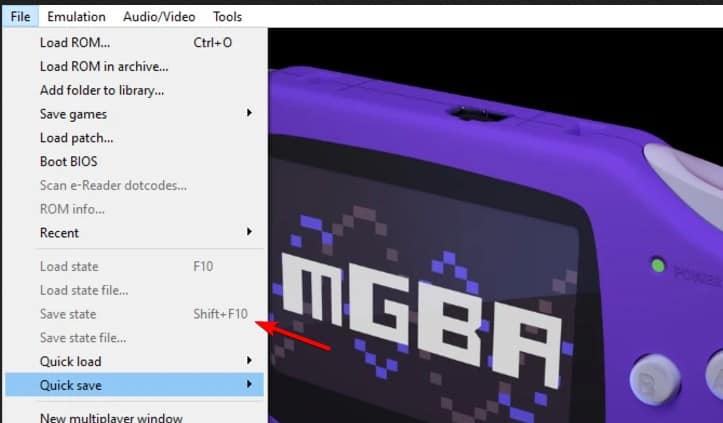
- Choose a slot.
- Load it later with Load State.
What is mGBA?
mGBA works as a lightweight Game Boy Advance and Game Boy emulator that offers smooth performance on Windows. It supports ROM loading, visual enhancements, controller mapping, and quick save features. If you want to compare mGBA with other options, you can explore the full list of Game Boy emulators for PC.
FAQs
Yes, mGBA stays safe as long as you download it from the official website.
Yes, the emulator supports Xbox, PlayStation, and most third party gamepads.
Yes, mGBA supports GBA, GB, and GBC titles.
Your PC may run background apps or use outdated drivers. Close unnecessary programs and update your graphics drivers to improve speed.
Conclusion
mGBA offers a clean interface, fast performance, and broad compatibility, which makes it one of the easiest emulators to set up on Windows. You can load ROMs quickly, map controls to match your style, enhance graphics, and save progress whenever you need. Use the linked guides in this article to explore more emulator options and build a complete retro gaming setup around your mGBA emulator PC.

Read our disclosure page to find out how can you help Windows Report sustain the editorial team. Read more



Improve this guide




User forum
0 messages