
How to show the Microsoft Edge Favorites toolbar


 4 min. read
  Updated on

Most browsers include a favorites (or bookmarks) toolbar that you can select to include at the top of their windows. A bookmarks bar includes bookmarked sites and usually sits just below the URL bar for more direct page access. Edge also includes a Favorites bar, but it’s not selected by default. This is how you can show the Favorites bar in MS Edge.
Table of contents
How to enable the Favorites bar in Microsoft Edge?
- First, click the Settings and more button to open the menu shown directly below.
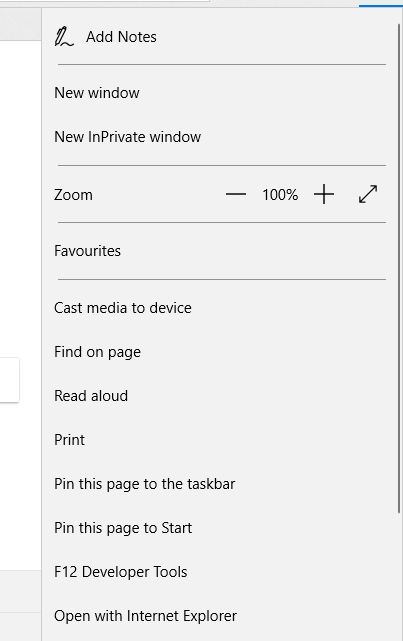
- Click Settings to open the options in the snapshot below.
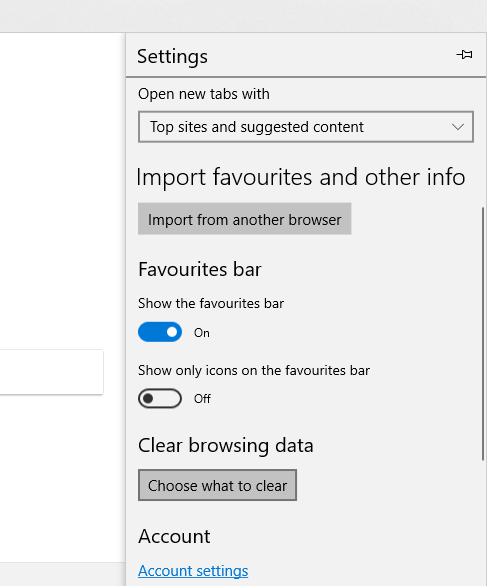
- Then toggle the Show the favorites bar option on.
- The Favorites bar will not include any webpage shortcuts if there’s nothing in the Favorites Bar folder. If there are no page shortcuts on the bar, press the Hub button to open the Hub as below.
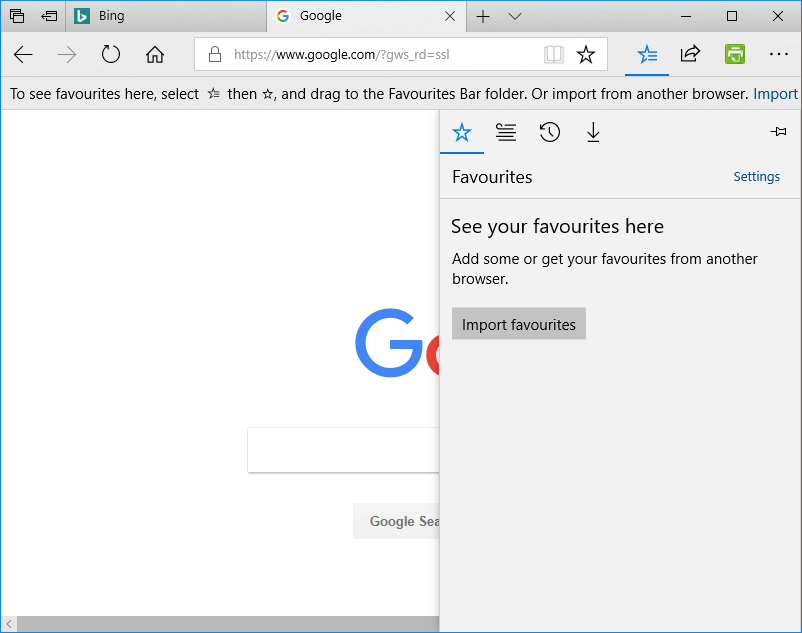
- Click the Favorites button to open a list of bookmarked sites.
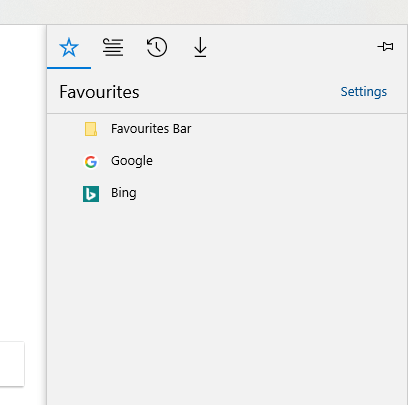
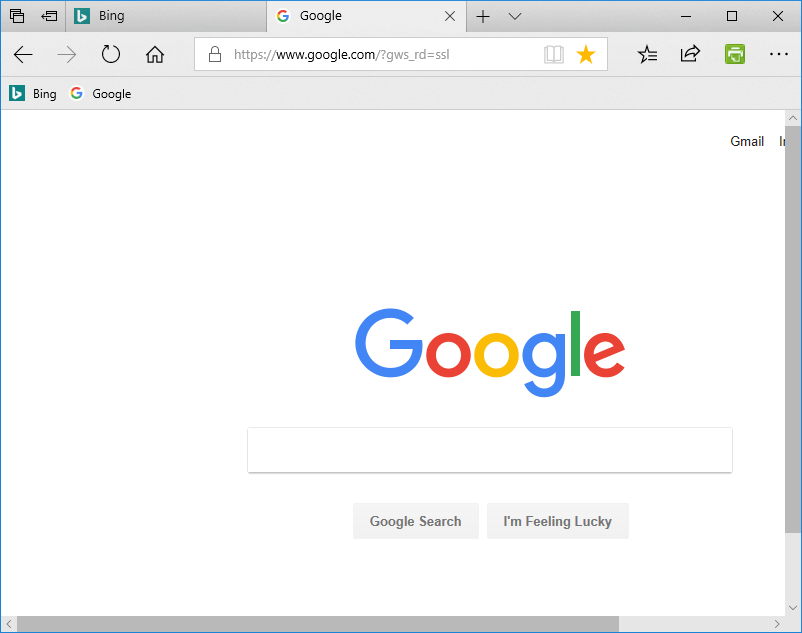
- Now drag the listed page bookmarks into the Favorites Bar folder by holding the left mouse button and moving them. The bookmarks will then appear on the bar as in the shot below.
Remove Text From the Favorites Toolbar
Bookmarked pages on the Favorites bar include the website titles. You can remove the text from the bookmarks to free up some space on the bar. This is how you can remove the text on the bar so that it includes just page icons.
- Click the Settings and more button.
- Select Settings on the menu to open further options.
- Then select the Show only icons on the favorites bar option to remove the text from the bar as shown below.
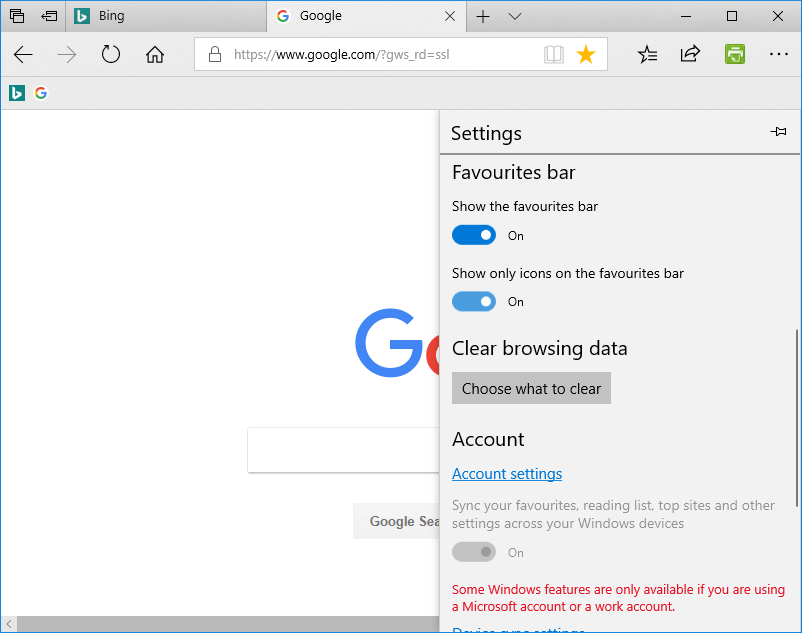
- Note that you can also select a Show icons only option by right-clicking a page shortcut on the Favorites bar and selecting Show icons only.
Add Folders to the Favorites bar
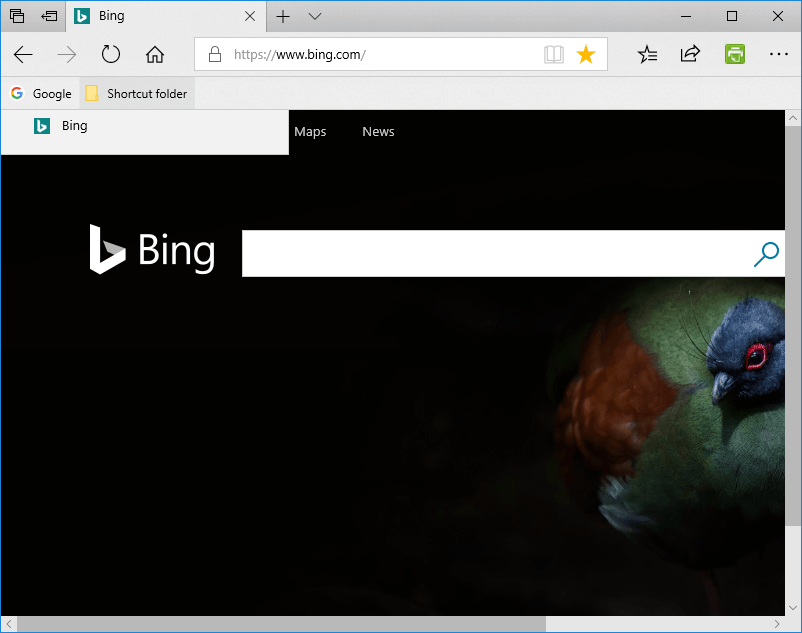
You can also add folders to Edge’s Favorites bar. Then you can drag page shortcuts into the folders, but still open them from the Favorites bar. To add a new folder, right-click the Favorites bar and select Create new folder. Enter a title for the folder, and then drag some page shortcuts into it. You can open the shortcuts by clicking a folder on the Favorites bar and selecting a page to open.
Import Bookmarks to Your Favorites Toolbar
Like most browsers, Edge also includes an option to import bookmarks from other browsers. Then you can move those page bookmarks onto the Favorites bar. You can import bookmarks from Chrome and Internet Explorer to Edge as follows.
- Press the Settings and more button to open Edge’s menu.
- Select the Settings option, and press the Import from another browser button.
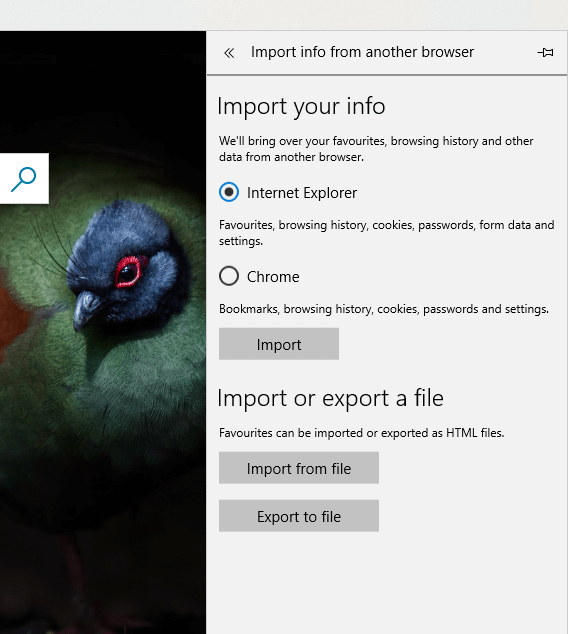
- Then you can select to import bookmarks by selecting the Chrome or Internet Explorer options.
- If you’ve exported bookmarks as HTML, press the Import from file button, select file and click Open.
FAQ
Open Edge, click the three dot menu, choose Settings, select Appearance, and turn on the Show favorites bar option.
Yes. In the Show favorites bar dropdown, pick Only on new tabs to keep it hidden while browsing other pages.
You may be in full screen mode. Press F11 to exit it, then check the Appearance settings again.
Yes. You can drag bookmarks to reorder them or right click any item to rename, delete, or add folders for better organization.
You can also restore missing favorites when Edge fails to show them by using this guide on how to recover lost favorites in Microsoft Edge.
Now that you’ve got the Favorites bar up in Edge, you can open sites more directly from there instead of opening favorite websites via the Hub. As you can expand the Favorites bar with additional folder menus, it’s probably a better alternative to the Favorites sidebar on the Hub.
Power users who want to tweak hidden features can follow this guide on how to enable Edge flags and unlock extra customization options in Microsoft Edge.
To learn more about bookmarks, we have a great guide on how to find Microsoft Edge bookmarks location, so don’t miss it for more information.

Read our disclosure page to find out how can you help Windows Report sustain the editorial team. Read more



Improve this guide



User forum
0 messages