
Microsoft Will Let Users Completely Disable the Copilot Key


 3 min. read
  Published on
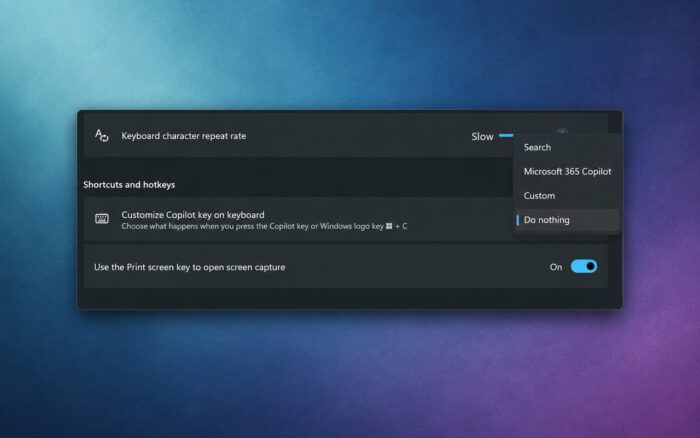
Copilot key customization in Windows 11 will soon give users more control over the dedicated keyboard button, including a new option that disables it completely.
Microsoft is testing a “Do nothing” setting that prevents the Copilot key from performing any action when users press or hold it.
Microsoft Adds a Copilot Key Kill Switch
The new option has appeared in Windows Insider preview builds and effectively works as a kill switch for the Copilot key.
Once users select “Do nothing,” Windows ignores all input from the dedicated button. Pressing or holding the key will no longer open Copilot or trigger another command.
The setting should help users who frequently press the key accidentally or have no interest in using Microsoft’s AI assistant.
Users Can Assign the Copilot Key to Other Apps
Microsoft also plans to let users reassign the Copilot key to another application.
Users could map the button to AI services such as ChatGPT or Claude instead of Microsoft Copilot. Windows will also support remapping it to the Right Ctrl or Context menu key.
The customization controls will appear under keyboard settings in the Settings app.
Microsoft has gradually expanded the available remapping options after initially introducing the Copilot key as a dedicated shortcut for its AI assistant.
Microsoft Responds to Keyboard Complaints
On some keyboards, manufacturers added the Copilot key by replacing the physical Right Ctrl or Context menu key.
That change created problems for users who depended on those buttons for keyboard shortcuts, accessibility tools, or established workflows.
Microsoft acknowledged the complaints and said it wanted to give users more flexibility when configuring the key.
The new “Do nothing” option offers the most direct solution by allowing users to disable the button without installing third-party remapping software.
Right Ctrl Remapping May Affect Some Shortcuts
Microsoft has also warned about a potential issue when users remap the Copilot key to Right Ctrl.
Some shortcuts that combine Left Shift + Right Ctrl may behave inconsistently when users press the remapped Copilot key.
Microsoft recommends using the physical Right Shift key for those shortcut combinations until it resolves the problem.
When Will Copilot Key Customization Arrive?
Microsoft currently limits the “Do nothing” option to Windows Insider preview builds.
The company has not announced an exact public release date, but broader Copilot key customization should arrive through a future Windows 11 update.
The change comes as Microsoft continues adding Copilot features across Windows and Microsoft 365 despite limited adoption among paid Microsoft 365 customers.
Microsoft 365 Copilot is reportedly struggling to gain traction, with paid adoption still below 5%. Despite the slow uptake, Microsoft continues to expand Copilot across its products, including bringing it to Outlook Classic and restoring the “Ask Copilot About This File” feature in File Explorer Home.
Via Windows Latest

Read our disclosure page to find out how can you help Windows Report sustain the editorial team. Read more



Improve this guide



User forum
0 messages