
OMEN Gaming Hub is Not Updating: 3 Ways to Fix it
Resetting the app to the default can help with this problem


 2 min. read
  Updated on

For many users, OMEN Gaming Hub is not updating, and this can prevent you from using the app since you keep getting a message that you need to update. However, you can fix this by following these steps.
What can I do if OMEN Gaming Hub is not updating?
1. Reset the app
- Open the Start menu and select Settings.
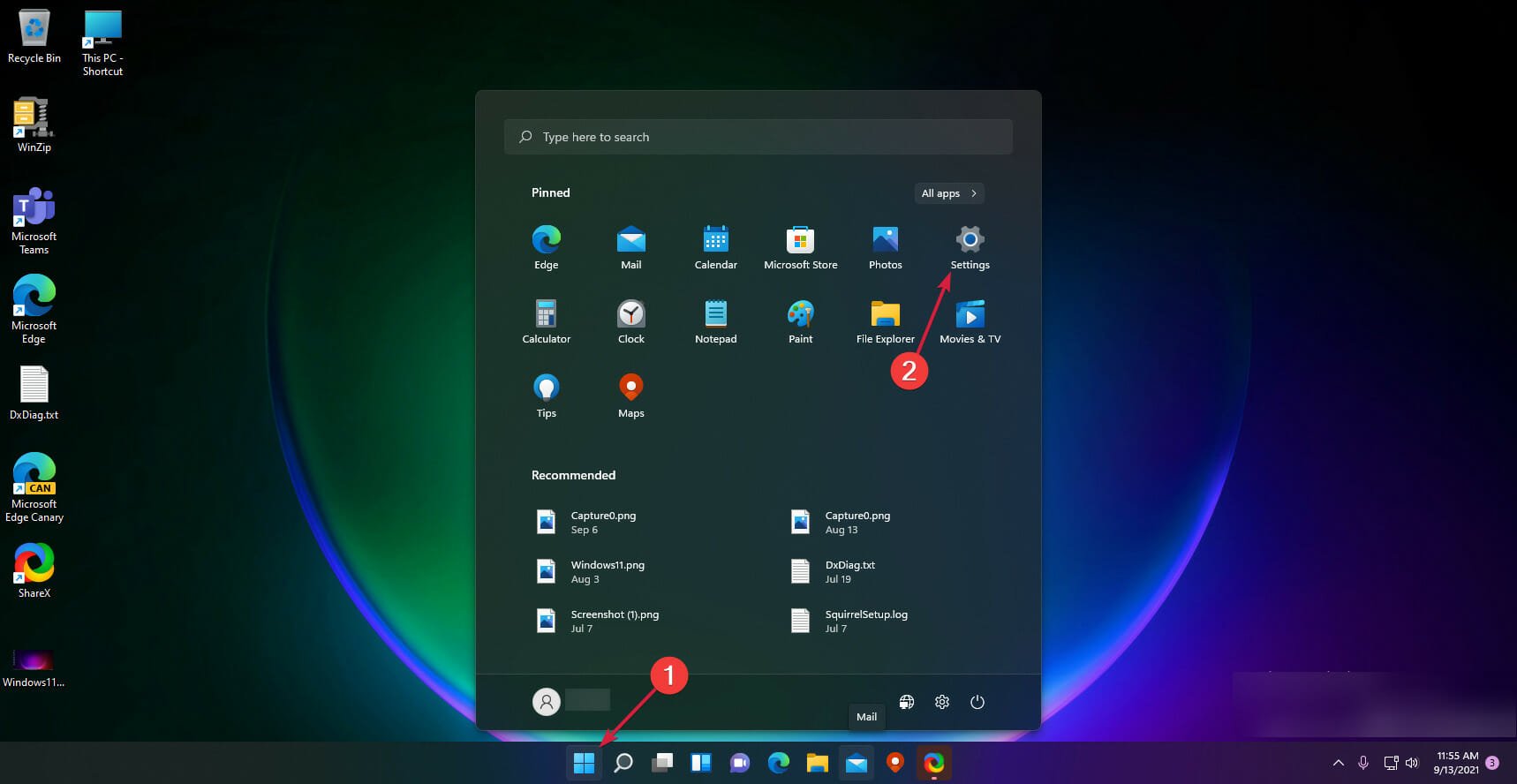
- Navigate to Apps and then choose Installed apps.
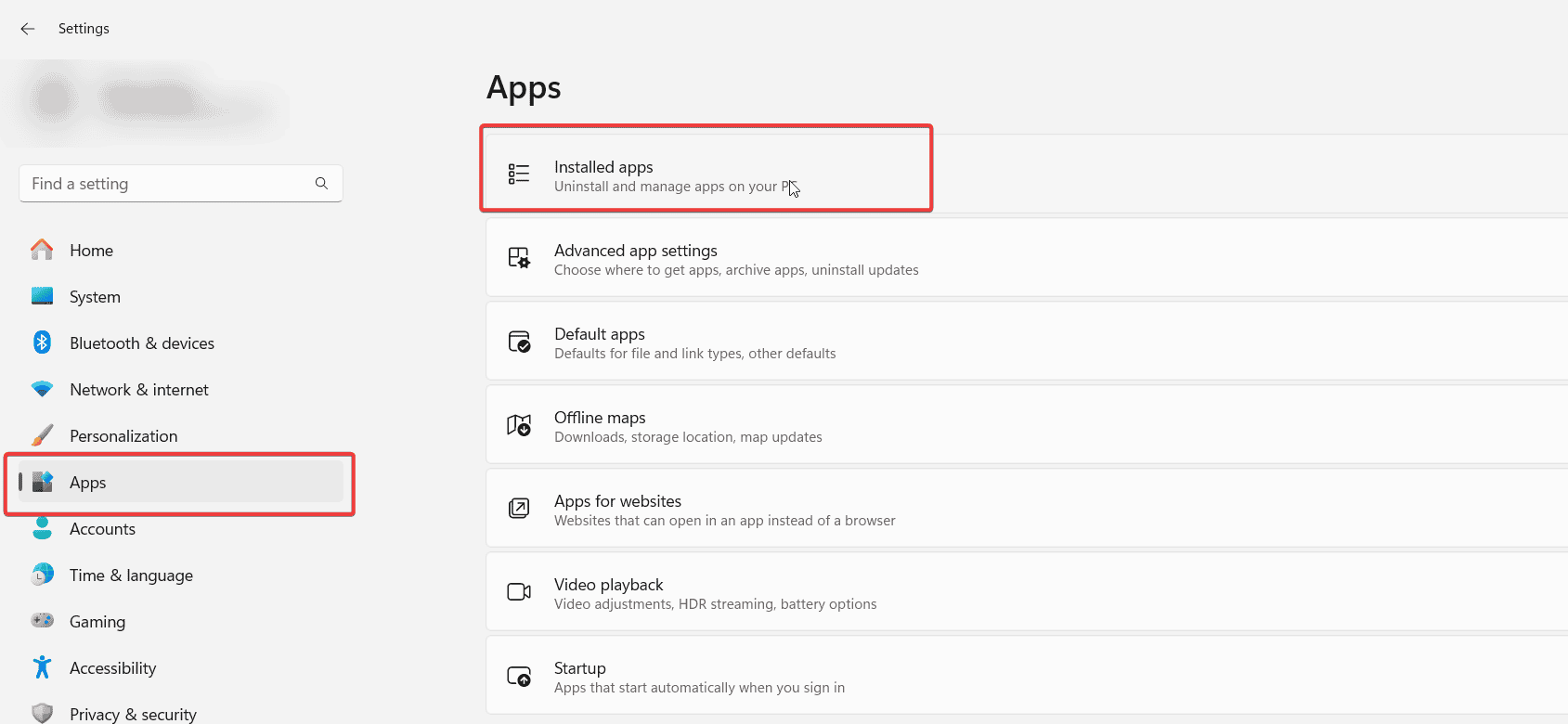
- Locate OMEN Gaming Hub and click the three dots next to it. Choose Advanced options.

- Next, click on the Repair button.
- Wait for the process to finish.
- Next, click on Reset and wait for the process to finish.

Once done, check if Omen Gaming Hub still can’t update.
2. Disconnect your Internet connection
- During the update process, disable your Wi-Fi or unplug the Ethernet cable.
- Wait for a minute or two for the update process to fail.
- Enable the Internet connection and try to download the update again.
A few users suggested turning off your Internet connection before starting the software, so you can try that as well.
3. Download OMENCap SDK
- Download OMENCap SDK.
- Once downloaded, run the setup file and follow the instructions.
- After doing that, your PC should restart automatically.
- Once Windows boots, check if the problem is gone.
If OMEN Gaming Hub is not updating or if the update is stuck at 0, there’s most likely a glitch with the software or your network connection, but that can be easily fixed with our solutions. If nothing else works, you’ll have to remove and download OMEN Gaming Hub again.
This isn’t the only issue you can encounter, and we have a guide that explains what to do if OMEN Gaming Hub keeps installing, so don’t miss it. Many also reported the OMEN Gaming Hub is not supported in this region message, but we have a guide on how to deal with it.
Before you leave, you might be interested in our latest guide on what to do if OMEN Gaming Hub is running in the background all the time.

Read our disclosure page to find out how can you help Windows Report sustain the editorial team. Read more



Improve this guide

User forum
0 messages