How to enable the dark theme on Mail and Calendar apps on Windows 10

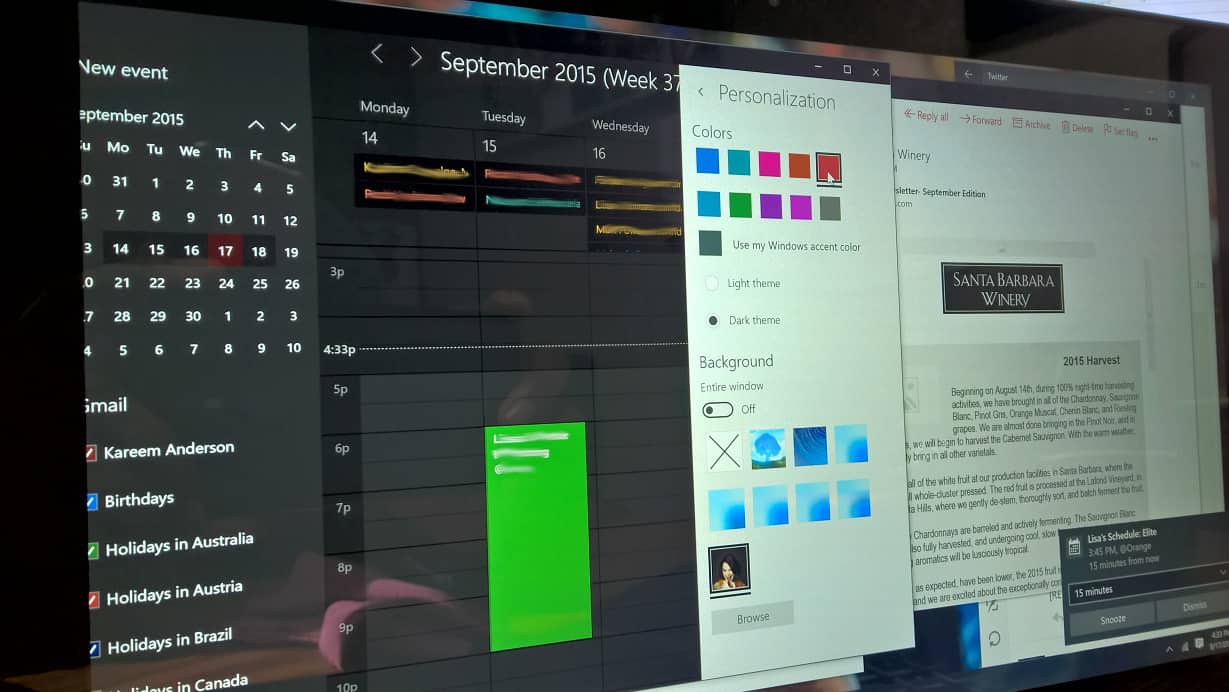
I have to admit, the Mail and Calendar apps on Windows 10 have come a long way over the past few months. With the recent update to both apps, Microsoft has added the ability to use a dark theme. We’ve received a few emails asking us how to enable the dark theme. We’ve got you covered!

The process for switching to the dark theme for both apps are similar. First, you must be running Windows 10 build 10547 in order to enable dark mode in these two apps. This feature has not been made available outside the Windows Insider program.

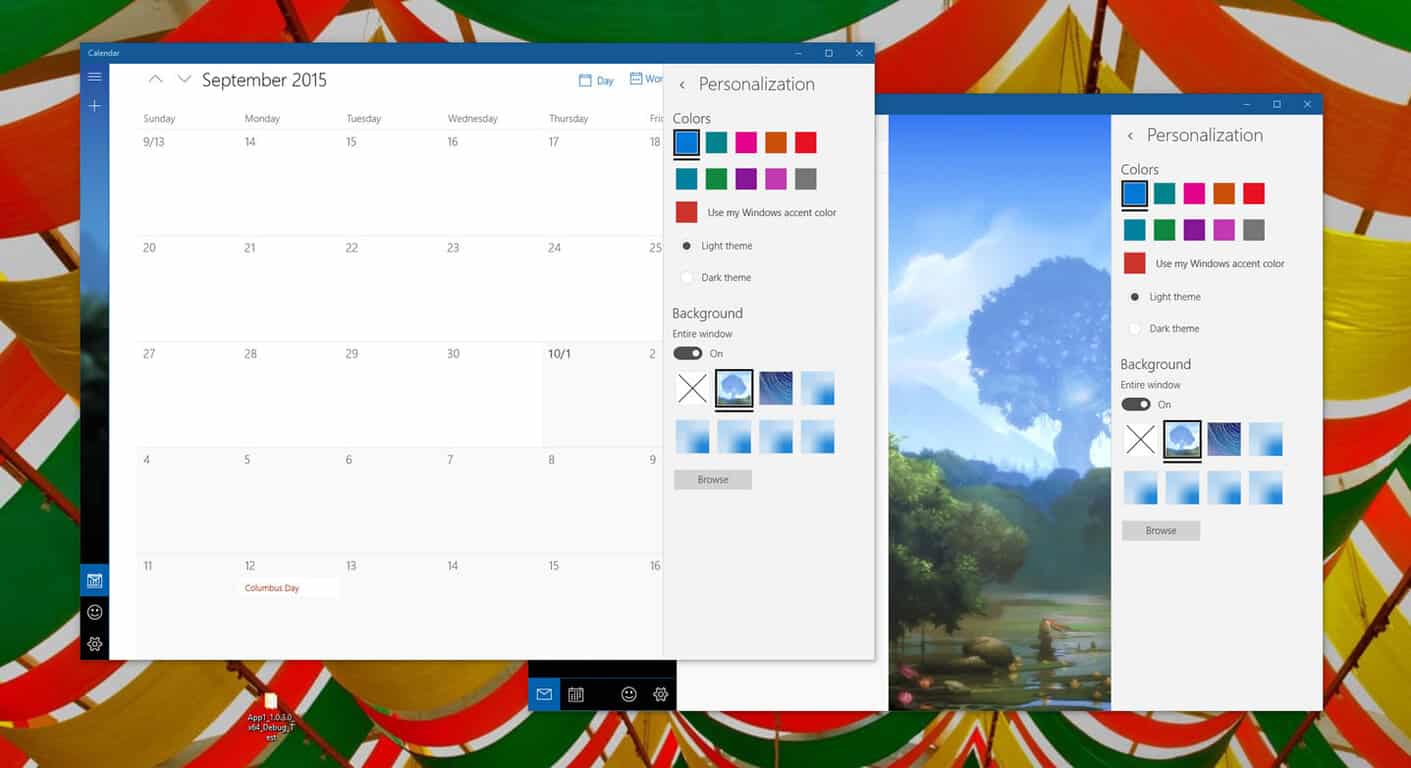
Simply open the app and hit the Settings button (located at the bottom left of the app). From there, you will be presented with the Settings flyout menu. Tap or click Personalization. From there, change the theme from Light to Dark, and you are all set.

Microsoft has done quite an amazing job finetuning both apps. The experience has become much better and the user experience has become sharper thanks to animations and personalization options.

darkthememailcal
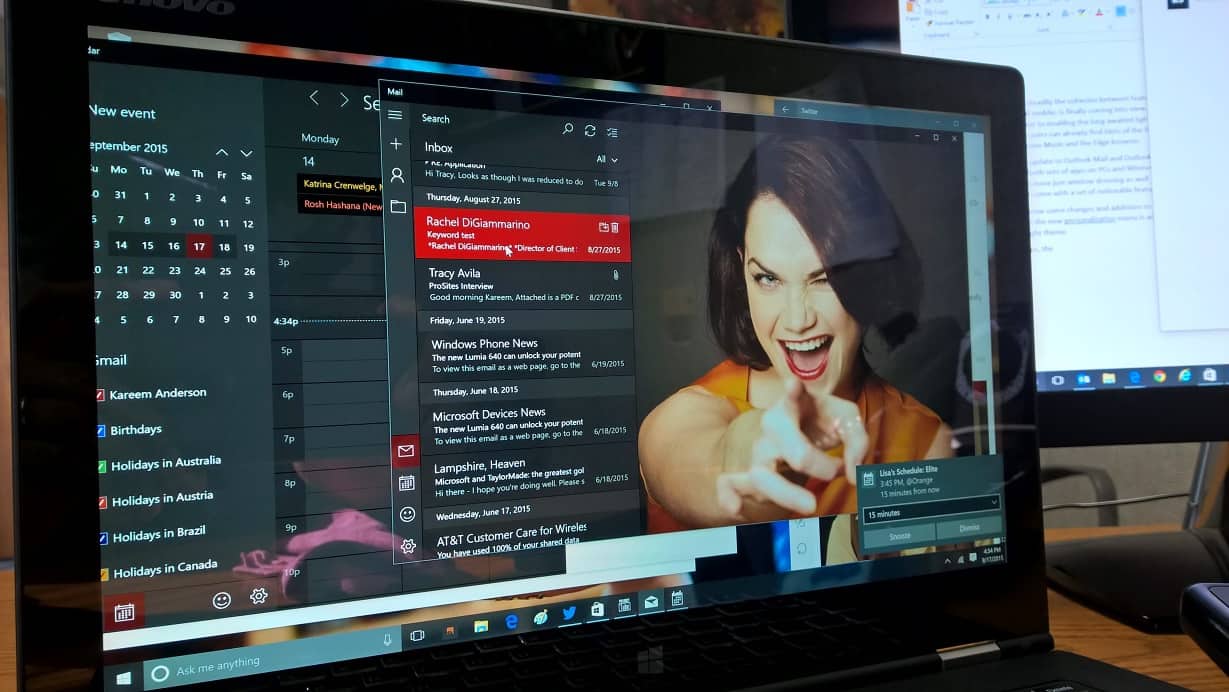
Dark theme on Mail and Calendar apps

To summarize:

  • Tap or click the Settings button
  • Tap or click Personalization
  • Change the theme from Light to Dark

Discuss: Are you using the dark theme on Mail and Calendar apps for Windows 10?

In a recent update to Outlook Mail and Calendar, Microsoft expanded its dark theme to both sets of apps on PCs and Windows 10 Mobile Insider devices. The update to both apps comes with more than just window dressing as well. Both app updates came with a set of noticeable features and refinements too.
Aside from these apps, the Microsoft Edge browser also features a dark theme. However, the question is, are you using the dark theme on the Mail and Calendar apps? How about in Edge? Which theme you prefer? Sound off in the comments section below and share your thoughts with the community. Which apps do you think Microsoft should update with a dark theme?

Enable a curated slideshow (Windows Spotlight) on Windows 10 build 10547

Back at Build 2015, Microsoft introduced a new Windows 10 lock screen experience. The new lock screen is designed to give the user the ability to provide feedback on the lock screen background image directly from the lock screen itself.

The new lockscreen feature, which Microsoft calls the Windows Spotlight, will not only show you beautiful images from Bing, but also images of Windows devices running certain apps for example. You can choose to ‘like’ or ‘not like’ the lockscreen images so you can curate the types of images which will be displayed on your lockscreen. So for example, if over time, you’ve ‘liked’ images of nature, you’ll start seeing more images of nature show up on your lockscreen, the same goes with pictures of kittens.

Windows Spotlight

This feature is now available as of Windows 10 build 10547, which was made available yesterday. Previously, Windows Spotlight was an exclusive feature to Windows 10 Home. After enough feedback from Microsoft, the company has now implemented the feature on Windows 10 Pro (as of the latest Windows Insider build).

Here’s what you need to do in order to enable Windows Spotlight on Windows 10 Pro (first spotted by a user on Reddit).

  • Open the Settings app
  • Click or tap Personalization
  • Go to the Lockscreen category
  • Under ‘Background’, change it to ‘Windows Spotlight’

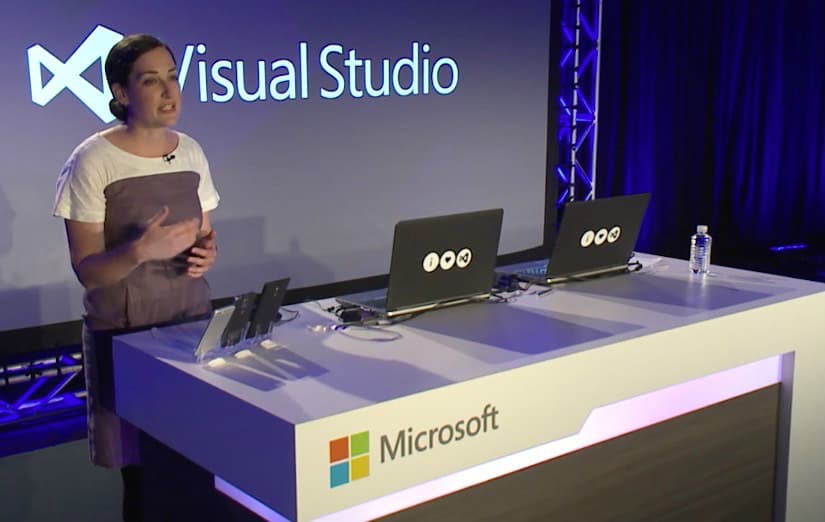
Microsoft showcases Visual Studio Community 2015 (video)

Microsoft’s Visual Studio Pro is the industry standard software that most programmers go to if they want to develop robust software. Visual Studio Pro is quite expensive to buy, but there is a free version of the software called Visual Studio Community 2015. While Visual Studio Community does lack some of the tools available for the Pro version of the software, it is more than capable of creating exciting content. So much, so that game development software Unity 3D now uses it as its default scripting environment.

It’s clear that Microsoft wants everyone to be able to develop with Visual Studio Community, and now they’ve released a video (shown above) giving a brief introduction to the software. Here are some of the highlights:

  • Multiple languages supported: C, C++, C#, Visual Basic, F#, Node, Python.
  • Mobile development: Android, iOS, and Windows Phone, which includes native and hybrid app development. Emulators are included for convenience.
  • Build for the Azure cloud and IoT (Internet of Things).
  • The software can accept over 5000 extensions and products.
  • Advanced debugging tools.
  • Can be used to create free or paid apps.

Visual Studio Community isn’t new software and, in fact, we reported on it in 2014. However, Microsoft is continuously updating the software to keep it relevant. It is an exciting time for Visual Studio Community especially with its inclusion in Unity 3D. If Microsoft can capture even a fraction of that programming market, perhaps it would result in more apps being available for the Windows platform. If you’re thinking of creating a programming project you can’t get much better value than this.

Download Visual Studio Community 2015

Enable the 4th column of Start menu tiles on Windows 10 build 10547

Microsoft’s Windows 10 Insider build 10547 brought a host of changes to the operating system. Some of the new changes were small and others, well, just as small but more refined. Since parts of Windows 10 is being pulled apart and put into app-style development instead, a lot of the newer features that would normally land in future updates is being farmed out to Store updates.

However, one feature that cannot be pawned off on a Windows Store app update is the arguably controversial Start Menu. For better or for worse, the development of this feature lands squarely on the shoulders of the Windows team. After announcing the return of the Start Menu, the Windows team has had its hands full keeping its utilitarian presence while combining some updated aesthetics and Microsoft’s visionary theme. Needless to say, it’s been a work in progress.

In Windows 10 Insider build 10547, Insiders are greeted with yet another refinement to the Start Menu. A new settings options in the personalization menu now gives users the option to  ‘Show more tiles’. Once toggled, the columns of tiles fitted to the Start Menu expands. The new Start Menu goes from housing three medium sized tiles to now allowing up to four medium sized tiles next to each other or two large tiles side by side.

The new settings harkens back to the Windows 10 Mobile preview for some with hi-res screen devices such as the Lumia 1520 or 930. A few builds back, Microsoft enabled the ‘Show More Tiles’ feature on phones with higher resolution screens.

windows-10-for-phones-1

In and of itself, it’s perhaps one of the least impressive new features of the new build, but many Insiders should find it useful. According to the Windows team, it was a setting many had clamored for.

The default for tile groups on Start is to have 3 columns of medium sized tiles, but we heard feedback from many Insiders who wanted the ability to have a 4th column as well, so they could have two wide or large sized tiles side by side in a group.

For those interested, here the steps to getting your new Start Menu layout:

  1. Join the Windows Insider preview
  2. Accept Fast Ring Settings
  3. Download the latest build of Windows 10 Insider (build 10547)
  4. Wait…..for a really long time, until the download and install, is complete
  5. Head to your current Start Menu
  6. Select Settings
  7. Choose Personalization
  8. Select Start
  9. Toggle ‘Show More Tiles’
  10. Enjoy customizing your new Start Menu layout!

WP_20150918_15_09_23_Pro1

As newer builds continue to pour out from the Windows team, we’re getting a much clearer picture of how Window 10 and Window 10 Mobile share and benefit from a single development standpoint. Hopefully, Microsoft will have even more to show in a few weeks at its October 6th hardware reveal.

Upcoming Microsoft Store in New York gets a fresh look before launch

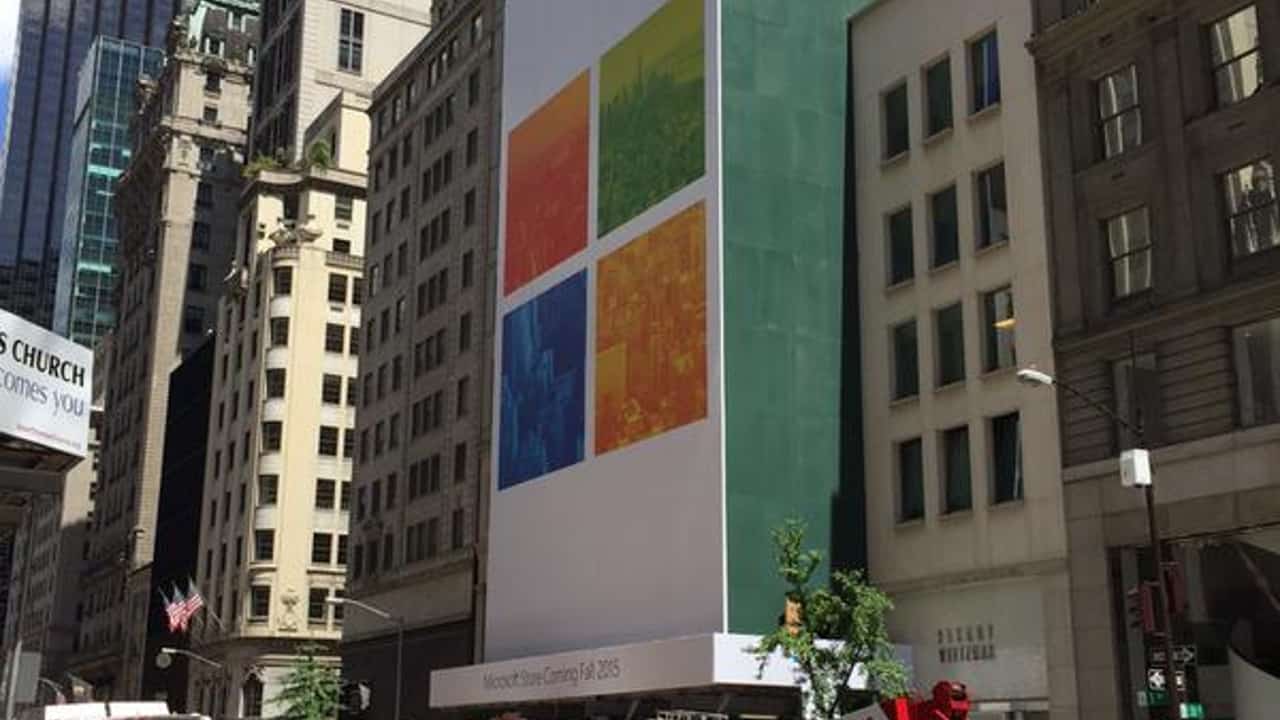
New changes were made to the to the upcoming Microsoft Store located at 677 Fifth Avenue in New York City. The temporary scaffolding in the front of the building was removed, and it appears Microsoft may be finishing up this building with a fresh new look.
It seems Microsoft is still counseling the final look of the store by covering it with a version of Microsoft’s logo from the picture posted on Twitter by Gerardo Naranjo. But hopefully it’s just a couple weeks until the store is open for business.
Embedded image permalink
For those who have only just now heard of the new store, it will be open sometime this fall, and will feature several floors, including an “experimental space” that customers can check out. You can find more info about it here.
What do you think of this new store? Do you think you’ll be checking it out some time in the future? Let us know your thoughts in the comments below.

Video: Hands on with Windows 10 Insider Preview build 10547

Insiders have gotten glimpses of leaked Windows 10 builds this week, but now that build 10547 is officially out, Insiders can try out all the new features for themselves.
The latest build in the Insider Preview program feature a host of welcome improvements and additions, many of which were suggest by Insiders via the Windows Feedback app. New features include the ability to add more Live Tiles to the Start menu, improvements to Tablet Mode, updates to the built-in apps. Check out what’s new in the video below.

Is build 10547 a worthy upgrade? We’ll let you answer that. So let us know your thoughts, what you like about the build, what you don’t, and what still needs improvements over at the comments section below.

Microsoft Offers Fixes for Windows 10 DVD Player App Issues

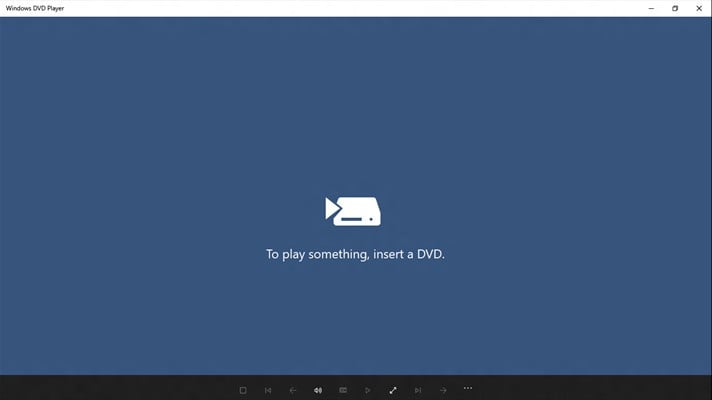
Media Center isn’t officially supported in Windows 10, but there are unofficial ways that you could take to install it. Microsoft released a new ‘Windows DVD Player’ app to make up for the absence, but there have been various problems so far.

windows 10 dvd player app fixA Microsoft representative has finally confirmed that there are many problems with the new Windows DVD Player, releasing an important update on the Windows DVD Player app. Forum Moderator Ellen Kilbourne said the following:

We are aware that a number of people using the Windows DVD Player app have experienced issues with DVD playback. I want to assure you that we are actively working to fix these problems and get these fixes out to the world. While this work is underway, we would like to share some workarounds for the most common problems that we’ve discovered in collaboration with the community, and let everyone know that we’re looking into them.

It was really nice that Kilbourne also released a couple of official fixes, which is something that frankly we’d like to see more often. So here are some fixes that you could try for your misbehaving Windows 10 DVD Player app.

How to fix Windows 10 DVD Player app playback issues

  1. The video is stuttering or failing to play – Many people can fix this issue by installing the latest graphics drivers (AMD, Intel, Nvidia). We are continuing to investigate and fix other causes of this problem.
  2. When changing from one DVD to another, Windows DVD Player will not play the new DVD – This can be fixed by closing and re-opening the Windows DVD Player app.
  3. Windows DVD Player does not detect that a disk was inserted – This can be fixed by closing Windows DVD Player, inserting the DVD into your DVD drive, and then re-opening the Windows DVD Player app.
  4. Inserting a DVD opens the Windows Store. If inserting a DVD opens the Windows Store, rather than launching the DVD player, you may need to update your program defaults. To do so – 1> Open the Start menu, search for “DVD” and select the result labeled “Autoplay” under Settings; 2>You should see four DVD entries in the AutoPlay Control Panel, including “DVD movie”, “Enhanced DVD movie”, and “DVD-Audio.” Set the default for each of these items to “Play DVD (Windows DVD Player)” under the drop down menu for each entry.;3>The Windows DVD Player app should now automatically launch when a disc is inserted.
  5. Windows DVD Player will not play audio using Dolby Digital Plus 5.1 – Some users may see this fixed by getting the latest from Windows Update. We are continuing to look at other cases where that may not be sufficient.
  6. Playing a DVD to a second screen using HDMI sometimes fails – There is no workaround for this right now, but we are continuing to investigate it.

So, as we can see, most of these fixes are common sense and chances are that you’ve tried doing the same. If you happen to know other fixes, don’t hesitate and leave your contribution below.

Maybe one of the reasons what made Microsoft reach out with this is the fact that the app costs a nice $15 so obviously, Redmond doesn’t want its paying customers to be upset.

READ ALSO: HTC 8X Users Have Problems with the Windows 10 Install

Microsoft's Azure Cloud Switch is an internally tested Linux-based operating system

Microsoft’s recent love affair with open source programming is getting into high gear these days. Aside from all the Windows related work various teams have been putting forth in the open source community, it looks like Microsoft is extending its efforts into Linux-based operating systems.
Principal Architect of Azure Networking, Kamala Subramaniam recently discussed Microsoft’s new Azure Cloud Switch, which works as a sort of cross-platform OS Microsoft built that could network with data centers built on Linux.

The Azure Cloud Switch (ACS) is our foray into building our own software for running network devices like switches. It is a cross-platform modular operating system for data center networking built on Linux. ACS allows us to debug, fix, and test software bugs much faster. It also allows us the flexibility to scale down the software and develop features that are required for our datacenter and our networking needs.”

Microsoft’s vertical integration of its ACS also includes a solution for sharing the same software stack across hardware from multiple switch vendors. Microsoft’s Switch Abstraction Interface (SAI) specification, “is the first open-standard C API for programming network switching ASICs, of the Open Compute Project (OCP),” according to Kamala.
Microsoft is also seeing the benefits of ACS as it pertains to easier configuration and management as well as open networking.
While it’s being reported that ACS is for internal use only at Microsoft, the company is contributing its code for ACS to the Open Computer Project. Meaning, those interested my eventually benefit from some of the following work:

  • Applications: These include open source applications such as Quagga, Microsoft specific applications that could relate to an entire configuration management system like Autopilot or a feature like SWAN, and also third party applications.
  • Switch State Service (SSS): The SSS is a subset of the global network state. It helps in driving the switch towards its goal state. It avails open source key-value pair stores like Redis to manage all switch states requirements. Having a database layer which is also a SAI object management sublayer helps in the object sharing and dependency among different applications. The database is modular and provides application with a view of the states.
  • SAI: Before SAI, the underlying complexity of the hardware, with its strict coupling of protocol stack software, denied us the freedom to choose the best combination of hardware and software for our networking needs. SAI allows software to program multiple switch chips without any changes, thus making the base router platform simple, consistent, and stable. A standardized API also allows network hardware vendors to develop innovative hardware architectures to achieve great speeds while keeping the programming interface consistent. Additionally, SAI also enables open and easier software development of features, stacks, and applications. As of July 2015, SAI has been officially accepted into the Open Compute Project (OCP). Read more about it here.
  • Vendor provided hardware and software: This comprises of the actual ASICs, its drivers, the software development kit (SDKs) which talk northbound to the SAI.

Again, this isn’t a product up for sale from Microsoft or even being widely distributed. However, it seems like Microsoft’s continued foray into open source programming is having positive results on the company’s future development.

HTC 8X Windows 10 update: here’s all you need to know

HTC 8X is one of the few smartphones coming from big OEMs that support Windows Phone. Aannounced 3 years ago, there are still plenty of owners who are interested in moving to Windows 10 Mobile.

htc 8x windows 10 mobile reboot

According to a couple of HTC 8X owners, they have been reporting various problems after installing the preview version of Windows 10 Mobile. Here’s what one of them has been saying:

After installation of Windows 10 insider preview my phone is still rebooting. Windows Phone Recovery Tool doesn’t have package for HTC 8X to recover.

For the time being there doesn’t seem to be an official solution, but a Microsoft representative has reached out and advised that those affected by the problem should perform a Soft Reset in order to solve this.

But this isn’t the single issue that HTC 8X owners have been reporting. Another quite long thread on the Microsoft support forums details how the device ‘goes dead’ after installing Windows 10 Mobile Preview.

In this case, the Windows Phone recovery tool is advised to be used in order to roll back to Windows 8.1, but even this doesn’t seem to work always, as there’s no HTC 8X recovery image on the servers, according to users.

Fix bricked HTC 8X after Windows 10 install

Somebody is suggesting the following steps to be followed in case your HTC 8X has been bricked when trying to install Windows 10 Mobile:

  1. Download the Winndows Phone 8.1 ROM and ROM update utility
  2. Unrar it
  3. Open the phone on recovery mode
  4. Do the following – turn on phone, press volume down+volume up, small text appears, plug the phone to computer via USB cable
  5. Now double click the ROMUpdateUtility.exe on the computer
  6. Now it starts to flash

During this process, the screen will go black and green words will appear. There are possibilities that this process will stop but you can restart to resume it.

Are you a HTC 8X owner and have you been experiencing the same problems? If so, then leave your comment below and let us know.

READ ALSO: Salesforce 1 App to be Launched for Windows 10 Mobile as Partnership with Microsoft Increases

How to celebrate talk like a pirate day with your Lumia

Why didn’t the kid go to the pirate movie? Because he isn’t entertained by another Pirates of the Caribbean sequel. You though I was gonna say because it was rated “R” didn’t you? In any event, National talk like a pirate day is September 19th and to celebrate Microsoft has made a list of pirate apps that are available and also highlights some other pirate related content in a Lumia Conversations blog.
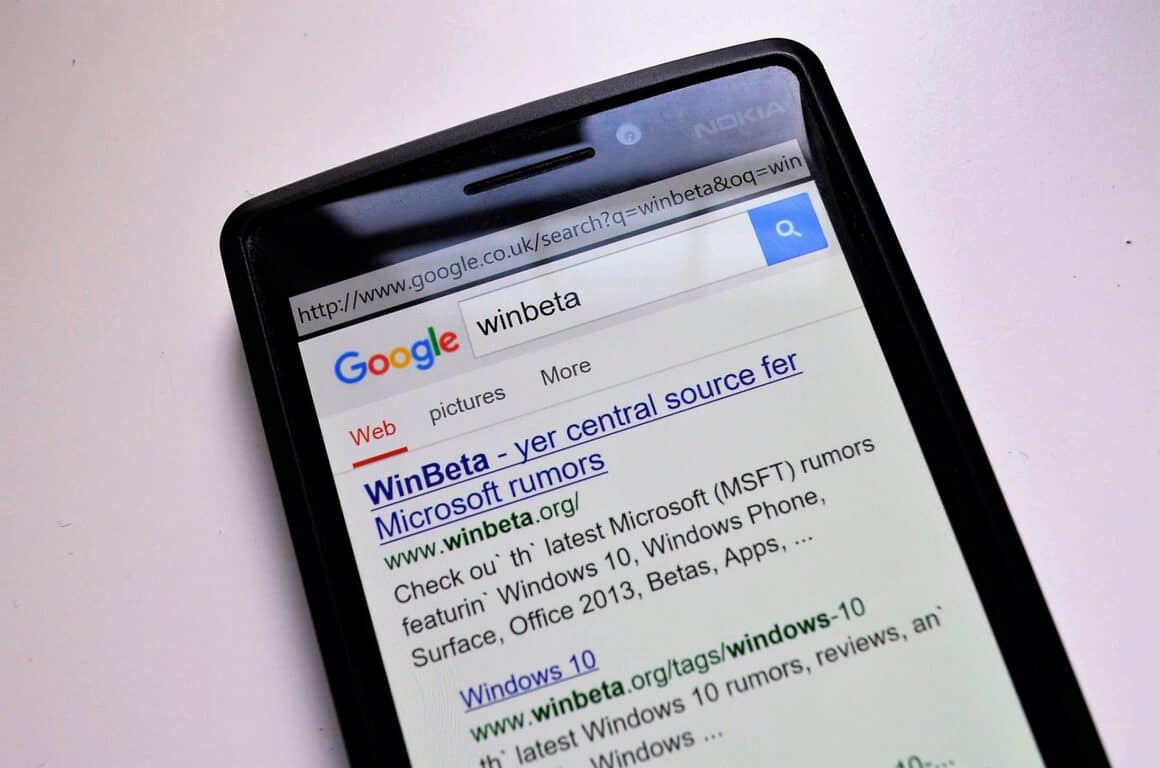
The first app available is Pirate Translator. This converts conversational English into “pirate tongue” The interface is pretty simple but then again, so is pirate speak. Next up is Pirate Broswer. To be honest, it seems to have some trouble piratizing things but if you search for WinBeta through Google our page description is “Check ou’ the’ latest Microsoft (MSFT) rumors featurin’ Windows 10…” Last up is Pirate Name. It generates a random Pirate name but it isn’t based off of your name so to be honest it is more for a good laugh. “Stump Tooth Bob” is pretty funny.
For the gamers out there who are into swashbuckling there’s Assasin’s Creed: Pirates for mobile devices which is on sale for $4.49. The post also highlights the games Pirate’s Path and Pirate Escape. They are both free puzzle games so if you want to break out your inner Sinbad/ Jack Sparrow you can try them out.
If movies and television are your thing there’s Pirates of the Caribbean: On Stranger Tides ($19.99), The SpongeBob Movie: Sponge Out of Water ($19.99), and Black Sails: Season 1 ($14.99) available through Microsoft’s Movies & TV.
A digital gift card service from Microsoft that allows you to send money to people attached to cards also has a pirate theme as well.
All in all this is a surprisingly long list of pirate related content that you can use on your mobile device.

The app was not found in the store. ?


Pirate Browser
Pirate Browser
Developer:
Jimmy Dickinson
Price:
Free


Pirate Translator
Pirate Translator
Developer:
Jimmy Dickinson
Price:
Free


AC Pirates
AC Pirates
Developer:
Ubisoft
Price:
Free


Pirate's Path
Pirate's Path
Price:
Free


Pirate Escape
Pirate Escape
Developer:
Trapped
Price:
Free


How to make your Windows 10 device work for left-handed users

When it comes to setting up a new operating system such as Windows 10, one of the first things many people do is to find out how to change the common right-handed settings to work for left-handed people. Microsoft hasn’t made it easy to find these settings. Most would assume this sort of personal setting would be within the Personalization category of Settings but they are in fact somewhere else and strangely splintered.

The first thing you need to do is open the Settings app. To do this, either swipe in from the right side of the screen on a touch-enabled device like a Surface Pro and press the Settings icon or click on the small Notifications icon in the Taskbar (which looks like a speech bubble with three horizontal lines within it) and click on the Settings icon there.

Windows 10 Settings: Update & Security

Once Settings is open, click on Devices. From here, go into the Mouse & touchpad settings and take a look at the first option at the top of the page. This will allow you to select your main mouse button. Most people will want the left button selected if they’re right-handed or right button if they’re left-handed. Fairly quick and easy and likely a setting most won’t have to change more than once.

Windows 10 Mouse Settings

Another setting that can be adjusted to make a Windows 10 device more lefty-friendly is the stylus or pen settings. To tell Windows 10 which hand you’ll be writing with, simply go into the Pen settings (which are also within the Devices category in the Settings app) and choose which hand you’ll be using from the first pull-down menu.

Windows 10 Pen Settings

Unfortunately there doesn’t seem to be a way to make Windows 10 more hand-customised beyond the mouse and pen settings. It would be great for right-handed users on touch devices if they could place the Shutdown and Sleep options on the right side of the screen. Likewise, the Action Center would be a lot more convenient for left-handed users if it could be placed on the left side of the screen.

If you’d like Microsoft to allow for more customizations within Windows 10, make sure to power up the Windows Feedback app (already pre-installed on all Windows 10 devices) and let them know in a suggestion. Also feel free to share your opinion with other lefties and righties down in the comments section on this page.

Microsoft talks 'bridges' as it continues to court Windows 10 developers

Now that Windows 10 is on more than a confirmed 81 million devices in over 192 countries, Microsoft’s story for developers is becoming full featured. Expectedly, Microsoft is once again attempting to court developers with new numbers and insider telemetry gained from having Windows 10 in the market. Recently, the Windows team talked about internal metrics that are showing a shift in the way people are engaging with the Windows Store thanks in part to Windows 10.
The information gained by the Windows team is now being shared with developers to hopefully entice more Windows Store engagement with the community. According to Todd Brix of the Windows team:

More people are upgrading to Windows 10 and visiting Windows Store every day. And they aren’t just window-shopping. The average Windows 10 customer is downloading six times more apps than the average customer on Windows 8.”

The Windows team is encouraging developers to think about using Microsoft’s bridge technologies to target those newly invested Windows 10 customers. During Build 2015 Microsoft opened its developer conference with talk of its investment in new bridge technologies. For developers currently working on the platforms, Microsoft has done the heavily lifting in helping bring over their code to the Windows platform through “bridges.”
[pullquote align=”left” cite=”” link=”” color=”” class=”” size=””]”Microsoft has done the heavily lifting in helping bring over their code to the Windows platform”[/pullquote]
Through workshops and conferences, Microsoft talked up being able to bring iOS, Android and Web Apps over to the Windows Store for developers. And last month, Microsoft finally open-sourced an early preview of Windows Bridge for iOS developers to get their hands on. Since August, Microsoft has “added libdispatch, initial support for Storyboards and vastly improved NSCalendar among other fixes,” according to Berix. The work hasn’t stopped there; the Windows team is also development on building better tests, docs and visualizations for developers.
DSC_15061
Microsoft is also working towards turning Web Apps into first class citizens in the Windows Store. A couple of months after Build 2015, Microsoft launched the bridge for Hosted Web Apps. Perhaps even easier than maintaining apps on three separate platforms, Microsoft is encouraging the use of Web App development with native platform OS features. Using the Hosted Web App bridge, developers can enable their web apps to use Live Tile, Cortana and push notification features. Furthermore, Microsoft launched its integration into Windows App Studio Beta tool today.
[pullquote align=”right” cite=”” link=”” color=”” class=”” size=””]”the seemingly more feature rich apps from the Windows Phone Store can now begin to help populate the Window Store” [/pullquote]
Microsoft isn’t the only company invested seeing the Windows Store flourish. We reported earlier about Mobilize.Net developing a preview to help bring Windows Phone Silverlight apps to the Universal Windows Platform (UWP). With this bridge, the seemingly more feature rich apps from the Windows Phone Store can now begin to help populate the Window Store with a few minor changes. Once agin, this effort seems to be an open source affair, with a feature rich extensibility model allowing developers to add mapping and transformations on GitHub.
Perhaps phone apps and bridging isn’t enticing enough, Microsoft is also leaning heavily on its Unity partnership. Unity also recently announced support for Windows 10 with the release of Unity 5.2.  Maybe, once the Xbox One has its full Windows 10 upgrade, we’ll hear more about the relationship the Windows Store plays among PCs and Xbox consoles.
While much of that is backend developer speak, Brix also highlights the efforts the Windows team is making to put developer apps front and center of customers.

This shift in behavior is due in part to the fact that we have taken steps to change the way people discover and experience apps in Windows 10. Features both inside and outside of the Store that are fast becoming part of people’s daily lives. As customers use Windows 10 it gets better at suggesting information and content that help people DO more in ways that are personal and relevant. For example, Cortana provides app recommendations based on the customer’s personal interests. In addition, the Start menu, Microsoft Edge and the Notification Center will also suggest apps that customers might enjoy.”

As many have argued, Windows 10 may be Microsoft last chance to stay relevant in a shifting personal computing future. As such, the company has its work cut out for it and building a strong and competitive app store is only the beginning, but it looks like Microsoft is at least trying this time around.

Outlook Mail and Calendar apps for Windows 10 updated with dark theme and new settings

Slowly and steadily the cohesion among features shared between Windows Phone and Windows 10 on both PC and mobile, is finally coming into view. Over the past few months, the Windows team has been inching closer to enabling the long awaited light and dark themes systemwide on the desktop. Windows 10 desktop users can already find hints of the famed Windows Phone ‘light and dark’ themes in apps such as Groove Music and the Edge browser.
In a recent update to Outlook Mail and Outlook Calendar, Microsoft is expanding its light and dark themes to both sets of apps on PCs and Windows 10 Mobile Insider devices. The update to both apps comes with more than just window dressing as well. Both come with a set of noticeable features and refinements.
wp_ss_20150917_0001
 
Since the apps are Windows Universal Apps both sets of apps now come with changes and additions to the settings menus that include new personalization features. The new Personalization Menu is where users will now find the option to switch their app to a dark or light theme. On PC, users can choose an accent color in the Mail & Calendar apps that is different than the systemwide one they may have enabled on the desktop.
WP_20150917_16_34_25_Rich
 
Other impressive features include options for S/MME encryption, automatic digital signatures, as well the return of the ellipses on mobile. The hamburger menu is no longer the only way to pull up menus in either the Calendar or Mail app on mobile. Users can now find the more Windows Phone style ellipses at the bottom of both apps to toggle in and out of menus.
Smaller refinements can also be found in the opening of menus bars with the a nice little slide out effect. Action icons have also been moved to the right each app.
Unfortunately, not all the changes were good. For some reason the mobile apps no longer deep link to one another. Previously, selecting dates from the Mail app would automatically launch the Calendar app. Now users will need to open each app separately, perhaps not a big game changer, but cumbersome nonetheless. We can only image this is a bug related to the update and should be ironed out before the launch of Windows 10 Mobile.
wp_ss_20150917_0002
Those have been our initial findings with a quick run through both sets of apps.
We’re sure there are some we are missing; please feel free to add your findings in the comments below.
Happy downloading, Insiders!

Mail and Calendar
Mail and Calendar
Price:
Free

Windows 10 TH2 build 10540 screenshots leaked

Twitter user WZor has just published several screenshots from the upcoming Windows 10 TH2 build 10540. There doesn’t appear to be anything too mind-blowingly new in this latest build but as usual there are a variety of bug fixes implemented, which is to be expected. Among the numerous smaller changes in build 10540 are improved reliability when uninstalling and reinstalling programs, changes to the way sound from certain sites and services is processed to increase battery life, and improvements to the way Direct X is handled to improve video playback.


There has also been changes to reduce boot time for solid-state drives, improve maximum display resolutions on multiple monitor setups, and allow for smoother start-ups for graphic intensive games on Windows 10.

Windows 10 TH2 build 10540

A new feature added with Windows 10 TH2 build 10540 is support for jump lists in Windows Store apps. This new feature apparently allows for content to be made available from within Start, the All apps list, Taskbar, and Most Used list in Start though it’s too early (naturally) to know how specifically app developers will use this capability, if at all.

Windows 10 TH2 build 10540

Are there any specific bug fixes or new features you’re waiting to see in future builds? Share the hype (or frustration) in the comments below.

Microsoft releases TypeScript 1.6 tool for Visual Studio 2015

Microsoft has announced the release of TypeScript 1.6. For those unfamiliar with TypeScript, it is a programming language developed by Microsoft as a superset of the prolific web development language JavaScript. JavaScript powers the dynamic functionality behind every modern website on the internet, alongside HTML and CSS, which handle layout and display. TypeScript was developed to compensate for one of JavaScript’s most prominent criticisms: its lack of a type-safety and static, compile-time safeguards, which makes it cumbersome to use in large scale projects. As a superset of JavaScript, all JavaScript code is valid TypeScript code, which makes its integration with currently existing JavaScript code bases a breeze.
TypeScript 1.6 can be downloaded through Visual Studio 2015, Visual Studio 2013, on npm, or as source.
The most prominent new feature of the new 1.6 version is React/JSX support.

Designed with feedback from React experts and the React team, we’ve built full-featured support for React typing and the JSX support in React.  Below, you can see TypeScript code happily coexisting with JSX syntax within a single file with the new .tsx extension. This allows React developers to intermingle HTML-like syntax with TypeScript code.
Our goal was to make it feel natural to work with React/JSX and to have all the type-checking and autocomplete capabilities of TypeScript.  This allows you a rich editing experience for working with React and JSX when using VS, VS Code, and Sublime.
 

2500.6177.Renaming.gif-550x0
Next up is Class Expressions, which allows developers to declare classes as though they were normal expressions. A notable use-case for this would be defining and extending anonymous classes, much in the same way Javascript allows the declaration of anonymous functions.
TypeScript 1.6 also adds the ability to create user-defined type guards. In addition to standard type-checking using if statement comparisons, guard functions are succinctly declared with a return value of “value is Type”, which returns a boolean that can work with instanceof and typeof comparison checks and better facilitates compile-time checking of dynamic types.
Up next is intersection types, which creates a very convenient shorthand for combining two different types via the new & operator, obviating the need to create clunky interfaces that inherited from other types.
A hotly demanded feature that has finally been incorporated is abstract classes. Abstract classes function similar to interfaces, but have the added option of describing implementation details meant to be consumed directly by their inheritors.
Another popular feature implemented is generic type aliases, which supplants the previous limitation of only allowing simple aliases that shortened long type names. Type aliases can now be generic, granting them full expressive capabilities.
No update this big comes without the possibility of breaking compatibility with older versions. In an effort to better facilitate the objectives of TypeScript, TypeScript 1.6 now requires object literals to be matched more closely. Failure to do so will elicit compile time errors. According to the beta, this has already mitigated hundreds of potential bugs and errors. Look here for a more comprehensive examination of potentially breaking scenarios.
Finally, the TypeScript team is working on a set of improvements to module resolution. This is currently a work in progress, and the team welcomes all community feedback to help in figuring it out.
It should be stressed that the development of TypeScript is incredibly transparent and open: virtually all of TypeScripts feature implementations have been the result of exhaustive discussion between the TypeScript team and members of the developer community.
So, if you’re interested in improving TypeScript to work better for you, head on over to the language’s website and send them your thoughts.
 

Disable Touch in Windows 10: How to

Windows 8 was the first Windows to introduce the touch interface, and Windows 10 continues its tradition. Although users who don’t have touchscreen monitors don’t have to worry about this feature, some users want to turn off this feature on their touchscreen monitors, so if you don’t want to use touchscreen features of Windows 10, we’ll show you how to disable touch in Windows 10.

disable touch windows 10

How to Disable Touchscreen in Windows 10

Windows 10, like Windows 8, was designed to be one operating system for variety of devices, ranging from your desktop computer or laptop to your tablet or smartphone, so it’s not unusual to see support for touchscreen functionality. If you don’t use touchscreen features on your laptop or monitor, or if you don’t want to click something if you accidentally touch your screen, today we have a simple way for you to disable touch screen in Windows 10.

Here’s what you need to do to disable touch from Device Manager.

  1. Open Device Manager. You can do so by pressing Windows Key + X and choosing Device Manager from the menu.
  2. When Device Manager opens you need to navigate to Human Interface Devices.
  3. Open Human Interface Devices section and search for HID-compliant touch screen.
  4. Right click HID-compliant touch screen and choose Disable from the menu.
  5. You will get warning saying that disabling this device will cause it to stop functioning, but don’t worry about it and just click Yes.

That’s it, your touchscreen is now disabled. If you decide that you want to use your touchscreen again, just repeat all the steps, but when you right click HID-compliant touch screen choose Enable this time.

As you can see, disabling touchscreen functionality is rather simple in Windows 10. It weird to see that Microsoft didn’t made this option more accessible, for example via the Settings menu, and sadly, this is the only way as far as we know to disable touch functionality in Windows 10.

Our previous guide on how to disable the touch screen was referring to the preview version of Windows 10, whereas this current one takes into account the final version.

Read Also: How to Use Google Calendar in Windows 10

Microsoft's Office 365 Admin Center Preview begins rollout

In an announcement on the Office Blog, the new Office 365 Admin Center Preview on Windows 10 is starting to be released to Office 365 subscription holders and those who already have Office 365 Admin Center enabled. The new Office 365 Admin Center Preview can be accessed in the banner at the top of the Office 365 Admin Center dashboard. The Office 365 Admin Center Preview was created in an effort to improve the experience for Office 365 IT administrators to make everything more intuitive, informative, and provide easier access to administrative tools.
Office 365 Admin Center-1-1024x629
Office 365 Admin Center Preview cuts down on the time it takes for administrators to add new users, set passwords, or other administrative tasks without the need for endless searching. As new features become available, Microsoft will provide the necessary details to keep up with the latest changes in Office 365 Admin Center Preview.

Office 365 Admin Center Preview is still a work in progress, so if you can’t find the tool you need, you can always revert back to the Office 365 Admin Center. Microsoft still has more features in mind for the Office 365 Admin Center Preview to make IT administrators be more productive. Stay tuned to WinBeta for more updates on Office 365 as they become available.

Yahoo Mail app released for Windows 10, supports lock screen notifications, and more

There is now a Yahoo Mail app for Windows 10. The Yahoo Mail app supports desktop and lock screen notifications, a dynamic Live Tile in the Start menu, allows you to import contacts from Outlook, Gmail, Facebook, or AOL, plus much more.
In addition to those features listed above, Here is a list of the rest of the features of the Yahoo Mail app for Windows 10:

  • Real-time notifications 
  • Organize your mail: Smart Views, set flags, and various options to sort your important messages.
  • Inbox Multitasking: in your inbox with Tabs: compose, search and read messages all at once, without opening new windows
  • Design and send beautiful emails with Yahoo Mail Stationery, designed by Paperless Post
  • Find any message, document or file with Yahoo Mail’s best-in-class search feature
  • Personalize your inbox with over 20+ unique themes

At the moment, the Yahoo Mail app is only available for Windows 10 and is not yet available on Windows Phone 8.1 or Windows 10 Mobile.

Yahoo Mail
Yahoo Mail
Developer:
Yahoo Inc
Price:
Free+

Leaked Windows 10 Threshold 2 release notes include Jump Lists improvements

As Windows 10 Threshold 2 is nearing, we get a sneak peek at the oncoming new features in the form of jump list for Windows Store apps (courtesy of WZor.)
Found in the release note for Windows 10 TH2 Build 10540.0.150903-1605, the feature will allow developer to build jump lists for Windows Store apps (also called “immersive apps” in the document), the content of which will be available also from tiles in the Start menu, Most used list, All apps list, and the task bar.
A quick recap for those unfamiliar, Jump lists are lists of recently opened items organized by the program that was used to open them. The handy feature – formerly restricted to desktop apps – will be a huge improvement to usability for Windows apps, and we hope to see universal developer support when it arrives.
 
Via: WindowsCentral

Microsoft calls for action on computer science learning for all youth

Last night at Dreamforce, CEO Satya Nadella announced that Microsoft’s YouthSpark program will be expanded by a $75 million commitment over the next three years. This expansion of YouthSpark, Microsoft’s global computer science education program, is especially aimed at  improving access for youth from under-represented backgrounds.
While undoubtedly this is a philanthropic effort in a general way, Microsoft is approaching this program as a tool to solve a practical problem. As the global economy grows and becomes more technically advanced, every industry on the planet is going to require more workers with computer science backgrounds and training. According to statistics in Microsoft’s announcement, in the U.S. alone there will be “1.4 million new computing jobs by the year 2022.” Yet in stark contrast to that statistic, the fact is that “less than a quarter of U.S. high schools currently teach computer science.”

As more and more advance technologies keep diffusing into mass consumer products and business services at exponential rates, the need for advanced workers is only going to increase to sustain this trend. Again, while undoubtedly a philanthropic move in a general way, this new effort is also working to solve a future practical problem for Microsoft. What will the global talent pool look like for the tech industry and Microsoft in the future when firms need to hire new developers, engineers, and advanced researchers to create the next generation of devices and software? This is a critical problem that doesn’t just affect the tech industry, but it affects all industries across the globe as virtually every aspect of society becomes more intertwined with interconnected devices and software.
The announced expansion of YouthSpark will be a global effort by Microsoft, but last night Nadella took the time to highlight how this expansion will particularly affect an initiative in the US called TEALS. TEALS stands for Technology Education and Literacy in Schools. As the name sounds, it is an initiative focused on bringing computer science into the classroom. It accomplishes this by pairing volunteer computer science engineers with classroom educators across the country.
Last year, the TEALS program helped teach 6,000 students in 131 high schools across the US. With the increase in funding from the expansion of YouthSpark, TEALS is planning to expand its efforts by “five-fold within three years” to reach “700 high schools per year and 30,000 students annually.” More ambitiously, their stated goal “is to reach 4,000 high schools – 10 percent of all in the US – over the next decade.”
Similarly, Microsoft also earlier this summer joined an initiative with the BBC and a host of other tech companies in the UK to give ever middle schooler a BBC Micro:bit computing device to encourage computer science education and “garage” tinkering by youth.
Microsoft’s blog post highlighting Nadella’s announcement closes with saying that this week’s announcement is just the beginning and they look forward to sharing more in the coming weeks and months.

Google Calendar for Windows 10: How to Download and Use it

Windows 10 brought all sorts of new features and improvements, and one of these improvements is related to Windows 10 Calendar App. Although there isn’t an official app yet, you can use Google Calendar on Windows 10, and we’ll show you how to do it.

How do I get Google Calendar on Windows 10?

  1. Open a browser, and go to Google Calendar.
  2. Sign in with your Google account.

That’s it! You can now access Google Calendar from your computer without the need to install the app. However, for those that need the app, there’s an option for it as well.

How do I use Google Calendar in Windows 10?

1. Synchronize your account

  1. Go to Start Menu and open the Calendar app.calendar app
  2. Once the Calendar app is opened, click the Settings icon on the bottom.
  3. When settings menu opens, go to Accounts and choose Add account.
  4. Now you have option to choose different types of accounts to use such as Outlook.com, Office 365 Exchange, Google account, or iCloud. From the list of accounts, select Google.choose account
  5. Google login will open, and you’ll be asked to enter your login data.
  6. After you’ve entered your username and password, you’ll be notified that your account has been successfully created.

Before we start, you need to connect your Google account and Windows 10 Calendar App. To do this, follow the above steps.

2. Configuring your account

  1. Open the Calendar app and click on Settings.
  2. Choose Calendar Settings.
  3. Now you can set the First Day of the Week as well as Working Hours.calendar

After you synchronize your account with Windows 10 Calendar App, you can customize it. For example, you can set the starting day of the week for you and the hours of the day you work, so you don’t get unwanted notifications. To set this, follow the instructions above.

In addition, you can set how often Calendar will communicate with Google’s servers. To change these settings, do the following:

  1. Open Settings in Calendar app and choose Accounts.
  2. Click Gmail.
  3. Next, click Change mailbox sync settings.

Here you can change how often Calendar checks Google servers for updates, as well as if you want to download full descriptions or messages.

We also have to mention that by default Windows 10 will automatically sync your email as well, but if you don’t want this, you can turn email syncing off by going to Account settings and switching email sync off.

In addition, you can turn off email sync by going to Settings > Calendar tab and turning off Mail And Calendar.

Is there a Google Calendar app for Windows?

As you can see, Google Calendar is fully compatible with Windows 10. And though there isn’t an official Google Calendar app for Windows 10, this is a fully functional solution.

So, the wait for a Google Calendar app in Windows will be a bit longer if one is ever released. But you can still access it via the web or the built-in Calendar app.

For any queries or to share more information on the subject, drop a comment below.

Microsoft and Salesforce strengthen partnership with upcoming app integration

Salesforce is a leading Customer Relationship Management (CRM) and cloud solutions provider for business and enterprise customers. Salesforce also happens to be a company that Microsoft attempted a bid of $55 billion to acquire earlier this year. The multi-million dollar deal fell through due to some evaluation and negotiation shortcomings between the two businesses. However, that doesn’t mean a partnership between the two companies couldn’t blossom.
Just today, the two companies revealed their respective vision of a mobile sales force team’s future. The sleek new promotional features Microsoft’s Surface Pro 3 tablet as the mobile hub of information for the future sales person. Satya Nadella reiterated his excitement about a continued partnership with Salesforce, saying:

Furthering our mission to empower every person and organization on the planet to achieve more, is the motivating force behind our partnership with Salesforce

Back in May of last year, both Microsoft and Salesforce jointly announced that Salesforce would begin to integrate its CRM platform into Windows apps and today they are delivering on some of that promise. Here’s what today’s announcement will bring to the table for enterprise customers:

  • A Salesforce App for Outlook 2013 and Office 365
  • A Salesforce1 Mobile App for Microsoft Office

Also, the two companies committed to more integration that will be coming down the track in 2016:

Skype for Business Integration with Salesforce Lightning Experience:
Salesforce will integrate Skype for Business into its Lightning Experience, a modern and re-imagined Salesforce that combines an intelligent new user experience with proven best practices that enable people to work faster and smarter. Office 365 customers will be able to use Skype for Business to create Web meetings, determine if colleagues are online or not, click to chat and make voice and video calls from the Salesforce Lightning Experience. A preview is anticipated in the second half of 2016.
OneNote Integration with Salesforce Lightning Experience:
Users will be able to associate notes with Salesforce records, and view and edit notes directly in OneNote from the Salesforce Lightning Experience. Customers will have to wait until the second half of 2016 before using this feature
Salesforce Integration with Office Graph and Office Delve:
Enabled by the Office Graph, an open ecosystem for sharing, collaboration and discovery, Office 365 users will be able to view and discover Salesforce content in Office Delve. Viewable content includes items such as sales opportunities, customer accounts, and service cases. Once again this feature is scheduled for a release in the second half of 2016.
Salesforce1 Mobile App for Windows 10:
Salesforce will deliver a Windows 10 app to empower sales teams to move deals forward while on the go, using their favorite Windows device. As with all of these announcements, customers should expect this feature in the second half of 2016

Salesforce has chosen to use its ongoing conference, Dreamforce 2015, as its platform for today’s announcement. The recent collaborative nature of both Microsoft and Salesforce seems to be at odds with both companies prior history toward each other. However, regardless of past remarks or old strategic grudges, both Microsoft and Salesforce are finding that working together may net them a brighter future.

Microsoft adds another Skype app to the Google Play Store

SkypeRoomRemoteMicrosoft’s infiltration of the Google Play Store continues. Recently, Microsoft added its Skype Room Remote for Android. Some of you may be scratching your heads wondering why you haven’t heard of the app and whether or not you should be outraged by this confusion. Take a breather, the Skype Room Remote is an app that allows users to control online meetings on a very specific device. The Skype Room Remote works on a Polycom RountTable 100 for Skype for Business meeting device, and users need to have their Office 365 credentials to use its full features. Also, there is an equivalent Windows Phone app that was recently published this month.
Based on the information from the Polycom RoundTable 100 site, this Skype app is a relatively new addition to Microsoft’s stable of apps as well as new to the Google Play Store. As the demand for Skype-enabled Android devices in the workplace probably outnumber those of Windows Phone offerings, it should come as no surprise that Microsoft would be quick to offer this in the Google Play Store.
For those interested here is a little more info on the Polycom RoundTable 100 Skype-enabled collaboration:

Designed exclusively for small to medium sized business, the Polycom RoundTable 100 is an easy to setup and use, affordable meeting device that brings Microsoft® Office 365’s Skype for Business to huddle rooms and small work spaces without the need for IT help.
The Polycom RoundTable 100 will be available for purchase in summer 2015.

Microsoft’s push to retain enterprise dominance as well as expand its cross-platform strategy appears to be in full gear.
For anyone on an Android device seeking this very specific app, please follow the link below. For jealous Windows Phone user who would like to be included (I kid), there is also a link to the Windows Phone Store version as well.

Thanks Lijins for the tip!

The app was not found in the store. ?


Skype Room Remote
Skype Room Remote
Price:
Free

Get coupons from Best Buy, Staples, and more with Cortana on Microsoft Edge in Windows 10

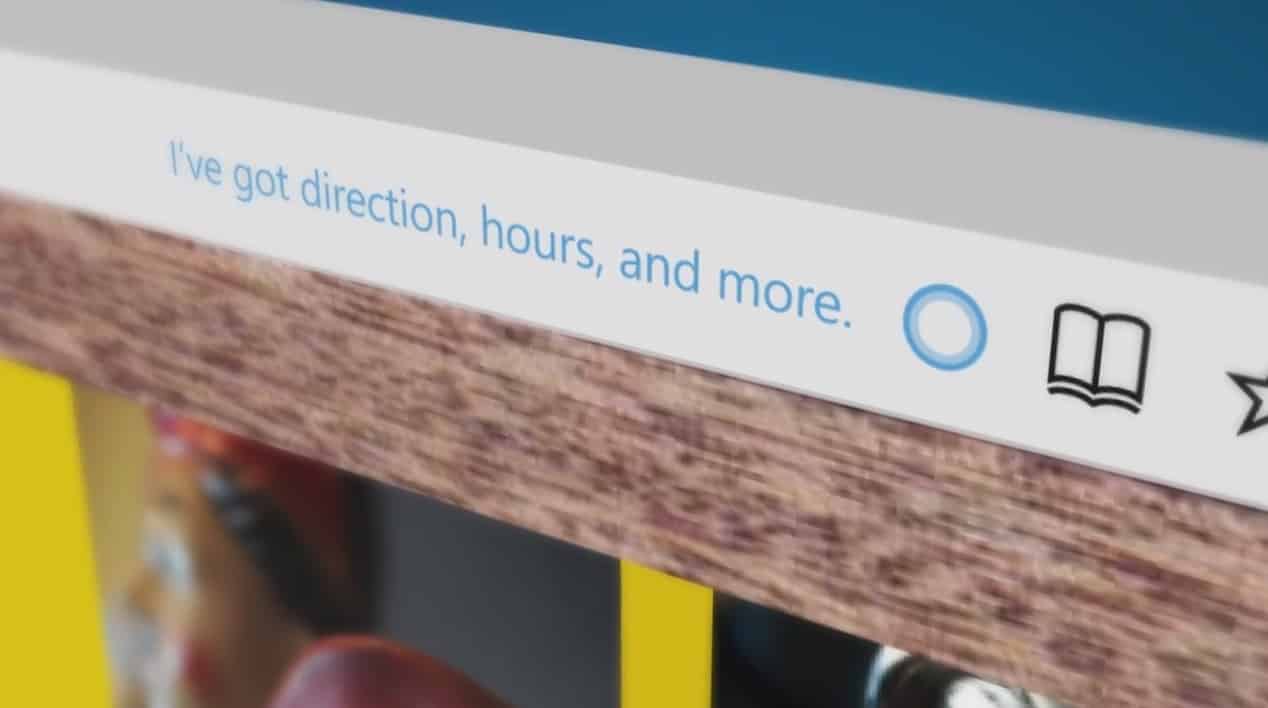
Today, Microsoft announced a new feature using Cortana with Microsoft Edge. The latest update to Edge adds the Cortana feature to get the latest deals on products on retailers’ websites like Best Buy, Staples, and Macy’s. When you visit these three retailer websites, Cortana will appear in the address bar armed with a coupon for the latest deals. You should see something like this:
bestbuycortanaedge
At the moment, it looks like this new Cortana coupon feature is only available for the websites for Best Buy, Staples, and Macy’s, but it is likely other retailers will follow suit as this is a good way to increase exposure for retailers everywhere. The coupon feature may not be available for everyone just yet, as Microsoft is just starting to roll out the new Edge feature. If you want to check out if you have already received the Edge update, all you need to do is visit Best Buy, Staples, or Macy’s websites through Microsoft Edge. If Cortana doesn’t offer the coupon automatically, you can hold down Alt + C to bring up the coupon offer.
 

Rudy Huyn hired by Dropbox to develop Windows 10 experiences

Windows Phone star developer Rudy Huyn has announced that he will be working at Dropbox as Tech Lead. His role in his new job? “To provide the best Windows 10 user experience ever”, so not much different from what we’ve come to expect out of Rudy. He will be relocating from his current city of Rennes, France, to Dropbox’s headquarters based in San Francisco. There’s plenty of precedent for this move, as Dropbox has long acknowledged Rudy’s skill and shown its willingness to work with the developer in the past.
Amusingly, Rudy took this opportunity to play a little game of tease, where he tweets hints about his upcoming position.

His little striptease evidently only lasted about an hour before he fully confirmed his new position. This might have something to do with the fact that his hint image can be readily found in an article featuring Dropbox’s San Francisco headquarters expansion.
Those concerned about fate of his activity as a Windows Store developer evidently need not be worried, as he indicates through his Twitter that all of his high-quality, unofficial apps were developed as evening hobby projects to his real daily job, and this pattern will not change with his latest job. When does the man sleep, you might be asking? For many developers, working on software is not a straining job, but a therapeutic passion, akin to an artist who lets himself loose with the paintbrush after coming home from his daily work as an accountant.
There’s no shortage of evidence that Rudy has a passion for Windows platform. On his website, he even brands himself “a true Windows Phone addict”. He is noted for being one of the platform’s biggest and most ardent advocates, developing high quality, unofficial third party apps to popular services such as Instagram and Tinder. He has even gotten himself in into a something of a legal tussle with Snapchat with his unofficial Snapchat client 6Snap. He even has the accolades to backup his achievements: Microsoft MVP, Nokia Developer Champion, Microsoft Community Contributor Award 2011.
He is the hero the Windows 10 Mobile platform deserves, AND the one it needs right now.
Check out some of Rudy’s apps below.

6tin - for Tinder
6tin - for Tinder
Developer:
Rudy Huyn
Price:
Free


6tag
6tag
Developer:
Rudy Huyn
Price:
Free


CloudSix for Dropbox
Developer:
Rudy Huyn
Price:
Free

Microsoft details Windows RT Start Menu update

As we posted yesterday, Microsoft has rather quietly released Update 3 for Windows RT 8.1. This is good news for Windows RT users, because the update adds in a Start menu, one of the most popular features of Windows 10 and the most demanded by Windows RT users. Microsoft has published a fairly descriptive changelog for Update 3 (officially dubbed KB3033055), and so we can provide additional details on precisely what Windows RT users can now enjoy.
As mentioned, the most significant change is the addition of a Start menu, which is quite similar to the version introduced in Windows 10 very early in the Windows Insider program. The start menu is a tad simpler than the one in Windows 10 and oddly resembles Windows 7/8.X in its iconography, but it provides a number of key features.

Windows RT's new Start menu might be familiar to Windows Insiders.
Windows RT’s new Start menu might be familiar to Windows Insiders.

  1. Header. This is where the user account picture and power button appear.
  2. Pinned List. Apps that are pinned for easy access appear here.
  3. Most Frequently Used applications list (MFU). Apps that are frequently used but not pinned anywhere else will appear here.
  4. All Apps button. Selecting this button displays the All Apps list.
  5. Search text box. Typing here begins a search.
  6. App grid. Both Immersive and Win32 apps can be pinned, unpinned, and resized in this area.

The Start menu in Windows RT can be toggled on and off, accepts pinned apps to the grid and the Pinned List, and offers scrolling to accommodate a large number of pinned apps. A most frequently used (MFU) apps list provides quick access to your favorite apps, and a Search box occupies the familiar spot to the lower left of the Start menu.
Microsoft recognizes the need for explicit Desktop support, and so they devote a few bits to describing how to return to the Desktop quickly–a process that basically involves pinning the Desktop “app” to Start. Because Windows RT still utilizes the immersive version of Internet Explorer that was dropped from Windows 10, Microsoft also provides some insights on how the desktop and immersive versions Internet Explorer work together.
Finally, Windows RT users can now enjoy circular frames for User Account pictures, just like their Windows 10 compatriots. Whether this is a good or bad thing depends entirely on personal preference, of course.
That seems to be everything included in Windows RT Update 3, and while the Start menu is likely a welcome addition, it looks like Microsoft isn’t investing loads of resources into updating what’s essentially a dead platform. Hopefully the changes will be enough to tide Windows RT users over until they can make the jump to a Windows 10 machine.

New Microsoft President Brad Smith calls for Privacy Act reform

Microsoft President and Chief Legal Officer Brad Smith has only had his new title a few days, but he’s already making waves. In a Microsoft Blog post this morning, Smith opined on the importance of privacy in technology and the need for significant reform. However, his position is likely a little narrower than many Windows 10 users might like to see.
Specifically, Smith speaks to the inadequacy of the Electronic Communications Privacy Act (ECPA), which was passed in 1986 and which he considers archaic and completely behind the times.

The principal law that protects the online privacy rights of Americans today was passed in 1986. In technological terms, it was a bit like the Stone Age.
I remember, because by coincidence I was a young lawyer moving to Washington that fall. People still remind me that I was a bit of a trailblazer at the time by insisting that I have a PC on my desk at a law firm. Yet what’s most striking is that any activity online at that time required connecting to a modem to access a service such as CompuServe. Viewed in hindsight, it was pretty primitive. So much so that it never even occurred to me to ask the law firm for a PC and a modem.

Certainly, anyone who uses the Internet today–which of course includes a few billion people–would agree that privacy is a serious issue. Setting aside illegal hacks like the Ashley Madison fiasco, concerns abound regarding how companies legally utilize the scads of personal information shared inadvertently and deliberately on the Internet.
However, Smith is speaking here specifically about email protection, not coincidentally because Microsoft is embroiled in a legal battle with the U.S. government over access to emails stored outside the country. He cites a 2014 survey in which a sample of U.S. voters overwhelmingly supported the application of the same protections afforded paper documents to their digital equivalents.

The country has figured this out. A survey of U.S. voters we conducted last summer found that 86 percent believe in the same protections for digital information as information on paper. Similar sentiment in other countries has led to a series of new laws across Europe, Asia and South America while Americans continue to receive weaker protections as technology advances. Many of these updates center on laws to protect email, which has increasingly become our system for storing legal documents, remembering the milestones in the lives of our friends and family, and communicating our deepest held views.

Simply put, Smith supports significant changes to current law that would severely restrict law enforcement’s access to information stored in cloud services that reside outside of U.S. borders. To that end, he’s pushing a recently introduced bill, the Law Enforcement Access to Data Abroad Act (LEADS), that would explicitly define how law enforcement agencies can gain access to such electronic information.
Smith’s blog post is tightly focused on an issue that’s near and dear to the company’s heart, and which has likely cost them significant dollars in legal fees. He says nothing about other privacy concerns, which have also surface for Microsoft since the introduction of Windows 10, but those are surely on his mind as well.
Hopefully, Smith will devote some time soon to answering questions about how Microsoft is using the various information gathered by Windows 10, and perhaps prompt some other companies–Google and Facebook, we’re looking at you–to do the same.

Poll: What part of the Windows app gap do you want to close the most?

Whoever coined the phrase app gap was pretty clever. It’s probably mentioned by any salesperson trying to convince you to buy an iPhone or Samsung device when you ask to see a Lumia. While many popular apps are on the Windows platform, some notable ones are missing. This week’s poll is on which type of apps you would like to see most on Windows. We only give four options on the polls for the WinBeta Podcast so we’ve had to split them into categories. There are some types of apps that won’t be mentioned but these are four popular categories that people ask to be supported. Tune into this week’s WinBeta Podcast to hear us discuss the results. The voting page is embedded below and you can find the results here.
It’s worth pointing out that while you personally may not use an app or service like Snapchat, it still hurts the platform when they aren’t there. Google services, Snapchat and Pinterest, banking apps, and apps from business are all very popular and add to the list of reasons not to switch to or stay on Windows. Here’s a brief breakdown of the situation for each of this week’s options.

Google apps: YouTube, Chrome, Gmail, Google Maps, and Google Drive are just a few of the Google apps that don’t have official versions on Windows. Though there are third party alternatives to many of these, some people only like using first party clients or don’t know how to find good third party apps. Others are simply deterred by hearing “there’s no Gmail app on Windows” even though Outlook works fine. Even with third party alternatives, there are still Google services that you can’t use easily on Windows devices.
Banking apps: Banking apps are used by many to check their balance, easily transfer funds, and even deposit checks. While many of these can be done on a browser, the user interface is usually worse and some features are lost (mobile check deposit being a good example). While some big names banks such as Barclays in the UK have official apps that work well, many banks in the United States such as Bank of America do not. They gently push people towards their mobile sites that don’t work as well as fully featured apps.
Social Media apps: Some of the big names of social media have apps on Windows but there are some glaring exceptions when it comes to official applications, that’s not including the terribly supported Instagram, amazingly still in beta. The best Facebook app for Windows Phone is made by Microsoft, there’s no official Pinterest app, and the bane of every Windows related journalist Snapchat is far away from Microsoft charging $0.99 for a few replays. Social media drives many people’s buying habits and not having certain services on Windows is a major blow to the platform.
Business and Service apps: This is admittedly a bit of a blanket category. There are lots of businesses and restaurants that have apps on other platforms but not Windows. Recently I was researching MoviePass which lets you watch unlimited movies in theaters for a monthly fee. It requires an iPhone or Android device to work. Not only do they not have an app on Windows, I tweeted them asking about Windows Phone and they straight up said they weren’t working on one.  This is only one example of apps like this not being on Windows, though. Concert venues, drone flying apps, and plenty more arrive on Android and iOS without ever touching a Windows mobile device.
This is in my opinion the biggest thing holding people back from embracing the platform. Writing this article has been a bit sobering when you look at how many things some people would have to give up to be on Windows mobile devices. With the limit of four options I couldn’t include some types of apps and this is only about apps that aren’t available, not ones that aren’t supported equally compared to their iOS and Android counter parts. While some would point to other issues, Microsoft has spent a massive amount of effort trying to fix this very problem. Their universal app platform combined with easy porting software that allow developers to use Android or iOS code to make apps all have their sites locked onto this problem.
Let us know which type of app you’d like to see most on the platform through your vote and sound off in the comments below.

Microsoft increases stock dividends payout

Microsoft announced an increase in dividends late yesterday:

Microsoft Corp. today announced that its board of directors declared a quarterly dividend of $0.36 per share, reflecting a five cent increase, or 16.1 percent, over the previous quarter’s dividend. The dividend is payable December 10, 2015 to shareholders of record on November 19, 2015. The ex-dividend date will be November 17, 2015.

Basically, the increase should make buying and holding Microsoft stock more attractive in the face of market volatility. The larger the dividend, the more value the stock provides even if its price on the stock market is stagnant or goes down.
Of course, spending more on dividend payouts leaves less money for investing in the business, and so there’s an obvious tradeoff. However, Microsoft is engaging in some aggressive strategies since CEO Satya Nadella took over the reins, and increasing dividend payouts is a good way to help smooth the transition.

Windows 10 Mobile Build 10512, 10514, 10536 Download Stuck for Several Users

According to a couple of Windows 10 Mobile users, it seems that downloading Windows 10 Build 10512, 10514 and 10536 takes a very long while to complete. Here are some more details.

windows 10 mobile buildsA couple of Lumia owners have been complaining that it’s ‘taking forever to download Windows 10 Mobile build 10514 and 10536‘. Here’s what one of them said:

It seems that it is taking forever to download Windows 10 Mobile build 10514 and 10536.1000 on my Lumia 930. It has been eight hours now, and the phone is still at the Downloading updates (0%).

A soft reset has restarted the update, and it has been running for three to four hours now. But even after the soft reset, the download is still stuck at 0%.

My Lumia 625 (spare phone) has finished downloading the two builds but when it is preparing to install the builds, it crashes with an error 0x800705b4. Twice. And after that it doesn’t receive the builds.

So, as we can see, the user did a soft reset but that didn’t help too much. We need to remind that these builds are fairly new, so this kind of issues are ‘natural’, if I can put it this way.

Windows 10 Mobile build 10512, 10514, 10536 download met with problems

Somebody else also weighed in, saying the following:

Mine is says updates are available and shows both:

Windows 10 Technical Preview for phones (10.0.10514.0) and
Windows 10 Technical Preview for phones (10.0.10536.1000).

It’s been on “Downloading updates 0%” for hours now, including after several soft resets.

It seems I’m a whole update behind, since two builds don’t usually appear at once, but this is the first I’ve seen of either of these updates being available. Maybe that’s part of the problem?

So, as we can see, these are indeed some annoying problems. If you have experienced them, as well, do leave your comment below and share with us. If you know a fix to these issues, then we’ll be happy to hear it.

READ ALSO: New Windows 10 Mobile Build Brings Back Insider Hub, New Photo App and Fixes Mobile Hotspot

Microsoft sponsors Old Glory relay to celebrate US veterans

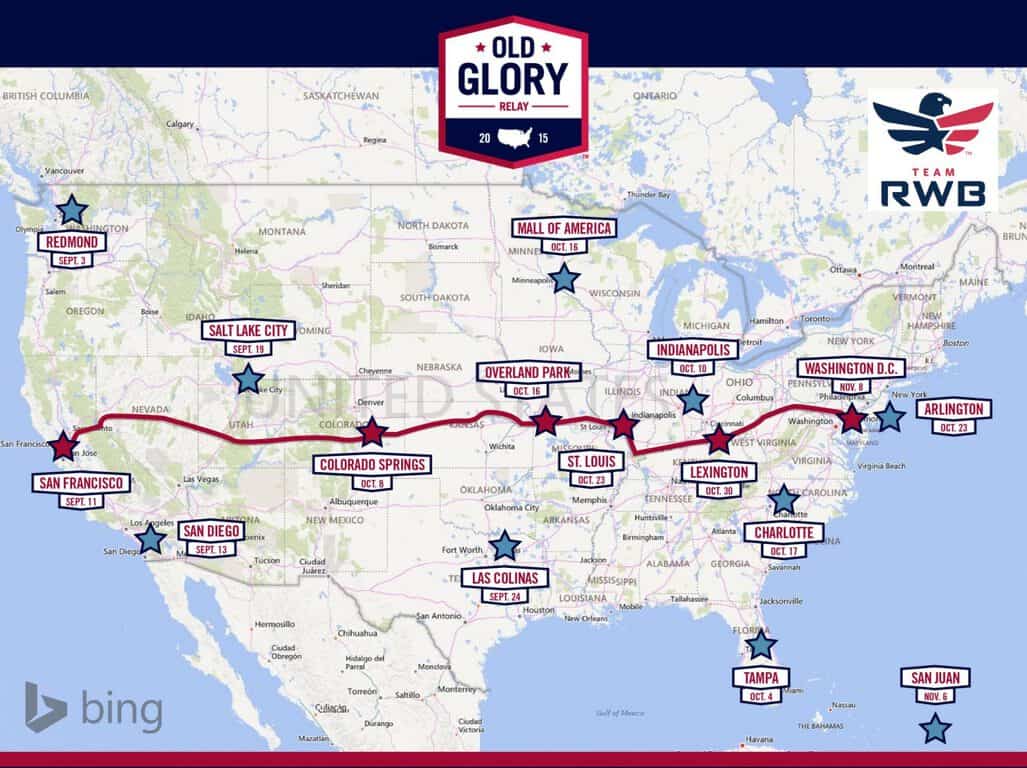
One of the founders of Microsoft, Bill Gates, now runs the “The Bill and Melinda Gates Foundation” which helps those less fortunate than the rest of us. Perhaps inspired by its founder, Microsoft itself is involved in many philanthropic events. Recently the company hosted festivities for the Special Olympic “Flame of Hope” relay and now it is sponsoring the “Old Glory” relay to celebrate US war veterans. Microsoft partners up with relay organisers, Team Red White and Blue, who set up the relay to “enrich the lives of America’s veterans by connecting them to their community through physical and social activity”.
This year’s relay kicked off on Sept. 11 (the anniversary of 9/11) in San Francisco and will end 60 days later in Washington D.C. on Nov. 8. Throughout that time, Microsoft runners and veterans will carry the Old Glory flag 3,540 miles across America along the route shown in the image above.

On the first two days Sean Kelley, program director for Military Affairs at Microsoft, ran 27 miles with onlookers honking car horns and giving him claps of encouragement. It was a proud moment for him:

“SEMPER FI!” I could hear shouted from the doorway of an office building. One young man stood at attention as we passed. Another older man, with a black beret on, saluted us proudly.

Apparently the Microsoft runners even ran the final sprint to the Microsoft campus with the Google veterans which shows that business rivalry was left at home and veterans are the only focus.
This isn’t Microsofts first involvement with veterans as previously they launched an assistance program to help veterans get into tech jobs. Unfortunately after their military service is done, many veterans become unemployed because they aren’t sure where to apply their skills.
We salute Microsofts efforts to help enrich the lives of veterans. War, while sometimes necessary, is a terrible experience for any human to go through. Hopefully Microsoft will inspire others to support these brave men and women.

'What If' a fun Q&A game makes its Windows Store debut

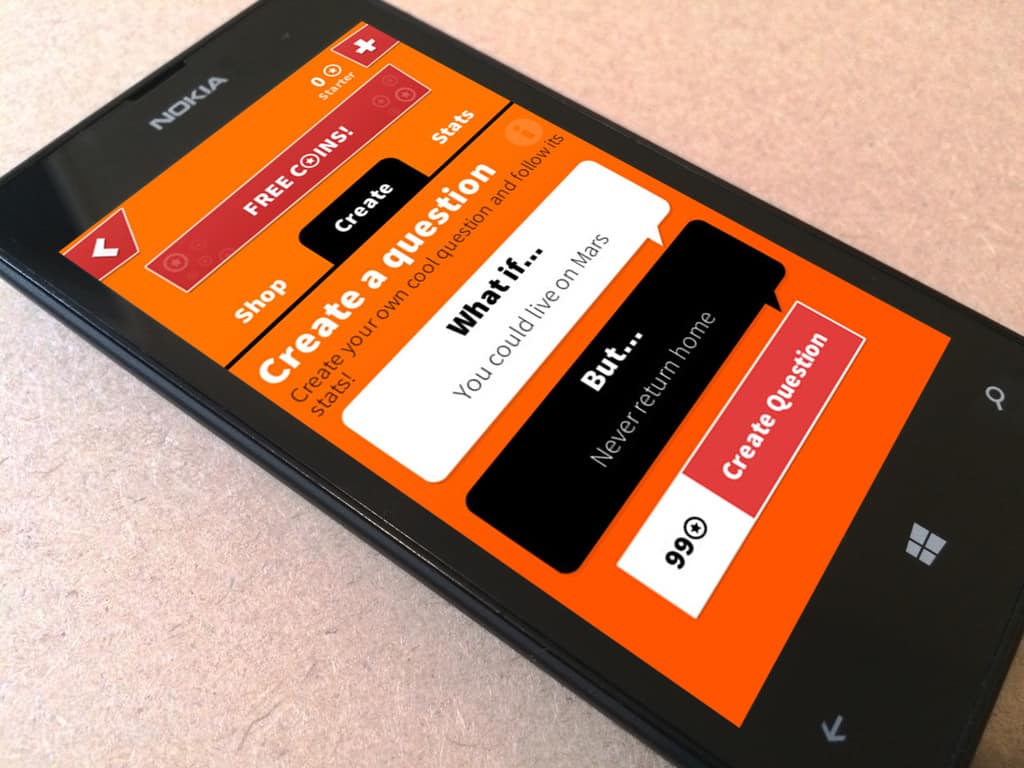
The folks over at Lumia Conversations blog  recently highlighted an interesting new time-waster app for Windows Phones called ‘What if’. What If is a questions and answers based game where players are asked a series of “What if”scenarios followed by the poll results gathered from others who have answered the same questions.
For example, I was asked, “What if you never sleep longer than 5 hours a night, but you could craft and control your dreams every night?” I chose yes because I think it would be very nice to control everything in my dreams. And 63% of other people voted “Yes” with me.
Here’s another one: I was asked, “What if your salary tripled, but you had to work at McDonald’s?” I voted no because I like my job. Although I was a little surprised to see 62% disagreed with me.
‘What If’ is a nifty game and some of the questions are rather hilarious. What makes the game very unique is the crowd sourcing of questions that make into the game. Answering other people’s questions helps users gain ‘coins’, which are in-app currency. Beyond the app itself, ‘What If’ also encourages users to expand the experience onto other social platforms such as Facebook, where users can share to their timelines to gather even more ‘coins’. There are many more questions to answer as well, and you can answer them yourself by downloading the game from the Windows Store. Be sure to share some of what you were asked and what you replied with, in the comments below.

What if..
What if..
Developer:
A Creative Endeavor
Price:
Free

Windows XP still used by large number of companies in Eastern Europe

A report by ZDNet indicates that nearly a third of the public sector and business user base of many Eastern European countries still use Windows XP. Microsoft recently dropped support for the storied operating system (OS), which leaves a gaping security hole for many of these PCs. Prominent examples are Romania, with 34 percent of its install base still using the old OS. That’s 37.5 percent for Hungary. The Ukraine is at a whopping 41.2 percent. Worse yet, many of these companies are businesses where information security is vital: such as accounting and insurance.
There are several reasons why many businesses users in these regions refuse to upgrade. If it ain’t broke, don’t fix it; many businesses rely on legacy proprietary software that may not have counterparts updated for Windows 7 and beyond. Other, more obvious reasons are economical: to many, it simply isn’t worth paying for the cost to upgrade and the transition cost of training and investigating compatible software. And of course, there’s just plain ignorance. A lack of understanding that such an old OS lacks the updated security models to cope with modern day malware. Many of these companies, especially the smaller ones, likely don’t have adequate IT personnel to make informed decisions about information security.
It’s worth noting that NGOs (non-governmental organizations) in certain countries like Romania seem to be doing better at upgrading, with a larger number of users on Windows 7 or 8.1. This might have something to do Microsoft donating nearly $3 million in OS licenses, the largest donation ever to the local NGO sector. This also supports the notion that many refuse to upgrade more for economical practicality than necessity.
While the report points specifically to Eastern Europe, it bears mentioning that virtually every country in the world still has marginal numbers of companies that refuse to upgrade. To that end, at least on a philosophical level, Microsoft’s recent insistence on pushing its latest Windows 10 out as aggressively as possible makes a great deal of sense.

Toshiba's latest Windows 10 2-in-1 PC now on sale in the US

September has proven the success of the 2-in-1 PC form factor pioneered by Microsoft.  We have seen a whole new lineup of Windows 10 devices announced at the IFA industry exhibition, rumors are surfacing (no pun intended) of Dell’s 2-in-1 with their signature Infinity Display, and even Apple has joined the 2-in-1 fray with the recently announced iPad Pro.
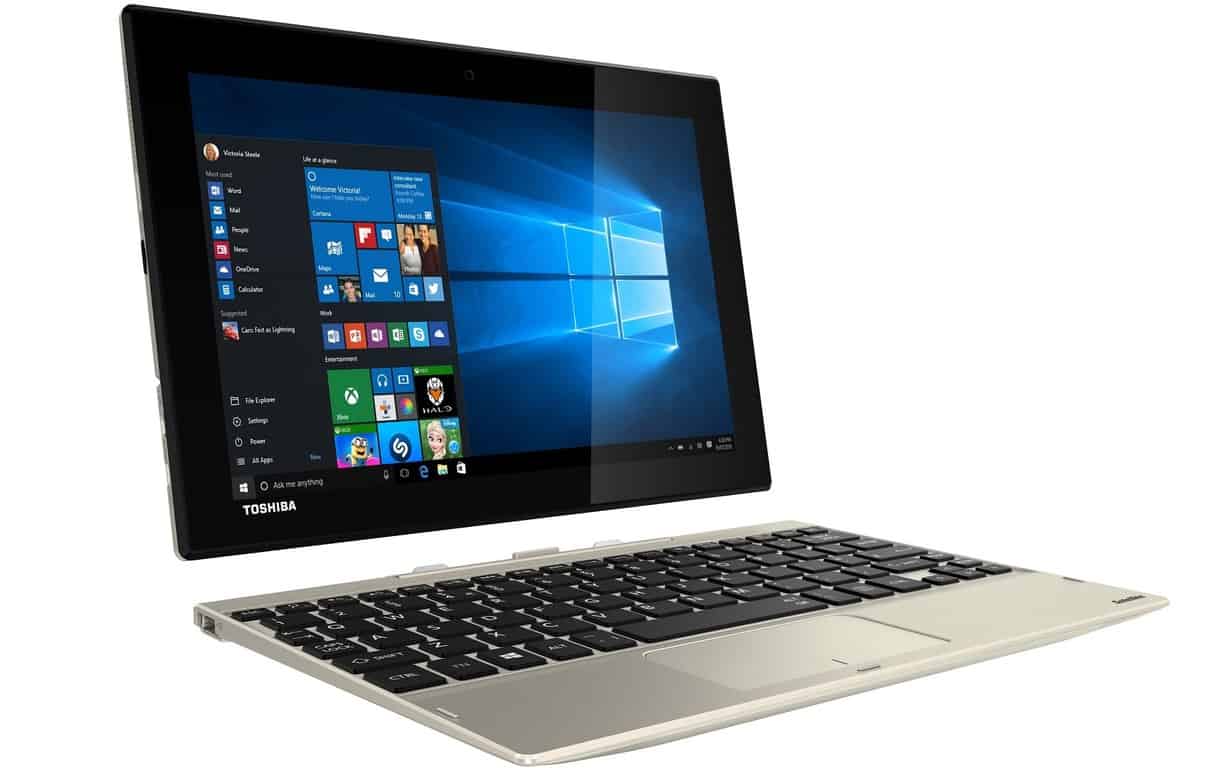
One of the newest 2-in1’s, the sleek looking Toshiba Satellite Click 10, is now available for purchase in the US. Unlike the Surface 3 or iPad Pro, this 2-in-1 comes with a detachable hard keyboard that can fold like a traditional clamshell laptop. And when the keyboard detaches it becomes a convenient 10.1-inch tablet weighing 1.2 pounds.
While well-designed to be compact and ultra-portable, this device’s hardware is less powerful than the Surface Pro 3, and is more in lines to compete with 2-in-1’s like the Surface 3. The specs are:

  • Processor: Intel Atom x5-Z8300 Processor
  • Operating System: Windows 10 Home
  • Memory: 2GB LPDDR3 1600 (not user upgradeable)
  • Graphics: Mobile Intel® HD Graphics
  • Storage: Available either with 32 GB or 64 GB of eMMC storage
  • Display: 10.1” widescreen display with 1920×1200 resolution, 10 point multi touch support, WUXGA TruBrite LED Backlit display with Wireless Display Support
  • Connectivity: Wi-Fi Wireless networking (802.11a/g/n), Bluetooth V4.1
  • Keyboard Dock: TruType keyboard, Clickpad pointing device with multi-touch control, 2 USB v2.0 ports, Docking connector
  • Tablet: Micro HDMI, Microphone/Headphone combination port, 1 USB 2.0 port, Memory Card Reader, Docking connector, Volume up/down buttons, Windows button, Power button
  • Battery: rated for more than 7 hours
  • Cameras: 8MP rear facing camera and 2MP front facing webcam

This capable Windows 10 2-in1 starts at $349.99 for the 32 GB option and goes up to $369.99 for the 64 GB version. And unlike the Surface 3, the keyboard is included. However, it does come with a slightly less powerful version of the Intel Atom than the Surface 3 (the X5-Z8300 compared to the X5-Z8700), and with a limit of 2GB of RAM it won’t be a multitasking workhorse. That said, it still runs a full desktop version of Windows 10, comes with good port options, HD display, 7 hours of battery, and a hard keyboard attachment that has more “lapability” than a magnetically connected soft type cover.
What do you think of Toshiba’s Intel Atom powered 2-in-1? Let us known in the comments section below.

Flappy Bird with a twist: Fly or Die available in the Windows Store

A new day, a new Flappy Bird inspired game. Fly Or Die, the newest creation from developer Loon Apps, is now available exclusively in the Windows Store.
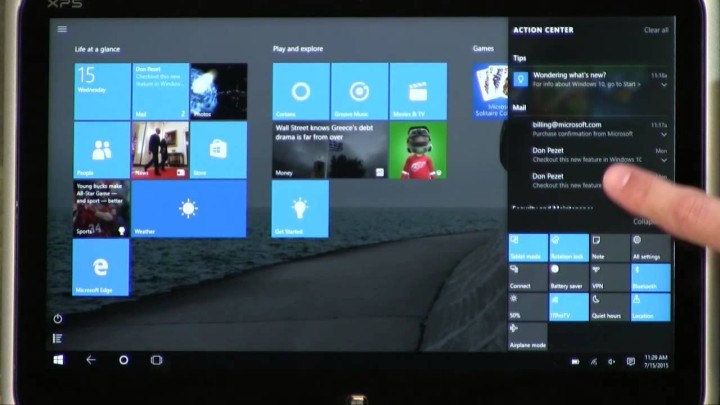
Besides putting a nice, pastel-like skin job reminiscent of Sony’s classics LocoRoco on the old one-finger gameplay – popularized by the notorious Flappy Bird – the game actually features an interesting new mechanics: obstacles now move in tandem with their designs (e.g. buzzsaws running back and forth,) or at least jiggles in place, adding another level of hazard and intensity to the already-unforgiving gameplay. All of them are also very grumpy about something, as you can see on the video. Additional, the main character (understandably a bird) also has a name: Piou. Which I assume is pronounced “pew.” Maybe.

You have 4 worlds to take Piou through with increasing difficulty, which you unlock slowly with collecting in-game apples. In an interesting twist, you cannot purchase apples, instead having to rely solely on “your skill and your force of will” to progress.
A fresh take on the Flappy Bird formula, Fly or Die is available for free on Windows Phone 7, 8, 10, and Windows 8, 8.1 and 10 on their respective Stores.

FLY OR DIE !
FLY OR DIE !
Developer:
Loon Apps
Price:
Free