The Surface Hub is seeing strong enterprise demand ahead of Windows 10 launch

Surface Hub

The Surface Hub went on preorder for businesses just a couple days ago, and it’s already picking up some steam. It’s no surprise the Surface Hub has seen such a high demand. It’s a great team collaboration tool, and goes well in many business environments.

Microsoft’s Angela Hlavka, CTO of Microsoft Partner Collaboration Solutions Inc, says that orders have been coming in since the press release of the July 1 preorder, and they have been receiving “significant demand.” Unfortunately, exact numbers have not been released, though.

Beta testing of the device is underway, so several companies can see a demo of the device. But companies won’t see the full device shipments to businesses until sometime in September.

If you’re not familiar with the Surface Hub, it’s kind of a massive touchscreen tablet that can theoretically hang on a businesses wall, but typically rest on a stand. Users can use the large touchscreen to provide presentations or draw diagrams to share with their whole team.

One thing that the Surface Hub has over other team collaboration devices, is that developers can create custom applications for special workgroups and collaboration tasks.

Mike Angiulo, Microsoft’s corporate VP, when the Surface Hub, explains,

“While there are a number of devices designed to improve our productivity as individuals, there has yet to be a device that’s truly optimized for a group of people to use together, designed not just for what we need to do but how we want to work – until now. Just as the PC revolutionized productivity for individuals, Surface Hub will transform the way groups of people work together.” 

Do you think the Surface Hub would be a handy tool for your business? Let us know what you think in the comments below. 

Microsoft pushes forward with HTML5 and premium media support in the Edge browser

Microsoft Edge

Microsoft is moving forward quickly with its HTML5 compatibility with the new Edge browser. HTML5, in contrast with web plugins like Adobe Flash and Microsoft Silverlight, is faster and has matured to be just as capable as any other system. HTML5 doesn’t need to be installed or downloaded to a browser either—it works right out of the box, as long as the browser supports HTML5, of course.

Besides Microsoft’s movement towards HTML5, the company is also operating towards more secure and integrated extension and plugin systems, in some ways by removing ActiveX from the Microsoft Edge browser. Edge users should enjoy the changes Microsoft is making, as faster and more streamlined experiences are becoming normal in today’s browsing market.

So how was this sudden change by all corners of the market made possible? Well, a trend for plug-in free media has surely been made possible by a few new movements, such as movement from W3C to better Media Source Extensions and Encrypted Media Extensions.

All these solutions and changes allow for great compatibility and interoperability between a vast number of devices and medias, and at the same time reduce costs and increase user friendliness in the technological world. Speeds that have never before been seen will now be possible with these new developments in technology.

If you’d like to know more, you can keep reading. However, it goes into the subject of browser interoperabilities and medias in a slightly more complex manner.

Interoperable Media in Web Browsers

Most are at least slightly familiar with plug-ins like Silverlight, which is meant to allow media to play on multiple different browsers.  Silverlight was all good, however, to work, they had to release versions of the plug-in for every single browser, device and similar. This became quite difficult to manage as the Internet grew in popularity, and some browsers and devices skyrocketed in number.

In effect, these had to be replaced as they became convoluted and slow to develop and run. The replacements of the future medias became DASH, MSE, EME, and CENC, which greatly improved the standard of the overall internet quality. Quite, fortunately, Windows 10 and Microsoft Edge natively support all of these implementations well, and some other major browsers provide MSE and CENC compliant CENC. With these implementations, developers of media can build video web apps with no plugins that are capable of running in vast amounts of devices and browsers, with each MSE/EME built on many different media pipelines and DRM.

Interoperability through plugins tree

Before, DRM systems used proprietary file formats and encryption methods, causing large swathes of content that needed to be manually unlocked by coded compatibility in browsers. All of this content slowed down the flow of usage and caused issues and problems left and right. Fortunately, the Common Encryption(CENC) allows content to be encrypted with universal industry standards with regular compressed file formats, greatly improving quality.

DASH MSE Content and Smooth Video

Content with DASH will come with encoded media files and a manifest reading out information about the files contained. An MSE player will then be able to download the correct files, parse them, and then feed it into the sourceBuffers. Using this method, a high degree of versatility will be possible. However, a website would need to use an MSE player/DASH.js onboard to run it, and this requires some development time/money.

The easier option to this is Native Dash streaming, where the website simply sets the manifest as the source and then allows the browsers built in media streaming service to play the files. This allows a developer to focus on the content rather than playback, making video streaming far more streamlined, such as in Windows 10 and Microsoft Edge.

Contoso Video Website

Also to these developments, some websites with media files in the Smooth video are looking to move to HTML5 based alternatives. To do this, a library would need to be used that can support the current Smooth content without re-encoding. An available library is hasplayer.js, which is based on DASH.js

hasplayer.js has the capability of supporting clear and protected Smooth content with the PlayReady contained on Microsoft Edge. Being client-side, it is faster, and it also has cross-browser support with EME multi-fill support making it quite easy for a browser to be extended to support its DRM.

Finally, you can test the ability for basic Smooth video playback with the Contoso Video Demo Website with this Github Repository.

Windows 10: Microsoft makes upgrading to newer builds with limited storage easier

Windows 10

If you’ve been upgrading to newer Windows 10 builds via Windows Update over the last few weeks, you’ll be glad to know that Microsoft has implemented a new feature which makes it super easy to upgrade a device that is low on storage. Windows Update will now prompt you that you are out of space, and will ask you to either clear disk space or use an external drive.

What this allows for is easy upgrading to newer builds without needing to clear lots of disk space. So instead of clearing out that dodgy unnamed folder you have hidden in C:\Windows\System32\SystemStuff\untitled folder\untitled folder 2\, you can simply plug in a 16GB USB stick and Windows will be smart enough to take advantage of the extra disk space and get you updated to the latest build.

Windows 10

This window pops up during the download/install process of a new build, so it won’t stop you from working or anything. This is an awesome feature which many people will use, especially those on devices with very little storage, like small 8 inch tablets or super lightweight internet laptops.

Thanks for the tip, @zapellat

Throwback Thursday: The miserable, short-lived life of the Microsoft Kin

Throwback Thursday: The miserable, short-lived life of the Microsoft Kin

Every Thursday, social media feeds tend to get injected with a dose of nostalgia. We don’t typically do Throwback Thursdays here at WinBeta but we thought we’d try it out, take a little break from all the new build releases before we have to cover a new one tomorrow.

On this particular Thursday, we travel back to April 12, 2010. Just two months after Microsoft surprised us with the announcement of the all-new Windows Phone 7 Series, the software giant introduced two new phones to the world. We curiously said hello to the Kin One and Kin Two.

The Kin line were designed for the young, and the restless. As well as those that constantly lost themselves in social networks, forever chatting, liking, tweeting, favoriting etc. Microsoft defined this group as people between the ages of 15-30.

Throwback Thursday: The miserable, short-lived life of the Microsoft Kin

The Kin One, shaped like a turtle, featured a 2.6” touchscreen, a physical QWERTY keyboard, a NVIDIA Tegra processor, 4GB of storage, 256MB of RAM, a 5MP camera towards the back and the usual bunch of connectivity hardware and sensors.

Throwback Thursday: The miserable, short-lived life of the Microsoft Kin

The Kin Two was less rounded and looked more like a smartphone (although both Kins were marketed as feature phones), it came with a larger 3.4” display, a wider QWERTY keyboard, the same Tegra processor and RAM capacity, but with 8GB of storage and an 8MP 720p rear camera.

Throwback Thursday: The miserable, short-lived life of the Microsoft Kin

The devices were supported by the Kin Studio, a cloud storage service that automatically backed up all the content of the Kin including photos, videos, messages, contacts and more into a presentable website that would be easily accessible from any PC. From the looks of it, Kin Studio seemed quite innovative for its time, considering it’s practically what OneDrive (and SkyDrive before it) does today.

Despite being branded as “Windows Phones”, the two Kins actually ran a custom version of Windows CE. Though, contradictory to its target market, KIN OS was anything but active and in motion. Reviewers called it cluttered, unintuitive and claimed that it lagged like nobody’s business. By the time Microsoft could do anything about it, the damage had been done.

Verizon Wireless, the exclusive provider of these Sharp-built devices pulled the devices within months due to poor sales, and Microsoft discontinued the product completely and reassigned its development team following a second measly attempt to sell off existing units.

The onslaught of bad reviews may have been only one of a number of reasons why the Kin failed. Wired seems to think it was not only because of the shortcomings of Kin OS, but also because of the lack of solid app support, poor marketing with its “faux hipster vibe”, and an expensive starting price.

Whatever the reasons, the Kins came, and were quickly forgotten. Still, it wasn’t all bad for Microsoft. The company was determined to get back into the smartphone race with Windows Phone 7, which jumpstarted the push towards the rather wonderful Modern world of Windows that we’re in today.

#ThrowbackThursday

Office 365 is building integration into educational open source software

Image Credit: Office Mix

After a few decades behind the iron wall of anti-open source sentiments, it would appear Microsoft is finally open (all pun intended) to the benefits and extended possibilities open source implementations have to offer. Last Friday at Microsoft’s Open Tech, the Office team announced a handful of open source integrations. Among the new integrations were Open edX and Office 365, and an update to the open source Moodle integration with Office 365.

Today, the Office team is going into further detail on their blog about how those integrations fit into Microsoft’s broader trend of more openness and interoperability.

Whether you’re a fourth grader at your local elementary school, a forty-year-old working on an evening MBA, or a fourth year associate enrolled in training at your company, there’s a good chance that you use a popular LMS (Learning Management System) or MOOC (Massive Open Online Course) platform such as Moodle, Open edX or others for submitting homework and managing your education. There’s also a good chance that you use Microsoft Office 365—the world’s leading productivity suite—for creating content and collaborating with others.

Image Credit: edX

With regards to the Office Teams new integrations, single sign-on (SSO) is what will help instructors and students navigate between Office and the new integrations without a login request each time. Using Log in with Office 365, users become authenticated in a singular experience for Moodle or Open edX while still retaining full access to Office 365 documents and services. The Office team is further streamlining their process by allowing teachers and students the option to put Moodle or Open edX into the My Apps launcher in Office 365. With this addition, users LMS or MOOC is now just a click away when working within Office 365.

The use of SSO is backed by Azure Active Directory and uses the OAuth2 standard as well as OpenID Connect (OIDC). The Office team went a step further and enabled a variety integrations with Calendar and OneNote into both Open edX and Moodle. Using the Calendar API as well as the OneNote API, students can now choose to synchronize their calendars with Outlook to Moodle’s course schedules seamlessly. The integration results in real-time updates and notifications on class scheduling if need be.

Image Credit: Moodle.org

While the Office team continues to find many benefits using open source, they also wanted to contribute to the open source effort. According to the team, “OIDC support has been implemented for Moodle and Open edX in a manner that allows use by any OIDC provider—not just Office 365 and Azure AD. We’ve done the same for OEmbed support, so you can use the new OEmbed plugin for Moodle to embed an Office Mix, or to embed any other OEmbed source such as YouTube, Slideshare, and many others.”

For those interested, the Moodle plugins have been available since January for Office 365. The plugins include SSO, OneNote submissions and feedback, OneDrive integration, Outlook calendar sync and Office Mix (OEmbed) integrations. As for Open edX, integrations should become available in early July. With the release of Open edX “Cypres”, users will find integrations that include SSO and OneDrive integration.

Microsoft makes WorldWide Telescope open source

WorldWide Telescope

It is fair to say that, in the past, Microsoft had something of a reputation for being ‘closed’ in its affairs. Since the arrival of Satya Nadella as CEO however, this image has begun to soften significantly.

As part of this new commitment to clarity, Redmond has released WorldWide Telescope to the Open Source community, with the code now available via GitHub. Regarding the move, Alyssa Goodman of the Harvard-Smithsonian Center for Astrophysics stated,

“As a long-term collaborator, user and proponent of WorldWide Telescope, releasing it as open source is a natural and significant next step for the project. Educators, students and researchers now have the ability to directly influence and contribute to the future development and potential of this unique tool.”

The enthusiasm for this move is also shared by Microsoft Research, which has committed not insignificant resources to the project in the past, stating in an official blog post that,

“We believe that extensions and improvements to the software will continuously enhance formal and informal learning and astronomical research. Making the code available will also help ensure that the data, protocols and techniques used are also available for others to inspect, use, adapt and improve upon in their own applications. Ultimately, open sourcing WorldWide Telescope will also allow the wider community to guide and participate future in future development efforts such that it evolves to meet the needs of future users.”

WorldWide Telescope is a project that has run since 2007, beginning as a Microsoft Research project. Since its inception, it has been downloaded by millions, who use it on a regular basis to help enhance their understanding of the cosmos, with the software even being used to provide scripted tours as a part of public outreach.

Coded in .NET, it is hoped that this move will help to aid the astronomical community in its understanding considerably, and provide a strong base on which to further build future knowledge.

Do you use WorldWide Telescope? Do you support this change? Let us know in the comments below.

Are you facing issues upgrading to Windows 10 build 10159? You're not alone

Image Credit: Microsoft
In a shocking turn of events, the Windows team released back to back builds this week. On Monday, Insiders were treated to, what they thought, was a polished up pre-RTM flight in build 10158. Surprisingly, on Tuesday, Insiders on the Fast Ring were given yet another build, also promising even more stability and polish with build 10159.

Monday’s build 10158 brought spit and shine to Windows’ new Edge browser, font rendering, transitions, and animations, and built-in apps like Mail and Store. The feature leap from build 10158 to 10159 appears to be minor, so much so, that the usually chatty Gabe Aul left Insiders with a blog post only highlighting 300 nondescript fixes.

While build 10159 may be a minor refinement upgrade, Insiders were chomping at the bit to upgrade their systems. As with most Insider updates, there were some hurdles and obstacles to overcome during the upgrade process with build 10159. As the dust settles, some Insiders have reported that their systems are not fetching the update at all. Others Insiders are reporting being trapped in an update loop that has their update settings stuck at percentage intervals of either 0%, 23% or 35%.

Are you facing issues upgrading to Windows 10 build 10159? You're not alone

Fortunately, there are a couple of solutions that may help usher the update along. The easiest and least evasive way to push the update forward is to reboot your system. For some, it may take several restarts for the update to start showing progress. Anecdotal accounts have Insiders having to reboot their systems up to five times before the progress bar began to move, so be patient.

For the more daring of Insiders, we have found that there is some Windows trickery that can be done to super boost the upgrade process. Head over to the WindowsClub for instructions to perform the fix.

While this may work for some, we would like to remind the curious, that this is an anecdotal suggestion, and not a verified Microsoft workaround, so we cannot recommend it at this time. As Insiders, many have signed up for the occasional crash reboot, or app failure, so we understand that workarounds are sometimes required, but again, utilizing the above technique is not entirely endorsed, so proceed at your own risk.

Let us know in the comments section below if you’ve experienced any issues upgrading lately, and how you went about solving them.

Microsoft Research debuts another project, Semantic Paint

Microsoft Research debuts another project, Semantic Paint

A great deal of thought has gone into machine learning over the last few years. And with products like HoloLens destined to hit the market in the near future, Microsoft in particular has gone to great lengths to ensure continued advancement in this field.

To this point, one of the most difficult tasks has been to simply teach the machine about its environment, however a new project from Microsoft Research promises to project thinking on the topic even further: Semantic Paint.

The premise is simple, using the software, it is possible to teach the program about its environment, labeling objects and correcting mistakes to start with, after which it is able to recognize its environment with more accuracy than was previously possible. Typically, machines are only ‘intelligent’ in a very selective sense; they can execute given commands but cannot ‘improvise’. Projects such as Semantic Paint represent a small but significant step in the advance towards further autonomy for machines. As the user is able to correct the machine simply, and in real-time, it is the interactivity of this project that is truly innovative.

Its applications do not stop there however, also stepping heavily into HoloLens territory. As the visors are able to recognize their environment, so too will this project help to allow HoloLens to become ‘smarter’. As the process is completed online, working with the cloud, it is possible for analysis and solutions to be completed very quickly, compared to the days and hours that are often necessary to complete such calculations at the moment. Given the simplistic nature of correction, it also democratizes the process of development to participate, at least to a degree.

Expect to see more developments like this as work on HoloLens continues to ramp up as Microsoft seeks to seize the moment and make its mark.

What other uses do you see for Semantic Paint? Let us know in the comments below.

More layoffs may be on the way for Microsoft according to Fortune

More layoffs may be on the way for Microsoft according to Fortune

More layoffs by Microsoft may be on the way according to Fortune.com. We have already seen over 1,300 positions cut since Microsoft CEO Satya Nadella’s now famous “tough choices” email but there could be even more cuts after the 2016 fiscal year begins on July 1.

One of the main areas that Microsoft could be cutting down is their mobile phones division. Terry Myerson is now in charge of the Windows and Devices group that includes all Microsoft made hardware. By consolidating their hardware departments, Microsoft may have even more positions that could be deemed redundant. That term may seem harsh but it applies here. If Microsoft is combining large areas of their hardware development there will be talented employees that will have to move elsewhere.

This may not be the only difficult decision that Satya Nadella may have been referring to but telling employees that they have to find a new place to work is one of the hardest things that employers have to do.

Windows 7 leads the charts with almost 60 percent market share, reports NetMarketShare

Windows 7 leads the charts with almost 60 percent market share, reports NetMarketShare

Windows 7 which is still the most popular desktop operating system, as per the new figures from NetMarketShare. The analytics firm has released the figures for June 2015, and the new numbers show that Windows 7 still leads the charts with a 60.98 percent market share, a rise from 57.76 percent last month.

The decade old Windows XP is finally seeing a continuous decline, falling from 14.60 percent in May to 11.98 percent in June, and is still residing as the second most popular operating system. As for Windows 8.1, it’s on the third spot with a 13.12 percent market share, a slight increase of 0.24 percent compared to last month. Combined, Windows has a desktop market share of over 90 percent with Apple’s Mac OS X residing at 7.54 percent.

As for Microsoft’s upcoming operating system, it was also spotted in the numbers with a small market share of 0.16 percent. The new operating system is still in preview forms and is being updated on a regular basis for users enrolled in the Windows Insider program. Microsoft is set to launch the Windows 10 operating system for desktops on July 29th. Customers with Windows 7 or 8/8.1 will be able to upgrade free to Windows 10 when its officially available.

Microsoft releases SDK Preview for build 10158, allows external camera connections to Windows Hello

Microsoft releases SDK Preview for build 10158, allows external camera connections to Windows Hello

As promised, Microsoft has released a new preview SDK to go along with Windows 10 build 10158, released yesterday (and already superseded by 10159).  The fast ring releases of preview SDKs are designed to allow developers to try out newest features and the latest bug fixes, and will include emulators for the latest releases of Windows 10 Mobile as they become available.  Along with some API types receiving property and method signature changes, the new SDK includes two new related sets of APIs that allow IHVs (independent hardware vendors) and ISVs (independent software vendors) access to allow cameras to participate in Windows Hello authentication, the new feature coming with Windows 10 that will allow facial recognition as a method of logging in to Windows.

The SDK also adds capabilities to provide High Dynamic Range photo capture and photo generation for devices having VPS (variable photo sequence), along with a new Windows Photo Import API that will allow Windows Store and classic applications to import photos and videos from portable devices.  According to the Blogging Windows post announcing the new SDK, “(o)ne of the key features of the PhotoImport API is that it runs in the background so that even if your app is suspended / killed, the import keeps happening.”

You can check out the blog post for details on how to get the SDK, and how get your projects to make use of this newest preview.

Attention: Don’t Create a Windows Recovery Disk with Other Data on It

Creating a recovery disk is very useful thing which will help you when your system breaks. But a lot of people don’t know how to properly create one, as they are trying to create a recovery image on the external media which already consists other files, which is wrong.
recovery image wind8apps
Some users on Microsoft’s forum complained about how they created a recovery image, but they were unable to use it, because when they tried to recover Windows, the process was stuck at 1% for hours. But they also mentioned that they had other data on the recovery disk. And that’s why the error occurs. You must dedicated your external drive to the recovery image only, you mustn’t have any other data on it!

So if you’re planning to create a recovery drive for whichever version of Windows you’re using, keep this information in mind. Now, if want to create a recovery image for your Windows operating system, first format your external drive and make sure it’s completely empty, and when you’re absolutely certain that there are no other data on it, follow these steps:

  1. Go to Search, type recovery drive, and click on Create a recovery drive (it might ask of the administrator permissions)
  2. When the Create a recovery drive opens, select Copy the recovery partition from the PC to the recovery drive and click Next
  3. Select the USB drive you want to create a recovery image on and click Next
  4. Wait until the process is done and choose whether you want to keep the recovery image in your computer, or you want to delete it in order to free up the disk space

That’s it, now yo know how to properly create a recovery image for your Windows operating system, so you don’t have to if your system goes down, because you’ll have a prepared solution.

Read Also: How to Enable God Mode in Windows 10

Google’s new app splash screens are a play to avoid Microsoft’s past

Image Credit: Office YouTube

There is a strange confluence that occurs when tech journalists attempt to pit companies against each other. Perhaps, it’s the easiest way for readers and writers to wrap their heads around when a company has a product announcement or discusses larger business moves. Typically, headlines read “Company A did something today, expect Company B to respond.” The reality, however, tends to be a bit more nuanced than the buzzworthy headlines depict.

Take, for instance, the Forbes piece, Google Fights Microsoft with New Android Branding, written a few days ago. In the article, the Ewan Spence examines Google’s recent addition of branded splash screens as a defensive posture against Microsoft’s resurgence in mobile. A few days ago, Microsoft moved Office for Android smartphones and tablets out of beta and opened the floodgates to everyone. Microsoft Office has been a household name for quite some time, unfortunately for Microsoft, their offerings haven’t been a name in ‘mobile’ for some time. More users are juggling their workloads between devices, and until recently, Office was purely a desktop experience. Market forces have dictated Microsoft’s future development, and the company is finally focusing on the devices people have and want to use, rather than the device Microsoft historically preferred.

Image Credit: Google Play

As a Microsoft-focused journalist myself, I could very well see the point the author makes.

This isn’t about the market share of Android – that’s pretty much a given, with only Apple’s iPhone a getting anywhere close to the numbers of Google. For me, this is about the battle to be the cloud service provider that is uppermost in the consumer’s mind. Cloud storage companies such as DropBox are on the rise, and with extra services including photo and data backup can be seen as a commercial threat to Google.

With Microsoft’s Office now encroaching on a historically Google branded experience, Google is now encouraged to respond in kind. However, I believe the move speaks to a much larger issue, and the writer hints at it earlier on in the piece. “Google already exerts a significant amount of control over the look and feel of Android handsets that sign up for Google Play certification, such as the placement of a Google search box, where applications and widgets can be found, and visible Android branding when handsets are booted. Apparently the teams at Mountain View want a few more opportunities to remind users that the handset they have is focused around Google, and are sneaking this one through the system via an app update rather than something lower down the software stack in the firmware,” he explains.

Bingo.

Image Credit: Spidersweb.pl

Google is quickly maturing, and with that maturity comes the realization that blitzing the market with a proposed open ecosystem, does have some downsides. Similar to Microsoft’s approach with Windows, the OS became a conduit to other services. Users obtained Windows in order to get to other things, and when the experience within apps and services outweighed the necessity for the OS, Microsoft was essentially left scrambling for a plan B. Google could very well be on the same path. As smartphones mature, the new user experience is being held within apps. Google’s Android, is quickly becoming just another app launcher, potentially launching non-Google branded apps. While the brand marketing looks to be the driving force behind the new splash screens, the presence of a splash screen is still a bit of a head scratcher. The Forbes author mentions that, “Previous versions of Android discouraged this practice, and there’s no technical reason why they should be brought back now in terms of the time required to open an application on an Android device. It’s always been in the best interests of a developer to have an app open as quickly as possible, and resorting to a splash screen to cover a few seconds of background action was always a rather quick sticking plaster over a complicated subject.”

Image Credit: Microsoft

Google may or may not be responding to Microsoft’s armored convoy of platform defense crashing assaults with multi-platform app offerings. The more likely cause of the splash screen, however, seems like a more nuanced approach to elegantly redefine Google’s mobile ecosystem. Will suspending precious user engagement seconds with splash screens garner endearment for the brand? We will have just to wait and see. Never the less, the splash screens seem to be less about fighting with Microsoft and more about fighting with not becoming Microsoft’s past.

Enabling multiple Home tabs in Microsoft Edge on Windows 10 build 10158

Microsoft Edge

At Build this year, we had a chance to meet with some Microsoft engineers in a press mixer (the one where Joe Belfiore announced that Windows 10 Mobile would ship later than the July 29th Windows 10 release date), and I chatted with an old acquaintance from the IE team, Jason Webber. Jason has been meeting with the press in events like these since back in the days of Steven Sinofsky and Dean Hachamovitch and IE 9, and we’ve talked a number of times before.

This time, I was commiserating about the loss of multiple home tabs in Spartan/Edge, something I use daily.  He told me that “less than 1%” of IE users took the time to set them up, and that they probably wouldn’t make it back into the final versions of Edge.

So I was pleasantly surprised last night to find that a version of multiple home page tabs has found its way into Edge.  Maybe that 1% of users are all Windows Insiders, or perhaps my cajoling at the Build press event worked (yeah right).  Anyway, here’s how you can set up multiple home pages in tabs on Microsoft Edge in build 10158

First, open Edge and click on the three ellipsis (why doesn’t this icon have a cool name, like hamburger?), choose “Open with… a specific page or pages”, and fill in the web addresses of the sites you want to set your homepages:

Edge Home Page Setup

Edge Home Page setup

There’s no “save”, just keep adding new home pages until you’re done.  At the same time, you can set the new tab behavior. Aside from “blank page”, you can choose “Top sites” which gives you the familiar set of boxes to choose from:

Edge Top sites

or you can choose to have “Top sites with suggested content”, which opens the same tab set with added MSN content:

Edge Top Sites

Edge Top sites with content

Edge Top sites with content

There still isn’t an option to “open the first tab only”, which I became quite fond of using as it allowed for opening the browser quickly, with my beloved home pages only a click away. Filling in the home page tabs manually isn’t quite as simple as setting the pages and then choosing “use the current tab set”, but sometimes that was more trouble than it was worth, having to get all the pages just right before saving.

As Windows 10 and Microsoft Edge head toward the July 29th finish line, they’re both getting more polished, and it was a pleasant surprise to see multiple home page tabs make the cut.  What feature or features are you still missing from Edge?

Microsoft and TechSmith working on Smart Player for Office 365

Image Credit: TechSmith YouTube

No matter how many times it’s framed and reframed, Windows 10 is quickly proving to be a much better release offering from Microsoft than Window 8 turned out to be. This time around, Window 10 appears to be properly courting the necessary partnerships and public opinion to give the OS wings. Among the many new (and reunited) partners, TechSmith is announcing the fruits of a close recent relationship with Microsoft. According to a TechSmith:

“TechSmith has been working closely with Microsoft to make sure our offerings work great on the new Windows platform, right from the start. The most recent versions of Snagit, Camtasia, and our latest app, TechSmith Smart Player for Office, will be ready for you to use on Windows 10 to create tutorial content showing others how to implement the latest versions of Office, Office 365, or Windows 10. Whatever the changes are to your users, TechSmith products will help you easily demonstrate those changes.”

For anyone unfamiliar with TechSmith, the company provides a screen cast-like service that helps users integrate interactive content with Microsoft services. Users who use TechSmith’s Smart Player for Office can now integrate their interactive material into Microsoft’s PowerPoint and Excel software. The whole process can be done from within OneDrive for Business and SharePoint Online.

Perhaps there is a natural ebb and flow that occurs with Windows release cycles. Windows 8 failed, Windows 10 seems to be dodging a similar fate, and companies like TechSmith are taking notice.

Great News! Windows 10 Insider Preview build 10158 works on Surface 3

Surface Back

Great news for Insiders who couldn’t install the Windows Insider Preview on the Surface 3. Microsoft has confirmed at the end of their latest blog post that build 10158 works on the Surface 3 and Surface Pro 3. 

According to Microsoft, this build fixes an issue with the Surface 3 that prevented users of this device from upgrading. It also fixes issues on the Surface Pro 3 that drained the battery life. 

As we previously wrote, the Windows Insider Preview build 10130 did not work on the Surface 3 due to a bug with it’s Intel Cherry Trail processor. This issue should be fixed in the new build, and Insiders should be safe to upgrade to this new build.

Stay tuned into WinBeta as we cover more information on build 10158. 

Microsoft to stop collecting mapping data, sells assets to Uber

Uber's website

A new deal between Microsoft and Uber will move around 100 of Microsoft’s employees who work on Bing over to working for Uber. Uber is mainly hiring Bing employees who work on Bing’s image and data collection. Microsoft confirmed to Re/Code that the deal had been done:

“Over the past year, we have taken many actions to focus the company’s efforts around our core business strategy,” Microsoft said in a statement to Re/code. “In keeping with these efforts, we will no longer collect mapping imagery ourselves, and instead will continue to partner with premium content and imagery providers for underlying data while concentrating our resources on the core user experience. With this decision, we will transfer many of our imagery acquisition operations to Uber.”

For those who don’t know, Uber is a service that allows people to request transportation from other Uber drivers. It’s an app you can install on your phone or smartwatch, so you can quickly and cheaply get transportation to places you need to go. It’s not available everywhere yet, but it’s growing fast.

Users still want OneDrive placeholders in Windows 10

Users still want OneDrive placeholders in Windows 10

Last Month, Kareem wrote an editorial about how Windows 10’s is set to change OneDrive’s sync features by removing ‘smart files.’ In his editorial, Kareem detailed how ‘smart files’ led him to prefer OneDrive over other cloud services such as DropBox, because he could store a large amount of data in the cloud, larger than his device’s hard drive, and still have all of those files show up synced in File Explorer as ‘smart files.’

Windows 10 is set to remove the ‘smart files’ sync feature from OneDrive and Kareem isn’t the only one disappointed by this news. In Microsoft’s UserVoice forum, where anyone can suggest features for Windows, the call to restore this feature in Windows 10 has received over 12,000 votes, and has nearly 700 comments.

To explain why Microsoft is removing a feature that is so popular among ‘power users,’ first I have to briefly explain ‘smart files.’ In Window 8.1, OneDrive allowed you to sync your entire cloud on your PC, even if you didn’t have enough room on your device for all those files, by allowing you to selectively sync certain files and folders. They could either be completely synced and fully downloaded, or downloaded as a ‘smart file,’ meaning that it really is just a placeholder.

The small placeholder takes up much less space but necessitates a connection to OneDrive to actually open the file. This allowed users to have massive libraries of files show up on your device as if the files were actually on your computer, but still have room to spare. In Kareem’s case this allowed him to sync folders of 80 to 100 GB on his Ultrabook’s 128 GB SSD.

So why is this feature going away with Windows 10? Microsoft issued a statement on their OneDrive blog all the way back in January to explain their choice, and the mantra in Redmond of “One Microsoft” is partially to blame for the removal of smart files. The selective sync feature for smart files was made possible in Windows 8.1 by introducing a third sync engine to OneDrive. As with many things in Windows 10 (Universal Apps, the unified Windows Store, etc), Microsoft has decided there should only be one sync engine for OneDrive.

OneDrive roadmap

The push to have one version of Microsoft services will bring great features and compatibility in most cases, such as migrating outlook.com accounts to the Office 365 backend services, or Lync and Skype coming to share the same platform. But in the case of OneDrive, consolidating the sync engines will mean the loss of smart files.

Microsoft also explained that customer feedback showed while the feature was innovative, it also caused a great deal of confusion for many users. It wasn’t always clear to users which files were ‘smart files’ and which weren’t. This left people frustrated when they tried to open a smart file without an internet connection; thinking it was on their device because it showed up in File Explorer. Certain apps also had trouble opening ‘smart files’ even when the device was connected to the cloud.

Entire OneDrive libraries can always be accessed through the web app, but it’s clear this workaround is not sufficient for many power users who had come to rely on the innovative feature that saved a great deal of hard drive space. How do you feel about the loss of smart files?  A necessary loss for taking the next step, as Microsoft explains, or a big misstep?

Thanks to our reader Pip for the tip.

Windows 10 build 10151 has leaked in zh-CN x64

Windows 10

Windows 10 build 10151 has leaked onto the internet today in x64 flavor and in zh-CN. The leak originated from a Chinese server and is the newest build to leak publicly. Although 10151 is newer than 10147, the changes it includes will be small.

The leak, as stated above is in zh-CN and is x64. The ISO appears to be untouched, but considering only one ISO has leaked that is hard to confirm. Regardless, this leak is unofficial and as per usual, we do not recommend you download. We also do not tolerate links to the download.

Build 10151 most likely includes everything we covered in our build 10154 video, which you can check out below. What are your thoughts on todays leak? 

Thanks for the tip, @gus33000

SpaceX's Falcon 9 rocket explodes during launch, was carrying two HoloLens devices

SpaceX's Falcon 9 rocket explodes during launch, was carrying two HoloLens devices

Earlier today, SpaceX launched the Falcon 9 rocket carrying numerous supplies, science experiments, food, as well as two HoloLens for the astronauts at the International Space Station. The Falcon 9 rocket was unmanned when it exploded minutes after lift-off from Cape Canaveral in Florida earlier this morning.

Microsoft’s goal was to bring two HoloLens headsets to the International Space Station with the help of NASA and the Falcon 9 rocket. Codenamed “Sidekick”, the project provides astronauts the ability to communicate with control room operators and to augment tasks. Sidekick operates in two different modes. “Remote Expert Mode” uses Skype to allow a ground operator to see what one of the crew members see. The ground operator can draw annotations and help the crew member with his or her task. “Procedure Mode” provides animated holographic illustrations displayed on top of the object which the crew members are interacting with. This could possibly reduce the amount of training that new crews will need to deal with. 

“Microsoft HoloLens is about transforming the ways you create, connect, and explore. Sidekick is a prime example of an application for which we envisioned HoloLens being used – unlocking new potential for astronauts and giving us all a new perspective on what is possible with holographic computing,” said Alex Kipman, Windows and Devices group at Microsoft.

The Falcon 9 rocket was intended to be reusable after each flight (it is cost effective to carefully return, refurbish, and re-fly the initial propellant stages of a rocket, rather than dumping them during the ascent into orbit and burning them up upon re-entry), and this was the first failure in nineteen successful launches. NASA selected SpaceX to create a crew-launch system to begin service in 2017, and the system would be based on the Falcon 9 rocket. Unfortunately, today’s incident will likely set back that first crew launch.

The cause of the explosion? “There was an overpressure event in the upper stage liquid oxygen tank. Data suggests counterintuitive cause. That’s all we can say with confidence right now. Will have more to say following a thorough fault tree analysis,” SpaceX’s Elon Musk explained on Twitter. You can watch the rocket exploding in the video below. Again, keep in mind this rocket was unmanned. 

Samsung values Microsoft partnership, plans to re-enable Windows Update after breaking it

Samsung values Microsoft partnership, apologizes for breaking Windows Update

For those of you who own a Samsung PC and have installed the “SW Update” tool, you are probably unable to use Windows Update. A Microsoft security researcher discovered earlier this week that Samsung’s SW Update tool was disabling Windows Update, preventing consumers from updating and being exposed to potential critical security flaws.

SW Update is a little tool that lets you update drivers, firmware, and bloatware that comes included with every Samsung device. Unfortunately, SW Update includes “Disable_Windowsupdate.exe” which prevents Windows Update from working. Why did Samsung include this? No one knows for sure — likely because Windows Update and Samsung’s tool didn’t play along well. Kind of a messed up move on Samsung’s part by disabling Windows Update — something that is vital in keeping a consumer safe from security flaws.

Samsung has since provided a statement on the matter, reassuring consumers that they value their partnership with Microsoft and the issue will no longer exist after a new update is rolled out. “Samsung has a commitment to security and we continue to value our partnership with Microsoft. We will be issuing a patch through the Samsung Software Update notification process to revert back to the recommended automatic Windows Update settings within a few days.”

Not really an apology from Samsung, but I guess that’s a step in the right direction. If you own a Samsung PC and have yet to uninstall the SW Update tool, Samsung is set to roll out an update within the next few days. After all, who doesn’t want a functioning Windows Update on their PC? Have you encountered this issue on your Samsung device?

Microsoft Presents Windows 10 Hero Desktop Wallpaper

Microsoft revealed a lot of features of Windows 10 before its actual release on July 29th. And now, the company revealed one aspect of Windows 10 which doesn’t affect the performance of the system, but certainly draws a lot of users’ attention, the default desktop wallpaper, called Hero Wallpaper.
hero desktop wallpaper
Default desktop wallpapers are very important aesthetic part of every Windows operating system. For example, remember how legendary Windows XP’s Bliss was? It is still one of the most famous and most recognized digital pictures of all time. So with rich history of wallpapers, and the importance of Windows 10 itself, Microsoft’s creative team doesn’t have an easy task to create a worthy desktop wallpaper.

And it looks like Microsoft’s creative team is getting this job very serious. Microsoft posted a video of whole process of creating a new default desktop wallpaper, called “Hero,” on Windows’ official YouTube channel. The team used a lot of tools, like LED lights, fog, projectors, etc. to create this wallpaper. Another interesting thing about this wallpaper is that it is a real image, and it is not photoshopped.

Actually Microsoft still didn’t confirm that Hero will indeed be Windows 10 default wallpaper, but as we see how much effort has been put into creating this wallpaper, it is very possible that we’ll see this picture on Desktop when we turn on our newly installed Windows 10 for the first time.

Below, you can watch the video in which Microsoft’s creative team talks about the new wallpaper and shows us the techniques and process of creating this amazing wallpaper:

https://www.youtube.com/watch?t=124&v=hL8BBOwupcI

What do you think about this wallpaper? Will you use it as your desktop wallpaper on Windows 10, or you’d rather use some other wallpaper of your choice? Tell us your impressions in the comments section below.

Read Also:  Microsoft to Introduce Antimalware Scan Interface n Windows 10

Windows 10 gets new Modern app icons for Mail, Calendar, Photos, and more

Windows 10 build 10154: New Modern app icons for Mail, Calendar, and more

Earlier today, we brought you the first look at a new unreleased Windows 10 build (you can head over here to watch our hands-on video of it in case you didn’t see it). In Windows 10 build 10154, Microsoft has introduced a number of new improvements — one of which includes new Modern app icons for several apps. These new icons come courtesy of new app updates available to those of you on Windows 10, regardless of what recent build you are on.

As you can see in the image above (compared to the image below from build 10147), Microsoft has not only made some of the Modern app icons smaller, but the company has introduced new icons for the Mail app, Calendar app, Photos app, and the Phone Companion app. The Music app has also received a new icon, but this has been evident in recent builds.

If you are on Windows 10 build 10130 (the current official build available for Windows Insiders), simply head over to the Store Beta and download the new app updates for Mail, Calendar, Photos, and Music. You will receive the new icons in these app updates.

These new icons definitely fit the style Microsoft is looking to go with in my opinion. Windows 10 is set for release on July 29th and we hope to see more visual refinements as the release date nears. Let us know if you like these new icons in the comments below.

Windows 10 build 10154: New Modern app icons for Mail, Calendar, and more

Microsoft answers the President's ConnectED challenge with impressive numbers

Image Credit: Forbes

During the 2014 State of the Union address, President Obama set an ambitious agenda for education. The president wanted to make 2014 a year of action when it came to the topic of America’s commitment towards educating its youth. President Obama’s challenge, ConnectED, was a connected effort to make sure all students have access to the technology and devices to succeed. The president’s belief in educating and empowering the future working class ideally would increase prosperity and opportunity for America’s middle class.

When Microsoft answered the call in early 2014, the company did so by contributing more than $1 billion dollars in technology savings to schools across the nation. Since 2014, states, school districts, teachers and students from across North America have taken advantage of Microsoft’s unique offerings. As the White House releases the momentum data on the ConnectED Challenge, we are starting to get a clearer picture of how effective Microsoft’s contributions have been.

According to the Microsoft Education Team:

“In the little more than a year since Microsoft joined the ConnectED initiative, there has been great progress. For example, over 3 million students have received access to Office 365 in K–12 schools across the U.S. Since inadequate teacher training is one of the key reasons technology deployments fail, Microsoft has provided in-depth technology training to nearly 150,000 educators, with more training sessions scheduled for this summer. In partnership with Acer, Asus, CTL, Dell, HP, Lenovo, Samsung, Toshiba, and others, Microsoft has deployed 2.9 million affordable, Windows-based devices in classrooms. With IT Academy, students and teachers have access to industry-recognized certifications, and we have enrolled 594 additional schools in the IT Academy program, reaching an estimated 60,000 students. Finally, Bing the in Classroom offers ad-free search for students, creating a safer environment for learning–and over 13,870 schools and 9.62 million students have enrolled in the program.”

Image Credit: YouthSpark

With numbers in the millions, it is clear that Microsoft’s contributions are laying a solid groundwork for the ConnectED initiative. In a blog post, the Microsoft Education Team also highlights some more specific instances of where and how the company’s contributions are affecting students in local areas.

  • Chester County Public Schools, a rural district in North Carolina with 5,526 students, is using Windows 8 devices, Office 365 and other learning tools to turn around its low-performing schools and give students the skills they’ll need in college and career. The resulting impact of the technology in the classroom goes beyond the district and into the community: The county has recently attracted the attention of GiTi Tire, which plans to open a plant there, partly due to the tech-savvy graduates entering the workforce.
  • Miami-Dade County Public Schools is the fourth-largest school district in the country and has a high number of low-income and English-as-a-second-language students. As part of its multi-year strategic plan, the district trained its 11,000 teachers and brought its 350,000 students and more than 50,000 devices onto the Office 365 platform. These initiatives are already making a difference in the lives of students.

We reported on this one: “In a joint effort to best provide the students of New York City with the skills and tools to succeed, the New York City Council and the New York City Department of Education are making the Office 365 benefit available to all 1.1 million teachers and students in the city.”

In comparison, Apple pledged $100 million in iPads, MacBooks, and other products along with content and professional development tools to enrich learning in disadvantaged schools. Other companies like Verizon and O’Reilly Media offered $100 million respectively to partner with Safari Books Online and supported multi-year educational programs.

With the additions to Widows 10, Office 365 Pro Plus, Bing in the Classroom and Microsoft IT Academy all planned for this year and next, students, teachers and schools will have even more tools to help continue the vision of ConnectED.

Microsoft's 'one billion devices' goal has 73% of businesses planning to deploy Windows 10

Image Credit: Channel 9

One billion. Without context, the number still manages to stand alone as impressively massive. However, in regards to Microsoft, the number stands as a reminder of a lofty promise towards a seemingly daunting accomplishment. This year, at Microsoft’s annual Build conference, the company took to stage and attempted to rally Windows developers behind its latest Windows offering. Presenter after presenter celebrated the various new features and additions the new OS would include to make developers lives more convenient. Windows 10 was advocated to developers for its enhancements in security, stability, platform flexibility and compatibility, reduced digital footprint, and its return of user-friendly UI elements, to name a few features. While many of the features discussed at //Build/ this year are welcomed refinements, it may have been Microsoft’s goal of” Windows 10 running on one billion devices in the next few years,” that grabbed most people’s attention.

As comically fiendish as the number may sound, it’s a very real and very needed goal for Microsoft to attain. Microsoft’s brute forced numbering strategy isn’t solely design as a developer grab, but it’s also a pledge to IT Pros and enterprise. A confluence of legacy support, a successful Windows 7 release and the critically panned introduction of Windows 8 and 8.1 updates, chilled the waters for enterprise upgrades recently. IT Pros were either too busy migrating their workforce to Windows 7 or finding workarounds to continue support for legacy Windows, to deal with the admittedly enterprise-unfriendly nature of Windows 8 and 8.1. As enterprise licensing accounts for the bulk of Windows revenue and profits, the tepid enterprise response, wasn’t something Microsoft could stomach for very long.

Image Credit: SpiceWorks

With all the enterprise concession set to launch with Windows 10 at the end of July this year, Microsoft and its relationship with the enterprise is still in question. The folks over at SpiceWorks took a survey to gain insight into where Microsoft and Windows 10 stand in the eyes of enterprise and IT Pros. In an IT report title Windows 10: Will it Soar? SpiceWorks included a survey of 500 IT Pros who were questioned about how they felt about Microsoft’s latest offering.

“Across the board, almost every IT pro we talked to is interested in learning more about Windows 10. An overwhelming 94% of survey respondents are at least somewhat interested in adopting the OS, with 49% saying they’re very or extremely interested. And the enthusiasm for the OS doesn’t stop there… 60% said that they had already evaluated the Windows 10 Technical Preview.”

Image Credit: SpiceWorks

SpcieWorks deduced that the increased level of interest this time around for Windows 10 could boil down to its proliferation through free upgrades. If Microsoft can successfully implement its free upgrade policy for consumers, IT Pros may see that as one less user in need of training. As BYOD continues to grow as a practice in the enterprise, the more users are familiar with Windows 10, the easier it may be for IT Pros to deploy the OS. Other noted influences for Windows 10 enthusiasm from IT Pros include, the promise of a single OS running universal apps across various form factors as well Microsoft’s intent to make this the ‘last’ full version of an upgrade IT will have to deal with.

Although the numbers are encouraging for the bean counters over at Microsoft, the road to victory isn’t a clear one. SpiceWorks also notes that many IT Pros still labor over some concerns regarding unanswered questions about the upgrade.

“Despite lots of early interests, mass adoption of Windows 10 could encounter delays. Preliminary testing of the final Windows 10 code needs to happen, and concerns about the OS need to be addressed before IT departments can declare the OS ready for takeoff. For example, IT Pros worry about OS compatibility issues with existing hardware and software, initial bugs that still need to be worked out, user interface changes that will require end user training, and a lack of support from 3rd party vendors. Additionally, unanswered questions around Windows 10 were licensing, and the free upgrade offer have many IT pros in a holding pattern until they get more information”

Despite the concerns, the survey reveals that 73% of businesses still plan to run Windows 10 on at least some devices within the next two years. In comparison, the famed Windows 7 only managed to reach 60% of usage after the initial two years.

Image Credit: SpiceWorks

The SpiceWorks report is a very detailed look at the ‘what’s’ and ‘how’s’ Microsoft’s Windows 10 will need to address when presenting Windows 10 to enterprise over the next few years. The report delves further into:

  • Which devices Windows 10 will land on
  • Qualities that IT pros look for when choosing an operating system
  • Why IT departments migrate to new OSes
  • Which Windows 10 features are most enticing to IT Pros
  • What IT thinks about the new Edge / Spartan browser

If you have the time and are interested in the report, take a look. Let us know in the comments section below what else you think Microsoft needs to do to achieve universal success with Windows 10.
 

Help Crash make it home in Dodo Pop available on Windows

Help Crash make it home in Dodo Pop available on Windows

On island where dodos can’t fly, Crash the dodo needs to get back to his home. Luckily, in Dodo Pop, it’s raining gumballs, so Crash can blow bubbles to float his way from island to island. 

I tried the game myself, and it’s pretty fun. It’s by the same people who made Where’s My Water. Basically, you are given a set number of pops per level. You’re supposed to pop all of the colors needed for each level. As you can see, I can pop 37 more times and I’m already popping 7 blue with one of my available pops. My goal is to pop all 30 blue gumballs without running out of pops.

And it’s not as simple as just popping a blue gumball here and there. You can’t pop only one gumball, so you’ll need to pop other colors to get more groups of blue so you can pop them. 

Of course, each level has it’s own goals, numbers if pops, etc. Some will ask for just blue, red or green, some will ask all, and some will ask for special gumballs. 

Enough about me playing, why not download the game yourself for free on Windows 8.1 and Windows Phone? 

Office 365 Education welcomes two new educational tools in its Preview program

Image Credit: YouthSpark

As Microsoft continues to march to its ‘empowering’ drum beat, the company has been steadily overhauling its approach to how its products get distributed and implemented. In the past, Microsoft would offer blanket enterprise tools for educational purposes, and it would be up to educators to manipulate the tools to fit best their needs. For years, a contentious relationship between teachers and Microsoft grew as the company seemingly ignored the shifting nuances in education. However, it is beginning to look like a more thoughtful Microsoft, is ready to deliver resources for teachers that streamline their workflow and allow them to focus more on teaching and less on technical acrobatics.

Shanen Boettcher, the general manager for Class Dashboard and School Information Sync, is announcing the first phase of a Preview program for two new educational driven services. As of today, Microsoft is welcoming Microsoft Class Dashboard and Microsoft School Information Sync into the fold of Office 365 Education. Office 365 Education users will now have preview access to two new tools intended to help simplify connections between existing systems as well as simplify communication and collaboration amongst students and fellow teachers. As an added kicker, the new tools will come free of charge to current Office 365 Education accounts.

Image Credit: Office blog

We wrote briefly about Microsoft Class Dashboard a few days ago. As a brief refresher, “Class Dashboard is an easy-to-use website that brings together familiar Office apps including Word, Excel, PowerPoint, OneNote and Outlook in the context of the classroom. Teachers can get the most out of the tools they know and content they have, keep materials and classes organized and accessible, and engage students in new collaborative learning experiences to achieve better outcomes,” according to Shanen. Microsoft’s School Information Sync attempts to simplify the complexity of connecting school Student Information System (SIS) data with educational apps and class websites through automation. Part of its usefulness comes from its vast array of sync options. “It syncs user profiles and class rosters from a school or district SIS, provisions groups and class websites, enables single sign-on (SSO), and allows learning apps to access student data over an encrypted connection. Because security and privacy are so important, schools and districts determine which apps can access student data so that they can remain in compliance with their policies,” Shanen says.

Image Credit: Office Blog

School Information Sync also offers a single API for education vendors and district approved 3rd party solutions to access data and integrate apps while providing a more personalized learning experience. Students also benefit from SIS, by using a single sign-on with Office 365 no matter the device. With the use of cloud APIs, Shanen believes that School Information Sync will be able to deliver SIS independent applications much faster to ISVs.

Image Credit: Office Blog

Microsoft’s overhaul of educational tools is already being met with enthusiasm. “Two-thirds of U.S. school districts use our assessment and instruction programs, and we are excited about the single sign-on and data sync benefits Office 365 offers students and teachers,” said Jack Lynch, CEO of Renaissance Learning. “We are always looking for ways to make educators’ work easier, and streamlining the use of programs like ours with information systems and productivity tools is a win-win for schools and the organizations that serve them.”

Microsoft's new future vision video gives us a peek at OneNote 5-10 years from now

Microsoft's new future vision video gives us a peek at OneNote 5-10 years from now

Every now and then, Microsoft puts out a video of its vision of the future, showcasing the kind of technology the company expects to be mainstream in the next 5-10 years. These videos typically include a look at possible smart-devices that will make our lives a lot more convenient. Today, we get a look at a new video of the future, this time focusing on OneNote.

In a video titled “The future of OneNote starts today”, OneNote is envisioned to be ever-present. Whether you’re a cook preparing a new course on the menu, a student capturing notes on a field trip, or a doctor checking out patient records, OneNote will always be there, ready of you to get productive in very intuitive ways. All so you can spend less time sitting down recalling what you need to take notes of, and more time with the people who are important to you.

The video certainly paints a pretty picture of the next era in digital computing; we see interactive mirrors and surfaces, and new devices too. Is that a Surface 25 shown at minute 0:25? I’d like to think so. Although I’m not too sure here, but that doctor seems to be reading her notes while driving which doesn’t seem very safe. I’m going to give Microsoft the benefit of the doubt and assume that the BMW i3 she’s in is an autonomous vehicle.

“In keeping all your information from everywhere you need to be, lets you spend more time in the places you want to be” – Microsoft

Check out the video above and let us know what your thoughts are on Microsoft’s vision of the future for OneNote in the comments section below. Also, if you’re interested, be sure to check out Microsoft’s productivity vision of the future video from earlier this year as well as one of my personal favorites, the Kinect Effect video from late 2011. 

Microsoft invites Build attendees to revisit HoloLens through the Holographic Academy

Image Credit: Microsoft YouTube

Microsoft’s HoloLens has come quite far in a relatively concentrated amount of time. While the development of HoloLens may have been years in the making, it’s public exposure only amounts to a handful of months. Thanks in part to a handful of well-timed conferences, HoloLens announcements and development have been on a relentless barrage of headline-grabbing attention.

Luckily, for Microsoft, the conversation around HoloLens has quickly shifted from ‘if’ to ‘when’. Prior to HoloLens, many of Microsoft’s far-reaching visionary announcements crashed up against a journalistic wall of cynicism. Much of the dismissive press Microsoft received in the past was handed to the company seemingly because of self-induced lack of execution or follow through. Every so often, Microsoft would announce, showcase, or mention projects that would either never come to fruition or limped out the door with half of its proposed features missing.

Not this time around.

Image Credit: Microsoft YouTube

Microsoft is doing everything within the company’s power to manage expectations while still delivering that far-reaching visionary device. Prior to today, the HoloLens experience for most enthusiast has been recited stories from a handful of lucky journalist and developers who have had some alone time with the headset. No other forms of media have made their way out about the experience. Today, however, Microsoft is releasing video footage of what it calls, the Holographic Academy and Project Origami. The video is a two-minute montage of the experiences developers and journalist had at Microsoft’s Build 2015 conference.

Now that HoloLens has made a commercial name for itself, Microsoft is hoping to capitalize on its recent popularity. This video, is yet another love letter to developers who didn’t attend the HoloLens the event. The video briefly touches on a few HoloLens talking points, that include, voice input, spatial mapping, gestures and spatial sound.

Maintaining, this level of positive excitement and enthusiasm for HoloLens has been nothing short of a herculean achievement for the company. Now, let’s just hope the final product doesn’t find itself as an addition to the annals of Microsoft’s failed visions.

How to Set a Custom Color for Taskbar and Start Menu in Windows 10

User interface of Windows 10 is very customizable and you can design it by your desire, but with one tiny registry tweak, you’ll be able to customize it even more. If you want to set a custom color to your taskbar and Start Menu, you need to perform just one little trick.
windows 10 custom color wind8apps
Windows 10 allows you to choose between a lot of colors for your taskbar and Start Menu through Personalization section of Settings app, but it doesn’t allow you to set a custom color. Fortunately, there’s another way to set a custom color of taskbar and Start Menu with just one simply registry tweak.

First we need to determine where our custom color will be placed. To do that, follow these instructions:

  1. Right click on Desktop, and go to Personalize
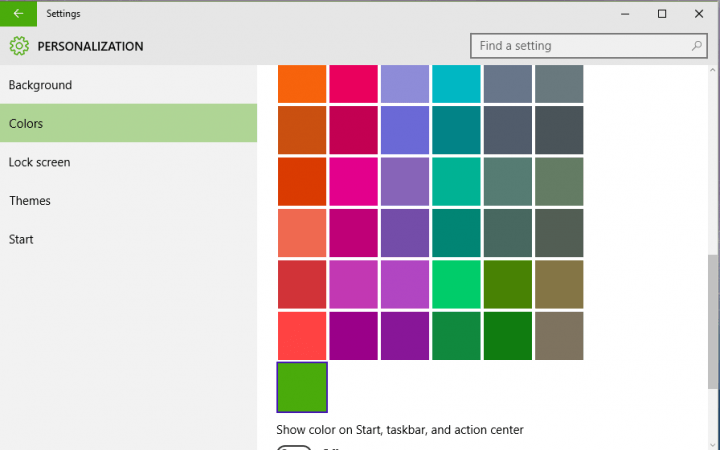
  2. Go to Personalization, Colors
  3. If enabled, turn off Automatically pick an accent color from my background, to be able to choose the color for the Start Menu and other UI features
  4. Find the color which has tiny, blue boarder around it, this color will be customized

Now, we need to perform a tiny registry tweak in order to get desired custom color for our UI elements. Here’s what you need to do:

  1. Go to Search, type regedit and open Registry Editor
  2. Navigate to the following path:
    • HKEY_CURRENT_USER\SOFTWARE\Microsoft\Windows\CurrentVersion\Themes\Personalize
  3. Here you will find a 32-bit DWORD value called SpecialColor. This value is a color in RGB format, change it to appropriate color code in order to change the color (For example, change the value to 00bab4ab, if you want your custom color to be grey)
  4. After you change the value of SpecialColor, log out and than log in again to see the changes

Now, when you open Personalization settings, and you’ll be able to set the custom color for the Start Menu and taskbar instead of the previously selected color.

Read Also: How To Make Windows 10 Icons Look Like Windows 8 Icons

Two new Microsoft Stores opening later this year in the US and Canada

Two new Microsoft Stores opening later this year in the US and Canada

Microsoft continues its assault on retail as it opens new Microsoft Stores across the United States and rebrands them around the world. In the United States, the software giant will be opening a new Store and the Stronbriar Center in Texas tomorrow, but even before that happens, we have news on more stores also opening soon.

Two new Microsoft Stores will be opening later this year, the first will be at the Pacific Center in Vancouver, B.C. This store will mark the ninth Microsoft Store to open in Canada. The grand opening takes place on August 6.

The second new store will open at the Easton Town Center in Columbus, OH. This would be the third Microsoft Store to open in Ohio making it a little easier for customers to reach a store. The grand opening for this store will take place on August 20.

Two new Microsoft Stores opening later this year in the US and Canada

While it hasn’t been specifically stated at this time, we are sure that Microsoft will have a ton of deals and offers for those visiting on opening day as the company has done in the past. So this may be your change to take home awesome new products at a significant discount.

Let us know in the comments section below if you plan on visiting any of these new stores.

International pricing information for Windows 10 revealed by Microsoft

Windows 10

Much has been made of the free upgrade that current users of Windows 7 and 8 will receive upon the arrival of Windows 10, but most others have been kept in the dark; that is until now of course. Following an update to the “Get Windows 10” app, pricing information has now been made available to international consumers, following an earlier announcement detailing pricing in the USA.

According to the app update, and as revealed on Neowin, Windows 10 will cost £99 in the UK and approximately 135 Euros in the eurozone, with more international pricing information yet to arrive. This regards Windows 10 Home Edition, what the pricing of other versions will be has also not yet been revealed.

These prices have not yet been finalized, and as such may yet change. With this kind of price point however, and with competitors making their software available for free, an even more drastic change might be approaching.

Do you think Microsoft ought to change its pricing model? Let us know in the comments below.

How to Move Universal Apps to Another Disk Partition on Windows 10

Universal apps for Windows 10 could take a lot of disk space if you have many of them installed on your computer. So, we’re going to show you how to move them to another disk partition in order to free up some disk space.
How To Move Universal Apps To Another Disk Partition In Windows 10 wind8apps
One of many good things about Windows 10 is that, unlike Windows 8 and Windows 8.1, it gives you an option to select the drive you want to install Universal apps on. Don’t worry this is not some registry or system tweak, so you don’t have to mess up with system files. All you need to do is simply use one feature of Windows 10’s Settings app. Here’s exactly what you have to do to move your apps from one partition to another:

  1. Go to Start Menu and open Settings
  2. Go to System, and then to Storage
  3. In Save Locations, under New will save to, you’ll get the list of your disk partitions, so you’ll be able to change the default location

From now on, when you install an Universal app, it will be stored on the given location. Unfortunately, this option doesn’t move already installed apps to the new location, and only known way to move them to other partition is to uninstall them and then install them again, after applying above-mentioned settings.

If you want to save even more space on your hard disk, you can move your Universal apps to an external drive. When you connect the external drive, it will show under Save Locations, and you’ll be able to set it as a default location for installing new apps. However, when you remove the external drive, all apps stored on it will stop working, but they’ll work again when you connect the external drive back.

Now you know how to manage the location of your Universal apps, but if you have problems with connecting them to internet, you can try some of these workarounds.

Read Also: Microsoft Updates Mail and Calendar Apps for Windows 10 Desktop and Mobile With New Features

Law enforcment turning to Microsoft's cloud to keep their files secure: only service to comply with FBI's CJIS policy

Law enforcment turning to Microsoft's cloud to keep their files secure: only service to comply with FBI's CJIS policy

In the post Edward Snowden era there has been a great deal of attention on the general public’s digital privacy and questions about how much reach should the government and law enforcement agencies have. But who does the government turn to for keeping their own files safe and secure in the cloud?

Microsoft is hoping that governments will rely on them for their cloud based needs as the technology company posted an article today detailing how Microsoft Azure Government is the “only hyper-scale cloud platform that is contractually committed to meeting the FBI’s [Criminal Justice Information Services security policy] requirements.”

Law enforcement agencies across the US might soon be looking to use Microsoft’s Azure Government platform as the International Associate of Chiefs of Police, the largest organization of police leaders in the US, updated their guidelines to recommend that all cloud based storage of criminal justice information should comply with these very FBI’s CJIS requirements.

And Michael Donlan, Microsoft’s Vice President of State and Local Government, believes the Redmond based technology company is best suited for the job not only because they are the only provider contractually committed to compliance with the CJIS, but also:

“…for Microsoft, CJIS compliance isn’t just a check box. While other technology companies claim to support CJIS requirements, many are vague on the subject and details around it or how they work with law enforcement agencies to meet the mandatory security and privacy needs.”

On today’s post, Donlan also provides testimonials from the Los Angeles Police Department, the San Bernardino County Sheriff’s Department, and the Oakland Police Department, who are already using Microsoft Azure to store and manage their criminal justice information. While the testimonials agree with the importance of CJIS compliance for their organizations, Oakland Police Officer Dave Burke also adds:

“Once we get our video onto the Azure platform we can aggregate it, we can learn from it, we can make the database proactive to tell us things. We can run a keyword search against all the audio and pull up videos where certain things were said. From an emergency management or even a court and judicial process perspective, this really opens the door.”

As the sole cloud provider that is contractually committed to CJIS compliance, hopefully Microsoft’s Azure will prove to be a safe and effective way for law enforcement agencies to both protect their data as well as the privacy of citizens. If you are a law enforcement officer at an agency that is considering cloud services, Microsoft has provided a list of five questions that they recommend agencies ask potential service providers on today’s post.

Microsoft's personal digital assistant Cortana will support French by the end of 2015

Microsoft's personal digital assistant Cortana will support French by the end of 2015

Microsoft’s digital personal assistant Cortana is already available in several regions across the globe. French users waiting for Cortana have something to be happy about today as the digital assistant is expected to debut by the end of the year. The news came directly from Microsoft France (via Neowin) who revealed that Cortana will be available in beta for in French later this year. It’s good to see that Microsoft is actively working on making Cortana available in as many languages as possible.

As my French is not to good, a rough translation on Bing says,

“The version will be released before the end of the year 2015! And Cortana in beta version will be available in same GST :)”

Windows 10 Mobile is expected to debut later this year in September. Microsoft already announced July 29th to be the launch date for the desktop version, followed by Windows 10 Mobile. Several carriers across the globe have already listed an expected update schedule, but to be honest, it may take some time for the new operating system to reach all existing Lumia devices. 

Microsoft Azure is helping create a noise tracking app in China

Image Credit: Microsoft Research
For those of us who dwell in urban populated areas, the occurrence of noise congestion can sometimes become a mere backdrop in our living conditions, like a soundtrack to a movie. The longer we live in an area, the more adept we become at dealing with the noise. However, studies are showing that noise pollution ranks among the most pervasive forms of harm against a persons well being. An overexposure to the drudgery of noise pollution can manifest itself in the harmful deterioration of mental and physical well-being of residents, according to an article in the Environmental Health Perspectives (ehp).

Thanks in part to a rising socioeconomic bubble in China, an article in The Economist predicted back in 2014, that 70 percent of China’s population will be living in cities by 2030. That prediction assumes that roughly 1 billion people will be moving into highly condensed areas, and this shift will contribute to a few serious problems. Among the potential problems that may arise, an increase in noise pollution is one that a few researchers are aiming to track. As the rise in factories, construction projects, and vehicles continue in China the audible assault on residents could be detrimental.

Image Credit: Microsoft Research

Investigators in the Department of Computer Science and Engineering at Shanghai Jiao Tong University, with funding from Microsoft Research Asia, would like to implement better tools for tracking noise pollution in real-time. Professor Yanmin Zhu is leading a team in the development of a project called NoiseSense. NoiseSense is a service designed to map urban noise by using crowdsourced noise measurements from smartphone users, according to Microsoft Research. At first glance, the sound capturing app and subsequent usage almost resembles a Waze-like implementation of research. According to Microsoft Research, “They envision a noise-mapping service that will allow anyone to query the noise level in any urban area in the world. More importantly, NoiseSense could give authorities the information needed to devise and implement effective noise abatement strategies.”

Image Credit: Microsoft Research

While the app and research methods are forward thinking and inventive, Professor Zhu realizes that is only half the equation in addressing the problem. Once users are capturing and measuring noise levels, Zhu, and his team will need supercomputer systems on standby ready to hash the mountains of input data. Enter Microsoft’s Azure platform. Zhu spent six months at Microsoft Research Asia as the recipient of a Young Faculty Program award. While at (MRA) Zhu became very familiar with Microsoft’s growing research into urban informatics. Using a grant he received from Microsoft, Zhu applied the free cloud computing power of Microsoft’s Azure platform to supplement his research into his noise sensing project. As for the status of Zhu’s noise mapping app, “They have developed a system prototype for a real-time, fine-grained noise-mapping service on Microsoft Azure, and they have created noise-measuring smartphone apps for both Windows Phone and Android operating systems,” according to Microsoft.

Image Credit: Microsoft Research

Zhu’s research is another forward thinking use of how cloud computing and big data can help create applications with far reaching real-world results. Microsoft is also aiding in the expansion of urban computing, with projects designed to improve many other aspects of city life, including urban transportation and air quality and energy consumption. These are the early days for this type implementation of research, but if Microsoft’s Azure platform can position itself accordingly, Azure could be a necessary tool for researchers moving forward.