
How to Read Kindle Books on PC Without a Kindle


 4 min. read
  Published on

Reading Kindle books doesn’t require a Kindle device. You can easily access your entire eBook library on a Windows or Mac computer using Amazon’s Kindle app or the Kindle Cloud Reader.
Table of contents
How to Read Kindle Books on PC?
1. Use the Kindle App for PC
The Kindle app offers offline access, adjustable fonts, and automatic syncing across devices — perfect if you prefer reading without a browser.
- Go to Amazon’s Kindle for PC page.
- Click Download for PC & Mac and install the setup file.

- Launch the app and sign in with your Amazon account.
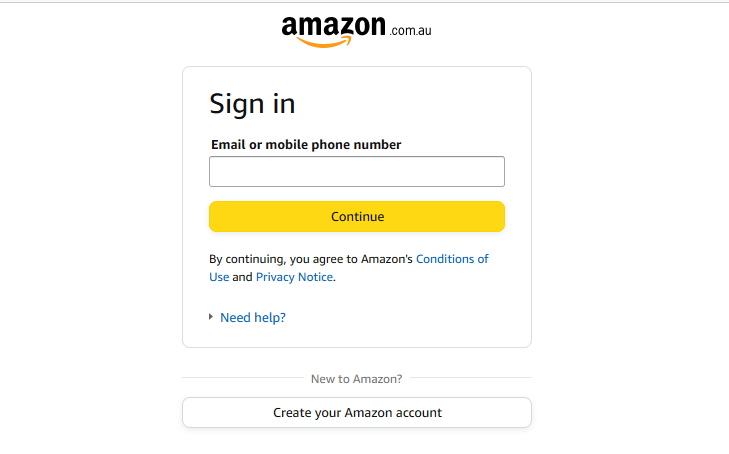
- Wait for your Kindle library to sync automatically.
- Double-click any title to start reading offline.
If your Kindle app won’t open or stops syncing, see how to fix Kindle for PC update issues to get it working again.
2. Read Kindle Books Online (Kindle Cloud Reader)
You can also read Kindle books directly in your browser through Kindle Cloud Reader, with no downloads required.
- Visit read.amazon.com.
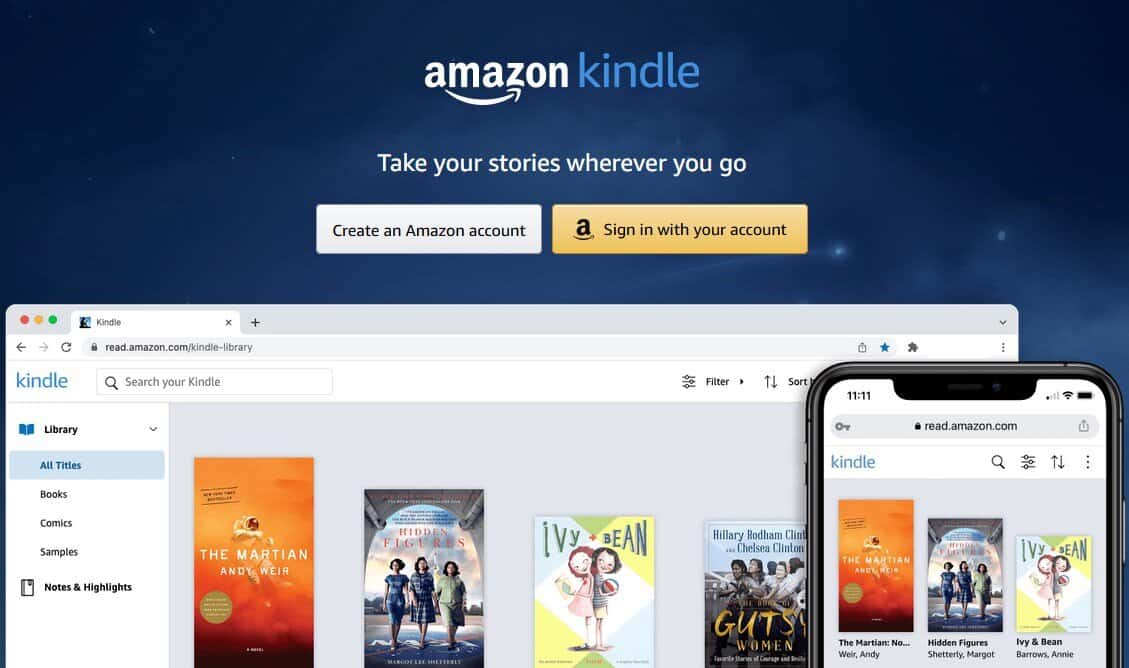
- Sign in with your Amazon account.
- Your Kindle library appears instantly.
- Click a book to open it in your browser.
- Adjust text size, layout, and theme as you like.
This is ideal for quick reading sessions or when you’re using a shared or school computer.
3. Sync Your Kindle Books Across Devices
Whispersync keeps your bookmarks, highlights, and notes synced across your Kindle app, browser, and mobile devices.
- Go to your Amazon account and open Manage Your Content and Devices.
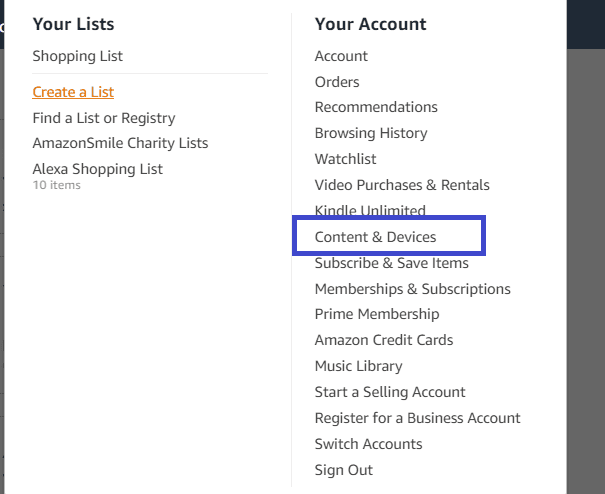
- Select Preferences.
- Find Device Synchronization (Whispersync).
- Turn it On to sync all Kindle apps and devices.
If you want to access downloaded titles manually, here’s where to find your Kindle book location on Windows.
4. Customize Your Reading Experience
The Kindle app for PC lets you personalize every part of your reading interface for maximum comfort.
- Open a book in the Kindle app.
- Click the Aa icon at the top.
- Change the font, size, and spacing.
- Switch between Day, Night, or Sepia themes.
- Use Full Screen mode for distraction-free reading.
You can also enable text-to-speech to listen to your books aloud. Learn how to turn on text-to-speech in Kindle for PC for a more immersive experience.
5. Download and Read Personal Documents
The Kindle app isn’t limited to eBooks — you can also send personal files like PDFs or Word documents to your Kindle library.
- Go to Manage Your Content and Devices on Amazon.
- Open the Preferences tab.
- Locate your Send-to-Kindle Email Address.
- Email your document to that address.
- Find it under Docs in your Kindle app after a few minutes.
FAQs
Yes. You can use read.amazon.com to read your books directly in a web browser.
Yes. Once downloaded, your books remain available without an internet connection.
Yes. The Kindle app and Cloud Reader are both free to use. You only pay for the eBooks.
Yes. You can highlight text, add notes, and sync them across all Kindle devices.
Conclusion
Reading Kindle books on your PC is straightforward and flexible. Whether you choose the full desktop app for offline reading or the browser-based Cloud Reader for quick access, you’ll enjoy seamless syncing, customization, and accessibility. With Amazon’s built-in tools like Whispersync and text-to-speech, your reading experience stays consistent across every device.

Read our disclosure page to find out how can you help Windows Report sustain the editorial team. Read more



Improve this guide



User forum
0 messages