
Fix RPC Server Is Unavailable in Windows 11 (Quick Steps)


 3 min. read
  Published on

When Windows 11 shows the “RPC server is unavailable” error, the system loses communication with Remote Procedure Call components. This usually happens when services stop, network settings break, or the firewall blocks the ports that RPC depends on. The steps below help you restore normal RPC communication quickly.
Table of contents
What Can I do If the RPC Server is Unavailable?
Check Your RPC Services
RPC relies on three core services. When any of them stops, Windows 11 cannot process inter-component communication.
- Press Windows key + R, type services.msc, and press Enter.

- Open Remote Procedure Call (RPC).
- Set Startup type to Automatic and select Start.

- Repeat for RPC Endpoint Mapper and DCOM Server Process Launcher.
- Select Apply and restart your computer.
Restarting these services usually restores RPC functionality.
Restart Your Network Stack
A damaged network stack prevents RPC from sending or receiving requests.
- Open Start, type cmd, right click Command Prompt, and choose Run as administrator.
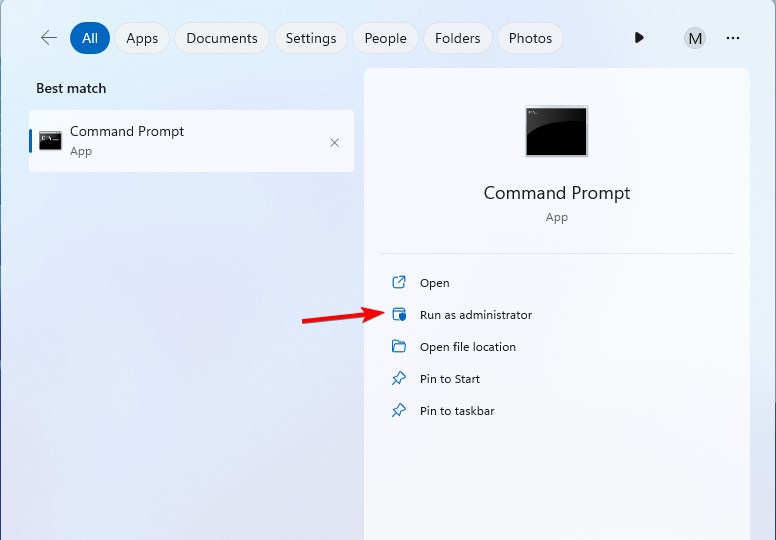
- Run the following commands:
ipconfig /flushdns
ipconfig /registerdns
netsh winsock reset - Restart your computer.
Security tools sometimes interfere with network communication. Users running Avast sometimes report similar problems, explained in our Avast RPC server unavailable guide.
Check Windows Firewall Rules
If Windows Firewall blocks port 135, RPC communication fails.
- Open Control Panel.
- Select System and Security.
- Open Windows Defender Firewall.
- Select Allow an app or feature through Windows Defender Firewall.

- Enable Remote Assistance and Remote Desktop.
- Select OK.
This ensures Windows 11 routes RPC requests correctly.
Verify Your Network Connection
A stable connection is essential for RPC communication.
- Select the Network icon on the Taskbar.
- Make sure your device shows Connected.
- Reconnect to Wi Fi or Ethernet if necessary.
- Restart your router if needed.
A stable connection prevents RPC delays and failures.
Run System File Checker
Corrupt system files can break RPC components or prevent them from loading.
- Open Command Prompt as administrator.
- Type sfc /scannow and press Enter.
- Wait for repairs to complete.
- Restart your computer.
This restores files needed for RPC operations.
Reset Network Adapter Settings
A corrupted adapter profile can block RPC communication.
- Open Settings.
- Select Network and internet.
- Open Advanced network settings.
- Select Network reset.

- Choose Reset now and restart your computer.
Many users also reported the related “RPC executor service threw an error” message, but you can follow the fixes in this guide: RPC executor service threw an error.
What Causes the RPC Server Error
The RPC server error appears when Windows 11 cannot reach core system processes or the network. Some applications also show their own RPC messages. For example, Outlook users often see similar behavior, as described in this guide on how to fix Outlook RPC server unavailable.
FAQs
Windows reports this when RPC services stop or when network components fail to respond.
Yes. Printers rely on RPC to send print jobs and status updates.
No. It usually appears due to network or service configuration issues.
No. Windows 11 depends on RPC for core operations.
Most RPC errors in Windows 11 come from disabled services, broken network settings, firewall blocks, or damaged system files. Restarting the RPC services, refreshing the network stack, checking firewall rules, repairing system files, and resetting the adapter usually fixes the error. After you follow these steps, Windows 11 should stop showing the “RPC server is unavailable” message.

Read our disclosure page to find out how can you help Windows Report sustain the editorial team. Read more



Improve this guide

User forum
0 messages