
Set Default Browser in Windows 10: Step by Step Guide


 3 min. read
  Published on
Windows 10 opens all links in Microsoft Edge by default, but you can easily switch to Chrome, Firefox, Opera, or any browser you prefer. Here’s how to set your favorite browser as default in a few steps.
Table of contents
How to Set The Default Browser in Windows 10?
1. Open Windows Settings
Start by accessing the Settings menu to manage default apps.
- Click the Start button and select the Settings icon.
- Choose Apps.
- In the left panel, click Default apps.

If you need to restore your browser settings later, see how to reset default browser in Windows 10.
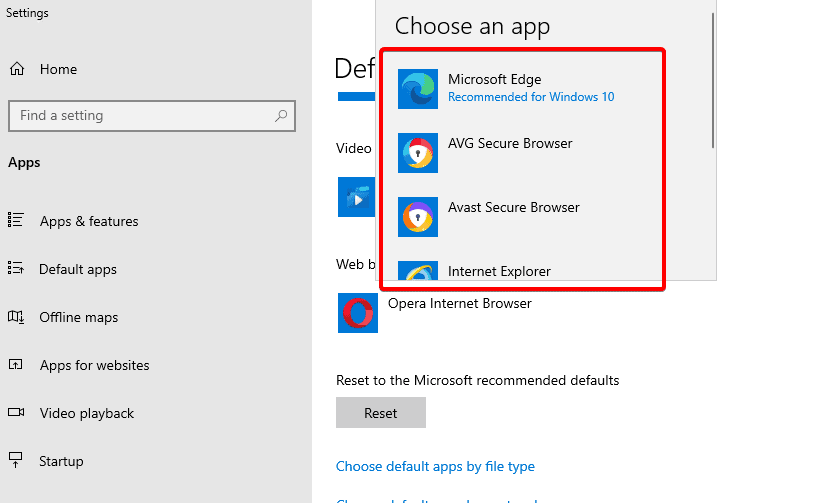
2. Change the Web Browser Option
Next, select your preferred browser from the list.
- Scroll down to the Web browser section.

- Click the current browser, usually Microsoft Edge.
- A list of installed browsers will appear > choose the one you want, for example Google Chrome, Mozilla Firefox, or Opera.
3. Confirm and Test the Change
Finally, verify that the new browser is applied correctly.
- Close Settings to save your choice.
- Open a web link or an HTML file to confirm it opens in the new default browser.
- If not, repeat the steps to ensure the selection was applied.
For Windows 11 users, follow this updated guide on how to change your default browser in Windows 11.
4. Set Default Browser via Browser Settings
You can also set your preferred browser as default directly from inside the app.
1. Use Chrome
Chrome offers a quick option within its settings menu.
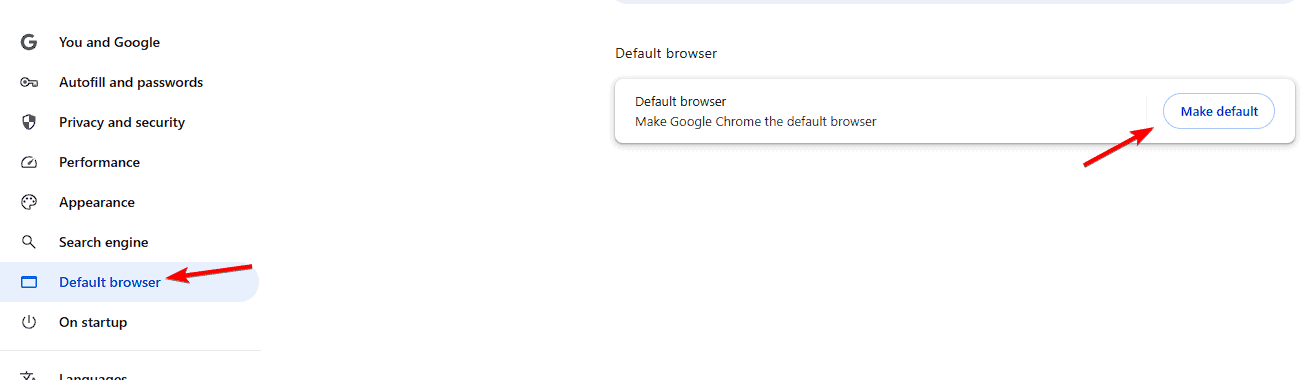
- Open Google Chrome.
- Go to Settings > Default browser.
- Click Make default.
Learn more about making Chrome your default browser in Windows 11.
2. Use Firefox
Firefox lets you change the default browser from its general settings tab.
- Launch Mozilla Firefox.
- Click the Menu (☰) > Settings.
- Under General, click Make Default.

3. Use Opera or Brave
Other browsers have similar one click options.
- Open the browser.
- Go to Settings > Default browser.
- Click Set as default.
Why Change Your Default Browser?
Switching from Microsoft Edge lets you personalize your web experience and sync bookmarks, extensions, and settings across devices using the browser that fits your workflow.
After switching your default browser, you can further personalize your browsing experience by following this guide on changing your browser homepage to start every session on your preferred site.
FAQs
Open Chrome > Settings > Default browser > Click Make default.
System policies or missing updates may block changes. Update Windows, restart your PC, and try again.
No. It only changes which app opens web links.
Yes. Repeat the steps and select Microsoft Edge under the Web browser section.
Conclusion
Changing your default browser in Windows 10 takes only a few minutes. Once done, all links and webpages will open automatically in your favorite browser. If you move to Windows 11, use the dedicated guide above for updated steps.

Read our disclosure page to find out how can you help Windows Report sustain the editorial team. Read more



Improve this guide



User forum
0 messages