
How to Change Your Browser Homepage in Windows 11


 4 min. read
  Updated on
Learn how to change your homepage in any browser to open your favorite website every time you start it. Whether you use Chrome, Edge, or Firefox, this guide shows you exactly where to go in settings.
Table of contents
How to Change Your Browser Homepage?
Change Homepage in Google Chrome
Changing your homepage in Chrome helps you open your favorite site instantly at startup.
1. Open Chrome Settings
- Launch Google Chrome.
- Click the three dots in the top right.
- Select Settings from the menu.

2. Set the Startup Page
- Open the On startup section in the left menu.
- Choose Open a specific page or set of pages.

- Click Add a new page.
- Type the full URL you want as your homepage.
- Press Add to save.
Your chosen website will now open every time you start Chrome. You can also customize Chrome to display your preferred news or service homepage by following this guide on setting MSN as your homepage in Google Chrome.
Users who prefer Google as their starting point can follow this guide on how to make Google your homepage in Chrome for clear step by step instructions.
Change Homepage in Microsoft Edge
You can easily personalize Edge to launch a preferred website every time you open it.
1. Access Edge Settings
- Open Microsoft Edge.
- Click the three dots at the top right.
- Select Settings.

2. Set a Custom Start Page
- Go to Start, home, and new tabs on the left panel.
- Under When Edge starts, select Open custom sites.
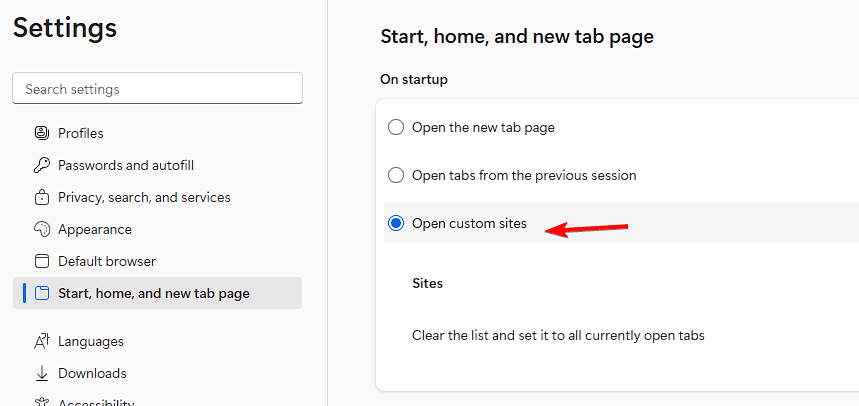
- Click Add a new page and enter your preferred URL.
- Click Add to confirm.
Edge will now launch with your selected homepage each time. If you want a more detailed explanation of the process, check out this step-by-step guide for setting a homepage in Microsoft Edge.
Change Homepage in Mozilla Firefox
Firefox also lets you set a homepage that loads automatically when the browser starts.
1. Open Firefox Preferences
- Launch Mozilla Firefox.
- Click the three horizontal lines in the top right.
- Select Settings.

2. Update the Homepage
- In the Home section, find Homepage and new windows.

- Enter the web address you want as your homepage.
- Close the tab to save changes.
Change Homepage in Opera Browser
Opera users can also personalize their browsing experience with a custom start page.
1. Go to Settings
- Open Opera.
- Click the Opera logo in the top left.
- Choose Settings or press Alt + P.
2. Configure Your Homepage
- Under On startup, select Open a specific page or set of pages.
- Click Add a new page and enter the website URL.
- Save the changes.
Why Change Your Homepage?
A custom homepage lets you open your most-used site, such as Bing, Gmail, or your company intranet, as soon as you launch your browser. It saves time and improves productivity.
You can also explore smarter browsing options by choosing a homepage from this helpful meta search engine list that highlights tools built for faster and more efficient searching.
FAQs
Open your browser settings, find the startup page option, and enter https://www.bing.com as your homepage.
It might be caused by hijacker extensions or policies. Remove suspicious add-ons and reset the browser.
Yes. Chrome, Edge, and Opera can open multiple tabs at startup if you add more than one URL.
No. Your bookmarks, history, and passwords remain the same.
Conclusion
Changing your browser homepage is a quick way to streamline your workflow. Set a custom page to load the content you need the moment your browser opens. If you also want to make your preferred browser the default across Windows, read this detailed guide on setting a default browser in Windows 10.

Read our disclosure page to find out how can you help Windows Report sustain the editorial team. Read more



Improve this guide
User forum
0 messages