
How to Login to Telegram on Mobile, Desktop and Web


 3 min. read
  Published on

If you want to use Telegram on your device, this guide will show you how to log in to Telegram on various devices. Before you begin, make sure you have already created your account.
How do I log in to Telegram?
How to Log In to Telegram on Android and iPhone
Logging in on mobile is quick and only requires your phone number and a verification code.
- Download and launch the official Telegram app on your Android phone or iPhone.
- Tap Start Messaging and enter your mobile number in international format, including the country code.
- Telegram may send the code to another device where you are already signed in. If you do not have an active session, you may receive the code by SMS.
- If you enabled two-step verification, enter your Telegram password when prompted.
- After verification, Telegram will load your chats and account.
How to Log In to Telegram Desktop
Desktop login can be done either with a QR code or by using your phone number.
- Download and open the official Telegram Desktop app on your Windows, Mac, or Linux computer.
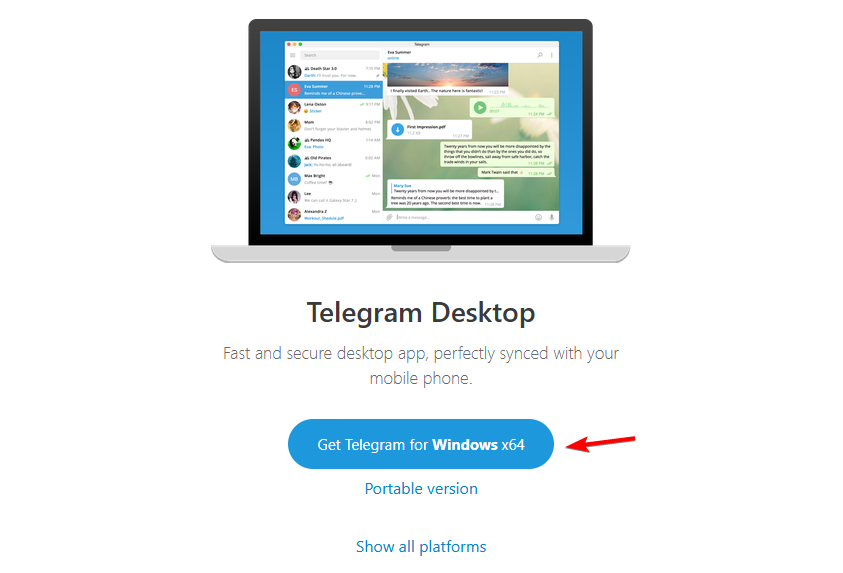
- Select Log in by QR Code or Log in by Phone Number.
- If you choose QR-code login, launch Telegram on your phone.
- Go to Settings > Devices > Add Device.
- Point your phone’s camera at the QR code displayed on your computer.
- Approve the new device if Telegram asks for confirmation.
Keep in mind that issues can occur, but we have a guide on what to do if Telegram is not working on PC.
How to Log In to Telegram Web
Telegram Web lets you access your account directly from a browser without installing anything.
- Visit the official Telegram Web website.
- Select the QR-code login option if it appears.
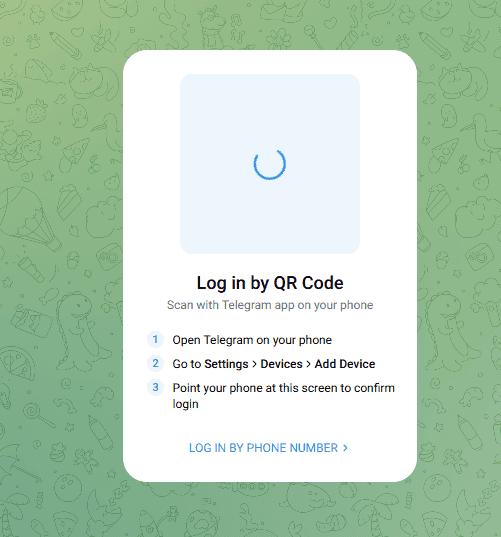
- Go to Settings > Devices > Add Device.
- Scan the code displayed in your browser.
- Approve the browser session on your phone if prompted.
- Telegram will open your account in the browser after authentication.
If you encounter any issues, we have a guide on what to do if Telegram Web is not working in Chrome.
Telegram Login Problems and Security Tips
If your login code does not arrive, check your other devices where Telegram is already signed in. Telegram can deliver login codes through its verified service chat instead of SMS.
Make sure you enter your phone number with the correct country code, and avoid repeatedly requesting new codes.
Two-step verification adds a password after the login code. Passkeys can also provide another sign-in option on supported devices.
Never share your Telegram login code or two-step verification password with anyone, even if they claim to work for Telegram support.
FAQs
Can I use Telegram on multiple devices?
Yes. Telegram supports simultaneous sessions across phones, tablets, computers, and web browsers.
Can I log in to Telegram without SMS?
Often, yes. Telegram may send the login code to an existing Telegram session. You can also use QR-code login on Telegram Desktop and Telegram Web.
Why is Telegram asking for a password?
You likely enabled two-step verification, which requires an additional password after entering the login code.
What should I do if I lost my phone?
Your options depend on whether you still control the phone number linked to your Telegram account or have another active Telegram session. Check Telegram’s recovery options before repeatedly attempting to sign in.

Read our disclosure page to find out how can you help Windows Report sustain the editorial team. Read more



Improve this guide




User forum
0 messages