
Unknown Error Occurred in ChatGPT During PDF Upload [Fix]
Converting your PDF to a different format usually helps


 3 min. read
  Published on
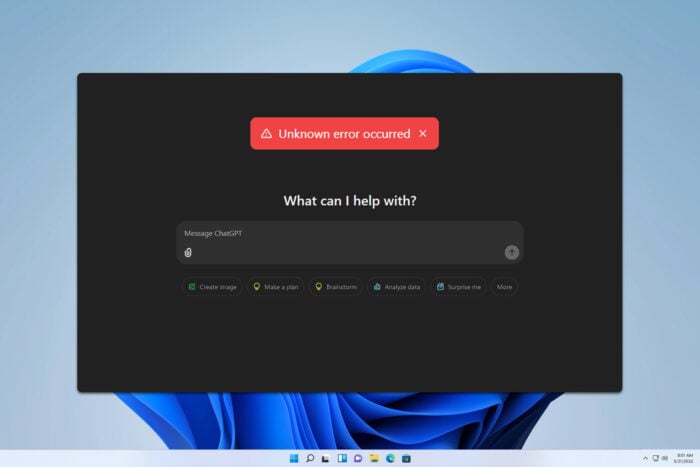
Sometimes you can get an Unknown error occurred in ChatGPT during PDF upload, and if this happens, you won’t be able to access the data from the file. However, there’s a way to fix this, and in this guide, we’re going to show you how to do it.
Why won’t ChatGPT let me upload documents?
This can happen if the file isn’t fully compatible or if it’s too large. Sometimes there are issues with certain formats that can cause this problem.
How can I fix the Unknown error occurred in ChatGPT when uploading a PDF?
Before trying more complex solutions, you can try splitting the PDF file or using the ChatGPT mobile app instead.
1. Use Print to PDF feature
- Open the PDF document that you’re having issues uploading.
- Click the Print option and select Microsoft Print to PDF as your printer.
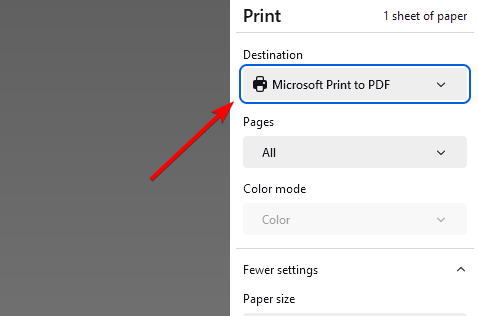
- Now click on Print and save the document to the desired location.
- After that, upload the document to ChatGPT.
2. Convert PDF to doc and upload it
- Open Google Drive.
- Next, click on New and then File upload.
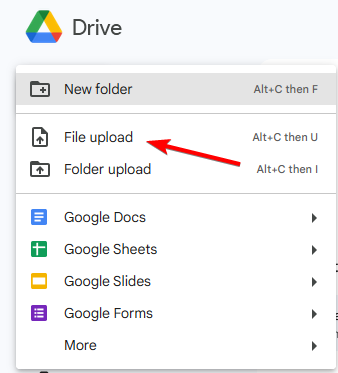
- Select your PDF and upload it.
- Once you upload it, locate the file and click on the three dots next to it.
- Choose Open with and then Google Docs.
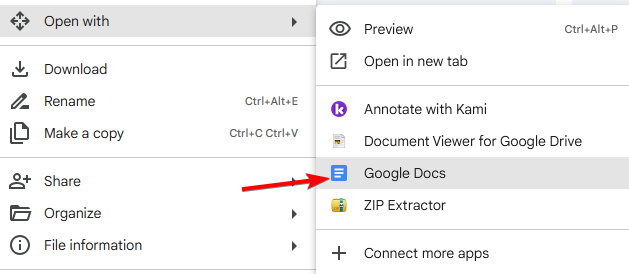
- Click on File and then Download. Select Microsoft Word.
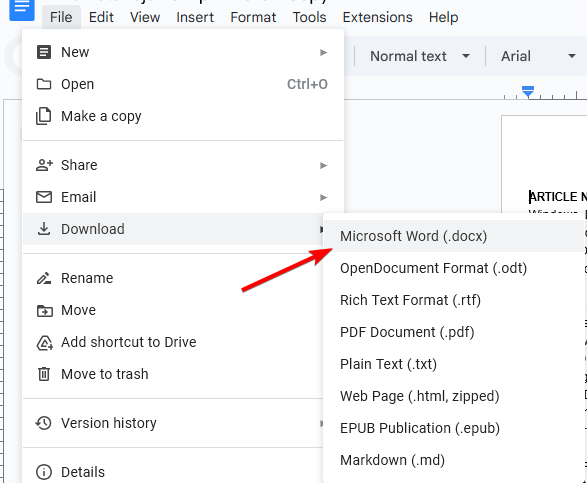
- Once the file is downloaded, try uploading it to ChatGPT.
You can also use PDF to Word converters if this method works for you.
3. Use OCR or convert file to JPG
- Visit OnlineOCR.
- Click on Select file and upload your PDF.
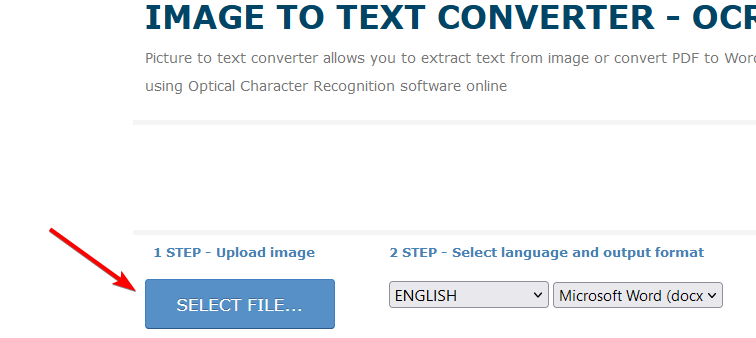
- Click on Convert and wait for the process to finish.
- After that, click on Download Output File.
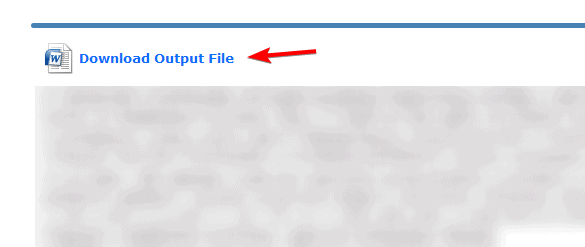
- Upload the downloaded file to ChatGPT.
If this method works for you, you can consider using OCR software if you have multiple PDFs that you need to convert. This method also works if you convert PDF to JPG, so you can try that as well.
4. Zip the PDF file and then upload it
- Locate the PDF file on your PC.
- Right-click and choose Compress to ZIP file.
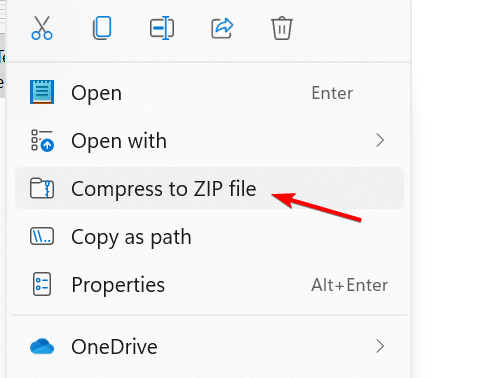
- Once the file is zipped, upload it to ChatGPT.
- Ask the ChatGPT to extract it and analyze the PDF.
An unknown error occurred in ChatGPT when uploading PDF can cause a lot of problems, but hopefully, our solutions should be able to help you fix it.
This isn’t the only issue you can encounter, we wrote about Error analyzing in ChatGPT as well as Error saving draft in ChatGPT, so don’t miss it.

Read our disclosure page to find out how can you help Windows Report sustain the editorial team. Read more



Improve this guide




User forum
0 messages