
View WiFi Adapter Settings In Windows 11 Step By Step


 3 min. read
  Published on

View WiFi adapter settings when you want to check connection details, update drivers, or troubleshoot slow speeds. Windows 11 gives you several ways to inspect hardware properties and network information quickly. The sections below walk you through the most reliable methods with simple clicks and clear menus.
Table of contents
How Can I View WiFi Adapter Settings?
Use the Settings app
The Settings app shows your connection name, protocol, MAC address, speed, and driver information. It offers an easy way to confirm whether your adapter uses WiFi 4, WiFi 5, or WiFi 6 and helps you spot configuration issues.
- Click Start and open Settings.
- Select Network and Internet.
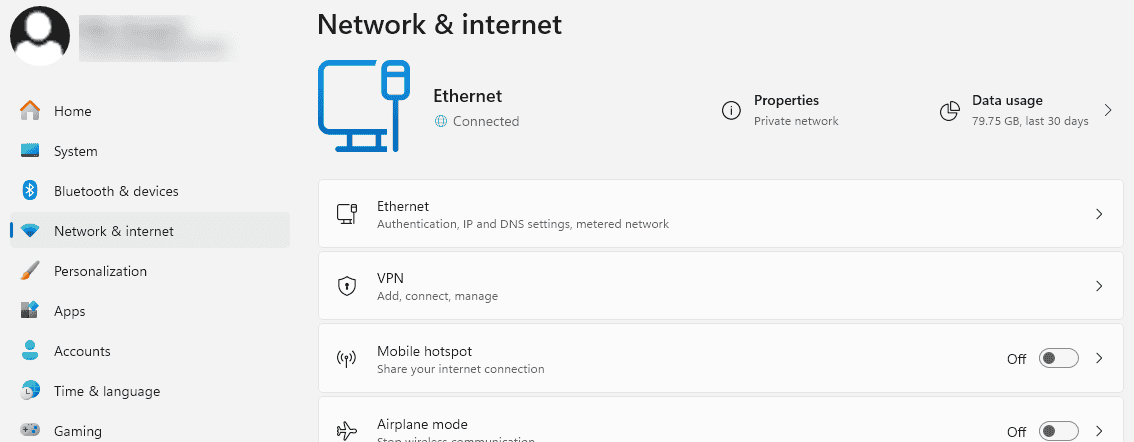
- Click WiFi.

- Select your connected network.
- Click Hardware properties to view adapter details.
- Review protocol, link speed, MAC address, and driver info.
You can also compare these values with the information explained in this guide to network connection details in Windows 11.
Use Control Panel
Control Panel gives you classic network tools that show status, IP details, and protocol level settings. This view helps you verify IPv4 and IPv6 values and confirm whether the adapter binds to the correct network components.
- Press Windows plus R and type control.
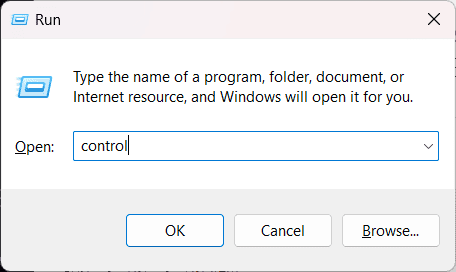
- Click Network and Sharing Center.
- Select Change adapter settings.

- Right click your WiFi adapter and choose Status.

- Click Details to view IP configuration.
- Open Properties to check installed protocols and services.
If your PC does not display nearby networks, you can also check this troubleshooting guide for when Windows cannot find WiFi.
Use Device Manager
Device Manager lets you inspect hardware state, driver version, and advanced adapter capabilities.
- Press Windows plus X and open Device Manager.

- Expand Network adapters.
- Double click your WiFi adapter.
- Open the General tab to view device status.
- Check the Driver tab for version and update options.
- Open Advanced to review extra hardware features.
If your network devices do not appear, this guide helps you enable discovery features using network discovery in Windows 11.
FAQs
Open Settings, select Network and Internet, choose WiFi, click your connected network, then check the Link speed value in Hardware properties.
Go to Settings, open Network and Internet, select WiFi, choose your network, then look at the Protocol field in Hardware properties to see the WiFi standard.
The adapter might be disabled in BIOS, the driver might be missing, or the device might have a hardware fault. Refresh Device Manager, show hidden devices, and install the latest driver.
Yes. Open Settings, select Network and Internet, choose Advanced network settings, then use Network reset to reinstall network adapters and restore default settings.
Viewing WiFi adapter settings helps you confirm speeds, diagnose connection issues, and manage drivers with confidence. The Settings app, Control Panel, and Device Manager each reveal different pieces of information, so using all three gives you a complete picture of your wireless setup. Use these tools whenever you change routers, move to a new network, or notice slow performance so you can fix problems before they turn into outages.

Read our disclosure page to find out how can you help Windows Report sustain the editorial team. Read more



Improve this guide



User forum
0 messages