
Fast Way to Get the Windows 11 Enterprise ISO Using MCT


 3 min. read
  Published on

Windows 11 Enterprise usually stays behind licensing portals, but you can still download the Enterprise ISO without a subscription by following these simple steps.
How to Download the Windows 11 Enterprise ISO With the Media Creation Tool
1. Understand how the Media Creation Tool handles Enterprise
The Media Creation Tool normally downloads only Home and Pro because Enterprise builds are locked behind business licensing, but hidden switches let the tool fetch the Enterprise ISO directly.
To understand how this differs from the usual consumer process, you can compare it with the instructions in the Windows 11 download guide, which explains how the tool behaves without command-line overrides.
2. Download the latest Media Creation Tool
First, download the Media Creation Tool:
- Go to the official Windows 11 download page.
- Scroll to Create Windows 11 installation media.
- Click Download now.
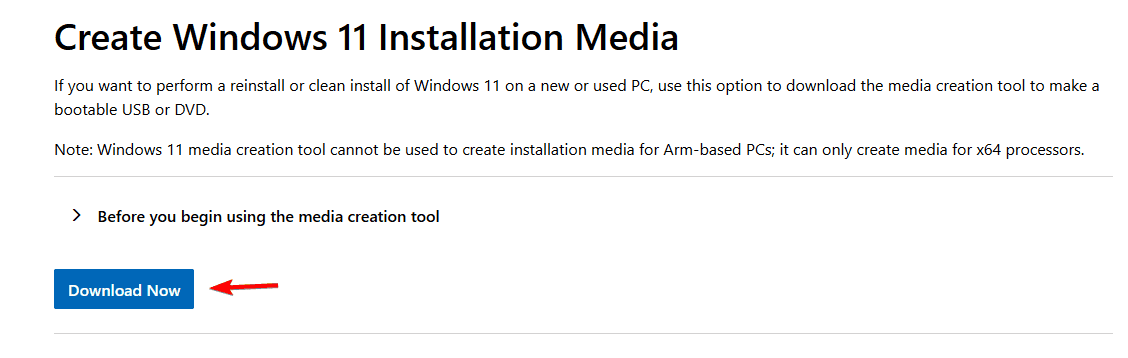
- Save MediaCreationToolW11.exe to your Downloads folder.
After saving it, remember that updated ISOs and new major release builds behave differently across Windows 11 versions, which is covered in the Windows 11 25H2 ISO installation overview.
3. Launch PowerShell or Command Prompt inside the MCT folder
Next, open PowerShell:
- Open File Explorer.
- Open the folder containing MediaCreationToolW11.exe.
- Press ALT+D to highlight the full path.
- Type PowerShell and press Enter.

- A PowerShell window opens in that exact directory.
4. Trigger the Enterprise ISO download
After that, need to use a special command to download Enterprise version:
- Stay in your PowerShell window.
- Copy the command shown below:
MediaCreationToolW11.exe /Eula Accept /Retail /MediaArch x64 /MediaLangCode en-US /MediaEdition Enterprise
- Paste it into PowerShell.
- Press Enter to start the download.
This forces the Media Creation Tool to download the 64 bit Enterprise ISO. When the tool encounters connection issues, verification failures, or sudden cancellations, refer to the solutions in the Windows 11 ISO download failure guide, which outlines the most common MCT errors.
5. Change the language when needed
Adjust the language if needed:
- Replace /MediaLangCode en-US with a supported language.
- Use tags such as ru-RU, fr-FR, or de-DE.
- Check Microsoft’s documentation for the correct region values.
6. What the ISO includes
ISO includes the following:
- Windows 11 Enterprise
- Windows 11 Education
- Windows 11 Professional
- KN and N variations when available
FAQs
The tool hides Enterprise editions unless you explicitly request them with command-line switches.
Yes. These switches trigger an Enterprise download even when the account lacks Enterprise privileges.
Yes. You only need the latest version of the Media Creation Tool.
Yes. Activation requires a proper Enterprise license, a KMS server, or an evaluation key.
This method gives you a fast and reliable way to download the Windows 11 Enterprise ISO without navigating licensing portals. By using the correct command-line switches, the Media Creation Tool retrieves the full Enterprise image and optional bundled editions in one file, making it a practical solution for testing, deployment, and IT environments.

Read our disclosure page to find out how can you help Windows Report sustain the editorial team. Read more



Improve this guide



User forum
0 messages