
Windows 11 Experimental Build Gives Desktop Apps Better Privacy Controls


 2 min. read
  Published on
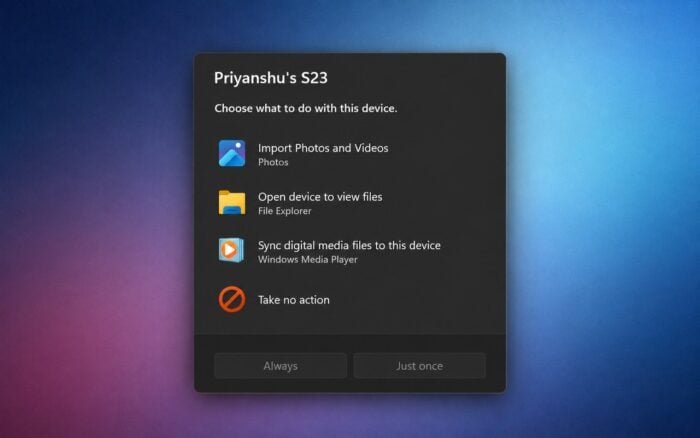
Windows 11 Experimental Build 26340.9233 is now available to Windows Insiders, bringing a redesigned AutoPlay experience, new privacy controls, and several fixes.
Windows 11 gets a modernized AutoPlay experience
One of the biggest changes is a modernized AutoPlay dialog built with WinUI. The refreshed interface better matches Windows 11, supports dark mode, and responds better to text scaling and display settings.
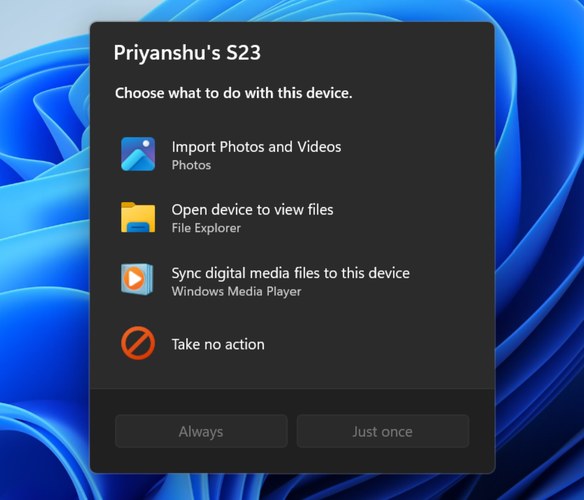
Microsoft has also docked AutoPlay notifications inside Notification Center for easier access.
Apps can open maximized automatically
The build adds the new Open apps maximized accessibility option.
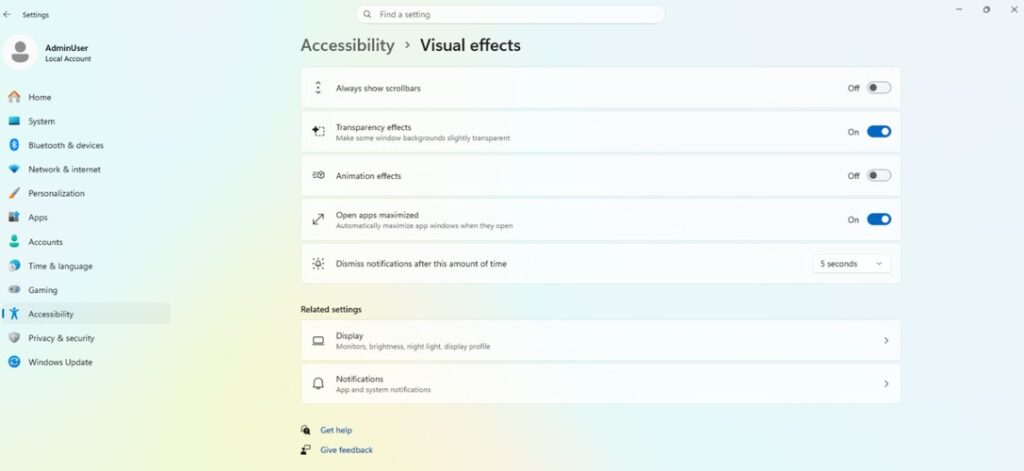
When enabled, Windows automatically maximizes app windows when they launch. Users can find the setting under the Accessibility section of the Settings app.
The same feature is also available in Windows 11 Beta Build 26220.9223.
Desktop apps get individual privacy permissions
Microsoft is also expanding privacy controls for traditional desktop apps.
Windows can now manage camera, microphone, and location permissions separately for each application instead of relying mainly on a device-wide setting.
Users can allow or deny access for individual desktop apps under Privacy & security in Settings.
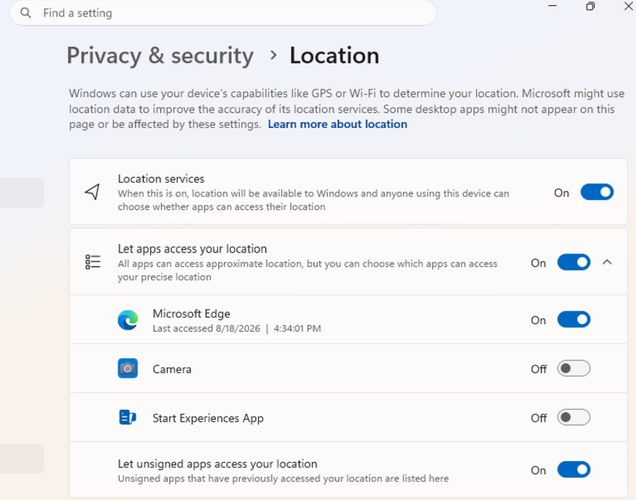
Apps that have not previously accessed a protected resource will request permission the first time they try. Existing permission choices and enterprise policies remain in place.
Some applications may appear under unexpected names when they rely on shared system components or browser-hosted experiences. Windows may also label apps as Unsigned when it cannot verify their publisher.
File Explorer and Microsoft Store improvements
File Explorer can now automatically preview PDFs and other non-HTML files downloaded from the web in the Preview pane.
Microsoft Store also adds support for in-app purchases in packaged WinUI 3 applications that require elevation.
Microsoft fixes taskbar, cursor, and Settings issues
Microsoft fixed an issue that caused taskbar animations to stop shortly after working and another that could make the mouse cursor disappear in certain apps.
The company also fixed an issue where the Windows Insider Program Flags page could appear empty.
Finally, Settings > Apps > Installed apps now shows version numbers directly at the top level for packaged applications.

Read our disclosure page to find out how can you help Windows Report sustain the editorial team. Read more



Improve this guide


User forum
0 messages