
Windows 11 Features List: All Tools Explained Simply


 6 min. read
  Published on

The Windows 11 features list brings together everything users love about Windows 10, plus a modern design, powerful AI tools, and enhanced productivity options. Microsoft has refined the user experience from the ground up to make everyday tasks smoother, faster, and more connected. In this guide, we’ll walk through all the features step by step, from simple visual updates to advanced developer tools.
Table of contents
- 🔍 All Windows 11 Features (Grouped from Basic to Advanced)
- 🖌️ Visual Interface & Design Tweaks
- ⚒️ Productivity & Multitasking Tools
- 🤖 AI Features and Windows Copilot
- 👨💻 Tools for Developers and Advanced Users
- 🎮 Gaming Features
- 🔐 Security and Privacy Features
- ☁️ Cloud Sync and Microsoft Account Integration
- 🔄 Update Management Features
- ♿ Accessibility and Input Enhancements
- ❓FAQs
- ✅ Final Thoughts
🔍 All Windows 11 Features (Grouped from Basic to Advanced)
🖌️ Visual Interface & Design Tweaks
Fluent Design System
Windows 11 introduces Fluent Design with rounded corners, translucent materials (like Mica), and smoother animations. The interface looks cleaner and feels more responsive.
Centered Start Menu and Taskbar
The Start menu and taskbar are centered by default, offering a streamlined look. Pinned apps and recent files are easier to reach, and Live Tiles have been removed.
Redesigned File Explorer
File Explorer gets tabs, a minimalist toolbar, and seamless OneDrive integration. Navigation and file organization are now more intuitive.
Quick Settings and System Tray
A redesigned Quick Settings panel lets you control Wi-Fi, brightness, volume, and Bluetooth faster than before, all from one place.
Widgets Panel
Open a customizable widget board that shows weather, traffic, calendar, sports, and personalized news. You can launch it with a swipe or click.
To see how these interface updates perform in real-world use, read our full Windows 11 review.
⚒️ Productivity & Multitasking Tools
Snap Layouts and Snap Groups
Drag windows into suggested layouts like side-by-side or quadrant view. Snap Groups remember your window setup when switching tasks or monitors.
Multiple Desktops
You can create separate desktops for different use cases: work, gaming, browsing, etc. Each one can have different wallpapers and apps.
Focus Sessions
Use a built-in timer that works with Microsoft To Do and Spotify to help manage work time and breaks effectively.
Clipboard History and Sync
Press Windows + V to see a clipboard history of up to 25 copied items. It can sync across devices if you’re logged in with a Microsoft account.
Voice Typing with Auto-Punctuation
Use the voice typing tool by pressing Windows + H. It now includes punctuation, making dictation smoother and more accurate.
If you just installed the OS, don’t miss our list of the first things to do in Windows 11 to make the most of these tools.
🤖 AI Features and Windows Copilot
Windows Copilot Integration
A sidebar AI assistant helps you summarize articles, rewrite text, adjust settings, or launch apps. Copilot uses context to give smart suggestions.
AI-Powered App and File Recommendations
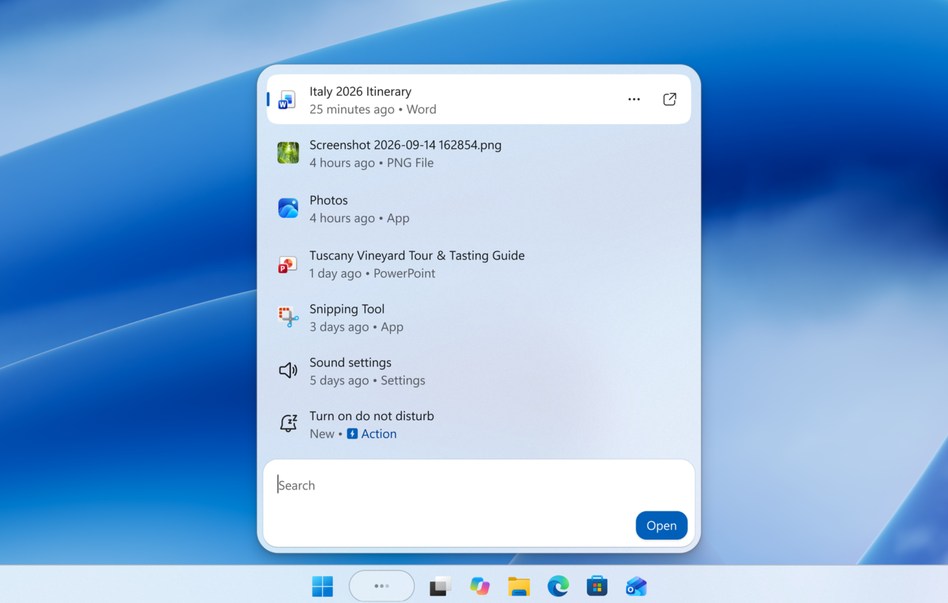
Windows 11 learns your habits and offers app and file suggestions directly in the Start menu and File Explorer for faster access.
👨💻 Tools for Developers and Advanced Users
Windows Terminal
Get Command Prompt, PowerShell, and WSL in one modern interface. It supports tabs, themes, and Unicode.
WSL 2 (Windows Subsystem for Linux)
Run a full Linux kernel and even GUI apps without leaving Windows. Ideal for coding, testing, and development.
Dev Drive with ReFS
Set up a Dev Drive using the Resilient File System for faster build times and fewer interruptions. Designed for large development workloads.
Dynamic Refresh Rate
This feature balances performance and power savings by switching between low and high refresh rates based on what you’re doing.
🎮 Gaming Features
DirectStorage
Games load faster because your GPU can now access data directly from NVMe SSDs. This reduces CPU load and shortens loading times.
Auto HDR
Games not originally built with HDR get enhanced visuals automatically, including better brightness and color detail.
Xbox App and Game Pass Integration
Access Game Pass directly from Windows. You can install or stream titles right away, including cloud-based games.
Controller Bar
Plug in your Xbox controller to open a mini-game launcher showing your most recent games and apps.
🔐 Security and Privacy Features
TPM 2.0 and Secure Boot
Mandatory for installation, these features offer baseline protection from rootkits and boot-time malware. You can check out the Windows 11 requirements to make sure your device is compatible.
Windows Hello
Log in with facial recognition, fingerprint, or PIN instead of a password. It’s faster and more secure.
Smart App Control
This blocks unverified apps from launching, reducing malware risks. It’s ideal for users who download from third-party sources.
Core Isolation & Memory Integrity
Critical OS processes are isolated in memory, making it harder for attackers to tamper with the system.
Microsoft Defender Security Center
Integrated antivirus with real-time protection. Microsoft Defender now has a centralized dashboard for easier threat management.
☁️ Cloud Sync and Microsoft Account Integration
OneDrive Integration
Back up desktop, documents, and pictures automatically. Cloud files can be accessed in File Explorer with no extra setup.
Microsoft Account Sync
Sync your settings, themes, passwords, and Wi-Fi credentials across all Windows 11 devices.
Universal Clipboard
Copy something on one Windows device and paste it on another. Works with SwiftKey for mobile users as well.
🔄 Update Management Features
Smaller, Faster Updates
Windows 11 delivers smaller update packages. They install faster and reduce reboots, especially during active hours.
Windows Update for Business
Designed for IT admins to schedule and manage updates on multiple PCs from a central dashboard.
Energy Recommendations
Built-in tips help reduce energy consumption. Some are automatic, like dimming the screen or sleeping unused apps.
♿ Accessibility and Input Enhancements
Improved Narrator and Magnifier
Narrator uses more human-sounding voices. Magnifier works more fluidly and includes screen reading options.
Voice Access
Navigate your PC entirely through voice commands. You can open apps, scroll pages, or even type emails using dictation.
Tablet and Pen Enhancements
Tablet mode now includes haptic feedback for pens, larger touch targets, and better swipe gestures on 2-in-1 devices.
❓FAQs
Windows Copilot is an AI-powered assistant that helps you summarize content, adjust system settings, and launch apps directly from the sidebar.
Yes. Features like Snap Layouts, Snap Groups, and multiple desktops make it easier to organize and switch between tasks.
Definitely. It includes DirectStorage for faster load times, Auto HDR for enhanced visuals, and built-in Xbox Game Pass access.
Windows 11 uses TPM 2.0, Secure Boot, Smart App Control, and Windows Hello to improve protection against modern threats.
✅ Final Thoughts
The Windows 11 features list covers everything from visual polish to deep system improvements. Whether you’re a casual user, developer, or gamer, Microsoft’s new OS offers smarter multitasking, enhanced security, and powerful AI assistance, all wrapped in a faster, cleaner interface.

Read our disclosure page to find out how can you help Windows Report sustain the editorial team. Read more



Improve this guide


User forum
0 messages