
How to Use Snipping Tool to Extract Text in Windows 11


 4 min. read
  Updated on

The Snipping Tool in Windows is a useful built-in tool that lets you capture screenshots, but did you know it can also be used to extract text? With a bit of creativity and the right steps, you can leverage Snipping Tool to grab text from images and other content. This guide will walk you through the process in a clear and easy-to-understand format.
Table of contents
How to Use Snipping Tool to Extract Text from Images?
1. Open Snipping Tool
To begin, you need to launch the Snipping Tool application on your computer.
- Press the Windows key on your keyboard.
- Type “Snipping Tool” in the search bar and press Enter.
- Select Snipping Tool from the list of apps.

For more information about how to take a screenshot using the Snipping Tool, you can check out this guide: How to Take a Screenshot on Windows 7.
2. Capture the Screen
- Open Snipping Tool: Press the shortcut Windows key + Shift + S. Your screen will dim, and a crosshair cursor will appear.

- Select the area: Click and drag your mouse to draw a box around the text you want to extract.
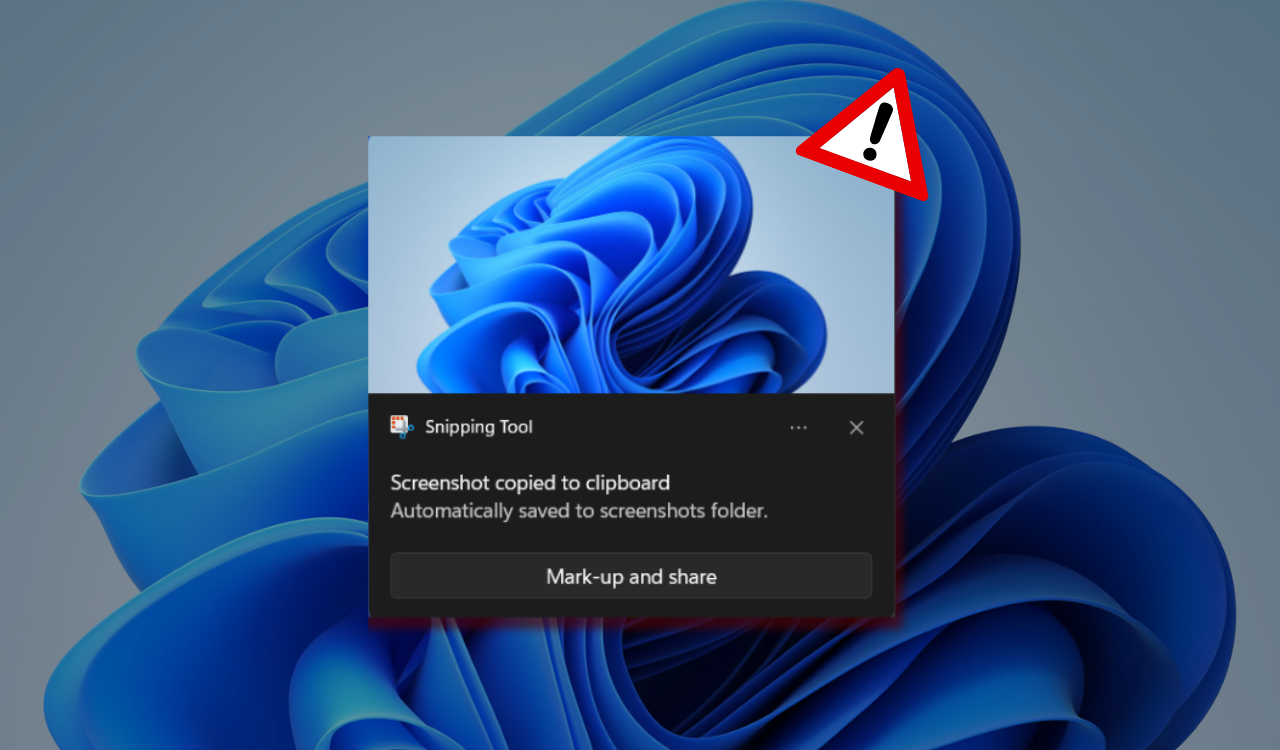
- Release the mouse: When you release, a notification preview of the screenshot will appear in the corner of your screen. Click on it to open the Snipping Tool editor.
For more keyboard shortcut options, check this detailed keyboard screenshot key guide for Windows 11.
3. Extract the Text
- Click “Text actions”: In the Snipping Tool editor, look for and click the “Text actions” button (it looks like a series of lines with a frame around it). The tool will use Optical Character Recognition (OCR) to analyze the image and highlight all the text.

- Copy the text:
- To copy all the text, click the “Copy all text” button that appears in the toolbar.
- Alternatively, you can select specific parts of the highlighted text with your mouse and then right-click and select “Copy text” (or press Ctrl + C).

- Paste: Open any application where you want to use the text (like Notepad, Word, or an email) and paste it using Ctrl + V.
The text will now be editable and no longer part of an image.
For more information on how to insert text into a Snipping Tool capture, see: How to Insert Text in Snipping Tool.
What Is Snipping Tool?
The Snipping Tool is a built-in screen capture tool on Windows that allows users to capture screenshots of their desktop. It enables you to snip various parts of your screen, including free-form, rectangular, and full-screen captures. While it’s not designed specifically for text extraction, with Optical Character Recognition (OCR) tools, you can turn your screenshots into editable text.
Tips for Better Text Extraction with Snipping Tool
To improve your text extraction, here are a few tips:
- Capture Clear Images: The clearer the text in your screenshot, the better the OCR tool will extract it.
- Use High-Quality OCR Tools: Some free OCR tools may have limitations. Using paid or more advanced software can yield better results.
- Check for Errors: OCR tools can sometimes make mistakes, especially with unclear or stylized fonts, so double-check the extracted text.
Conclusion
Snipping Tool, combined with OCR technology, can be an efficient way to extract text from images. Whether you’re capturing text from a document, web page, or screenshot, this simple method allows you to work smarter and faster. By following these steps, you’ll easily be able to convert images into editable text with minimal effort. For additional tips on using Snipping Tool in Windows 11, check out this guide: Snipping Tool Record Feature in Windows 11.
For advanced screenshot and text capture options, explore these free Snagit alternatives for Windows 11 that offer enhanced editing and recording tools.
FAQ
Yes, Microsoft has recently added OCR capability to the Snipping Tool, allowing you to extract text from any image with ease.
Yes, you can quickly open Snipping Tool by pressing the Windows key + Shift + S, which activates the Snipping Tool for screen captures.
Snipping Tool can capture visible portions of a webpage, but if you want to capture an entire webpage, consider using other tools like Snip & Sketch or browser extensions designed for scrolling screenshots.
Yes, tools like Snip & Sketch, Greenshot, and dedicated OCR software (like ABBYY FineReader) offer more robust features for both capturing screenshots and text extraction.

Read our disclosure page to find out how can you help Windows Report sustain the editorial team. Read more



Improve this guide



User forum
0 messages