
How to Fix USB Not Recognized in Windows 7 (Easy Steps)


 4 min. read
  Published on
Setting up a USB drive should be simple, but sometimes Windows 7 does not recognize it. This guide explains the exact steps to troubleshoot and fix USB recognition problems quickly.
Table of contents
How to Fix Windows 7 Not Recognizing USB?
1. Check the USB Port and Device
Sometimes, the issue lies with the hardware, not Windows.
- Unplug your USB device and try it in another port.
- Test the USB on another computer to confirm it works.
- If it works elsewhere, your current port or Windows driver may be faulty.
If the problem seems related to general connectivity, see how to fix Wi-Fi not showing on Windows 7.
2. Restart the Computer
Restarting resets temporary driver and power issues.
- Disconnect all USB devices.
- Shut down your PC completely.
- Wait 30 seconds, then turn it back on.
- Reconnect the USB and check if it is recognized.
If Windows still fails to load properly, check this guide on how to fix Windows 7 not starting.
3. Use Device Manager to Scan for Hardware Changes
If the USB port is functional, Windows might just need to detect the hardware again.
- Press Windows + R, type devmgmt.msc, and press Enter.

- In Device Manager, expand Universal Serial Bus controllers.
- Right-click anywhere in the list and choose Scan for hardware changes.

- Reinsert the USB device and check if it appears.
If the USB still does not show up, the issue may be similar to other driver errors such as Windows 7 not a valid Win32 application.
4. Update or Reinstall USB Drivers
Corrupted or outdated drivers often cause Windows 7 to miss USB devices.
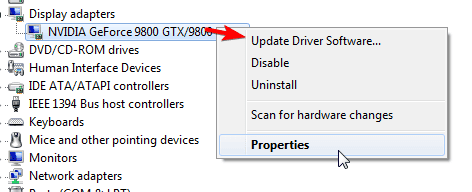
- In Device Manager, right-click the first USB Root Hub and Update driver software.
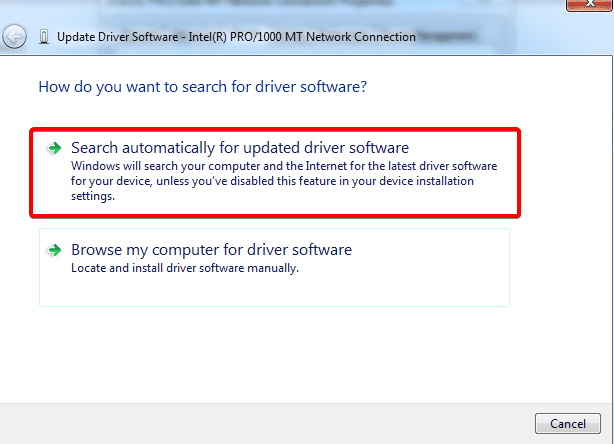
- Choose Search automatically for updated driver software.
- If the update fails, right-click the same entry and select Uninstall.
- Restart your computer to reinstall the drivers automatically.
5. Disable USB Selective Suspend Setting
This power-saving feature can stop USB devices from being detected.
- Open Control Panel and select Power Options.
- Click Change plan settings next to your active plan.
- Choose Change advanced power settings.
- Expand USB settings > USB selective suspend setting.
- Set it to Disabled and click Apply.
6. Fix Power Management on USB Root Hubs
Windows sometimes turns off USB ports to save power.
- Go back to Device Manager.
- Expand Universal Serial Bus controllers.
- Double-click each USB Root Hub.
- Under Power Management, uncheck Allow the computer to turn off this device to save power.
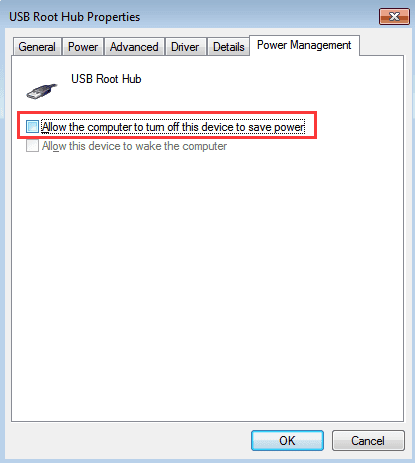
- Click OK and restart your computer.
7. Install Windows Updates
Important system updates often contain driver fixes.
- Open Control Panel and click Windows Update.
- Select Check for updates on the left panel.
- Install all important and optional updates.
- Restart your PC and plug in the USB again.
8. Try the USB Troubleshooter
Microsoft released a built-in troubleshooter for USB issues.
- Go to Control Panel > Troubleshooting.
- Click Configure a device under Hardware and Sound.
- Follow the on-screen instructions to repair USB errors automatically.
FAQs
It can be caused by faulty ports, outdated drivers, or disabled USB controllers. Check hardware first, then reinstall USB drivers.
Yes. Most cases are solved by updating drivers, disabling power management, or running the troubleshooter.
Try the device on another computer. If it fails there too, the USB drive itself may be damaged.
Open Disk Management, right-click the USB drive, and assign a drive letter. If that fails, format the drive after backing up important data.
Conclusion
When Windows 7 does not recognize your USB, the problem is usually driver or power related. By following these steps such as checking ports, updating drivers, and adjusting power settings, you can restore full USB functionality without reinstalling Windows.

Read our disclosure page to find out how can you help Windows Report sustain the editorial team. Read more



Improve this guide


User forum
0 messages