
Fix Not a Valid Win32 Application on Windows 7


 4 min. read
  Published on

Windows 7 users often encounter the “Not a valid Win32 application” error when trying to install or run software, so follow these steps to fix it quickly.
Table of contents
How to Fix “Not a Valid Win32 Application” in Windows 7?
1. Check File Compatibility
Make sure the program is compatible with your version of Windows 7.
- Right-click the program or installer that triggers the error.
- Select Properties and open the Compatibility tab.
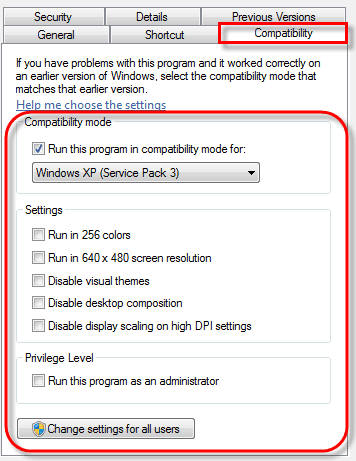
- Check Run this program in compatibility mode for.
- Choose Windows XP (Service Pack 3) or Windows Vista.
- Click Apply and then OK.
- Run the file again to test if it works.
For more startup and boot troubleshooting, see how to boot into Safe Mode in Windows 7.
2. Re-download or Copy the File Again
A corrupted or incomplete download can cause this error.
- If you downloaded the file from the internet, delete the old version.
- Visit the official website or trusted source to download it again.
- If you copied it from a USB drive or CD, recopy it using a different port or drive.
- Try to open the new file once it is fully copied.
If Windows fails to update downloaded files, check this guide on fixing Windows 7 not updating properly.
When reinstalling or copying from a USB device, Windows might fail to recognize the drive. In such cases, follow this USB not recognized in Windows 7 guide to fix driver or port issues before retrying the file transfer.
3. Scan for Viruses or Malware
Malware infections can damage files and trigger this message.
- Open Control Panel > System and Security > Windows Defender.

- Click Scan now to run a full system scan.
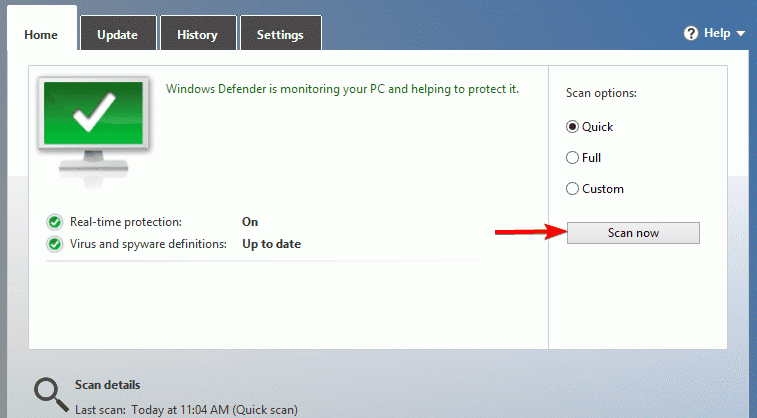
- Wait for the scan to finish and remove any detected threats.
- Restart your computer and try running the program again.
4. Unblock the Downloaded File
Windows may block files downloaded from unknown sources.
- Right-click the program file and select Properties.
- Under the General tab, look for Security.
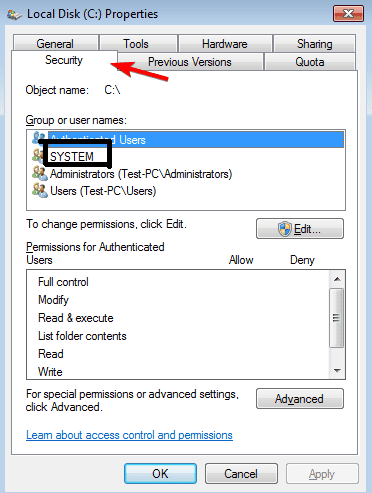
- If you see “This file came from another computer,” click Unblock.
- Select Apply and then OK.
- Run the program again.
5. Repair File System Errors
If your drive has errors, Windows may fail to execute applications correctly.
- Click Start, type cmd, and right-click Command Prompt.
- Choose Run as administrator.
- Type the following and press Enter
chkdsk C: /f - Press Y to schedule a scan on the next restart.
- Restart your PC and let the scan complete.
You may need administrative privileges for this step. Learn how to log in as Administrator on Windows 7.
6. Run System File Checker
Damaged system files can also prevent executables from launching.
- Open Command Prompt as administrator again.
- Type the following and press Enter
sfc /scannow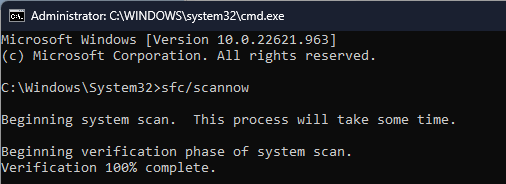
- Wait for Windows to scan and fix system files.
- When done, restart your computer and retry opening the program.
7. Use the Correct Program Architecture
Running a 64-bit program on 32-bit Windows will cause this error.
- Verify if your Windows 7 is 32-bit or 64-bit.
- Check if the application you are trying to run matches your system.
- Download the correct version from the developer’s site.
8. Reinstall Windows 7 (Last Resort)
If nothing works, reinstalling Windows can fix deep system issues.
- Back up your files to an external drive.
- Insert the Windows 7 installation DVD or USB.
- Restart your computer and boot from the installation media.
- Choose Custom (Advanced) installation and format your system drive.
- Complete the setup process.
FAQs
It usually means the file is corrupted, incomplete, or incompatible with your Windows version.
No. You must install a 32-bit version of the program to make it work.
Yes, sometimes malware damages executables or alters system paths, causing this message to appear.
Yes. In most cases, re-downloading the file, scanning for malware, or using compatibility mode will solve the issue without reinstalling Windows.
No. It mainly affects executable files (.exe), setup packages, or drivers that fail integrity or compatibility checks.
Conclusion
The “Not a valid Win32 application” error usually comes down to a bad file, a compatibility mismatch, or missing permissions. Work through the steps above in order, confirm your system type, repair corrupted files, and only consider a clean reinstall when other fixes fail.

Read our disclosure page to find out how can you help Windows Report sustain the editorial team. Read more



Improve this guide

User forum
0 messages