
Windows 7 Not Starting? Try These Easy Fixes


 4 min. read
  Published on

If Windows 7 is not starting, it can be caused by startup file corruption, hardware failure, or power issues. This guide explains how to fix the problem step-by-step using built-in tools and recovery options.
Table of contents
How to Fix Windows 7 Not Starting?
1. Check Power Supply and Peripherals
- Unplug all external devices such as USB drives, printers, and external hard disks.
- Ensure the power cable and adapter are properly connected.
- Disconnect and reconnect the battery if you are using a laptop.
- Press the power button to check if the system turns on.
If your PC still does not start, continue with the next steps. For more power-related startup troubleshooting, see this detailed guide on Windows 7 not booting.
2. Boot into Safe Mode
- Restart your computer and press F8 repeatedly before Windows loads.
- When the Advanced Boot Options menu appears, select Safe Mode.
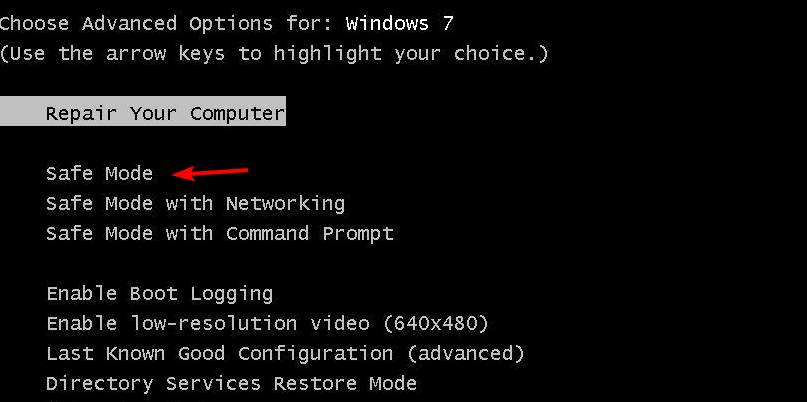
- Press Enter to boot into Safe Mode.
- If Windows starts successfully, uninstall any recently added software or drivers that may have caused the issue.
If Safe Mode does not load, move to the next fix. For a full guide, check how to boot into Safe Mode in Windows 7.
In many startup failure cases, update errors can contribute to the problem. Follow the complete guide Windows 7 not updating to restore the update service and prevent startup issues caused by incomplete patches.
3. Use Startup Repair
- Insert your Windows 7 installation DVD or USB drive and restart your PC.
- Press any key when prompted to boot from the installation media.
- Select your language preferences and click Next.
- Click Repair your computer.
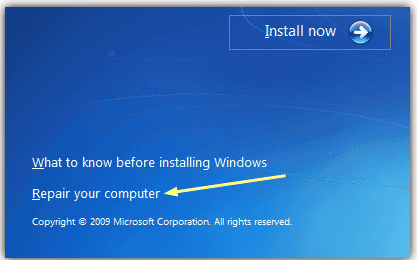
- Choose your Windows installation and click Startup Repair.

- Wait for the tool to detect and fix any startup issues.

After the repair completes, restart your PC normally.
4. Run System Restore
- Insert the Windows 7 installation media and boot from it.
- Click Repair your computer on the setup screen.
- Select System Restore from the recovery options list.
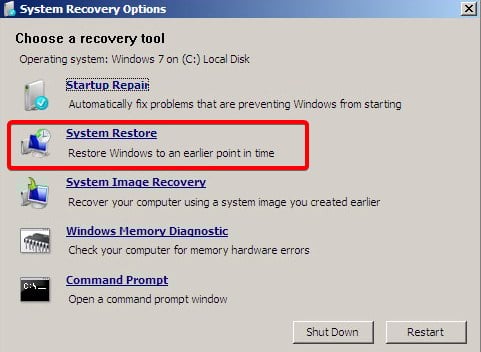
- Choose a restore point created before the issue began.
- Follow the on-screen instructions to restore your system.
Once the process finishes, restart your PC to check if Windows starts correctly.
5. Fix Boot Records Using Command Prompt
- Boot from your Windows 7 DVD or USB drive.
- Select Repair your computer and open Command Prompt.
- Type the following commands one by one and press Enter after each:
bootrec /fixmbr
bootrec /fixboot
bootrec /scanos
bootrec /rebuildbcd
- Close Command Prompt and restart your PC.
If you cannot access Command Prompt normally, try logging in as an administrator using this guide on how to log in as Administrator in Windows 7.
6. Check Hard Drive for Errors
- From Command Prompt in recovery mode, type the command below and press Enter:
chkdsk C: /f /r
- Wait for the scan to complete. It will automatically fix any disk-related issues.
- Restart your PC once the scan finishes.
7. Reinstall Windows 7 (Last Resort)
- Back up important data if possible using Safe Mode or a bootable USB.
- Insert the Windows 7 installation disc or USB and restart the PC.
- Press any key to boot from the media.
- Choose Install Now and follow on-screen steps to reinstall Windows 7.
This will replace system files and fix any major startup errors.
When your Windows 7 installation USB is not detected during boot or inside Setup, use this USB not recognized in Windows 7 guide to restore USB drivers and controller settings before retrying the reinstall.
FAQs
This usually happens because of corrupted system files, driver conflicts, or a failing hard drive.
Press F8 during boot and select Repair Your Computer if the recovery partition is available.
Yes. Try Startup Repair, Safe Mode, or System Restore before reinstalling the OS.
If you hear clicking sounds, experience frequent crashes, or see “disk read error” messages, your hard drive may be failing. Run chkdsk or use a diagnostic tool to confirm.
Conclusion
When Windows 7 is not starting, follow these steps carefully to restore system functionality. Begin with Safe Mode and Startup Repair, then proceed to advanced fixes like boot record repair or System Restore. Reinstallation should only be your last option.

Read our disclosure page to find out how can you help Windows Report sustain the editorial team. Read more



Improve this guide


User forum
0 messages