
How to Sort Photos by Favorites on Windows 10 & 11
Organize your favorite photos into an album for quick access


 4 min. read
  Updated on
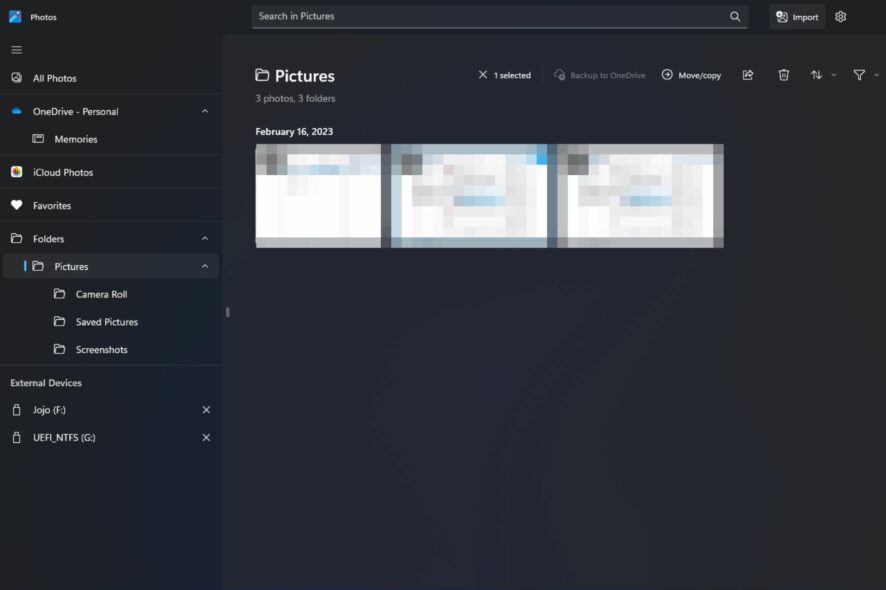
If you’re using Windows 10 or 11, the built-in Microsoft Photos app lets you mark images as favorites — but figuring out how to sort or view them all in one place isn’t always obvious.
In this quick guide, we’ll show you exactly how to organize your photos using the Favorites feature, so you can jump straight to the memories that matter most.
Table of contents
How to sort photos by favorites in Windows
Just follow the steps to view your favorite photos in Windows.
Windows 11
- Launch the Photos app by clicking on the Windows key, type Photos in the search bar, and click Open.

- All photos on your PC will appear starting from the most recent. Double-click on a photo to open it in full view.
- Click on the heart icon at the top to add it to the Favorites folder.

- You can repeat this process until you have made a collection of all your favorite photos.
- Once your collection of favorites is complete, you can click on that folder to view all of them.
- If you’d like to sort them out, click on the three horizontal ellipses at the top and Select all. Alternatively, you can hit CTRL + A to also select all.

- Click again on the three ellipses and select Sort. Choose your preferred option to sort either by date or name.
In the unfortunate chance that your Windows Photo Viewer is not working, check out our detailed guide on how to fix it.
You can also explore a reliable option for organizing and viewing your images by checking the full guide on how to download Picasa for PC.
Windows 10
- Click on the Start Menu icon and click on Photos. It’s usually among the pinned apps but if not, do a quick search and click on it to open.

- Select an image and click on it to open.
- Hit the heart icon to favorite or right-click on the image and select Add to favorites.

- Repeat this process until you have all your favorite images in the favorites folder.
If you’d like to remove a photo from the favorites album, all you have to do is click again on the heart icon, and the picture will be restored to its original folder.
How do I filter my favorite photos in Windows 10?
- Open your Photos app.
- Navigate to the Favorites folder.
- Click on the Filter icon and choose either Videos or Photos.
FAQs
Open the image and click the heart icon in the toolbar. This adds the picture to your Favorites collection instantly.
Open the Photos app and select Favorites in the left sidebar. Windows automatically shows only the images you marked as favorites.
File Explorer does not support sorting by favorites. The Favorites feature works only inside the Windows Photos app.
The photo may be stored on a disconnected drive or cloud location. Make sure the file is available locally and synced before favoriting it.
Summary
Hopefully, this article has helped organize your albums and made your favorite pictures more accessible.
We also have a great list of the best photo viewers for your Windows device, so be sure to check that out too. And if the image has unwanted elements, Generative Erase can help you get rid of them.
While sorting photos by favorites may work for some people, the more advanced users prefer to use specialized photo culling software that offers more than the basics.
You may want to read more on how to sort photos by face recognition or organize them by date for even better photo management.
For even better photo management, you can sort photos by name using more advanced options in Windows.
Let us know of any other tips you use for photo management using the Photos app in Windows down in the comment section.


Read our disclosure page to find out how can you help Windows Report sustain the editorial team. Read more



Improve this guide



User forum
0 messages