
HP USB-C Dock 5G Drivers: How to Download and Install


 2 min. read
  Published on

If your HP USB-C Dock 5G is not working correctly, it is likely due to missing or outdated drivers. This can lead to issues with connectivity, charging, or external displays. Below, you’ll find clear steps on how to download, install, and update HP USB-C Dock 5G drivers on Windows.
How to install HP USB-C Dock 5G drivers?
Table of contents
1. Download drivers from HP’s official site
- Go to HP’s official support page.
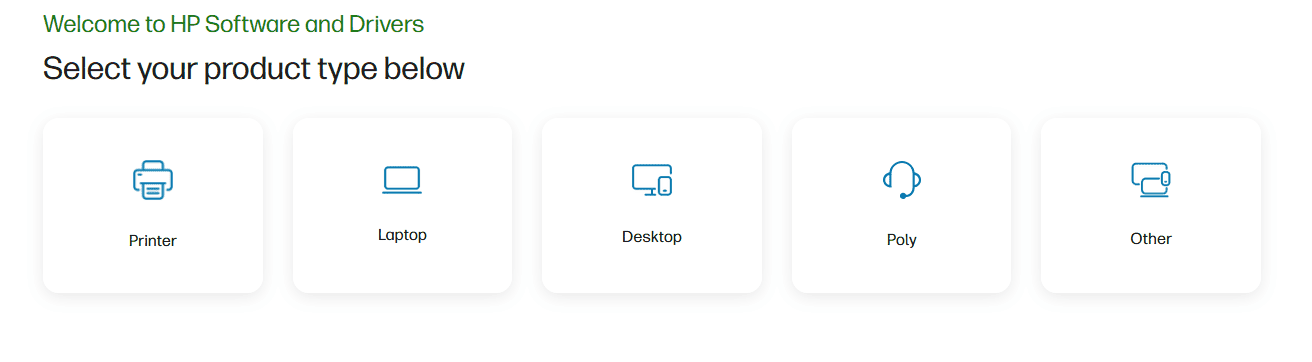
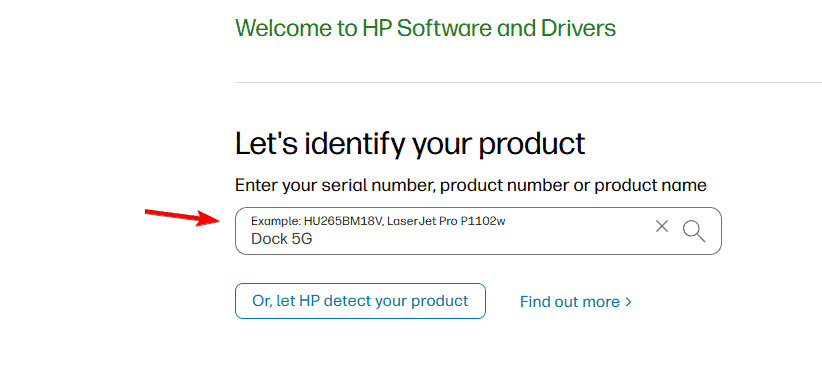
- Search for HP USB-C Dock 5G.
- Select your Windows version.
- Download the driver package.
- Run the installer and follow the prompts.
If you also need related printer software, you can check how to download and install HP printer drivers on Windows 11.
2. Use Windows Update to install drivers automatically
- Press Windows + I to open Settings.
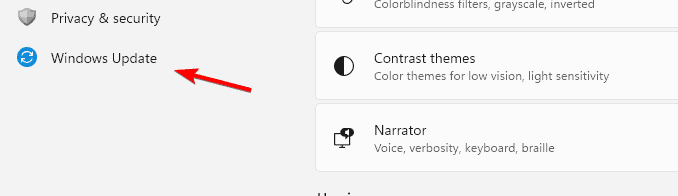
- Go to Windows Update.
- Click Check for updates.
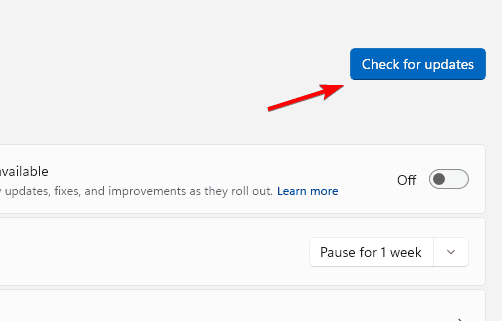
- Install any driver updates related to HP.
This can also help fix issues such as the HP driver error 9996.
3. Update drivers via Device Manager
- Right-click Start and select Device Manager.

- Expand Universal Serial Bus controllers.
- Right-click your HP dock device and choose Update driver.

- Select Search automatically for drivers.

4. Install HP Smart to manage updates
- Download the HP Smart app on Windows 11.
- Install it by following the on-screen instructions.
- Launch the app and sign in with your HP account.
- Add your HP USB-C Dock 5G from the device list.
- Use the app’s update section to check and install the latest drivers.
5. Reinstall the dock drivers if issues persist
- Open Device Manager.
- Locate the HP USB-C Dock 5G under connected devices.
- Right-click and choose Uninstall device.

- Restart your PC and reconnect the dock.
- Windows will reinstall the drivers automatically.
Final thoughts on HP USB-C Dock 5G drivers
Installing the correct HP USB-C Dock 5G drivers is essential for stable performance and compatibility. Whether you use HP’s official support page, Windows Update, or HP Smart, keeping your drivers updated ensures your dock runs without issues.

Read our disclosure page to find out how can you help Windows Report sustain the editorial team. Read more



Improve this guide




User forum
0 messages