
Brother MFC-L2710DW Driver Download and Installation Guide


 2 min. read
  Published on
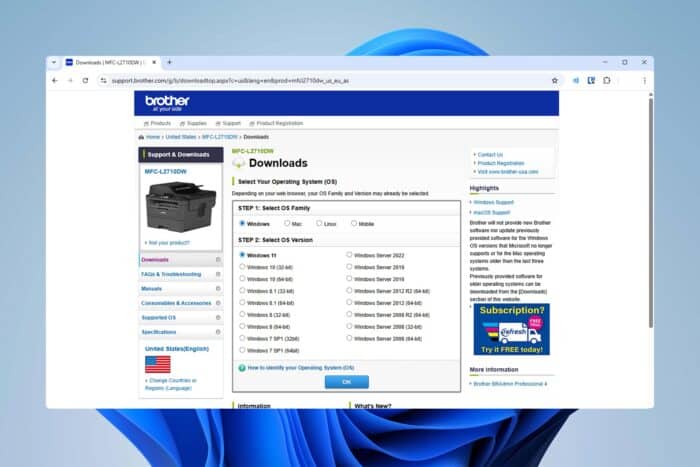
If your Brother MFC-L2710DW printer is not working properly, the problem may be due to missing or outdated drivers. Installing the correct driver will restore full printing and scanning functionality on Windows.
How to download and install Brother MFC-L2710DW driver?
Table of contents
1. Download from Brother’s official website
- Go to the Brother Support page.
- Enter MFC-L2710DW in the search bar.

- Select your operating system version.

- Download the latest driver package.
- Run the installer and follow the on-screen instructions.
This ensures you always get the latest certified version for your printer.
2. Update through Windows Settings
- Press Win + I to open Settings.
- Go to Bluetooth & devices > Printers & Scanners.

- Select your Brother printer and choose Remove device (if already installed).

- Click Add device and let Windows install the driver automatically.

If Windows cannot find it, use the manual download method.
3. Use Device Manager
- Right-click the Start menu and open Device Manager.

- Expand Printers.
- Right-click your Brother MFC-L2710DW and choose Update driver.

- Select Search automatically for drivers.

This will check for available drivers via Windows Update.
Fixing printer issues after installation
Sometimes drivers are installed correctly, but the printer still does not work. If that happens, check these guides for further fixes:
- If your printer is not printing, see this Brother printer not printing guide.
- If scanning is not working, follow the solutions from this Brother printer scan issues article.
- For general setup problems, you can also review Brother printer drivers on Windows 11.
Keeping your Brother printer driver up to date improves compatibility with Windows updates, fixes known bugs, and enhances overall printing and scanning performance.
The Brother MFC-L2710DW driver can be installed directly from Brother’s website, through Windows Settings, or Device Manager. If you encounter printing or scanning issues even after installation, follow the linked troubleshooting guides for quick fixes.

Read our disclosure page to find out how can you help Windows Report sustain the editorial team. Read more



Improve this guide




User forum
0 messages