
Chrome Will Soon Let You Convert Tab Groups Into Bookmark Folders
A new experimental option in Chrome Canary offers a simple way to turn tab groups into bookmark folders, alongside other menu improvements still in testing.


 4 min. read
  Published on

After making tab groups easily accessible from the New Tab Page, Google is now testing some useful new features for organizing your tabs in Chrome Canary. One of the biggest changes is the addition of a new option to convert a group of tabs into a bookmark folder.
Saving Tab Groups the easy way
Before, if you wanted to save a tab group in Chrome, you had to use workarounds like bookmarking all your tabs at once or relying on the older “Save group” option, which only pinned it to the bookmarks bar. Now there’s a simpler way: you can convert an entire tab group into a bookmark folder in just one step.
When you choose “Convert group to bookmark folder” in a tab group menu, Chrome first opens the “Bookmark All Tabs” dialog.
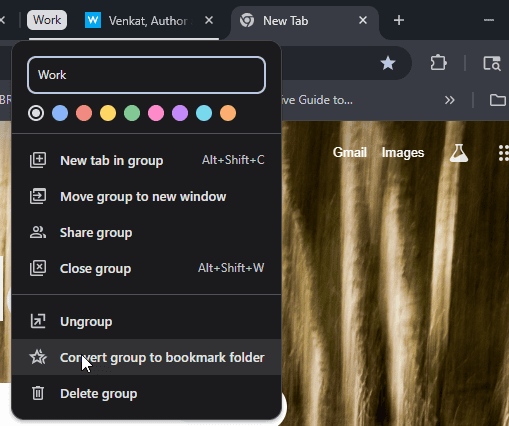
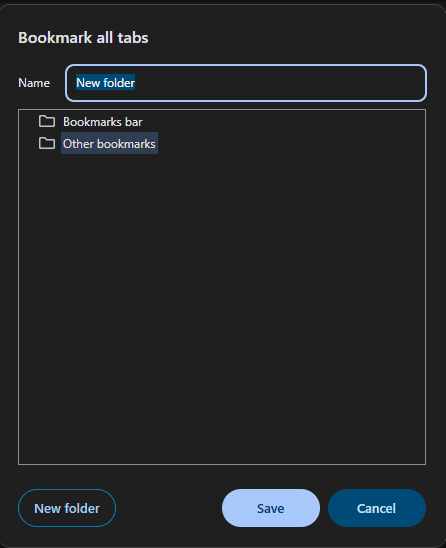
Here, you can type a folder name and pick where to save it. After clicking Save, a “Delete tab group” confirmation prompt appears. If you confirm, both the tab group and all of its tabs disappear from the browser. You can then find the converted group as a bookmark folder by searching in your bookmarks.
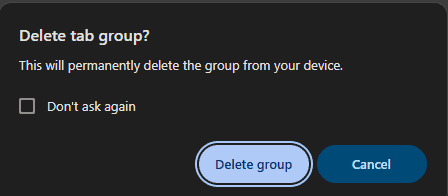
This makes the feature more of a move-and-store option rather than a simple duplicate: the group is cleared from your browser, but saved permanently as bookmarks for future use.

Because the saved folder is part of Chrome’s standard bookmarks, it also benefits from Chrome Sync, meaning your archived tab groups will be available on any device where you’re signed in. The feature is tested behind a flag in Chrome Canary.
- Flag name: Bookmark and tab group conversion
- Description: “Enable conversion between bookmark and tab group.”

Smarter tab group menus
Google is also testing changes that make it easier to manage tab groups. These improvements aim to provide you with more options to access tab group settings and add additional actions to the menus, enabling you to organize things effortlessly.
- Flag name: Add context menu when left-clicking a tab group
- Description: “When clicking a tab group in the bookmarks bar, the left click will be given a context menu, similar to the one that appears when right clicking the tab group.”

More Tab Group actions to come
Another experiment points to Chrome adding even more shortcuts for creating and handling tab groups. The idea is to make the tab group menus more complete, so you don’t have to rely on hidden options or workarounds.
- Flag name: Make options menus to include more tab group actions
- Description: “Add options to menus to facilitate tab group creation and interaction.”

Right now, all of these features are hidden behind experimental flags in Chrome Canary. Google hasn’t said when they’ll roll out to everyone, but together they show a clear direction: making tab groups easier to manage, save, and reuse.
That’s not all. Google has published new security rules for AI features in Chrome and is updating the default browser option to include taskbar pinning on Windows.


Read our disclosure page to find out how can you help Windows Report sustain the editorial team. Read more



Improve this guide


User forum
0 messages