
Is Microsoft Authenticator App Not Working? 4 Quick Fixes to Try Today


 3 min. read
  Updated on

If your Microsoft Authenticator app is not working, you might face problems signing in, receiving codes, or syncing accounts. The following steps will help you fix the issue and get the app working again in your new phone as well.
Table of contents
How to fix Microsoft Authenticator app not working?
1. Update or reinstall Microsoft Authenticator
- Open your phone’s app store.
- Search for Microsoft Authenticator.

- Update the app or uninstall and reinstall it.
Reinstalling ensures you have the latest features and fixes. If needed, you can follow this detailed guide to download Microsoft Authenticator.
2. Correct time and date settings
- Open your phone’s system settings.
- Set the time and date to Automatic.
- Restart the phone to refresh the settings.
Incorrect time zones are one of the main causes of code errors. Adjusting the settings usually restores proper functionality.
3. Recover accounts after changing phones
- Make sure your accounts are backed up to the cloud.
- On your new device, restore the backup.
- Confirm that all accounts sync properly.
This process can be tricky, especially if you skipped the backup step. To avoid issues, check out how to move Microsoft Authenticator to a new phone.
4. Update the phone number linked to Microsoft Authenticator
- Sign in to your Microsoft account online.
- Go to the Security section.
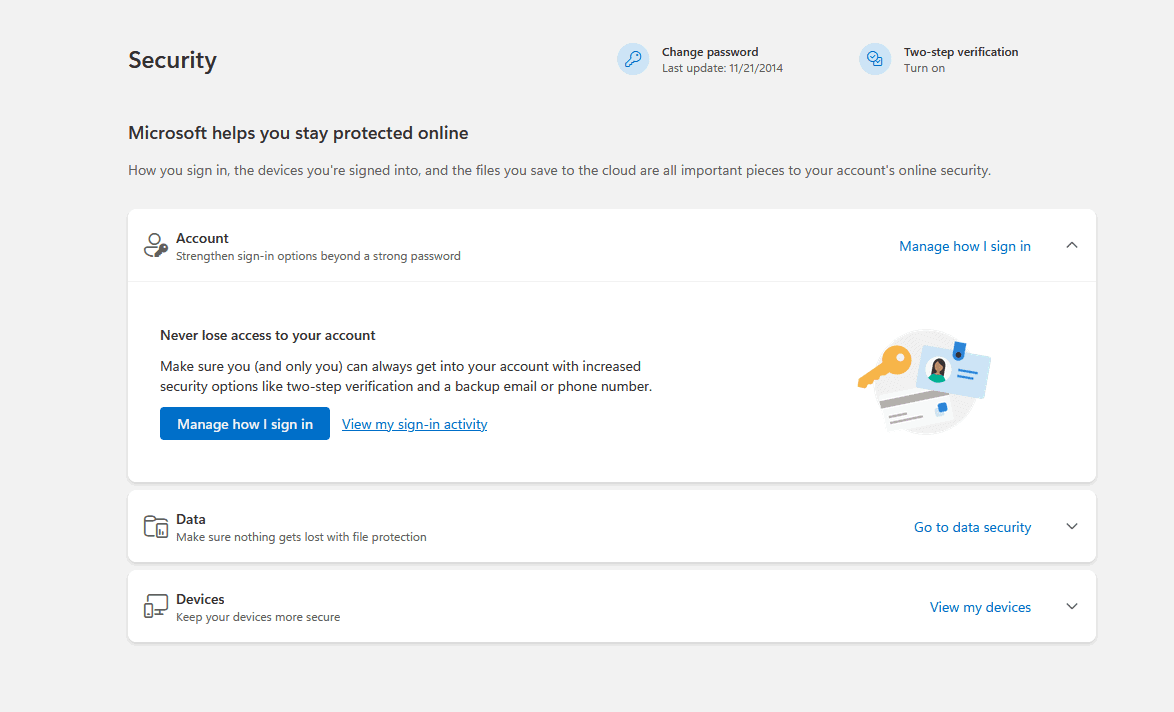
- Change or remove the incorrect phone number.
Keeping your number updated prevents login codes from going to the wrong device. Here’s how to fix a wrong phone number in Microsoft Authenticator.
You can also explore this guide to Google Authenticator for Windows as a secure alternative when Microsoft Authenticator continues to malfunction.
FAQs related to Microsoft Authenticator app not working
Your account may not have cloud backup enabled. Check the backup option in the app’s settings.
If your Microsoft Authenticator app is not giving you a code, it is usually caused by incorrect phone time settings, disabled notification or background permissions, an unstable internet connection, or an out-of-sync account that needs to be re-added.
Yes, but only one phone can receive push notifications. You must restore accounts on the second device.
The most common reasons are incorrect time settings or using an outdated version of the app.
Conclusion
Most Microsoft Authenticator issues can be fixed with updates, correct settings, or account recovery. If the app still generates incorrect codes, you can follow this complete guide on fixing the Microsoft Authenticator wrong code problem.

Read our disclosure page to find out how can you help Windows Report sustain the editorial team. Read more



Improve this guide


User forum
0 messages