
How to Connect an HP Printer to Wi-Fi Quickly


 3 min. read
  Updated on

Having trouble setting up your HP printer wirelessly? This guide will help you connect it to Wi-Fi easily and avoid common errors.
Table of contents
How do I connect HP printer to Wi-Fi?
1. Check Wi-Fi and Printer Compatibility
- Confirm that your HP printer supports wireless connections.
- Place the printer near your Wi-Fi router to maintain a stable signal.
- Make sure your router broadcasts on 2.4 GHz if your printer does not support 5 GHz networks.
- Restart both the router and the printer before attempting setup.
If the printer still fails to detect your router during setup, see this guide on printer not recognizing router for additional fixes.
2. Connect from the Printer Control Panel
- Turn on your HP printer.
- On the control panel, open Setup or Network.
- Select Wireless Setup Wizard.
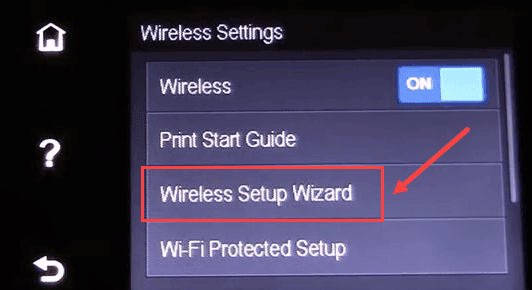
- Choose your Wi-Fi network from the list.
- Enter the Wi-Fi password and confirm.
- Wait until the Wi-Fi indicator on the printer turns solid.
This method is the most reliable way to connect HP printers with a touchscreen interface.
3. Connect with WPS Push Button
- Check that your router supports WPS.
- Press the WPS button on your router.
- Within two minutes, press the Wireless button on the printer.
- Wait for the devices to sync automatically.
- Confirm that the wireless light on the printer stays solid.
This method is useful if you want to avoid manually typing your Wi-Fi password.
4. Add the Printer in Windows
- Press Windows + I to open Settings.
- Go to Bluetooth & devices and select Printers & scanners.

- Click Add device and wait for your printer to appear.
- Select your printer and complete the setup.
If Windows does not detect the printer, see this guide on Windows not finding wireless printer signal for detailed troubleshooting.
Sometimes your printer can still disconnect after setup. Check this guide on printer not staying connected to Wi-Fi to see how to fix it.
FAQs
Connection problems often happen due to weak signals, outdated firmware, or router restrictions. Resetting the network settings and trying again usually fixes it.
Yes. You can use the Wireless Setup Wizard from the printer’s control panel, select your Wi-Fi network, and manually enter the password.
Reconnect the printer using the Wireless Setup Wizard with the updated password, then re-add it in Windows if it does not appear automatically.
Conclusion
By following these steps, you can connect your HP printer to Wi-Fi quickly and resolve common issues, ensuring smooth wireless printing from any device.
For a more detailed walkthrough, check out this full guide on how to connect an HP printer to Wi-Fi with step-by-step solutions.

Read our disclosure page to find out how can you help Windows Report sustain the editorial team. Read more



Improve this guide




User forum
0 messages