
How to Share a Microsoft Form with Others Easily


 2 min. read
  Published on

Learn how to share Microsoft Forms with coworkers, students, or external users in a few simple steps. This guide shows you how to send links, invite collaborators, and control access easily.
Table of contents
How to Share a Microsoft Form?
Share for Responses
- Open Microsoft Forms and select the form you want to share.
- Click Share in the top right corner.
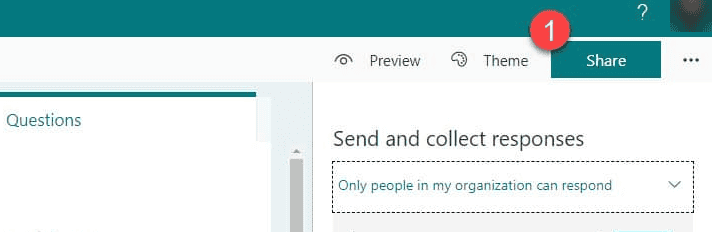
- Choose who can respond:
- Anyone with the link
- Only people in your organization
- Specific people
- Copy the link and send it by email, chat, or embed it on a website.
- Optionally, share via QR code, email invite, or embed code for wider access.
If you want to improve the flow of your surveys, check this guide on how to add sub questions in Microsoft Forms.
Share for Collaboration
- Open your form and select Share.
- Go to the Share to collaborate tab.
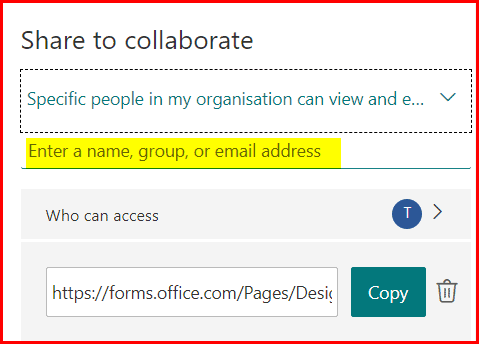
- Choose if collaborators must be in your organization.
- Copy the collaboration link and share it with teammates.
Once collaboration is enabled, it is also useful to know how to delete a form in Microsoft Forms to manage older projects.
After sharing a collaboration link, you may also want to keep track of your form’s unique identifier. Here is a step by step guide on how to get the Microsoft Forms ID.
FAQs
Click Share, select Anyone with the link, and send the URL directly.
Yes. You need to choose Anyone with the link. Otherwise, it is limited to your organization.
Use the Share to collaborate option, copy the link, and share it with colleagues.
Yes. Open the form, adjust the Share settings, or disable the collaboration link to restrict access.
Conclusion
Sharing Microsoft Forms is simple once you know where the options are. You can distribute response links, invite collaborators, or embed forms on websites in just a few clicks. This flexibility makes Microsoft Forms a powerful tool for teamwork and data collection. For added privacy, see how to make a Microsoft Form anonymous before sharing your next survey.

Read our disclosure page to find out how can you help Windows Report sustain the editorial team. Read more



Improve this guide



User forum
0 messages