
How to Update Xbox Game Bar on Windows 11 (Step by Step)


 3 min. read
  Updated on

Xbox Game Bar is a built-in tool that lets you record gameplay, capture screenshots, and chat with friends while you play. But like any app, it needs regular updates to stay smooth and bug free. This guide shows you how to update Xbox Game Bar on Windows 11 and keep it running at its best.
Table of contents
How to Update Xbox Game Bar on Windows?
1. Update Through Microsoft Store
The Microsoft Store is the fastest way to get the newest version.
- Press Windows + S and type Microsoft Store.

- Open the Store and click Library in the left menu.
- Select Get updates.

- If Xbox Game Bar appears, click Update next to it.
If the app causes problems even after an update, you can reset Xbox Game Bar from its advanced settings to fix glitches.
2. Enable Automatic Updates
Automatic updates save you time by installing new versions in the background.
- Open the Microsoft Store again.
- Click your profile icon and choose App settings.
- Turn on App updates.

- This will keep Xbox Game Bar updated automatically.
3. Check Settings for Xbox Game Bar
After updating, make sure the app is still turned on in Windows.
- Press Windows + I to open Settings.
- Go to Gaming > Xbox Game Bar.
- Make sure the app is enabled so you can test the new version.
Once enabled, you can try recording your gameplay. If you are new to it, see this guide on how to record with Xbox Game Bar.
If updating is not enough, you can also learn how to restart Xbox Game Bar for a quick refresh.
4. Reinstall if Update Fails
If the update does not work, reinstalling ensures you get the latest copy.
- Press Windows + I and go to Apps > Installed apps.
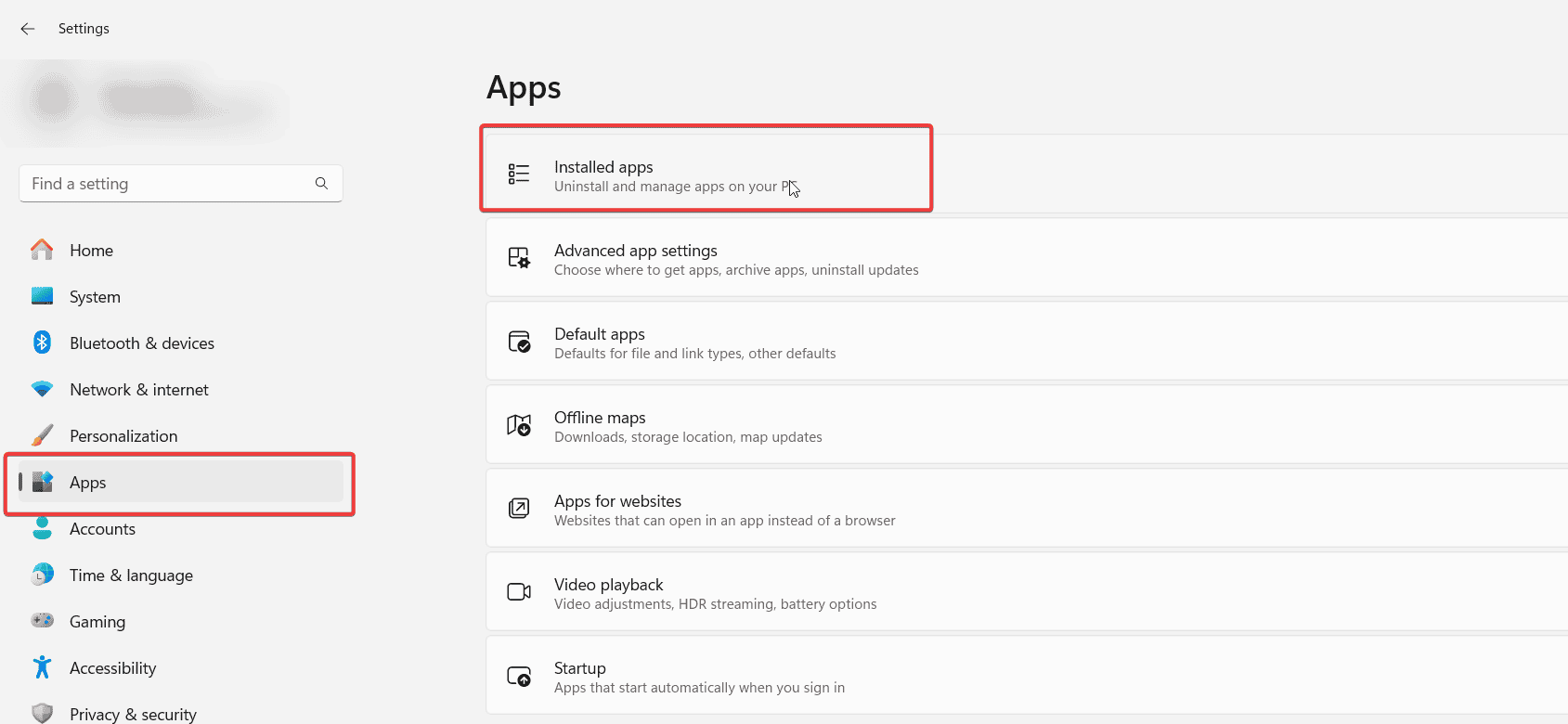
- Find Xbox Game Bar and uninstall it.
- Reinstall it from the Microsoft Store to get the newest version.
If you decide the app is no longer useful, here is how to uninstall Xbox Game Bar completely.
Still facing issues after reinstalling? You can manually refresh your console software by following this guide: Update Xbox Offline.
Why Updating Xbox Game Bar Matters
Every update can bring stability fixes, smoother overlays, and better compatibility with new Windows builds. It helps prevent crashes and ensures your recording tools run without interruptions.
FAQs
Check in the Microsoft Store Library. If no update button appears, you already have the latest version.
No, all updates are delivered only through the Microsoft Store.
Try reinstalling it. If issues persist, make sure Windows Update is also current.
Yes. Updates often fix bugs, optimize overlays, and enhance game recording stability.
Conclusion
Updating Xbox Game Bar only takes a few minutes and helps keep the app reliable. By checking the Microsoft Store regularly, turning on auto updates, or reinstalling when needed, you ensure smooth overlays and better compatibility with Windows 11.

Read our disclosure page to find out how can you help Windows Report sustain the editorial team. Read more



Improve this guide




User forum
0 messages