
Update Xbox Offline: OSU1 USB Guide for Series X|S and One


 4 min. read
  Published on
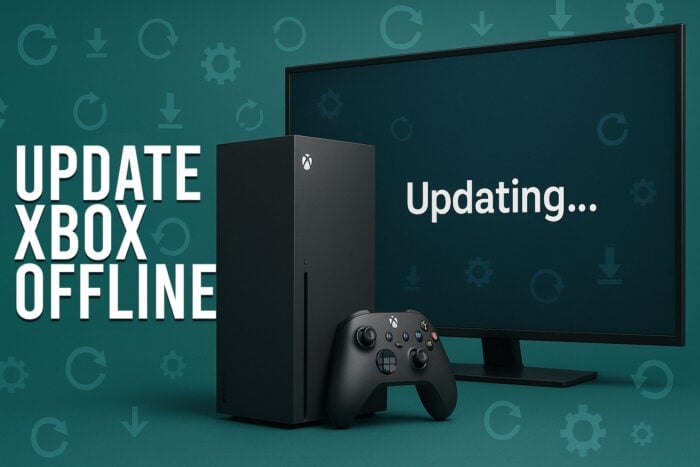
If your Xbox can’t connect to the internet or the update keeps failing, you can still install the latest system version using an offline update. This process works for both Xbox Series X|S and Xbox One consoles.
Follow this guide to learn how to update your Xbox offline safely and fix any stuck updates.
Table of contents
How to Update Xbox Offline?
Requirements Before You Start
Make sure you have the following items ready before starting the update.
- A Windows PC with internet access.
- A USB drive with at least 6 GB of free space, formatted as NTFS.
- Your Xbox console, Series X|S or Xbox One.
- Access to the Xbox Offline System Update (OSU1) file from Microsoft’s official website.
If your console update failed before, review this guide to common fixes: Xbox update failed.
1. Download the OSU1 File
You will first download the official update package from Microsoft on a Windows PC.
- Go to the official page: Xbox Support Offline System Update.
- Scroll to the download section and get the OSU1.zip that matches your console family.

- Save the file somewhere easy to find on your PC.
- Do not extract or change the file until you prepare your USB.
If updates stall, see this fix: Xbox app stuck at preparing.
2. Prepare the USB Drive
Format and load the update so the console recognizes it during recovery.
- Insert the USB drive into your PC.
- Right click the drive and choose Format, then select NTFS and start.

- After formatting, extract OSU1.zip on your PC.
- Copy the $SystemUpdate folder to the root of the USB drive.
3. Start the Xbox in Troubleshooting Mode
Use the hardware button combo to open the Startup Troubleshooter.
- Turn off the Xbox and unplug it for 30 seconds.
- Press and hold Pair and Eject buttons (on Series S use Pair and the Xbox button).
- While holding, press the Power button once.
- Release after two startup tones to load the Xbox Startup Troubleshooter.
4. Plug in the USB Drive
Point the troubleshooter to the update files on your USB drive.
- Insert the prepared USB into a USB port on the Xbox.
- Wait a few seconds for detection.
- Select Offline system update in the menu.

- Confirm to begin the installation.
Managing related components on Windows? Here is how to keep Game Bar updated: Update Xbox Game Bar.
5. Wait for the Update to Finish
Let the console complete the process without interruption.
- The update can take up to 30 minutes.
- The console may restart several times.
- Do not remove the USB or power off the Xbox.
- When complete, the console boots to the home dashboard.
What Is an Xbox Offline Update?
An Xbox offline update lets you manually install the latest firmware using a USB drive instead of downloading it through Wi Fi. This method is ideal when the console cannot connect or repeatedly fails to update online.
Why This Works
Offline updates bypass network problems and corrupted downloads. Using Microsoft’s official OSU1 package ensures a clean system refresh that fixes most update errors without data loss.
FAQs
Yes. Download the OSU1 package on a Windows PC, copy it to a USB, and install from the Startup Troubleshooter.
No. Your games and saves remain unless you perform a full factory reset.
Reformat as NTFS and ensure the $SystemUpdate folder is at the root, not inside another folder.
Wait a few minutes. If it does not resume, power cycle the console and repeat with a freshly formatted USB and a new OSU1 download.
Use a Windows PC for reliable NTFS formatting and file extraction compatible with the Xbox updater.
Summary
If your Xbox will not update online, the offline USB method is a reliable solution. Download OSU1, prepare the USB, enter the Startup Troubleshooter, and install. This approach resolves most update failures and gets your console running again quickly.

Read our disclosure page to find out how can you help Windows Report sustain the editorial team. Read more



Improve this guide



User forum
0 messages