
Google Chrome Tests 'Session Encryption' for Session Restore Data
Session Encryption could encrypt the data Chrome uses to restore open tabs, pinned tabs, tab groups, and browser windows after a restart.


 2 min. read
  Published on

Google is testing Session Encryption in Chrome, a feature that would protect the data Chrome uses to restore tabs, tab groups, pinned tabs, and browser state after a restart. The feature is showing up in Chrome Canary behind a flag that lets you encrypt session restore data, with multiple rollout stages available for testing.
How Session Encryption Works in Chrome
Encryption basically locks data so only someone with the right key can read it. For Chrome, that matters because session data has usually been stored in a way that could be read locally if someone had access to the device.
Google is moving to a staged encryption model that uses Chrome’s existing encryption infrastructure, similar to the app-bound encryption approach for Windows, to more consistently protect session restore files. In practice, that makes it harder for malware or someone else on the same device to peek at your open tabs and browser state.
Session data is not the same as full browsing history. It’s the snapshot of what you had open when you closed Chrome, including pinned tabs, tab groups, and other details Chrome needs to restore your browsing session. This snapshot can reveal a lot about what you were doing in the browser.
The change would protect that session data on disk, limiting what other software or anyone with access to the device can inspect it.
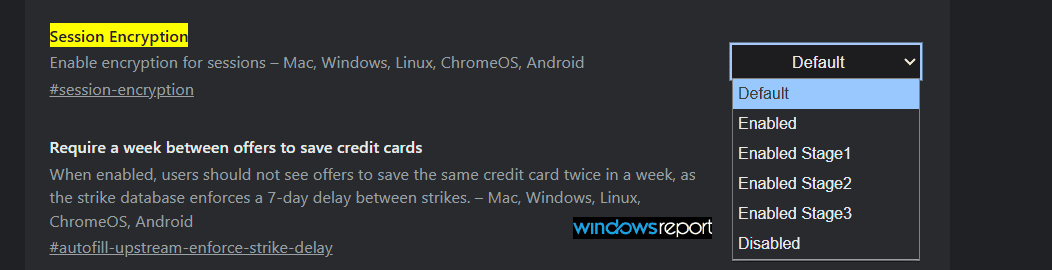
Chromium code spotted by Windows Report suggests Google is planning a staged rollout for Session Encryption, with Stage 1, Stage 2, and Stage 3 options. Early stages appear to keep both encrypted and unencrypted copies of session data, while later stages move Chrome toward encrypted storage by default. That gives Chrome a fallback if something breaks during migration. Google has not yet disclosed what each stage does.
Chrome’s code review notes indicate that the feature uses Chrome’s existing OS-level encryption infrastructure for local data.
How to enable encryption for session data in Chrome
- Launch the latest Chrome Canary.
- Visit chrome://flags.
- Find “Session Encryption” (described as “Enable encryption for sessions”).
- Choose Enabled, or select Stage 1, Stage 2, or Stage 3.
- Restart Chrome.
Apart from that, Chrome is also testing Process Isolation on Windows, an Ask Gemini shortcut for selected text, an AI Mode toolbar button, and a stacked split view for tabs.


Read our disclosure page to find out how can you help Windows Report sustain the editorial team. Read more



Improve this guide




User forum
0 messages