
Twitch Login Guide: Access Your Account on Web, iPhone & Android


 5 min. read
  Published on
Twitch login is the gateway to streaming, chatting, and connecting with your favorite communities. Whether you’re signing in on the web, iPhone, or Android, the process to sign into Twitch is pretty straightforward.
In this guide, we will help you learn Twitch sign in methods across devices and list some tried and tested fixes for common login issues. Keep reading!
Twitch Login: Step-and-Step Methods to Access Your Account on PC, Android & iPhone
Twitch uses your Amazon account infrastructure, but your Twitch credentials remain tied to your Twitch account. Start from the official Twitch website rather than searching for random login pages.
How to log into Twitch on your PC using email/username and password
- Open Twitch in Chrome, Edge, Firefox, or Safari.
- Select Log In near the upper-right corner.
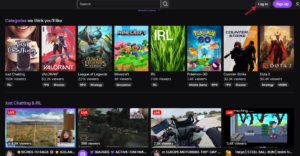
- Enter your Twitch username or email address and password.
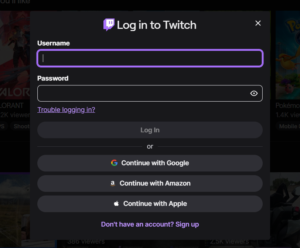
- Then, select Log In.
- Complete the security verification if Twitch requests one.
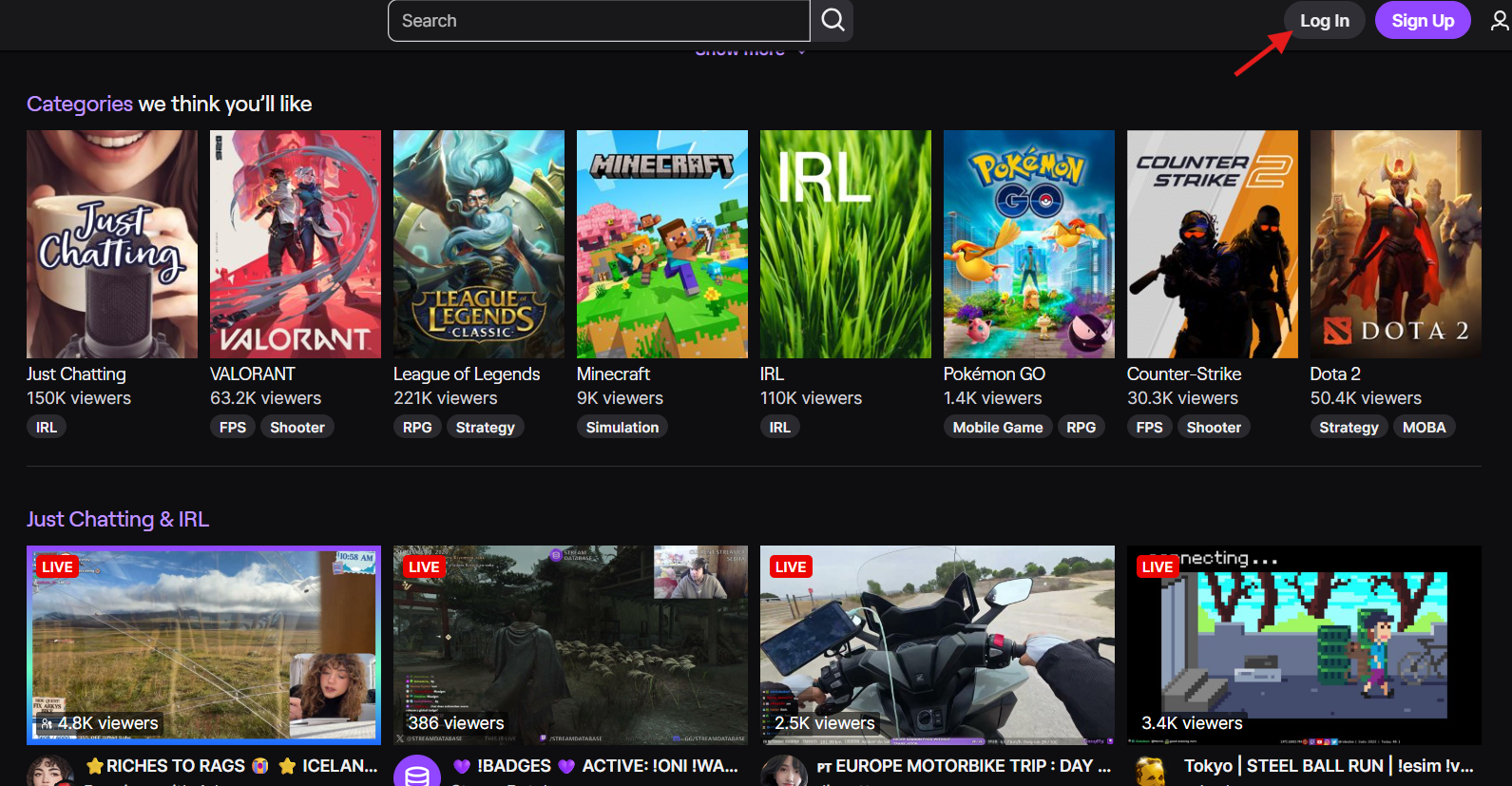
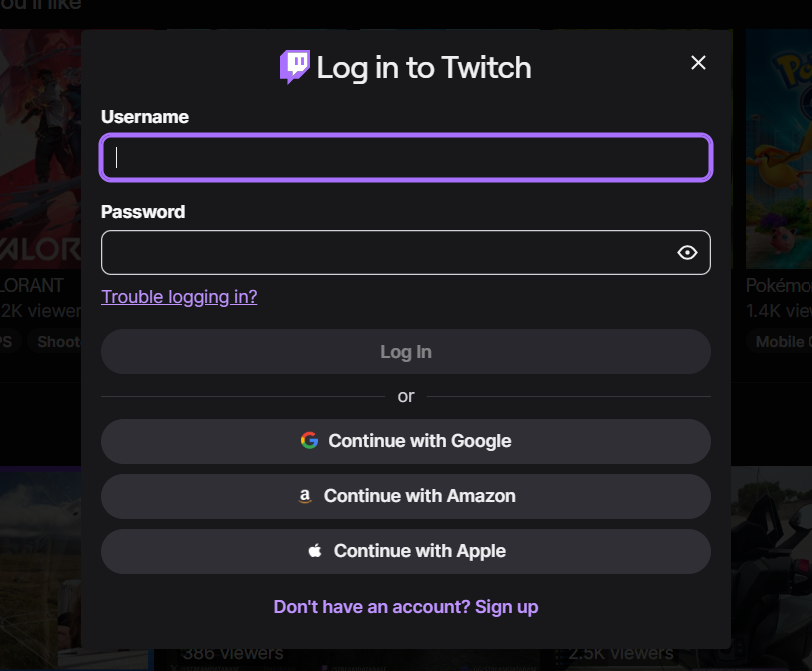
By now, you should be able to access your Twitch, given that your account is already active. Your followed channels, subscriptions, and other account features should then appear normally. If you recently changed your password, use the newest password you created. Older saved credentials can sometimes cause repeated login failures.
How to log into Twitch on your PC using Google, Amazon, and Apple account
To log into Twitch on your PC using Google, Amazon, or Apple, start from the official Twitch login screen.
- Continue with Google: Sign in using your Google account credentials.
- Continue with Amazon: Use your Amazon login details, since Twitch is integrated with Amazon services.
- Continue with Apple: Authenticate through your Apple ID for quick access.
Each option links your Twitch activity to the chosen account, making sign‑in faster and more secure without needing to remember separate Twitch credentials.
Twitch Login on iPhone and Android
The Twitch mobile app provides the quickest route for regular viewers.
- Download the Twitch app: Get it from the App Store (iPhone) or Google Play (Android).
- Open the app: Launch Twitch on your device.
- Tap Log In: Select the login option on the home screen.
- Enter credentials: Type your Twitch username/email and password.
- Complete verification: If two‑factor authentication is enabled, enter the code to finish signing in.
What to do when you forget Twitch login password?
A forgotten password does not mean you need to create another account.
- Choose Password Reset: On the Twitch sign‑in screen, select the reset option.
- Enter your email: Provide the email linked to your account.
- Follow instructions: Check your inbox for Twitch’s recovery email and complete the steps.
- Check spam/junk: If the message doesn’t show up, look in spam or confirm the email address.
- Contact support: If you no longer control the recovery email, reach out to Twitch Support.
How to Fix Twitch login not working?
If Twitch login won’t work, you need to try these quick fixes before resetting everything:
- Check Twitch’s status: A Twitch outage can prevent sign-ins even when your credentials are correct.
- Double-check your password: Make sure Caps Lock is off and check for accidental spaces.
- Reset your password: Use Twitch’s password recovery option if you cannot remember the correct one.
- Try another browser: Open Twitch in Edge, Chrome, Firefox, or another updated browser.
- Clear cookies and cache: Old Twitch data can sometimes interfere with the login page.
- Disable extensions: Ad blockers, privacy tools, or script blockers may disrupt authentication.
- Turn off VPN temporarily: Some VPN connections can trigger additional security checks.
- Try the Twitch app: If browser login fails, attempt signing in through the official mobile app.
- Check your verification code: Make sure you are entering the latest two-factor authentication code.
- Restart your connection: Reboot your router or switch between Wi-Fi and mobile data.
- Update the app: An outdated Twitch app may cause sign-in problems.
- Wait before repeated attempts: Multiple failed attempts can trigger temporary security restrictions.
If none of these work, Twitch Support is the next stop, especially if you have lost access to your email or two-factor authentication.
We hope this guide helped you log in to Twitch successfully. If you’re setting up a new account, check out our guide on how to activate a Twitch account. If you run into problems, visit our Twitch verification code not working guide. Some users have also reported that Twitch is not working on Opera GX, so check that guide if you’re affected.
Twitch Login FAQs
1. Can I log into Twitch without the app?
Yes. Twitch works through supported mobile and desktop browsers. The website provides the standard login experience without requiring the mobile application.
2. Why does Twitch keep logging me out?
Expired sessions, cleared cookies, browser settings, or security checks can cause repeated sign-outs. Try signing in through another browser after clearing Twitch cookies.
3. Can I recover a Twitch account without my password?
Yes, if you still have access to the account’s recovery information. Use Twitch’s password-reset process and follow the recovery instructions.
4. Is Twitch login the same as Amazon login?
Twitch and Amazon accounts are closely connected through Amazon’s ownership of Twitch. However, you should still follow the Twitch sign-in process when accessing Twitch.

Read our disclosure page to find out how can you help Windows Report sustain the editorial team. Read more



Improve this guide




User forum
0 messages