
Salesforce Login Guide: How to Access Your Account on Desktop & Mobile


 5 min. read
  Published on
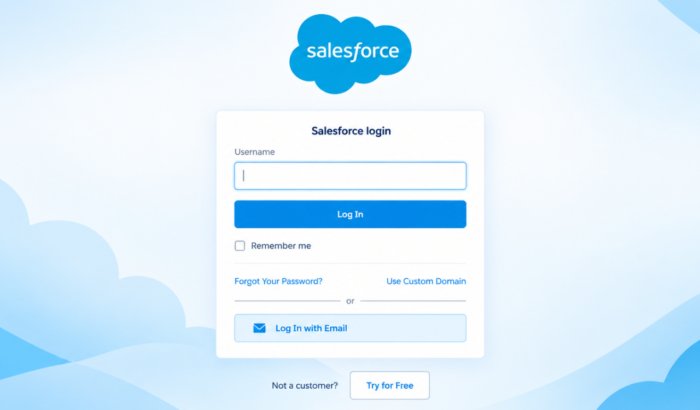
Salesforce login page gives employees access to their company’s CRM, customer records, dashboards, reports, and other business tools, given that they have accurate credentials for their account.
The basic sign-in process is simple, but your company may use a custom Salesforce URL, Single Sign-On, or multi-factor authentication. Salesforce says direct logins require MFA, so you may need an additional verification step after entering your credentials.
How to Log into Salesforce on Desktop via Web Browser
Use the web browser
- Open the official Salesforce login page.
- Enter your Salesforce username.
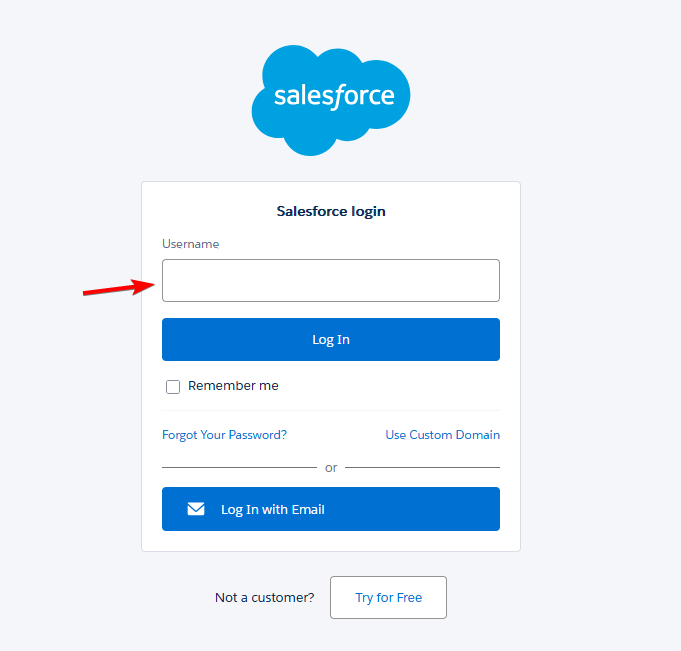
- Enter your password.
- Select Log In.
- Complete the MFA verification if requested.
- Wait for Salesforce to load your account.
Your Salesforce username usually uses an email-style format. However, Salesforce usernames do not always have to be your actual email address. Some companies use a custom My Domain address, such as yourcompany.my.salesforce.com. If you are unsure which login page to use, Salesforce recommends asking your organization’s administrator.
Security tip: Use the official Salesforce website or your company’s known Salesforce domain. Avoid entering your credentials through unexpected email links.
How to Log into Your Salesforce Account on Mobile
Salesforce also provides a dedicated mobile app for iPhone, iPad, Android phones, and tablets. The app lets users access Salesforce data and mobile-optimized Lightning apps while away from a computer.
1. Salesforce mobile app
- Download the official Salesforce app.
- Open the app.
- Enter your Salesforce username.
- Enter your password.
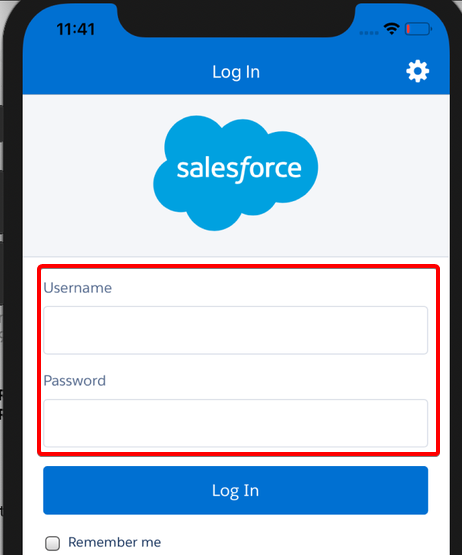
- Complete the requested MFA verification.
- Wait for your Salesforce account to load.
The official Salesforce app is available through Apple’s App Store and Google Play. Do note that if your company uses Single Sign-On, the mobile login process can be different. Salesforce says its mobile app supports Service Provider-initiated SSO, while certain browser-based authentication methods are not supported inside the app.
2. Mobile browser
If you are using an iPhone or Android phone, Salesforce recommends using the official mobile app instead of accessing the full Salesforce interface through a browser. Salesforce retired its mobile web experience, and the full desktop interface is not officially supported on phone browsers.
If you are using a supported iPad browser, you can access Salesforce through Safari.
- Open Safari or Chrome on your iPad, iPhone, or Android device, respectively.
- Go to the Salesforce login page or your organization’s My Domain URL.
- Enter your Salesforce username.
- Enter your password.
- Select Log In.
- Complete multi-factor authentication (MFA) if prompted.
- Wait for Salesforce to load your account.
As with the desktop browser experience, Salesforce says organizations may require users to sign in through a custom My Domain address, such as yourcompany.my.salesforce.com. If you are unsure which address to use, contact your Salesforce administrator to log into your account via some of the best-supported browsers. This option can be useful if you cannot install the Salesforce app or are using another device temporarily.
What to Do When Salesforce Login Doesn’t Work
Login problems can happen because of incorrect credentials, MFA issues, browser problems, or company security settings.
- Forgot your password: Select Forgot Your Password? on the Salesforce login page and follow the reset instructions.
- Forgot your username: Contact your Salesforce administrator. Salesforce says administrators can look up usernames in the organization’s user management settings.
- MFA is not working: Ask your Salesforce administrator for help restoring or replacing your verification method.
- Reset email isn’t arriving: Check your spam or junk folder. Salesforce also provides an option to resend the reset email.
- Browser login keeps failing: Clear your browser cache and saved Salesforce credentials, then try again. Salesforce specifically recommends clearing saved passwords for certain invalid-login problems.
- Mobile app won’t authenticate: Your organization’s SSO configuration may affect mobile authentication. Contact your Salesforce administrator if the problem continues.
Salesforce Login FAQs
1. Is Salesforce login different from a normal website login?
The basic process is similar. However, Salesforce accounts can use company-specific domains, SSO, and MFA, which can add extra steps.
2. Can I log in to Salesforce from my phone?
Yes. Salesforce provides an official mobile app for iOS and Android. You can also use Salesforce through a mobile browser.
3. Why does Salesforce ask for MFA?
MFA adds another verification step beyond your username and password. Salesforce requires MFA for direct Salesforce UI access.
4. What if I forgot my Salesforce username?
Contact your Salesforce administrator. Salesforce says administrators can retrieve a user’s username from the organization’s user management settings.
5. Why can’t I log in through the Salesforce mobile app?
Your organization’s SSO or authentication setup may be affecting the mobile login. Salesforce’s mobile app has specific SSO requirements, so your administrator may need to check the configuration.
That’s all we have in our login guide for Salesforce. If you are encountering an issue with your Salesforce account, we have dedicated guides to fix issues like Salesforce not working in Chrome, report failing to save, and report visibility error.

Read our disclosure page to find out how can you help Windows Report sustain the editorial team. Read more



Improve this guide




User forum
0 messages