
How to Login to WhatsApp Web Using QR Code & Mobile Number


 5 min. read
  Published on

Many of you must be habituated of using WhatsApp on your Android device or an iPhone or iPad. But those who like to use WhatsApp on desktop browser have an easy way to login to web application. The process to login to WhatsApp web is pretty straightforward. You can either scan QR code using your phone or login to WhatsApp web using a mobile number associated with your account. In this guide, we’ll walk you through different steps to login to WhatsApp web.
How to Login to WhatsApp Web Using a QR Code
The QR code is the quickest way to connect WhatsApp to your computer. You only need your phone, an internet connection, and a supported desktop browser.
- Open a browser such as Chrome, Edge, Firefox, or Safari on your computer.
- Go to WhatsApp Web.
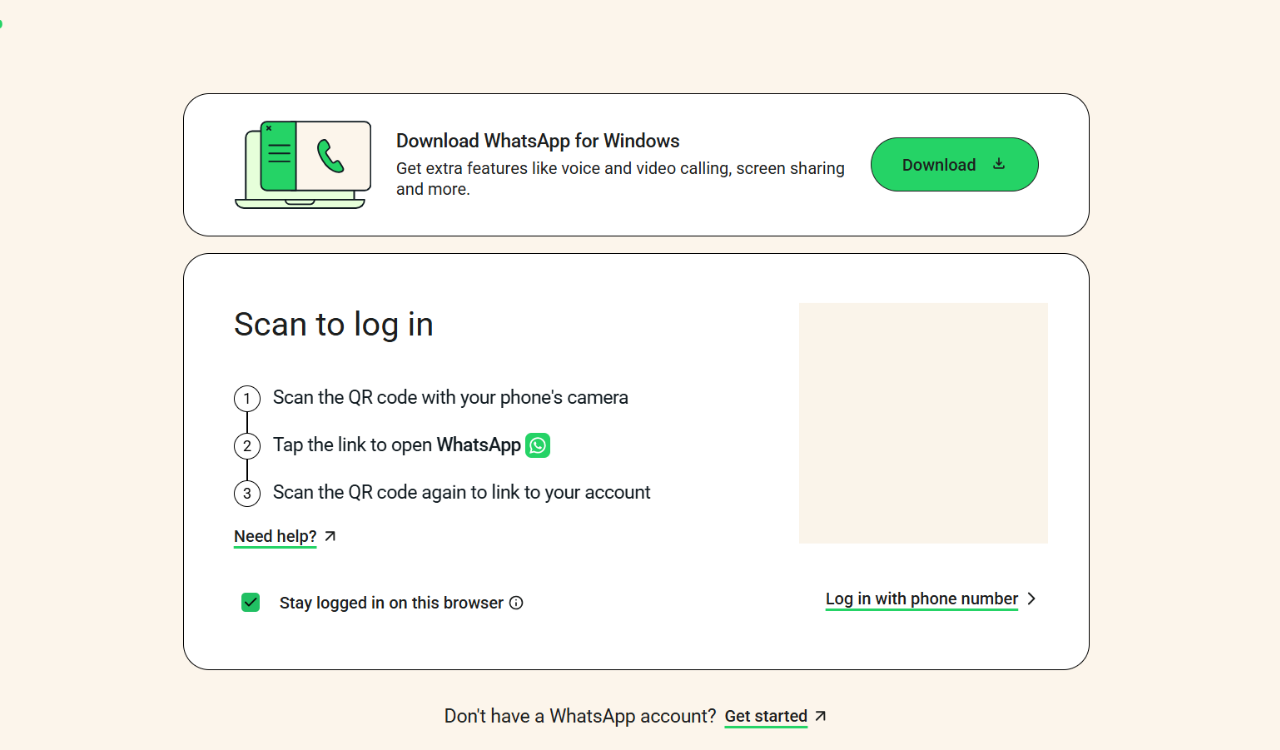
- Wait for the WhatsApp Web login screen to appear.
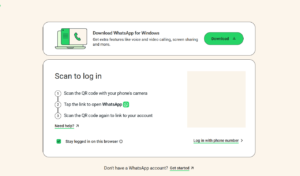
- Open WhatsApp on your phone.
- On Android, tap the three-dot menu in the top-right corner.
- Tap Linked devices.
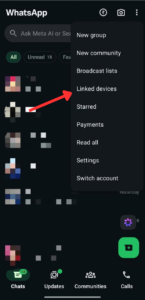
- Tap Link a device.
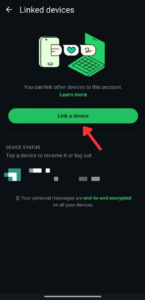
- Unlock your phone if WhatsApp asks you to verify your identity.
- Point your phone’s camera at the QR code shown on your computer.
- Wait for WhatsApp to scan the code.
- Your chats should load automatically on the browser.
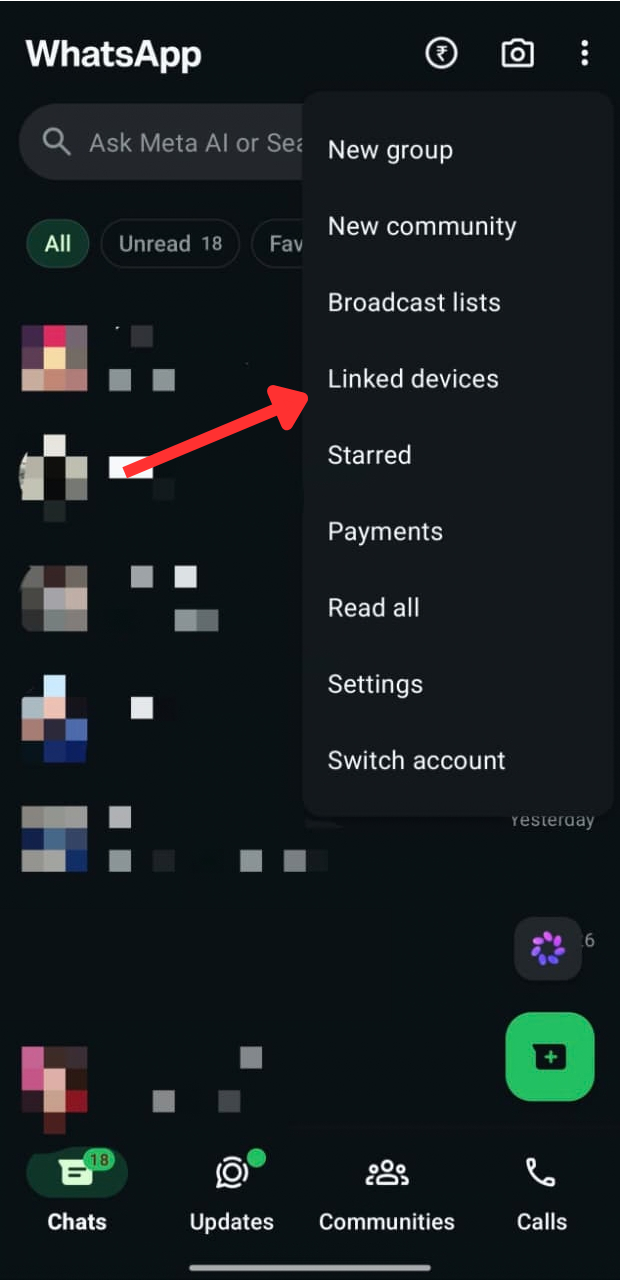
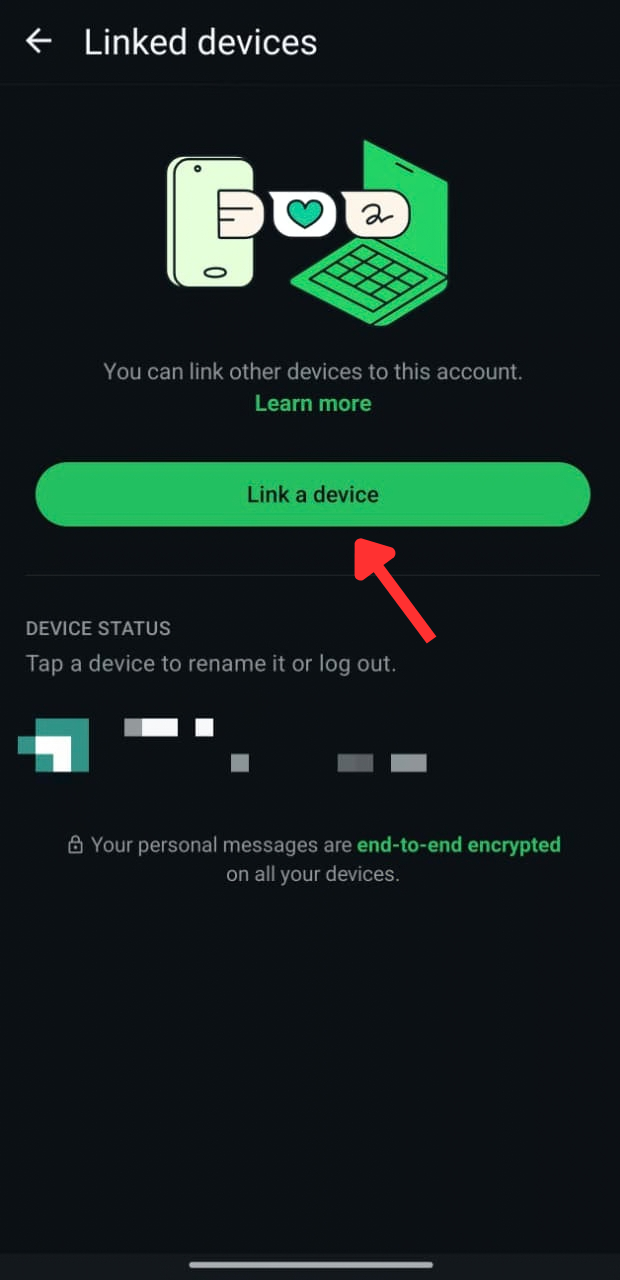
How to Login to WhatsApp Web using Mobile Number
If WhatsApp web can’t load the QR code for some reason, there is another option to login. You can use your WhatsApp phone number to connect WhatsApp Web and enter an eight-character code shown on the computer.
- Open WhatsApp Web on your computer.
- Click Link with phone number or Log in with phone number.
- Select your country.
- Enter the phone number connected to your WhatsApp account.
- Click Next.
- Wait for WhatsApp to display an eight-character code.
- Open WhatsApp on your primary phone.
- Open Linked devices.
- Tap Link a device.
- Select Link with phone number instead if the option appears.
- Verify your identity when prompted.
- Enter the eight-character code shown on your computer.
- Confirm that you want to link the device.
How to Stay Logged In to WhatsApp Web
You can keep WhatsApp Web connected so you do not have to scan the QR code every time. This is useful if you regularly use WhatsApp on your personal computer.
- Open WhatsApp Web.
- Before scanning the QR code, check the “Stay logged in on this browser” option as shown below.
- Enable the option.
- Scan the QR code with your phone.
- Wait for WhatsApp to finish loading.
Avoid enabling this option on shared or public computers. WhatsApp specifically recommends leaving it unchecked when you do not want the browser session to remain active.
How to Fix WhatsApp Web Login Not Working
A QR code that refuses to scan does not necessarily mean your WhatsApp account is broken. Browser problems, outdated apps, connection issues, or an expired QR code can all get in the way.
- Refresh the WhatsApp Web page.
- Open WhatsApp on your phone.
- Go to Linked devices.
- Tap Link a device again.
- Scan the newly generated QR code.
- Make sure your phone has a stable internet connection.
- Make sure your computer is also connected to the internet.
- Update WhatsApp from your phone’s app store.
- Try another supported browser.
- Close unnecessary WhatsApp Web tabs.
- Restart your phone and computer.
- Try linking the device again.
If the QR code has been sitting on the screen for a while, refreshing the page is often worth trying because it generates a new code.
How to Check Which Devices Are Logged In
It is a good idea to check your linked devices occasionally. WhatsApp lets you review connected devices and remotely log out of anything you do not recognize.
- Open WhatsApp on your phone.
- Open Linked devices.
- Review the listed computers and other devices.
- Tap any device you no longer use.
- Tap Log out.
If you see an unfamiliar device, remove it immediately. WhatsApp also recommends checking linked devices regularly for account security.
Summing Up
Logging into WhatsApp Web takes only a few minutes using either a QR code or your phone number. If something goes wrong, checking your internet connection, updating WhatsApp, and reviewing linked devices should cover most problems. If you are having issues with WhatsApp web and its memory error, make sure to check the linked guide.
FAQs related to WhatsApp Web login
1. Do I need my phone to login to WhatsApp Web?
Yes. Your phone is needed to initially link the computer. After linking, the computer can continue using WhatsApp without keeping the phone connected to the internet.
2. Can I use WhatsApp Web without scanning the QR code?
Yes. WhatsApp Web supports linking with your phone number and an eight-character code.
3. How many devices can I connect to WhatsApp?
WhatsApp currently allows up to four linked devices alongside your primary phone.
4. Is WhatsApp Web safe to use?
WhatsApp says messages, media, and calls remain end-to-end encrypted on linked devices. You should still avoid linking your account through unofficial WhatsApp websites or apps.
5. Why does WhatsApp Web keep logging me out?
Linked devices can be disconnected after prolonged inactivity. WhatsApp says linked devices will automatically disconnect if the primary phone is unused for more than 14 days.

Read our disclosure page to find out how can you help Windows Report sustain the editorial team. Read more



Improve this guide



User forum
0 messages