
Paylocity App Not Working? 7 Quick Fixes for Employee Login, HR & Payroll Issues


 5 min. read
  Published on
If the Paylocity app is not working, check for a service outage before troubleshooting your phone or account. You can also visit the official Paylocity website to check for service updates or sign in through a browser. If the Paylocity service is down, the app may stop working.
That said, if any of your colleagues are able to log in and use the Paylocity app but you can’t, make sure to follow the given fixes to resolve employee login errors, missing payroll information, and problems accessing HR features.
How to fix the Paylocity app when it isn’t working
Follow these fixes in order, starting with the simplest solutions.
1. Check your internet connection
A weak Wi-Fi or mobile data connection can prevent Paylocity from loading or completing a login request. Switching networks can help identify whether connectivity is the problem.
- Open another app or website to confirm your internet works.
- Switch from Wi-Fi to mobile data, or vice versa.
- Turn Airplane mode on for 10 seconds, then turn it off.
- Reopen Paylocity and try again.
2. Update the Paylocity app
An outdated app may contain bugs or compatibility problems that affect login and payroll features. Installing the latest available version is a sensible next step.
- Open the Google Play Store on Android or the App Store on iPhone.
- Search for Paylocity.
- Open the official app listing.
- Tap Update if the option appears.
- Relaunch the app and check whether the issue persists.
3. Force stop Paylocity and clear its cache
Temporary app data can sometimes cause loading problems, freezing, or unexpected errors. On Android, clearing the cache may help without deleting your account.
- Open your phone’s Settings.
- Go to Apps or Applications.
- Select Paylocity.
- Tap Force stop, then open Storage or Storage & cache.
- Select Clear cache.

- Reopen Paylocity and sign in again.
Menu names may differ by Android manufacturer. On iPhone, close and reopen the app instead.
4. Reset your password or recover your Company ID
Login failures may happen when your password is incorrect, your Company ID is missing, or your account needs attention. Paylocity provides recovery options directly on its login screen.
- Open the Paylocity app and select Forgot Your Password or Company ID.
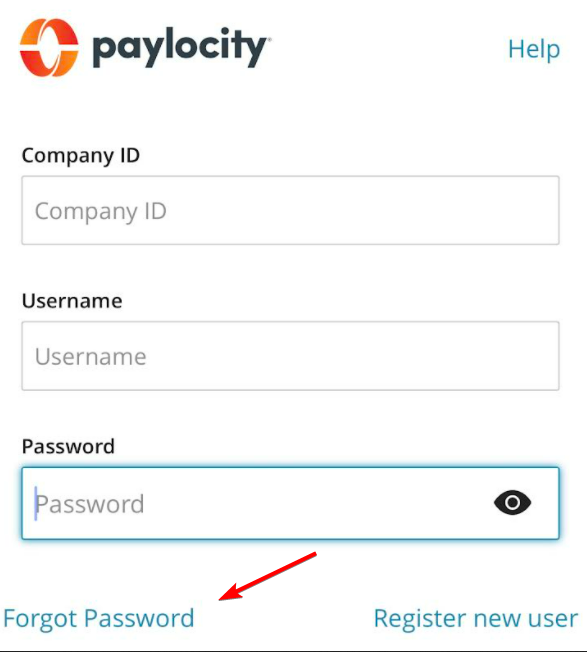
- Follow the prompts to recover your username, Company ID, or password.
- Check your registered email or phone for the verification code.
- Check your spam folder if the email does not arrive.
- Enter the code and follow the instructions to regain access.
If recovery fails, contact your employer’s HR department. Your administrator may need to verify your details or restore account access.
5. Try logging in through a web browser
The mobile app may fail even when the web portal works. Trying the browser version can help you determine whether the issue is limited to your phone.
- Open Paylocity’s employee login portal.
- Enter your Company ID, username, and password.
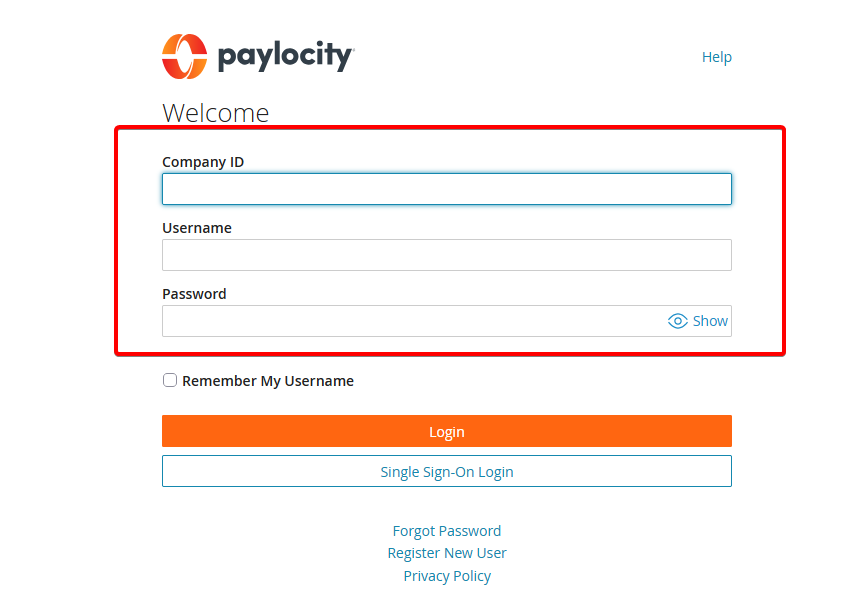
- If your employer uses single sign-on, select the appropriate login option.
- Check whether your employee dashboard and payroll information load.
If the browser works but the app does not, update the app or reinstall it. If both fail, your account or Paylocity’s services may need attention.
6. Reinstall the Paylocity app
Reinstalling can resolve persistent crashes, corrupted app files, or installation problems. Before doing this, ensure you know your login details and can access your verification method.
- Uninstall Paylocity from your phone.
- Restart your device.
- Install the official Paylocity app from your app store.
- Open it and sign in using your employer’s credentials.
Reinstalling will not fix an outage or an account permission issue.
7. Contact HR if payroll or employee features are missing
Sometimes the app works correctly, but certain features remain unavailable because of account permissions or employer settings. Paylocity’s employee guidance directs users with persistent access problems to their employer’s administrator.
Contact HR or payroll if your pay statement is missing, your timecard will not submit, your account appears disabled, or your verification details are incorrect. If you cannot clock in or out, report the problem promptly and keep a record of your actual working hours.
Most Paylocity app issues can be resolved by checking for outages, testing your connection, updating the app, and verifying your login details. If you’re also having trouble accessing other workplace or service accounts, our guides on logging in to BambooHR and Wix may help, while Delta app login fixes cover similar access problems.
FAQs related to Paylocity app issues
1. Why is Paylocity not letting me log in?
Incorrect credentials, a missing Company ID, account restrictions, or a service outage may prevent login. Try the password recovery option first, then contact your employer if access remains blocked.
2. Why is my Paylocity payroll information not showing?
Payroll information may be unavailable because of loading errors, account permissions, or employer-side settings. Try the browser portal and contact your payroll team if your pay statement remains missing.
3. What should I do if Paylocity keeps crashing?
Update the app, restart your phone, and clear the cache on Android. If the app continues crashing, reinstall it and check whether the problem also occurs in your browser.
4. Can I use Paylocity without the mobile app?
Yes. You can try signing in through the Paylocity web portal. Available features depend on your employer’s account configuration and access permissions.
5. What to do if Paylocity still isn’t working?
If none of these fixes work, avoid repeatedly changing your password or reinstalling the app without identifying the underlying problem. Contact your HR administrator, explain the error, and mention whether the browser portal works.
For persistent mobile app problems, you can also email [email protected], which is listed on Paylocity’s Google Play support page. It is recommended to keep screenshots of error messages, but make sure to hide sensitive payroll and personal information.

Read our disclosure page to find out how can you help Windows Report sustain the editorial team. Read more



Improve this guide



User forum
0 messages