
AT&T App Not Working? 7 Easy Ways to Fix It


 5 min. read
 Published on
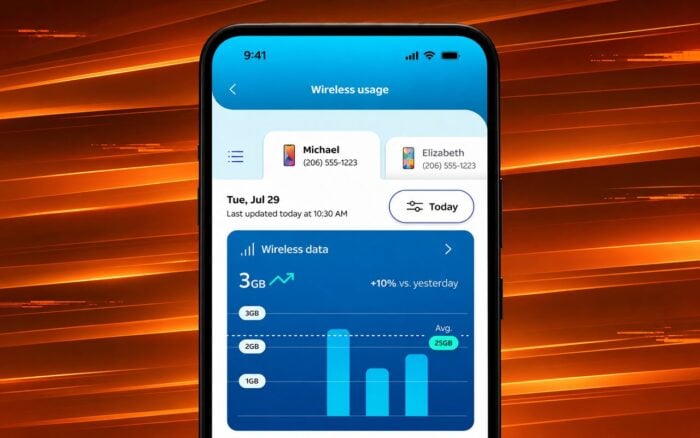
If the AT&T app is not working, the problem may come from an outdated app, corrupted cache, network issues, or incorrect login information. You can usually fix it by restarting the app, checking your connection, updating the app, or reinstalling it.
How to fix the AT&T app not working?
1. Force close and reopen the AT&T app
If the AT&T app freezes, crashes, or gets stuck on the loading screen, close it completely and reopen it.
On Android:
- Open Settings.
- Select Apps and find AT&T.
- Tap Force stop.
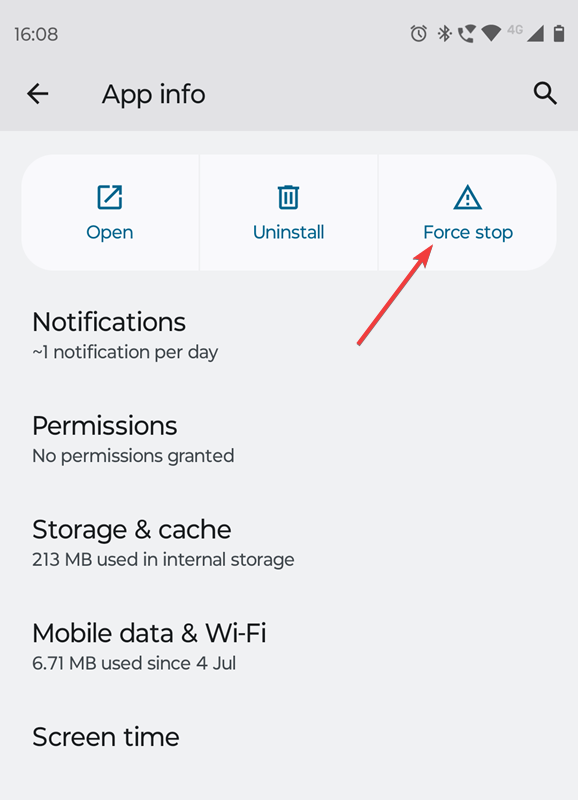
- Reopen the app and check whether it works.
On iPhone:
- Swipe up from the bottom of the screen and pause, or double-click the Home button on older models.
- Find the AT&T app.
- Swipe up on its preview to close it.
- Open the app again.
If the problem continues, restart your phone.
2. Check your internet connection
The AT&T app requires a working internet connection to load account information, billing details, and other services.
- Open your phone’s browser and visit a website.
- Switch from Wi-Fi to mobile data, or vice versa.

- Turn Airplane Mode on for 10 seconds, then turn it off.
- Disable your VPN temporarily if you use one.
- Reopen the AT&T app.
If the app works on one network but not another, troubleshoot the connection that fails.
3. Update the AT&T app
An outdated version of the AT&T app may cause crashes, login problems, and loading errors.
On Android:
- Open the Google Play Store.
- Search for AT&T.
- Tap Update if an update is available.
- Reopen the app.
On iPhone:
- Open the App Store.
- Tap your profile picture.
- Find the AT&T app under available updates.
- Tap Update.
Also check for Android or iOS system updates if the app continues to malfunction.
4. Clear the AT&T app cache
Corrupted temporary files can prevent the app from opening or loading account information correctly.
On Android:
- Open Settings.
- Navigate to Apps > AT&T.
- Select Storage or Storage & cache.
- Tap Clear cache.
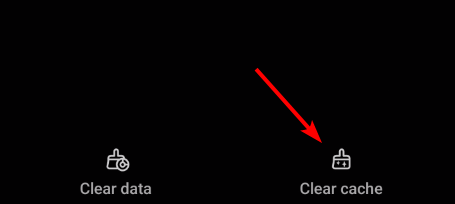
- Restart the app.
If clearing the cache doesn’t help, tap Clear storage or Clear data. This resets the app and removes its locally stored information, so you must sign in again.
On iPhone:
iOS doesn’t provide a separate cache-clearing option for most apps. You can delete and reinstall the AT&T app to remove its local data.
5. Fix AT&T app login problems
If the AT&T app won’t let you sign in, check your account credentials.
- Open the AT&T app.
- Enter the correct AT&T user ID and password.
- Remove any outdated login information saved on your phone.
- Use the password recovery option if you can’t access your account.
- Sign in again using your updated credentials.
If you manage multiple AT&T accounts, make sure you use the ID associated with the correct account.
You can also follow the official AT&T sign-in troubleshooting guide to recover your account.
6. Check whether AT&T is experiencing an outage
Sometimes, AT&T service issues prevent the app from loading information or completing certain requests.
- Visit the AT&T outage checker.
- Enter the requested account or location information.
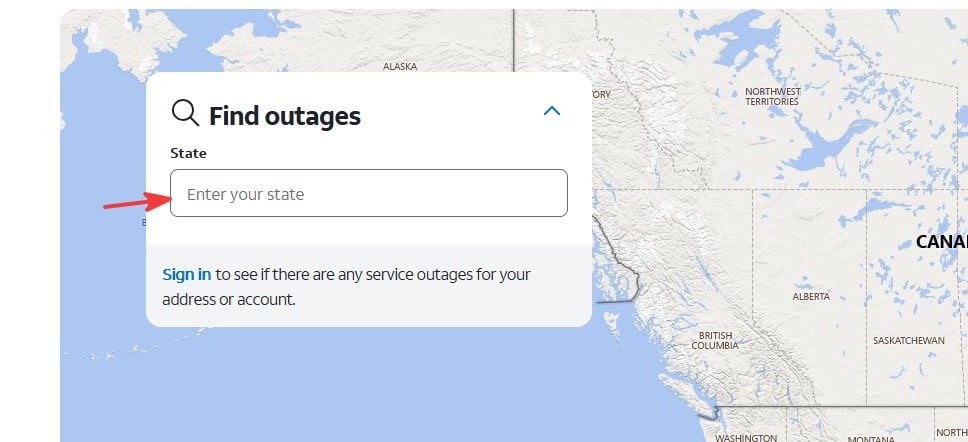
- Check for any reported service disruptions.
- Follow AT&T’s instructions if an outage affects your service.
A wireless or internet outage doesn’t necessarily mean the app itself is down. If AT&T reports an outage in your area, check whether the app works through another internet connection.
7. Uninstall and reinstall the AT&T app
If the AT&T app keeps crashing, shows a blank screen, or refuses to open, reinstalling it may resolve corrupted app files.
- Find the AT&T app on your phone.
- Press and hold its icon.
- Select Uninstall on Android or Remove App > Delete App on iPhone.
- Restart your phone.
- Open the Google Play Store or App Store.
- Download and install the latest AT&T app.
- Sign in and check whether it works.
AT&T also recommends reinstalling its app when restarting your device doesn’t resolve the problem.
The AT&T app may stop working because of temporary software glitches, outdated app versions, corrupted cache files, unstable internet connections, or account authentication errors. Server-side problems may also affect login and account features.
If you experience additional connectivity problems, check how to fix AT&T Wi-Fi issues or resolve IPTV problems on AT&T. If your connection becomes unusually slow, you can also investigate AT&T throttling and slow data speeds.
FAQs
Why does the AT&T app keep crashing?
The AT&T app may crash because of corrupted temporary files, an outdated version, or operating system compatibility issues. Update the app, clear its cache, and restart your phone.
Why is the AT&T app stuck on the loading screen?
A weak internet connection, temporary app error, or server issue can leave the AT&T app stuck loading. Switch networks, force close the app, and try again.
Why can’t I log in to the AT&T app?
Incorrect credentials, outdated saved passwords, or authentication problems may prevent login. Reset your password if necessary and confirm that you use the correct AT&T account ID.
Can I access my AT&T account without the app?
Yes. You can sign in through AT&T’s website to manage supported account features, check your bills, make payments, and review your services.

Read our disclosure page to find out how can you help Windows Report sustain the editorial team. Read more


Improve this guide



User forum
0 messages