
Controller not detected in Uplay? Here's what you can do


 3 min. read
 Updated on

In the last couple of years, Windows 10 gaming PCs got a lot more accessible to the average consumer.
Gamers don’t have to rely exclusively on their gaming consoles for their daily sessions and can play their favorite games on Windows 10 through digital distribution services like Steam and Uplay.
A lot of them like to use gaming controllers. If you also like to use a controller with your Windows 10 games, what do you do when Uplay is not detecting your controller?
Well, today we’ll take a look at how to fix your controller if it’s not detected in Uplay.
What can I do if Uplay is not detecting my controller?
1. Install the latest drivers
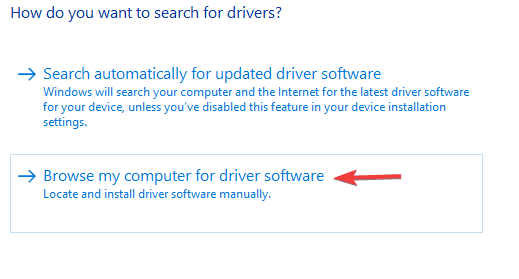
- First, go to your device manufacturer’s website and download the latest driver for your controller.
- After the download finishes, in your Windows search box type device and click on the first result. Alternatively, you can press the Windows key + X and choose Device Manager.
- Make sure that your controller is connected to your PC. In Device Manager, right-click on your controller and select Update driver.
- In the new window that appears, click on Browse my computer for driver software.
- Now click on Browse, locate the driver that you downloaded on step 1, and click on it.
- After that, click on Next and wait for the process to finish.
- Disconnect and reconnect your controller to your Windows 10 PC.
If you want to reinstall the latest version of your drivers automatically, without spending too much time or effort, you have dedicated software like Fortect Driver Updater.
Plus, you have the guarantee of reliable driver installation without causing other system malfunctions due to faulty drivers.
2. Check for in-game controller settings
If Uplay doesn’t recognize your controller but in other apps works, check for any in-game controller settings when you start a new game.
In some games the default input device is set to keyboard and mouse. You’ll have to change it to controller/gamepad.
Make sure to also check the installation folder of your game for any config files, as some titles use dedicated apps for choosing the input device and additional settings.
So make sure that your device is enabled and set up properly in every game.
If you’re interested in how to use your Xbox One controller in Windows 10, check out this dedicated guide. There’s a similar guide for PlayStation controllers as well.
3. Configure your controller in Control Panel

- In your Windows search box type control and click on Control Panel.
- Now click on Hardware and Sound > Device and Printers.
- Here you’ll have a list of all your devices. Your controller should be among them.
- Right-click on your controller and select Proprieties.
- Make sure that all the settings are in order and the device is configured properly.
4. Install the default drivers

- In your Windows search box type device and click on the first result. Alternatively, you can press the Windows key + X and choose Device Manager.
- Make sure that your controller is connected to your PC.
- In Device Manager, right-click on your controller and select Uninstall device.
- Confirm by clicking Uninstall.
- Disconnect your controller from the PC.
- Restart your PC and reconnect your controller.
- Now let Windows to automatically install the driver for your device.
After following these steps, your controller should work as intended in Uplay and in games.
If you have any other suggestions or questions, don’t hesitate to leave them in the comments section below and we’ll be sure to check them out.

Read our disclosure page to find out how can you help Windows Report sustain the editorial team. Read more


Improve this guide

User forum
0 messages