
How to Fix Arrow Keys Not Working on Your Keyboard


 3 min. read
  Published on

If your arrow keys stop responding, you usually face a simple setting issue or a driver conflict. This guide shows quick fixes that restore navigation control in minutes.
Table of contents
What Can I Do If Arrow Keys Not Working On Keyboard?
1. Check Scroll Lock
Scroll Lock changes how arrow keys move inside apps like Excel.
- Press Scroll Lock once on your keyboard.
- Look for a small ScrLk indicator light.

- Test the arrow keys again in a text field.
If arrow keys fail inside spreadsheets, read more about spreadsheet arrows not working.
2. Restart The App
Some apps load input bugs that block navigation.
- Close the app where arrow keys stopped working.
- Open the app again.
- Test directional keys.
3. Restart Windows
A quick reboot clears conflicts that break input.
- Click Start.
- Select Power.
- Choose Restart.
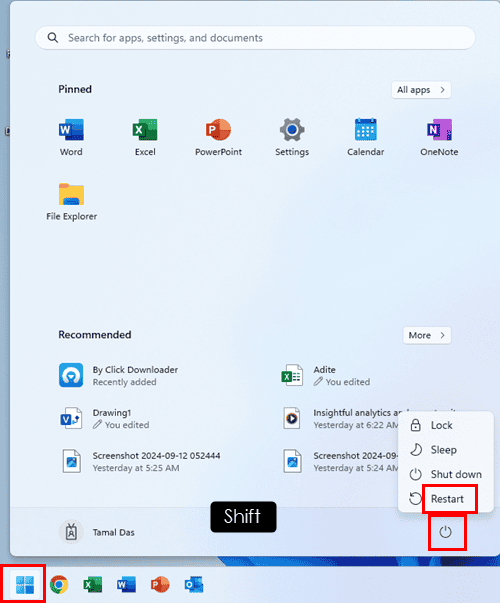
- Test your arrow keys afterward.
4. Clean The Arrow Keys
Dirt, crumbs, and dust can block the switch under the keycap.
- Turn off your laptop or PC.
- Use compressed air around the arrow keys.
- Run a soft brush around each key.
- Test the keys again.
5. Check Function Mode On Laptops
Some laptops toggle special modes that change key behavior.
- Hold Fn and press the key that switches modes.
- Look for icons near the arrow keys.
- Test the keys again.
6. Update Keyboard Drivers
Outdated drivers can cause missing input signals.
- Press Windows + X, then pick Device Manager.

- Expand Keyboards.
- Right click your keyboard.
- Select Update driver.

- Pick Search automatically for drivers.
- Restart your PC.
7. Reinstall The Keyboard Driver
A clean reinstall fixes corrupt configuration files.
- Open Device Manager.
- Expand Keyboards.
- Right click your keyboard.
- Select Uninstall device.
- Restart your PC.
8. Test With Another Keyboard
Testing a second keyboard helps confirm hardware failure.
- Connect a USB keyboard.
- Test the arrow keys.
- Compare results with your original keyboard.
9. Run The Keyboard Troubleshooter
The built in troubleshooter repairs common input issues automatically.
- Press Windows + I.
- Go to System.
- Open Troubleshoot.
- Select Other troubleshooter.
- Run Keyboard.

- Apply the suggested fixes.
10. Reset Keyboard Settings
A custom layout or shortcut can break navigation behavior.
- Open Settings.
- Go to Time and language.
- Select Typing.
- Reset your keyboard preferences.
- Restart your PC.
If your keyboard has multiple keys not responding beyond the arrow cluster, check out guidance on Windows 11 keys not working.
Why Arrow Keys Stop Working
Common triggers include a stuck Scroll Lock key, corrupt keyboard drivers, app conflicts, dust buildup, or incorrect laptop function key modes.
For app specific behavior, you can review information on arrow keys not working in Teams.
FAQs
Scroll Lock usually causes this. Press Scroll Lock to restore movement.
Yes, a damaged ribbon cable inside a laptop keyboard breaks signal transfer.
Yes, but it happens rarely. Run a quick scan to stay safe.
Often no. Dust under the keycap usually causes this.
Arrow key failures often come from Scroll Lock, software bugs, or faulty drivers. These solutions restore movement quickly, and hardware that fails repeated tests may need cleaning or replacement. You can also adapt the same steps for specific laptop brands or for keyboard issues inside a single app.

Read our disclosure page to find out how can you help Windows Report sustain the editorial team. Read more



Improve this guide

User forum
0 messages