
How to Fix Cannot Find OS Partition(s) for Disk 0


 6 min. read
  Published on
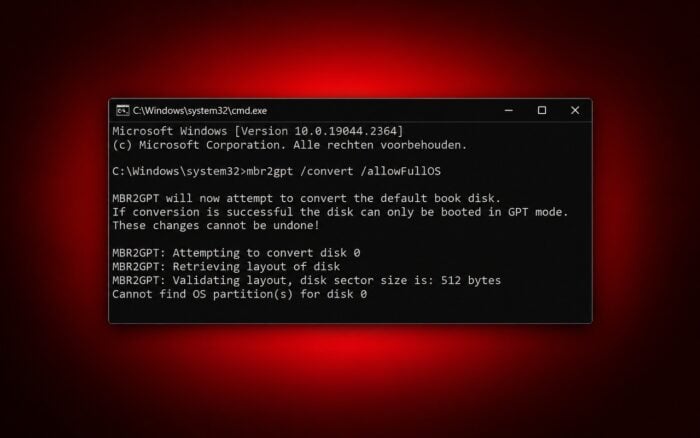
The “Cannot find OS partition(s) for disk 0” error usually appears when MBR2GPT cannot locate your Windows installation or its boot configuration files. This commonly happens when converting a drive from MBR to GPT, but you can often resolve it without reinstalling Windows.
Before trying these fixes, back up your important files. Changes to boot partitions can prevent Windows from starting if you select the wrong drive.
How can I fix Cannot Find OS Partition(s) for Disk 0 error?
1. Check whether Windows is installed on Disk 0
MBR2GPT may search the wrong disk, particularly when your computer has multiple SSDs or hard drives.
To identify the correct Windows disk:
- Press Windows + X and select Disk Management.

- Locate the partition containing Windows, usually the C: drive.
- Check which physical disk contains that partition, such as Disk 0 or Disk 1.
- Open Command Prompt as administrator.

- Run diskpart, followed by list disk, to confirm the disk numbers.
- Type exit to close DiskPart.
If Windows resides on Disk 1, run this command:
mbr2gpt /validate /disk:1 /allowFullOSIf Windows resides on Disk 0, use:
mbr2gpt /validate /disk:0 /allowFullOSReplace the disk number with the one that contains your Windows installation. The /allowFullOS parameter lets MBR2GPT run from your existing Windows installation rather than Windows Recovery Environment.
2. Rebuild the Windows boot configuration files
Damaged or missing Boot Configuration Data (BCD) can prevent MBR2GPT from identifying the operating system partition.
Follow these steps if you use a legacy BIOS/MBR installation and intend to boot from the Windows partition itself:
- Open Command Prompt as administrator.
- Enter the following command:
bcdboot C:\Windows /s C: /f BIOS - Wait for the message Boot files successfully created.
- Restart your computer after confirming that the appropriate boot partition is active.
- Run the MBR2GPT validation command again.
This command recreates BIOS boot files using the Windows installation on C:.
If your system uses a separate System Reserved partition on the same disk, you should repair that partition instead. Assign it a temporary drive letter, such as S:, and run the following command:
bcdboot C:\Windows /s S: /f BIOSDo not change the active partition until you have confirmed where Windows stores its boot files. Incorrect changes can make the computer unbootable.
3. Make sure the Windows boot partition is on the correct disk
Sometimes Windows resides on Disk 0 while the System Reserved partition containing the boot files resides on Disk 1.
To inspect the configuration:
- Open Command Prompt as administrator.
- Run bcdedit to display the current boot configuration.
- Check the device and osdevice entries under Windows Boot Loader.
- Open Disk Management and locate the partitions marked System, Boot, and Active.
- Determine whether Windows and the System Reserved boot partition reside on different physical disks.
If the boot files reside on another disk, you may need to recreate them on the Windows disk using BCDBoot, mark the correct MBR system partition as active, and adjust the BIOS boot order.
Only mark a partition as active after you successfully install the necessary boot files on it. Test whether Windows starts from the intended disk before attempting GPT conversion.
4. Check the disk partition layout
MBR2GPT requires a compatible partition layout before it can convert a disk. Even after you repair the boot configuration, incorrect partitions can prevent validation.
To inspect the disk:
- Open Command Prompt as administrator.
- Type diskpart and press Enter.

- Run select disk 0, replacing 0 with your Windows disk number.
- Enter list partition to display the existing partitions.
- Check whether the disk contains more than three primary partitions or any extended or logical partitions.
- Type exit when finished.
According to Microsoft’s MBR2GPT requirements, the target disk must use MBR, contain no more than three primary partitions, and have a valid active system partition with a BCD entry pointing to Windows.
If the disk has an unsupported partition layout, you must resolve that issue before converting.
5. Check the MBR2GPT error logs
When the previous fixes do not resolve the error, the MBR2GPT logs can help identify the underlying problem.
- Open Command Prompt as administrator.
- Run mbr2gpt /validate /disk:0 /allowFullOS with the correct disk number.
- Open File Explorer and navigate to C:\Windows.
- Locate setupact.log and setuperr.log.
- Open the files in Notepad and search for entries such as FindOSPartitions, BCD, or Cannot get volume name.
These messages can help determine whether MBR2GPT encounters a missing boot entry, an inaccessible Windows partition, or another disk configuration problem.
If you run MBR2GPT from Windows Recovery Environment, its default log location may differ from C:\Windows. You can use the /logs parameter to save diagnostic files to an existing folder on a persistent drive.
6. Validate the disk and convert it to GPT
After fixing the boot configuration and confirming that the disk meets the conversion requirements, validate it again.
- Open Command Prompt as administrator.
- Run mbr2gpt /validate /disk:0 /allowFullOS, replacing 0 with the correct disk number.
- Wait for the message Validation completed successfully.
- Run mbr2gpt /convert /disk:0 /allowFullOS to begin converting the disk.
- After the conversion completes, restart the computer and enter the BIOS or UEFI settings.
- Change the boot mode from Legacy/CSM to UEFI and select Windows Boot Manager when applicable.
- Save the changes and restart Windows.
Before converting, confirm that your motherboard supports UEFI booting and suspend BitLocker protection if you use it. Keep your recovery key available.
Do not change the boot mode to UEFI before MBR2GPT completes the conversion successfully.
The “Cannot find OS partition(s) for disk 0” error usually points to a disk selection or boot configuration problem rather than a missing Windows installation. However, you may also encounter related issues, such as the specified disk is not convertible or the Windows 11 can only be installed to GPT disks error. If you experience other disk-related problems, you can also troubleshoot the Hard Disk Serial Number Changer unable to write error.
Frequently asked questions
Why does MBR2GPT say it cannot find OS partition(s) for Disk 0?
The error usually means MBR2GPT cannot identify a valid Windows installation through the selected disk’s boot configuration. Common causes include selecting the wrong disk, missing BCD entries, or boot files located on another physical drive.
Can I fix the error without reinstalling Windows?
Yes. Many users resolve the error by selecting the correct system disk, repairing the BCD with BCDBoot, or correcting the location of their Windows boot files.
Will MBR2GPT delete my files?
Microsoft designed MBR2GPT to convert system disks without deleting existing data. However, boot configuration changes and partition operations carry risks, so create a backup before proceeding.
Should I mark my C: drive as active?
Only if it is an MBR partition that you intend to use as the system boot partition and you have confirmed that it contains the required BIOS boot files. Marking the wrong partition as active can stop Windows from booting.

Read our disclosure page to find out how can you help Windows Report sustain the editorial team. Read more



Improve this guide


User forum
0 messages