
How to Customize ChatGPT Settings and Responses


 3 min. read
  Published on

Learn how to customize ChatGPT for your needs. You can adjust settings, create custom instructions, and even set a personal tone to get better results. Follow these steps to make ChatGPT work the way you want.
Table of contents
How to Customize ChatGPT?
1. Update Profile and Preferences
You can perform basic customization from settings:
- Open ChatGPT and log in.
- Click your profile icon in the bottom left.
- Select Settings from the menu.
- Choose General or Preferences.
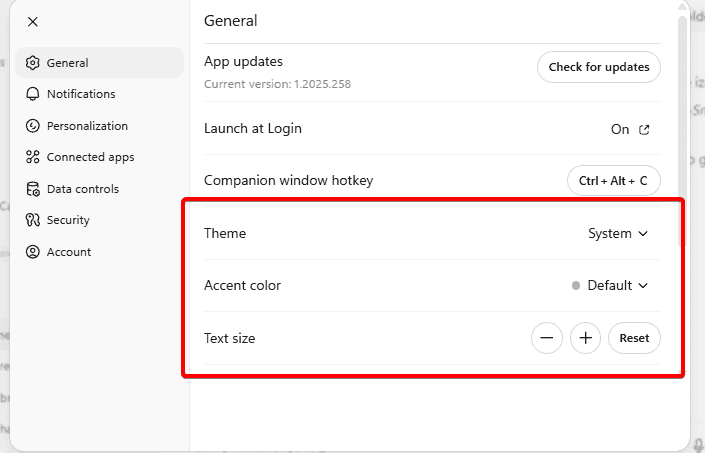
- Change theme, default language, or other options as needed.
If you also want to improve account security while adjusting preferences, see this guide on how to change your ChatGPT password.
2. Add Custom Instructions
For advanced responses, there are custom instructions you can use:
- Go to Settings.
- Click Custom Instructions.
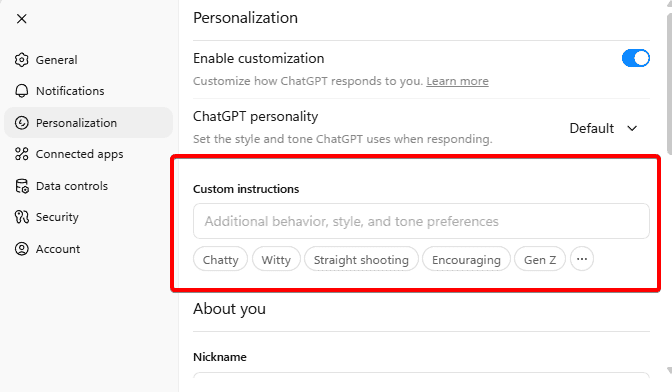
- Fill in what you want ChatGPT to know about you.
- Add details on how you want responses written.
- Press Save to apply changes to all sessions.
3. Adjust Response Style
For even more personalization, you can use different response styles:
- Open Custom Instructions or Settings.
- Look for tone, detail, or length options.
- Select formal, casual, or concise style.

- Test a prompt to confirm the style works.
- Update if results are not what you want.
Using ChatGPT for bigger projects? You can learn more about how to use Canvas in ChatGPT to manage drafts and longer workflows.
Use Custom GPTs
1. Explore the GPT Store
- In ChatGPT, click Explore GPTs.

- Use the search bar to find a specific GPT.
- Browse categories like writing, coding, research.
- Open a GPT to see details and reviews.
- Click Try to start using it.
2. Create Your Own GPT
- Go to the Explore GPTs section.
- Click Create a GPT.
- Add custom instructions for behavior.
- Upload files or connect APIs if needed.
- Save and test your GPT for accuracy.
Why Customization Helps
Customizing ChatGPT saves time and improves accuracy. Instead of repeating the same requests, your setup guides the AI automatically. This leads to more relevant answers and smoother productivity.
FAQs
Use Custom Instructions or create a custom GPT to lock in your preferences.
Yes. Adjust tone in custom instructions or response settings.
Basic customization is free, but advanced GPT creation may require a Plus plan.
Yes. With custom GPTs, you can connect APIs or upload files.
Browse the GPT Store inside the app for curated options.
Conclusion
Customizing ChatGPT makes it more personal, efficient, and reliable. From adjusting settings to creating your own GPT, every change helps tailor the AI to your needs. If you want to go further, check this detailed guide on how to train ChatGPT and refine the model for advanced use cases.

Read our disclosure page to find out how can you help Windows Report sustain the editorial team. Read more



Improve this guide




User forum
0 messages