
How To Convert PowerShell To EXE On Windows Using PS2EXE


 3 min. read
  Published on
Convert PowerShell to EXE with a single tool. PS2EXE gives you a simple way to package a .ps1 script into a file you can launch like any other Windows program.
Table of contents
How to Convert PowerShell To EXE?
Install PS2EXE
PS2EXE installs through the PowerShell Gallery, so you can set it up quickly.
- Open Windows Terminal or PowerShell as administrator.
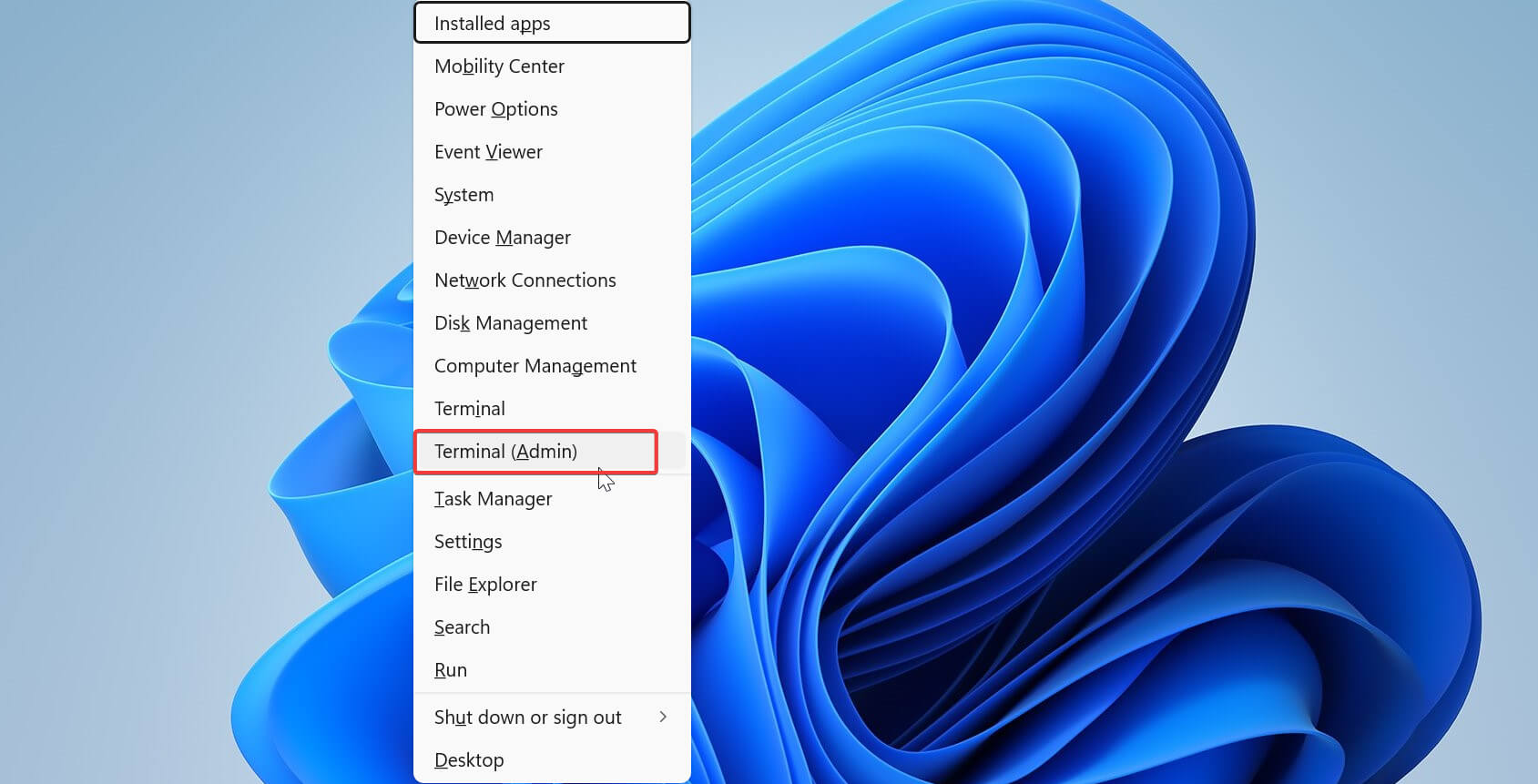
- Run the module installation command:
Install-Module -Name PS2EXE -Scope CurrentUser
- Approve the prompt that appears.
- Wait for the installation to complete.
- Confirm that PS2EXE commands load correctly.
If you want to prepare your script before conversion, this PowerShell scripting guide helps you understand core concepts: PowerShell scripting tutorial.
Convert a PowerShell script to EXE
You can convert your script with a single command once the module is ready.
- Move your .ps1 file into a clean folder.
- Open PowerShell inside that folder.
- Run the PS2EXE command to build the EXE:
Invoke-PS2EXE .\script.ps1 .\script.exe
- Wait for the file to generate.
- Open the EXE to confirm it behaves as expected.
If you want more examples of how PS1 to EXE conversions work in practice, you can review this breakdown of PS1 to EXE conversion tools.
Add a custom icon
A custom icon helps users recognize your tool and gives the executable a more professional feel.
- Save a clear .ico file in the same folder as your script.
- Rebuild the EXE with the icon parameter:
Invoke-PS2EXE .\script.ps1 .\script.exe -iconFile .\icon.ico
- Refresh your folder to load the new icon.
- Test the executable again.
- Update the icon whenever you adjust the tool branding.
If you want to understand how Windows handles script execution when working with converted tools, this overview explains the behavior of PowerShell scripts inside Windows environments: PowerShell scripts on Windows.
Why you should use PS2EXE
PS2EXE turns your script into an executable that you can share easily, schedule more reliably, and run without opening a console window.
FAQs
No. The tool wraps your script inside an executable that still uses PowerShell in the background.
No. The system must include PowerShell, which modern Windows versions already provide.
Yes. PS2EXE includes an option that creates a silent executable.
Conclusion
PS2EXE gives you a straightforward way to convert PowerShell scripts into ready to launch EXE files. Install the module, run the conversion command, add an icon if you want a polished look, and test the result on any Windows PC. This simple workflow helps you package tools for teammates, automate tasks, and keep scripts easy to run.

Read our disclosure page to find out how can you help Windows Report sustain the editorial team. Read more



Improve this guide




User forum
0 messages