
Windows PowerShell Scripting Tutorial for Beginners


 4 min. read
  Updated on
Learn how to master Windows PowerShell scripting to automate repetitive tasks, manage systems efficiently, and streamline your workflow on Windows 11. This beginner-friendly tutorial shows the fundamentals, from writing your first script to using advanced commands safely.
Table of contents
- Windows PowerShell Scripting Tutorial
- What Is PowerShell?
- Why Learn PowerShell Scripting?
- How to Create Your First PowerShell Script
- 1. Open PowerShell
- 2. Create a New Script File
- 3. Change the Script Execution Policy
- 4. Run Your Script
- How to Use Variables and Loops in PowerShell
- How to Manage Files and Folders with PowerShell
- How to Automate Tasks with PowerShell Scripts
- 1. Schedule Scripts with Task Scheduler
- 2. Use Parameters for Flexibility
- How to Debug PowerShell Scripts
- FAQs
- Final Thoughts
Windows PowerShell Scripting Tutorial
What Is PowerShell?
PowerShell is a powerful command-line shell and scripting language developed by Microsoft. It helps administrators and power users automate tasks such as user management, software installation, and file operations. It combines the flexibility of modern scripting with rich system access.
For related commands and syntax, see our guide on essential shell commands in Windows.
Why Learn PowerShell Scripting?
- Automate repetitive Windows tasks
- Manage local and remote systems
- Control Windows services, processes, and files
- Create scripts that simplify IT administration
Once you understand the basics, you can use PowerShell to manage both local and networked environments.
How to Create Your First PowerShell Script
1. Open PowerShell
- Press Windows + S and type PowerShell.
- Right-click Windows PowerShell and select Run as Administrator.
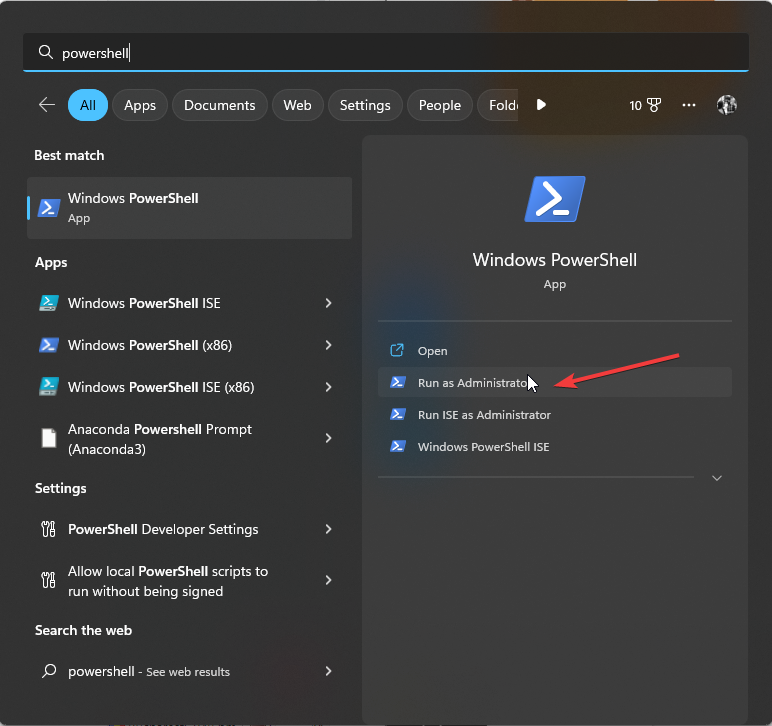
If you need a detailed walkthrough, follow this step-by-step tutorial on how to run Windows PowerShell as an admin.
2. Create a New Script File
- Open Notepad.
- Type a simple command:
Write-Host "Hello, PowerShell!"
- Save the file with a .ps1 extension, for example: first_script.ps1.

3. Change the Script Execution Policy
By default, PowerShell blocks scripts from running. To enable them:
- In PowerShell, type:
Set-ExecutionPolicy RemoteSigned
- Press Y and hit Enter to confirm.
4. Run Your Script
- Navigate to the folder containing your script:
cd "C:\Users\YourName\Desktop"
- Execute it:
.\first_script.ps1
You should now see the message Hello, PowerShell! appear in the terminal.
How to Use Variables and Loops in PowerShell
- Declare and print a variable:
- Repeat actions with a loop:
$name = "John"
Write-Host "Hello, $name!"
for ($i = 1; $i -le 5; $i++) {
    Write-Host "Count: $i"
}
How to Manage Files and Folders with PowerShell
- Create a new folder:
New-Item -ItemType Directory -Path "C:\TestFolder"
- Create a new file:
New-Item -ItemType File -Path "C:\TestFolder\info.txt"
- Copy or move files:
Copy-Item "C:\TestFolder\info.txt" "C:\Backup\"
Move-Item "C:\TestFolder\info.txt" "C:\Archive\"
- Delete files or folders:
Remove-Item "C:\TestFolder" -Recurse
Chain these cmdlets in scripts to automate multi-step file operations.
How to Automate Tasks with PowerShell Scripts
1. Schedule Scripts with Task Scheduler
- Open Task Scheduler from the Start menu.
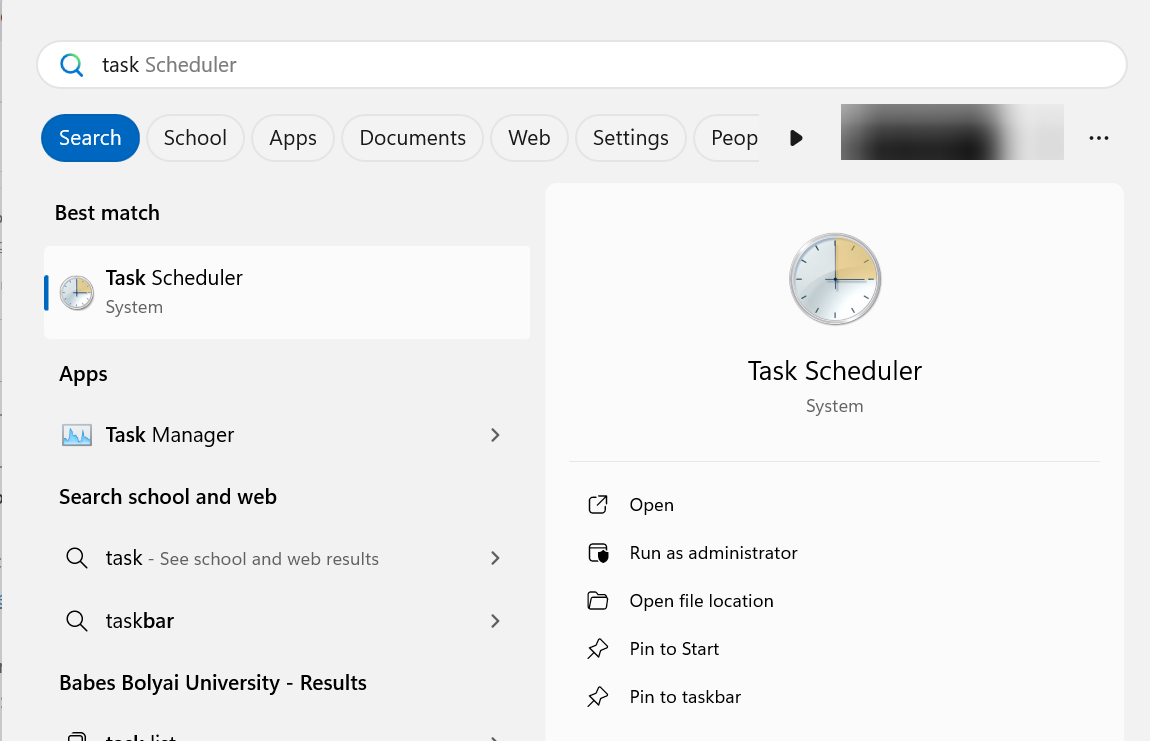
- Select Create Basic Task.

- Enter a name and choose a trigger time.
- Under Action, choose Start a Program.
- In Program/script, enter:
powershell.exeand add-File "C:\Scripts\backup.ps1"in Arguments. - Save and finish.
You can simplify deployment once your script works by converting it into a standalone executable, and this guide explains how to do that in PowerShell: convert PowerShell to EXE.
2. Use Parameters for Flexibility
- Add parameters at the top of your script:
param([string]$FolderPath)
Write-Host "You selected: $FolderPath"
- Run the script with a value:
.\myscript.ps1 -FolderPath "C:\Data"
How to Debug PowerShell Scripts
- Use Write-Host to print variable values during execution.
- Add breakpoints in PowerShell ISE or VS Code PowerShell extension.
- Step through code with F10 and F11 to inspect behavior.
FAQs
PowerShell supports rich automation through cmdlets and scripting, while Command Prompt focuses on simpler commands.
Yes. PowerShell is included by default on Windows 11. You can also install PowerShell 7 for cross-platform features.
No. With basic scripting logic and regular practice, you can progress quickly.
Browse the official PowerShell Gallery and community repositories on GitHub for ready-made scripts you can adapt.
You can install the newer PowerShell 7 version by following this setup guide that walks you through the full process: install PowerShell 7.
Final Thoughts
PowerShell scripting is a valuable skill for managing Windows systems. Start with simple scripts, explore built-in cmdlets, and gradually automate complex administrative tasks. If you want to track system changes or updates using PowerShell, see how to view Windows Update history with PowerShell. Once you are comfortable with the basics, explore advanced features like remoting, error handling, and module creation.

Read our disclosure page to find out how can you help Windows Report sustain the editorial team. Read more



Improve this guide




User forum
0 messages