
How to Set Up Microsoft Edge Wallet in Windows 11 Fast


 3 min. read
  Published on

The Wallet in Microsoft Edge lets you securely store your credit cards, debit cards, and billing information for faster online checkouts. Here’s how to set it up and start using it safely.
Table of contents
How to Set Up Wallet in Microsoft Edge?
1. Open Microsoft Edge Settings
You’ll first need to access the settings menu to locate the wallet feature.
- Launch Microsoft Edge on your computer.
- Click the three-dot menu in the top-right corner.
- Select Settings from the dropdown menu.

- Choose Passwords and autofill in the left panel.
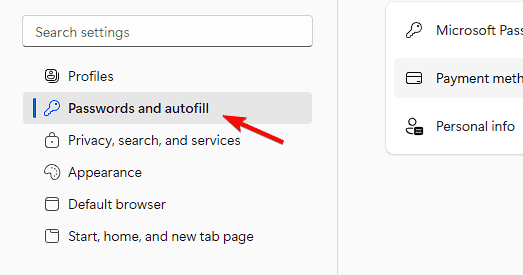
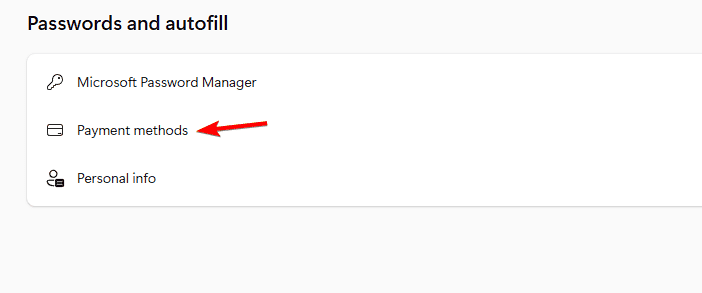
- Click Payment methods depending on your version.
Speed up navigation by adding quick links in Edge for one-click access.
2. Add a New Credit or Debit Card
Next, save your payment method for autofill during online purchases.
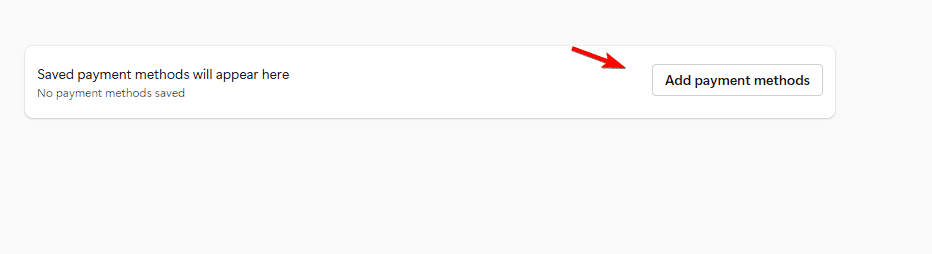
- In the Wallet or Payments section, click Add payment methods.
- Enter your card number, expiry date, and name on card.
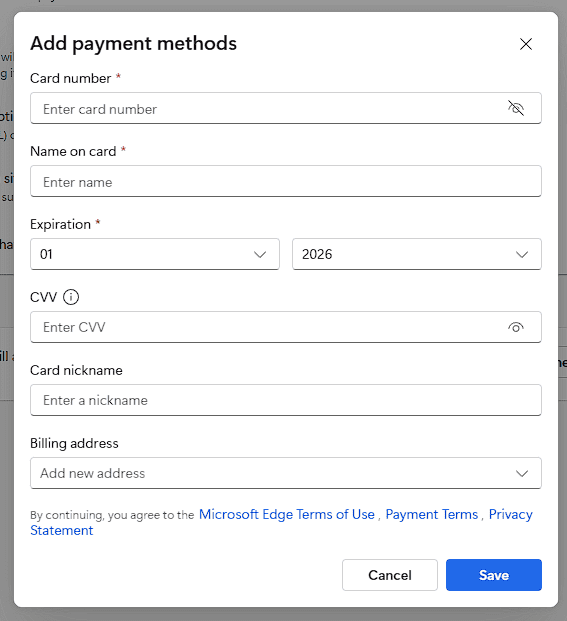
- (Optional) Turn on Save this card for autofill for quicker payments.
- Click Save to store your details securely.
3. Verify Security Settings
Before using your saved cards, confirm that security options are enabled.
- Go to Settings > Profiles > Passwords & autofill.
- Make sure Save and fill payment info is turned On.
- Enable Require Windows Hello to confirm payments with fingerprint, PIN, or face ID.
- This ensures only you can authorize autofills.
4. Add a Billing Address
To complete transactions seamlessly, link a billing address to your wallet.
- In the Wallet section, click Add address.
- Enter your billing name, street address, city, postal code, and country.
- Click Save to link the address with your stored card.
5. Use Edge Wallet at Checkout
Once setup is done, you can use your saved cards instantly while shopping online.
- Visit any website with a checkout form.
- Click inside the payment field.
- Choose your saved card from the dropdown.
- Authenticate with Windows Hello if required.
- Review details and confirm your purchase.
Power users can also enable Edge flags to test new browser capabilities.
Why Use Edge Wallet?
- Keeps payment information encrypted and secure.
- Speeds up online checkouts with autofill.
- Works across devices when you sign in to your Microsoft account.
- Adds protection through Windows Hello authentication.
FAQs
Yes. It is built into Edge and available at no cost.
Yes. Sign in with your Microsoft account to sync payment info securely.
Yes. Microsoft encrypts your data and requires authentication before transactions.
Yes. Go to Settings > Profiles > Wallet, select the card, then click Delete.
Conclusion
Setting up Microsoft Edge Wallet is quick, secure, and convenient. Save your cards and billing details to speed up checkout, reduce typing errors, and keep your financial data protected with encryption and Windows Hello.
For related setup, you can set your homepage in Microsoft Edge to open your preferred sites faster.

Read our disclosure page to find out how can you help Windows Report sustain the editorial team. Read more



Improve this guide


User forum
0 messages