
How to Set Homepage in Edge (Quick Steps)


 3 min. read
  Updated on
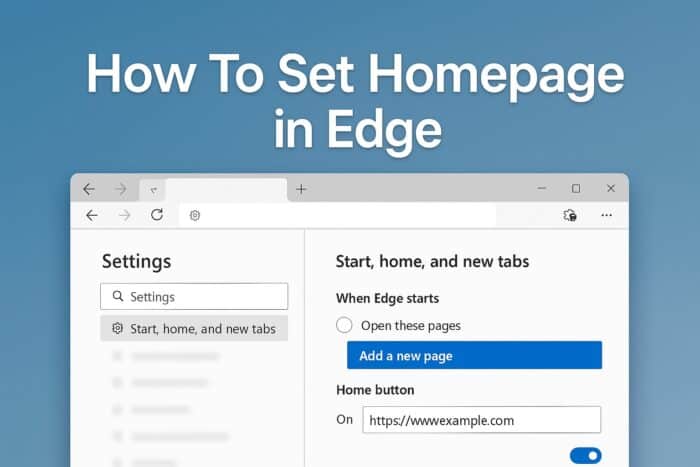
Knowing how to set homepage in Edge helps you open your favorite site right away and skip the default start page. If you don’t know how to do that, this guide will tell you all you need to know.
Table of contents
How can I set homepage in Edge?
1. Change Startup Page in Edge
This option lets you pick which site loads automatically when Edge starts.
- Open Microsoft Edge and click the three-dot menu (… ) in the top-right corner.
- Select Settings from the menu.
- In the left panel, click Start, home, and new tabs.
- Under When Edge starts, select Open these pages.
- Click Add a new page, type your desired website address, then press Add.

For even more customization, you can enable Edge flags to unlock experimental features that can influence startup behavior.
2. Enable and Customize the Home Button
The Home button provides one-click access to your chosen homepage.
- Go to Settings > Start, home, and new tabs.
- Scroll down to Home button and toggle the switch On.
- Enter your preferred homepage URL in the provided box.

- Click outside the box to save the change.
Another quick personalization is adding quick links in Edge for instant access to your favorite websites from the new tab page.
For quicker checkouts while you browse, set up Microsoft Edge Wallet to securely save your cards and billing details.
3. Test Your Homepage
Testing confirms that your homepage is set up correctly.
- Close Microsoft Edge completely.
- Reopen Edge to check if it loads your chosen homepage.
If you want to continue where you left off instead, see how to restore your previous session in Microsoft Edge.
Some homepages require pop-ups for sign-ins, downloads, or verification prompts; see how to allow pop-ups in Edge so your start page loads and functions correctly.
Conclusion
Setting a homepage in Edge gives you a faster start every time you open the browser. Combine a custom startup page with the Home button, quick links, and session restore for a fully personalized and efficient browsing experience.
And when you land on sites in different languages, it’s easy to stay productive, as long as you know how to translate a page in Edge.
You can also learn more about customizing your startup preferences across different browsers by checking this detailed guide on changing your browser homepage. To explore even more homepage customization options by checking this guide on how to set a homepage in Microsoft Edge for a smoother browsing routine.
Chrome users who want the same Google first experience can follow this guide on how to make Google your homepage in Chrome.
FAQs
Go to Settings > Start, home, and new tabs > Open these pages, then type www.google.com and save.
Yes. Under Open these pages, add more than one URL and Edge will open them all at startup.
No. The homepage loads when you start Edge or press the Home button, while the new tab page has its own layout and settings.
Updates or extensions might override settings. Update Edge, disable extensions temporarily, and try setting the homepage again.

Read our disclosure page to find out how can you help Windows Report sustain the editorial team. Read more



Improve this guide


User forum
0 messages