
Error no Ace Condition 804 (0x324): Fix it With 4 Steps
You can fix this by resetting the ACLs of the affected file or folder


 2 min. read
  Published on

System administrators can often encounter ERROR_NO_ACE_CONDITION, and this error can prevent you from accessing certain files, so in today’s guide, we’re going to show you how to fix it.
How can I fix ERROR_NO_ACE_CONDITION?
1. Reset ACLs for the affected file/folder
- Press the Windows key + S and type cmd. Choose Run as administrator.

- Next, run the following command: icacls
"C:\path\to\file_or_folder" /reset /t /c /l /q
- After that, the permissions should be set to default.
2. Check and modify ACLs with PowerShell
- Press Windows key + S and type powershell. Choose Run as administrator.
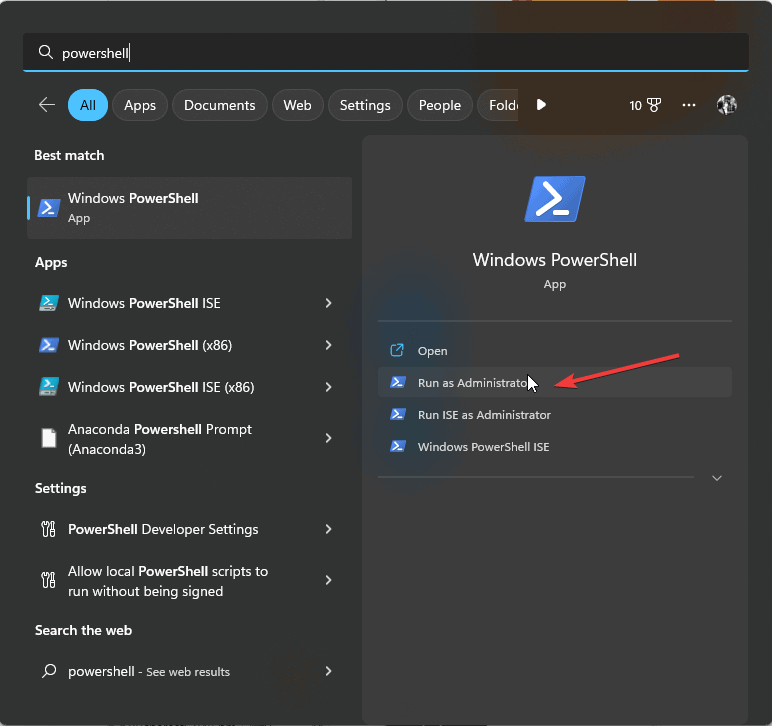
- Run the following to check ACE conditions:
Get-Acl "C:\path\to\file_or_folder" | Format-List3
- If ACE is invalid, reset it with the following:
$acl = Get-Acl "C:\path\to\file_or_folder"
$acl.SetAccessRuleProtection($true, $false)
Set-Acl "C:\path\to\file_or_folder" -AclObject $acl
3. Check for Group Policy Conflicts
- Press Windows key + R and enter gpedit.msc.

- Navigate to Computer Configuration and then Windows Settings.
- Choose Security Settings and then Local Policies. Select Security Options.

- Look for policies related to User Access Control or Security Descriptors and adjust them if needed.
4. Adjust your code
- Open your code.
- Adjust it like this:
import win32security

sd = win32security.GetFileSecurity("C:\\path\\to\\file",
win32security.DACL_SECURITY_INFORMATION)
dacl = sd.GetSecurityDescriptorDacl()

# Make sure ACEs are added with valid conditions
for i in range(dacl.GetAceCount()):
    ace = dacl.GetAce(i)
    print(ace)  # Check if conditions are missing or malformed
- Save changes.
ERROR_NO_ACE_CONDITION can be recognized by 804 (0x324) The specified access control entry (ACE) does not contain a condition message, and if you encounter it, reset ACLs or modify them with PowerShell.
This isn’t the only error, and we wrote about ERROR_ABANDON_HIBERFILE and WORKER_THREAD_TEST_CONDITION in our previous articles, so don’t miss it.

Read our disclosure page to find out how can you help Windows Report sustain the editorial team. Read more



Improve this guide

User forum
0 messages