
Face ID Not Working on iPhone? 7 Quick Fixes


 4 min. read
  Published on
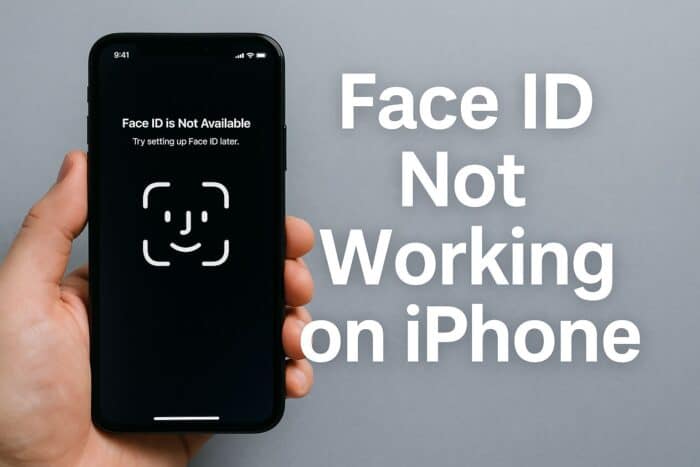
If Face ID is not working on your iPhone, it can be frustrating when you cannot unlock your device or use Apple Pay. This guide explains why Face ID might fail and shows you step by step how to fix it.
Table of contents
What can I do if Face ID is not working on iPhone?
1. Check Basic Settings First
Sometimes Face ID fails because of simple issues that you can fix quickly.
- Make sure Face ID is turned on under Settings > Face ID & Passcode.
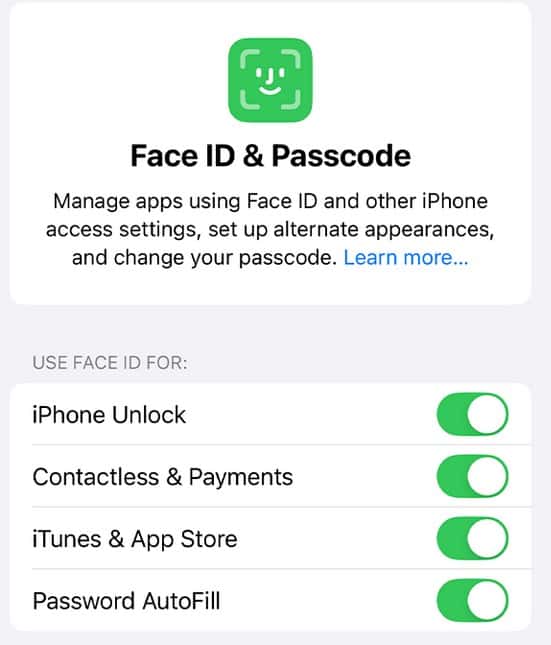
- Check if your iPhone has the latest iOS update installed.
- Confirm that Face ID is enabled for the features you want, such as unlocking or iTunes purchases.
If your iPhone is not recognized by your PC, you may also face syncing issues. See this guide on Windows 11 not recognizing iPhone for more solutions.
2. Clean the TrueDepth Camera
Dirt or smudges on the front camera can block Face ID sensors.
- Wipe the front camera area gently with a microfiber cloth.
- Remove any screen protector or case that may block the sensor.
- Check if the area above the screen is cracked or damaged.
You can also extend iPhone functionality by turning it into a webcam. Check this tutorial on how to use iPhone as a webcam on Windows 11.
3. Reset Face ID and Set It Up Again
If Face ID continues to fail, resetting it often resolves the issue.
- Go to Settings > Face ID & Passcode.
- Tap Reset Face ID.

- Follow the on-screen instructions to set up a new face scan.
If setup problems occur, follow this troubleshooting guide on quickly fixing iPhone setup not working.
4. Restart or Force Restart Your iPhone
Software glitches may temporarily disable Face ID. Restarting clears these errors.
- Restart the phone normally by holding the power button and sliding to power off.
- If that does not work, perform a force restart by pressing and quickly releasing the volume up button, then the volume down button, and finally holding the side button until the Apple logo appears.
5. Check Face ID Position and Lighting
Face ID works best when your iPhone is at arm’s length and directly facing you.
- Hold the device about 10 to 20 inches from your face.
- Ensure your eyes, nose, and mouth are clearly visible.
- Avoid direct sunlight or very dark environments that may confuse the sensors.
6. Update or Reset iOS Settings
If none of the above works, you may need to refresh your iPhone system.
- Install the latest iOS update under Settings > General > Software Update.

- If the problem continues, go to Settings > General > Transfer or Reset iPhone > Reset > Reset All Settings. This does not erase your data but resets system preferences.
7. When to Contact Apple Support
If Face ID still does not work after these steps, the TrueDepth camera system might be damaged. Contact Apple Support or visit an Apple Store for professional help.
FAQs
It can be disabled due to a hardware problem, software bug, or restricted settings. Try resetting Face ID and updating iOS.
Yes. Water damage can affect the TrueDepth camera system. In this case, only Apple repair can restore Face ID.
Yes, iOS allows Face ID with masks on supported models. Enable this under Face ID settings.
Conclusion
If Face ID is not working on your iPhone, start with simple fixes like cleaning the sensor, resetting Face ID, or restarting your device. If the problem persists, professional Apple repair may be required.

Read our disclosure page to find out how can you help Windows Report sustain the editorial team. Read more



Improve this guide




User forum
0 messages