
Find Microsoft Account Password And Email In Minutes


 4 min. read
  Published on

Many users ask how to find a Microsoft account password or recover the email tied to it. This guide shows you the fastest ways to identify your Microsoft login and reset the password. Follow the steps below to regain access quickly.
Table of contents
How to Find Microsoft Account Email?
1. Check Your Windows Sign In Settings
These steps help you confirm which email you use to sign into Windows.
- Click Start and open Settings.
- Select Accounts.

- Select Your info.
- Check the email shown under your name.

If you later need to remove your sign in, see how to sign out of a Microsoft account on PC.
2. Look In Microsoft Apps
Your Microsoft apps often reveal the email linked to your account.
- Open Outlook, Microsoft Store, or OneDrive.
- Click your profile picture in the top right.

- Read the Microsoft account email displayed.
3. Use Microsoft’s Account Lookup Page
Microsoft lets you recover your account email with a phone number or alternate email.
- Visit the Microsoft account recovery page.
- Select I forgot my username.
- Enter your phone number or alternate email.
- Enter the security code you receive.
- Read the list of accounts connected to your information.
4. Check Your Browsers And Password Managers
Browsers often store the last used Microsoft email.
- Open Chrome, Edge, or Firefox.
- Open the password manager from settings.
- Search for Microsoft or Live.
- Check the username field to identify the email.
To manage account sessions across devices, you can read how to sign out of a Microsoft account.
Find Microsoft Account Password
1. Use The Official Password Reset Tool
This method gives you the quickest way to regain access if you forgot your Microsoft password.
- Go to the Microsoft password reset page.
- Select I forgot my password.
- Enter your Microsoft email or phone number.

- Verify your identity with the code sent to your device.
- Create a new password and sign in again.
2. Check Saved Passwords In Your Browser
If you saved your password earlier, you can retrieve it from your browser.
- Open your browser settings.
- Open the Password Manager section.
- Search for login.live.com, outlook.com, or microsoft.com.
- Click the eye icon to reveal the saved password.
- Confirm with your device PIN or fingerprint.
3. Look In Windows Credential Manager
Windows sometimes keeps your Microsoft credentials inside Credential Manager.
- Press Start and search for Credential Manager.
- Open Windows Credentials.
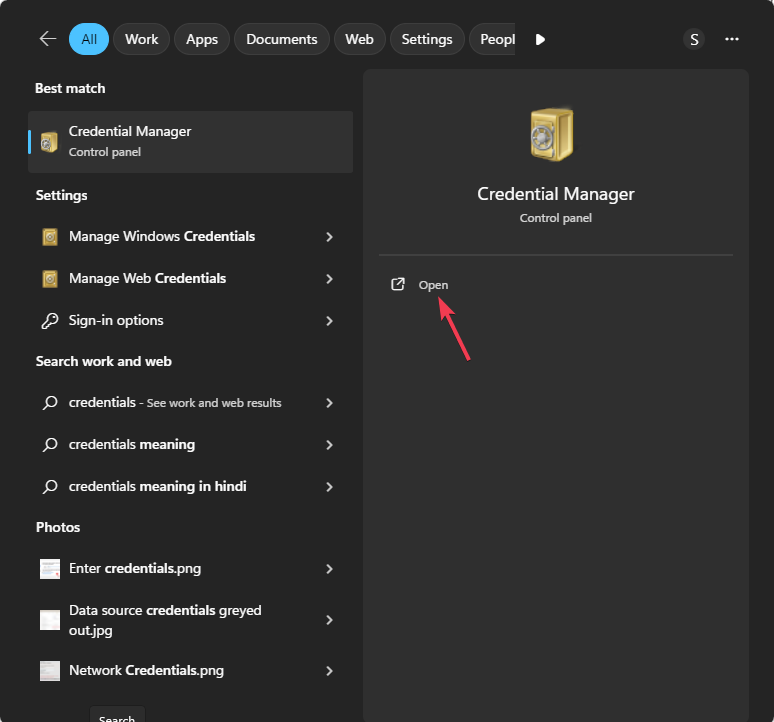
- Look for entries related to Microsoft accounts.

- Select the entry to view stored login details.
4. Use Your Password Manager App
Any third party password manager can reveal saved Microsoft logins.
- Open your password manager app.
- Search for Microsoft or Outlook entries.
- Select the matching entry.
- Reveal the stored password.
If you want more help signing back in, see how to log in to a Microsoft account.
Why These Methods Work
Windows and Microsoft apps store your login identity to personalize your experience. Browsers and password managers keep encrypted copies of usernames and passwords. Microsoft recovery tools verify your identity with a phone number or alternate email before they grant access again.
FAQs
You can search for it in Windows Settings, Microsoft Store, Outlook, OneDrive, or use the account lookup page.
Use an alternate recovery email or answer your saved recovery questions if the option appears for your account.
Yes, if your browser or password manager saved it earlier and still stores the correct password.
Microsoft uses this step to confirm that you own the account and to keep your data safe from unauthorized access.
Conclusion
You can find your Microsoft account email and password quickly when you use Windows settings, browser tools, and Microsoft recovery options together. Identify the correct email, reset the password if needed, and sign in with stronger security so you keep full control of your account.

Read our disclosure page to find out how can you help Windows Report sustain the editorial team. Read more



Improve this guide


User forum
0 messages