
How to Login to Microsoft Account on Any Device


 4 min. read
  Updated on

Logging in to your Microsoft account gives you access to Outlook, OneDrive, Teams, Xbox, and Office apps with a single sign-in. Follow the steps below to log in successfully on any device.
Table of contents
How to Sign In to Your Microsoft Account?
1. On the browser
You can use your browser to sign in to your Microsoft account and access all services in one place. Here are the steps:
- Open your browser and go to login.live.com.
- Enter the email, phone number, or Skype ID linked to your Microsoft account.
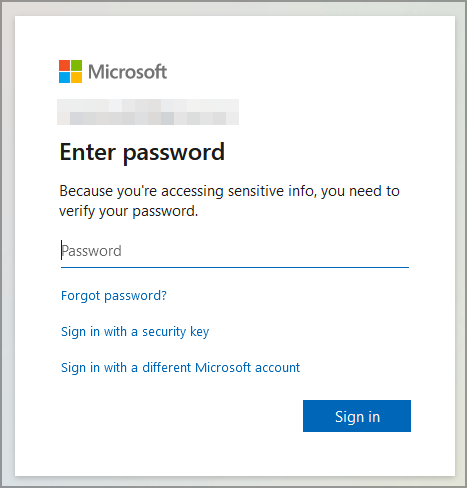
- Click Next.
- Type your Microsoft account password.
- Select Keep me signed in if you are on a trusted device.
- Click Sign in.
- If two-step verification is enabled, enter the code sent to your phone or email.
- Once logged in, access services like Outlook, OneDrive, or Teams.
If you do not already have a Microsoft account, you can easily create a new Microsoft account to get started.
After finishing your session in a browser, make sure to sign out of Outlook to protect your personal information on shared devices.
You can recover your login details by using this guide on how to find your Microsoft account password.
2. Login on Different Platforms
Windows 11
On Windows 11, you can sign in through system settings to connect your PC with your Microsoft account. Follow these steps:
- Open Settings from the Start menu.
- Go to Accounts > Email & accounts.
- Select Sign in with a Microsoft account instead.

- Enter your Microsoft email and password.
- Confirm to complete the sign-in process.
For details on syncing files and accessing cloud storage, see how to login to OneDrive.
On shared PCs, learn how to sign out of Microsoft account on PC to keep your data private and prevent unauthorized access.
After you finish setting up your account on Windows 11, it is also important to know how to sign out of Windows 11 to protect your files and keep your data private on shared devices.
Xbox
You can link your Xbox profile with your Microsoft account directly from the console. Here’s how:
- Turn on your Xbox console.
- From the profile sign-in screen, select Add new.

- Enter your Microsoft email and password.
- Confirm to link your Xbox profile to your Microsoft account.
For help accessing your profile before linking it, see this Microsoft.com Xbox login guide for quick sign in steps.
Android
Android users can sign in using Microsoft apps like Outlook or OneDrive. Use these steps:
- Download the Microsoft Outlook or OneDrive app from Google Play.
- Open the app and tap Sign in.
- Type in your Microsoft email and password.
- Complete any additional security verification if prompted.
For more details on signing in to your email, see our complete guide on how to login to Outlook email.
iPhone
On iPhones, Microsoft apps like Outlook or Teams allow you to log in with your account. Follow these instructions:
- Install the Microsoft app you want to use, such as Outlook or Teams, from the App Store.
- Open the app and tap Sign in.
- Enter your Microsoft account email and password.
- Verify your login through two-step authentication if required.
FAQs
Go to Settings > Accounts > Email & accounts and select Sign in with a Microsoft account.
Yes. You can use passwordless sign-in through the Microsoft Authenticator app.
This usually happens because of an incorrect password, outdated browser, or account lock. Resetting your password or checking Microsoft service status can help.
Yes. One Microsoft account can be used on multiple PCs, Xbox consoles, and smartphones.
Conclusion
Signing in to a Microsoft account is straightforward and keeps your apps, files, and preferences in sync across Windows 11, Xbox, Android, and iPhone. If you encounter issues where your account cannot be found, see what to do when your Microsoft account does not exist.

Read our disclosure page to find out how can you help Windows Report sustain the editorial team. Read more



Improve this guide



User forum
0 messages