
How to fix game crashes and other issues on Windows 10 Creators Update


 2 min. read
  Updated on
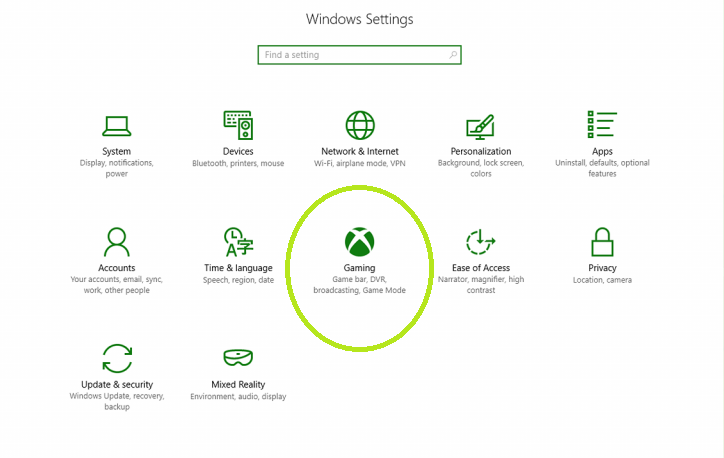
Windows 10 Creators Update offers players a whole new gaming experience. Microsoft’s latest OS introduces Game Mode, a new feature that enhances your computer’s gaming performance. In others words, Windows 10 now comes with its own build-in gameplay booster, eliminating the need for third-party programs.
Speaking of games, many Windows 10 Creators Update players have already confirmed that this OS boosts game FPS by 4% on average.
Unfortunately, the Windows 10 Creators Update gaming experience has been a bumpy ride for many players. More specifically, games often crash or are affected by various other issues on Windows 10 Creators Update.
I just updated to the Windows 10 Creators Update (Version 1703, Build 15063), and Forza Horizon 3 no longer loads. When I start the game, I see the Playground Games and Turn 10 Studios animations, and then I get to the screen that has the slideshow of cars and says “Press Enter/A to Continue”. When I hit to continue, it says “Loading, Please Wait”, and then nothing ever happens. […] the game says “Loading, Please Wait” indefinitely.
It appears that the culprit is the Xbox Game DVR, a tool that allows players to record and share game videos and screenshots. The Creators Update enables the Xbox DVR by default.
Windows 10 Creators Update game crashes [FIX]
- Open the Xbox app. The app is pinned to the Start menu by default. You can also open it through apps.
- Sign in > go to Settings > select GameDVR.
- Switch off the “Record game clips and screenshots using Game DVR” option.
If disabling the game DVR doesn’t fix these issues, update your graphics drivers. Use the links listed below to download and install the latest graphics driver updates:
RELATED STORIES YOU NEED TO CHECK OUT:

Read our disclosure page to find out how can you help Windows Report sustain the editorial team. Read more



Improve this guide


User forum
0 messages