
My Verizon App Not Working? 7 Quick Fixes to Try Now


 5 min. read
  Updated on

If Verizon app is not working, you’re not necessarily dealing with a problem on your phone. The My Verizon app can get stuck on a blank screen, refuse to load the account page, fail during login, or show errors even when your Verizon username and password work normally in a browser.
In the recent past, Verizon app users have reported login loops, spinning account pages, blank screens, authentication failures, and features that stop working after app updates.
Table of contents
- How to fix Verizon app not working
- 1. Check whether Verizon is having an outage
- 2. Force close the My Verizon app
- 3. Clear the Verizon app cache
- 4. Update My Verizon and your phone
- 5. Reinstall My Verizon app
- 6. Try Verizon via a browser
- 7. Turn off VPN or restrictive network settings
- Why is the Verizon app not working today?
- What to do if nothing fixes the My Verizon app?
- FAQs related to My Verizon app issues
How to fix Verizon app not working
If the app opens but refuses to load your account, start with the simplest fixes and work downward. Verizon recommends checking for outage, updates, restarting the device, and more. Here, we have discussed all of it, keep reading.
1. Check whether Verizon is having an outage
If Verizon’s servers or authentication systems are having trouble, reinstalling the app repeatedly or trying any triubleshooting methods listed here likely won’t solve the underlying problem. To rule out a possible outage, make sure to do the following:
- Open the Verizon support page.
- Check the network status for your location.
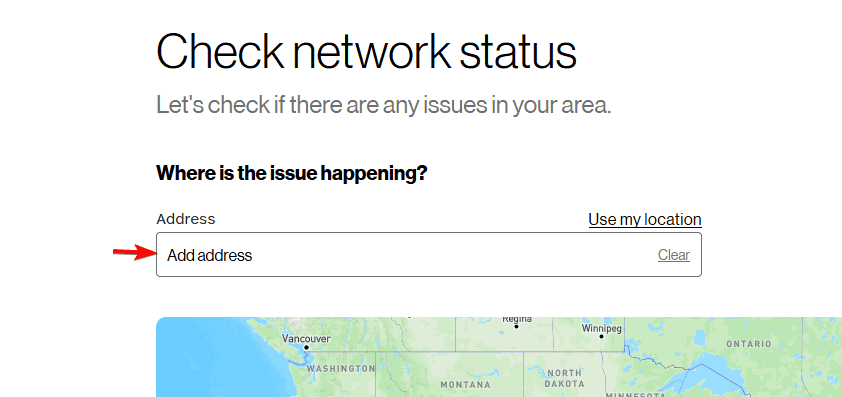
- If an outage is reported, wait until Verizon restores service.
- Try the app again after the outage is cleared.
2. Force close the My Verizon app
A temporary app process can prevent the login or account screen from loading correctly.
- Close My Verizon completely.
- On Android, open Settings > Apps > My Verizon > Force stop.
- On iPhone, swipe up and remove My Verizon from the recent apps screen.
- Open My Verizon again.
3. Clear the Verizon app cache
A corrupted cached file can cause login errors, endless loading, or a blank screen. On Android, do the following:
- Open Settings > Apps > My Verizon on Android.
- Tap Storage or Storage & cache.
- Select Clear cache.
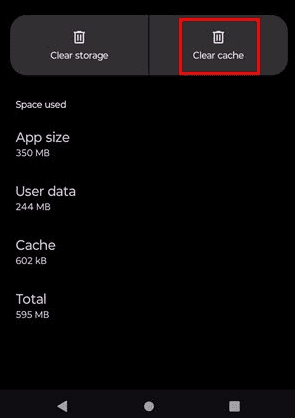
- Reopen the app and sign in again.
On iPhone, there isn’t a traditional “clear cache” button for most apps. Instead, you can offload or delete My Verizon and reinstall it.
4. Update My Verizon and your phone
An outdated app can stop working properly after Verizon changes its login or security systems.
- Open Google Play Store or the App Store.
- Search for My Verizon.
- Install any available update.
- Check for a pending Android or iOS system update.
- Restart your phone after updating.
- Open My Verizon again.
5. Reinstall My Verizon app
If the My Verizon app still won’t open, keeps crashing, or remains stuck on the loading screen, reinstalling it can remove corrupted local files.
- Delete My Verizon app from your phone.
- Restart the phone.
- Download My Verizon again from the official app store.
- Open it and sign in manually.
- Allow the permissions the app requests.
- Test the account page again.
6. Try Verizon via a browser
This is an important test because it tells you whether the problem is limited to the app.
- Open Verizon’s website in Chrome, Safari, or another browser.
- Sign in to your account.
- Check whether your account, billing, and other services load normally.
If the website works but the app doesn’t, the problem is more likely related to the app, its stored data, authentication, or device compatibility.
7. Turn off VPN or restrictive network settings
If My Verizon app works on mobile data but not Wi-Fi, or vice versa, your network may be interfering with the connection.
- Disable any VPN.
- Turn off private DNS or network filtering temporarily.
- Switch from Wi-Fi to cellular data.
- Try another Wi-Fi network.
- Reopen My Verizon.
If it works on one connection but not another, the issue is probably connectivity rather than your Verizon account.
This isn’t the only Verizon-related issue you may encounter. If you’re having problems while traveling, check our guide on what to do when the Verizon International Travel Plan is not working. We’ve also covered several fixes you can try if Verizon Fios is not working properly.
Why is the Verizon app not working today?
The cause can vary. Common causes include corrupted app data, an outdated app or phone OS, Verizon-side authentication problems, or a local network issue.
What to do if nothing fixes the My Verizon app?
If My Verizon app still refuses to work after reinstalling it, contact Verizon support.
FAQs related to My Verizon app issues
1. Is Verizon currently down, or is it just me?
A Verizon network outage can affect account-related features, but an app-specific failure can also happen while the wider network is working. Check Verizon’s network-status tools before assuming your phone is the problem.
2. Will clearing data or reinstalling My Verizon app delete my account?
No. These actions remove local app information; they don’t delete your Verizon account or service. Verizon Community guidance distinguishes clearing cached app information from deleting the account itself.
3. Why does Verizon work on Wi-Fi but not cellular data?
That usually points toward a network, DNS, VPN, or cellular-data configuration issue rather than a broken password. Testing both connections is a quick way to narrow it down.
4. How long does Verizon take to fix server-side app problems?
There isn’t a fixed timeframe. Small authentication or app issues may be resolved relatively quickly, while larger backend problems can take longer.

Read our disclosure page to find out how can you help Windows Report sustain the editorial team. Read more



Improve this guide



User forum
0 messages